




Blog
Insights & updates from our experts


Resolve plant floor and IT issues before they disrupt production.

Stay audit-ready while resolving issues and reducing operational risk.
Resolve issues quickly with an AI-powered system that automates ticketing.
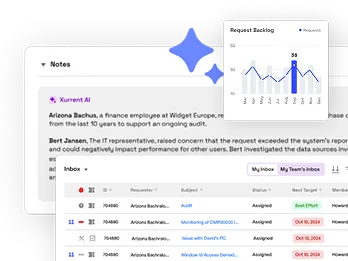
Unifiy IT, HR, Facilities, Finance, and more on a single, AI-powered service platform.
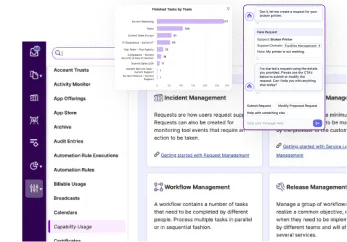
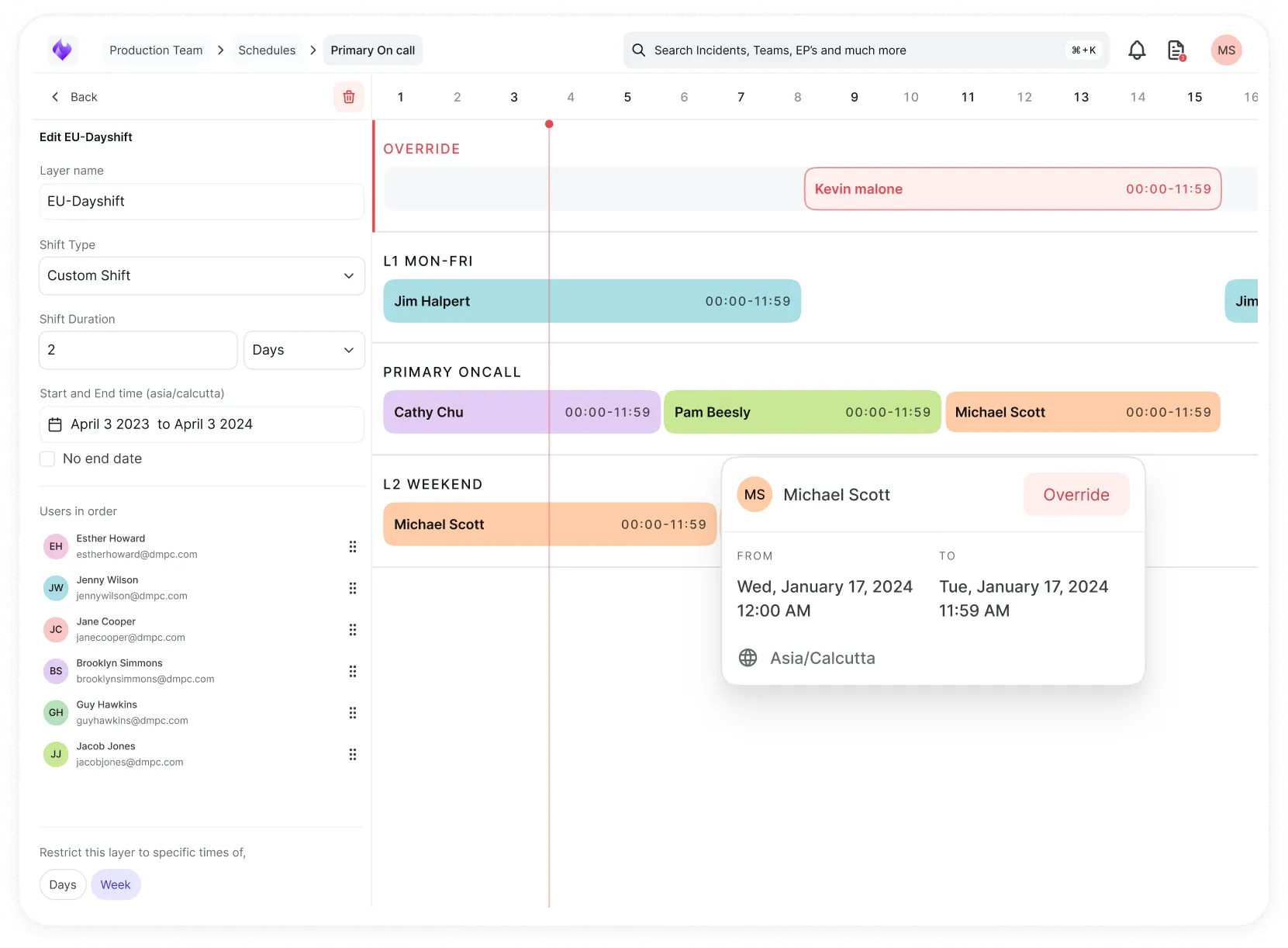
Simplify on-call scheduling, automate escalations, and reduce burnout.
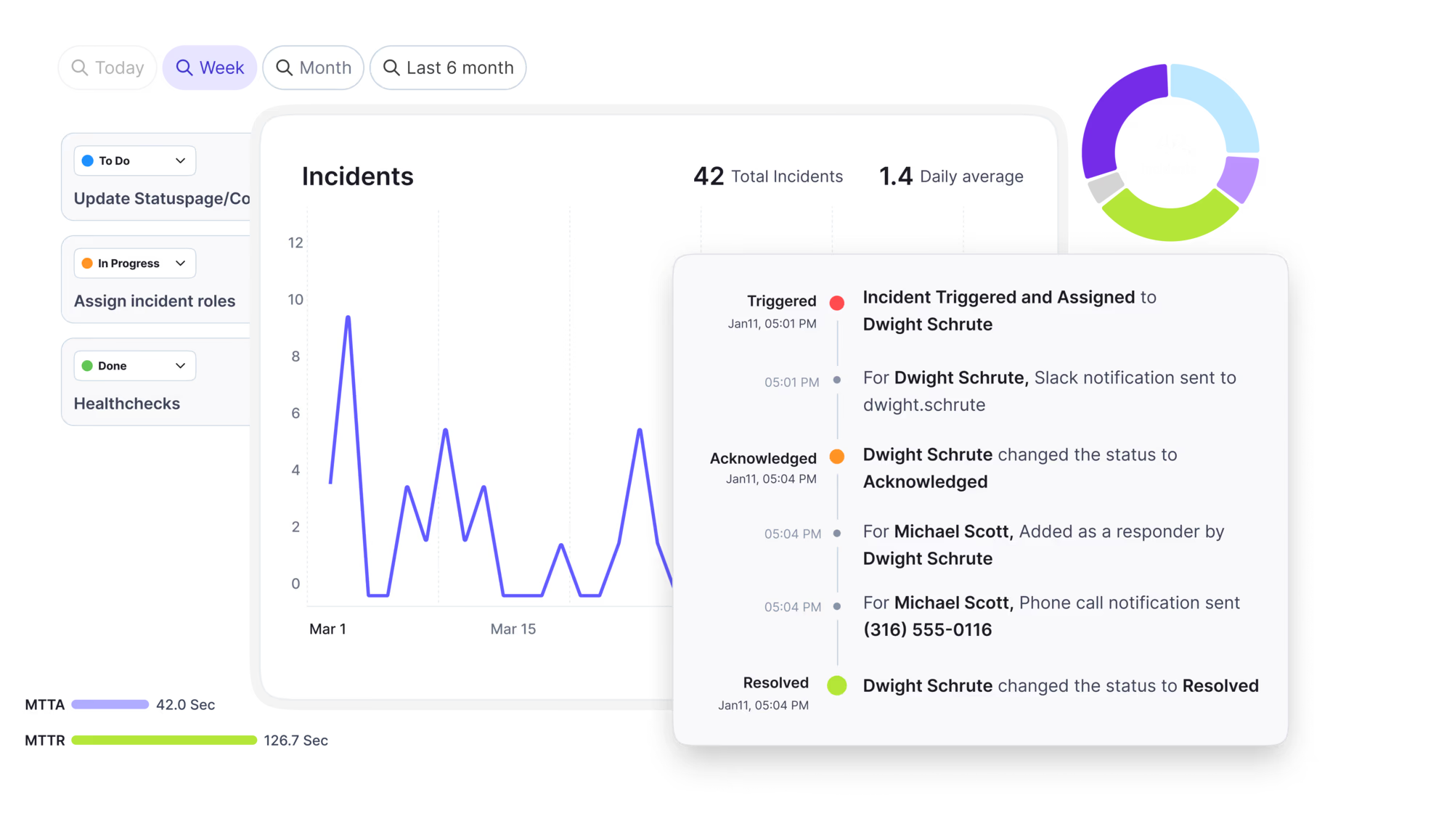
Automate postmortems, AI summaries, and post-incident workflows
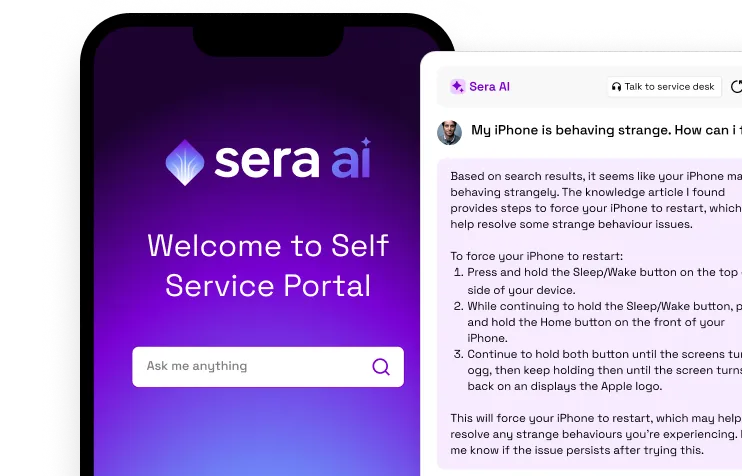
Create, organize, and continuously improve your knowledge base to find the right answers with Sera AI.
We're here to help

The integration with Atlassian Jira using the Xurrent Integration Service is

The integration with Atlassian Jira using the Xurrent Integration Service is

The integration with Atlassian Jira using the Xurrent Integration Service is

The integration with Atlassian Jira using the Xurrent Integration Service is

The integration with Atlassian Jira using the Xurrent Integration Service is

The integration with Atlassian Jira using the Xurrent Integration Service is

The integration with Atlassian Jira using the Xurrent Integration Service is

The integration with Atlassian Jira using the Xurrent Integration Service is
Resolve issues quickly with an AI-powered system that automates ticketing.
Unifiy IT, HR, Facilities, Finance, and more on a single, AI-powered service platform.
Simplify on-call scheduling, automate escalations, and reduce burnout.
Automate postmortems, AI summaries, and post-incident workflows
Create, organize, and continuously improve your knowledge base to find the right answers with Sera AI.
Resolve plant floor and IT issues before they disrupt production.
Stay audit-ready while resolving issues and reducing operational risk.

Detect, respond, and resolve incidents fast to cut downtime and MTTR.

Keep your store online, even during your biggest sales moments.

Protect patient data and resolve issues fast, so care teams stay focused on care.

Standardize service delivery across every store and channel.

We are here to help 24/7

Connect with other Xurrent Users

Get insights and tips on how to get the most out of Xurrent

Apps, APIs, and updates

Xurrent service functionality

Eliminate manual tasks, optimize workflows, and deliver faster resolutions.
Learn how organizations have reduced downtime, improved 50% MTTA & MTTR, and cut costs with Xurrent IMR.
Discover Xurrent IMR's quick support, bidirectional integrations with Jira and Slack, and more cohesive incident response capabilities compared to Opsgenie.
Understand why users value Xurrent IMR for its intuitive interface, efficient incident alerting, customizable On-call schedules, and escalations.

Sign in with OAuth where your client supports it, or use a Personal Access Token. How to scope and protect either one.
There are two ways to authenticate to the Xurrent MCP server.
Before you start, either way: Sera AI must be enabled on the account the MCP server connects to. If it is not, MCP requests are refused with a 403. An account administrator enables it under Settings, Account Settings, Sera AI.
The Xurrent MCP server publishes OAuth discovery documents, so a client that supports them needs no configuration beyond the endpoint URL. The client finds the authorization server, registers itself, and starts the sign-in flow on its own.
https://acme.xurrent.com, that is acme. The account's display name is not accepted.What this means in practice:
mcp:tools, mcp:resources, and mcp:prompts. You do not configure these; the client asks for them and you approve.Prefer this route where you can. It removes the two most common sources of trouble: a mistyped or wrongly scoped token, and a long-lived secret sitting in a plain text config file.
Use a PAT where OAuth is not an option, or where a shared service identity is what you want.
Create it in a support domain account. This is the recommended setup, because the MCP server then resolves the account for you automatically.
A PAT used with the MCP server needs one scope:
That single scope covers the server's prompts, resources, and tools. What the server can actually read and change in Xurrent is governed separately by the roles of the person the token belongs to, and for a few personal tools it is narrower than those roles. See Available Tools and Capabilities.
The order in which you add the actions does not matter. Xurrent stores a scope's actions in a fixed order regardless of how they were entered, so a token that is missing access is missing the scope itself, not the right sequence.
A PAT that belongs to a support domain account needs no further configuration; the MCP server reads the account from the token.
A Directory Account token also works, but you then have to name the target account yourself by passing it in the X-Xurrent-Account header. The support domain token is recommended because it removes that step.
These concerns are much reduced with OAuth, which issues short-lived tokens and never puts a credential in your hands. That is the stronger reason to prefer it where your client allows.
See Connecting Claude Desktop and Connecting Copilot Studio for client setup, Troubleshooting for connection problems, and Personal Access Token for the PAT record itself.