





Blog
Insights & updates from our experts


Resolve plant floor and IT issues before they disrupt production.

Stay audit-ready while resolving issues and reducing operational risk.
Resolve issues quickly with an AI-powered system that automates ticketing.
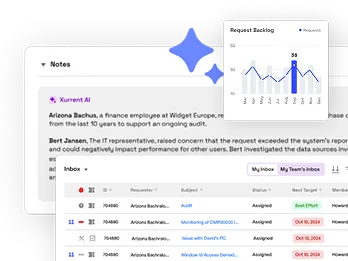
Unifiy IT, HR, Facilities, Finance, and more on a single, AI-powered service platform.
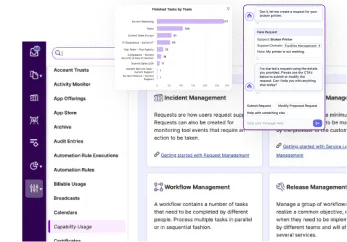
Simplify on-call scheduling, automate escalations, and reduce burnout.

Automate postmortems, AI summaries, and post-incident workflows

Create, organize, and continuously improve your knowledge base to find the right answers with Sera AI.
We're here to help

The integration with Atlassian Jira using the Xurrent Integration Service is

The integration with Atlassian Jira using the Xurrent Integration Service is

The integration with Atlassian Jira using the Xurrent Integration Service is

The integration with Atlassian Jira using the Xurrent Integration Service is

The integration with Atlassian Jira using the Xurrent Integration Service is

The integration with Atlassian Jira using the Xurrent Integration Service is

The integration with Atlassian Jira using the Xurrent Integration Service is

The integration with Atlassian Jira using the Xurrent Integration Service is
Resolve issues quickly with an AI-powered system that automates ticketing.
Unifiy IT, HR, Facilities, Finance, and more on a single, AI-powered service platform.
Simplify on-call scheduling, automate escalations, and reduce burnout.
Automate postmortems, AI summaries, and post-incident workflows
Create, organize, and continuously improve your knowledge base to find the right answers with Sera AI.
Resolve plant floor and IT issues before they disrupt production.
Stay audit-ready while resolving issues and reducing operational risk.

Detect, respond, and resolve incidents fast to cut downtime and MTTR.

Keep your store online, even during your biggest sales moments.

Protect patient data and resolve issues fast, so care teams stay focused on care.

Standardize service delivery across every store and channel.

We are here to help 24/7

Connect with other Xurrent Users

Get insights and tips on how to get the most out of Xurrent

Apps, APIs, and updates

Xurrent service functionality

Eliminate manual tasks, optimize workflows, and deliver faster resolutions.
Learn how organizations have reduced downtime, improved 50% MTTA & MTTR, and cut costs with Xurrent IMR.
Discover Xurrent IMR's quick support, bidirectional integrations with Jira and Slack, and more cohesive incident response capabilities compared to Opsgenie.
Understand why users value Xurrent IMR for its intuitive interface, efficient incident alerting, customizable On-call schedules, and escalations.

Configure a Copilot Studio agent to use the Xurrent MCP server, signing in with OAuth or using a Personal Access Token.
The Xurrent MCP server can be added to a Copilot Studio agent as a custom MCP tool, giving the agent access to Xurrent's tools. There are two ways to authenticate it.
403.The Xurrent MCP server is hosted per region. The Global region has no region segment; every other region inserts its code. Production Global uses .com, Demo uses -demo.com, and QA uses .qa.
| Instance | Region |
|---|---|
https://mcp.xurrent.com/mcp | Global |
https://mcp.au.xurrent.com/mcp | Australia |
https://mcp.uk.xurrent.com/mcp | United Kingdom |
https://mcp.ch.xurrent.com/mcp | Switzerland |
https://mcp.us.xurrent.com/mcp | United States |
Demo Global is https://mcp.xurrent-demo.com/mcp and QA Global is https://mcp.xurrent.qa/mcp. For a non-Global region, insert the region code the same way, for example https://mcp.ch.xurrent.qa/mcp.
Copilot Studio supports the Streamable transport, which is what these endpoints serve.
Users of the agent sign in to Xurrent when they first use it, and the agent then acts as each of them individually, with their own roles and permissions. Nothing long-lived is stored in the agent's configuration.
Use this where you want the agent to act as one service identity rather than as each user, or where the OAuth route is not available to you.
Authorization.Bearer YOUR_PAT_HERE — the word Bearer, a space, then the token.Everyone using the agent shares this identity, so the Xurrent audit trail attributes every action to the token's owner rather than to the person who asked. Prefer OAuth where that distinction matters.
If the scope on your token is wrong, every tool call fails with a 403 even when you hold admin rights. The token needs one scope:
Make sure you click Add Scope so the scope is actually saved to the token. A scope left unsaved in the form is the most common cause of a token that authenticates but cannot call anything.
The order in which you add the actions makes no difference. Xurrent stores a scope's actions in a fixed order regardless of how they were entered, so there is no need to regenerate a token that already has the right scope.
Ask your agent: "What are my open requests in Xurrent?" The agent should call the appropriate Xurrent tool and return results.
Seeing the tools listed only confirms the connection reached the server. A real query is what confirms the credential is authorized.
If you set up the Xurrent MCP tool with the wrong authentication type and want to change it:
This is typically faster than editing a misconfigured tool in place.
MCP servers in Copilot Studio connect through Power Platform connectors, so any data policy governing Power Platform connectors also governs the agent's access to Xurrent. Check with whoever administers your Power Platform environment if the tool is blocked.
See MCP Authentication for both credential routes, Available Tools and Capabilities for what the agent can do, and Troubleshooting for 403 errors and missing tools.


.webp)
.webp)
.webp)