





Blog
Insights & updates from our experts


Resolve plant floor and IT issues before they disrupt production.

Stay audit-ready while resolving issues and reducing operational risk.
Resolve issues quickly with an AI-powered system that automates ticketing.
Unifiy IT, HR, Facilities, Finance, and more on a single, AI-powered service platform.
Simplify on-call scheduling, automate escalations, and reduce burnout.
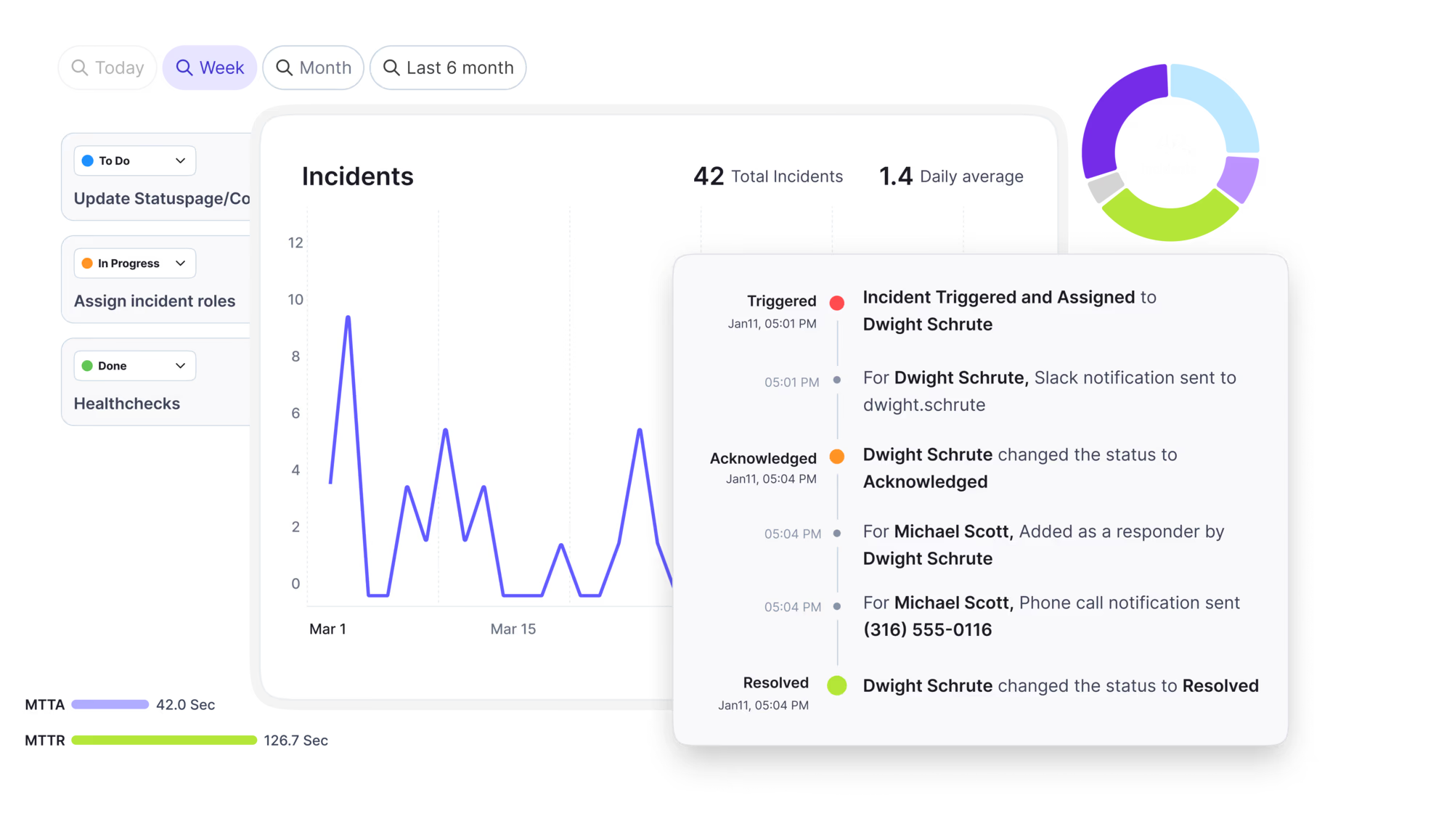
Automate postmortems, AI summaries, and post-incident workflows
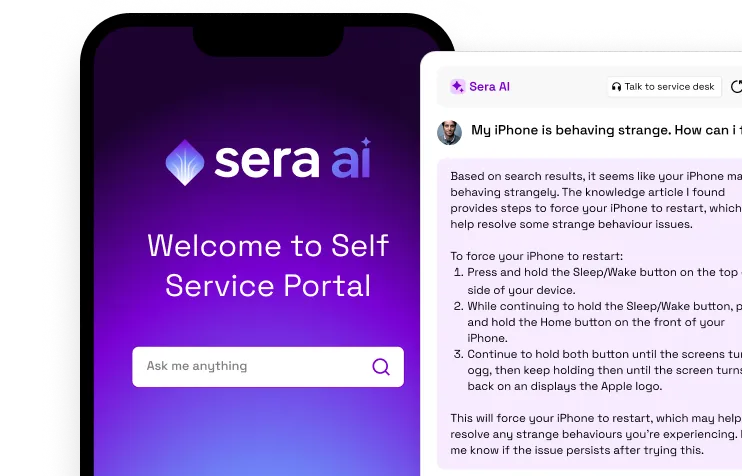
Create, organize, and continuously improve your knowledge base to find the right answers with Sera AI.
We're here to help

The integration with Atlassian Jira using the Xurrent Integration Service is

The integration with Atlassian Jira using the Xurrent Integration Service is

The integration with Atlassian Jira using the Xurrent Integration Service is

The integration with Atlassian Jira using the Xurrent Integration Service is

The integration with Atlassian Jira using the Xurrent Integration Service is

The integration with Atlassian Jira using the Xurrent Integration Service is

The integration with Atlassian Jira using the Xurrent Integration Service is

The integration with Atlassian Jira using the Xurrent Integration Service is
Resolve issues quickly with an AI-powered system that automates ticketing.
Unifiy IT, HR, Facilities, Finance, and more on a single, AI-powered service platform.
Simplify on-call scheduling, automate escalations, and reduce burnout.
Automate postmortems, AI summaries, and post-incident workflows
Create, organize, and continuously improve your knowledge base to find the right answers with Sera AI.
Resolve plant floor and IT issues before they disrupt production.
Stay audit-ready while resolving issues and reducing operational risk.

Detect, respond, and resolve incidents fast to cut downtime and MTTR.

Keep your store online, even during your biggest sales moments.

Protect patient data and resolve issues fast, so care teams stay focused on care.

Standardize service delivery across every store and channel.

We are here to help 24/7

Connect with other Xurrent Users

Get insights and tips on how to get the most out of Xurrent

Apps, APIs, and updates

Xurrent service functionality

Eliminate manual tasks, optimize workflows, and deliver faster resolutions.
Learn how organizations have reduced downtime, improved 50% MTTA & MTTR, and cut costs with Xurrent IMR.
Discover Xurrent IMR's quick support, bidirectional integrations with Jira and Slack, and more cohesive incident response capabilities compared to Opsgenie.
Understand why users value Xurrent IMR for its intuitive interface, efficient incident alerting, customizable On-call schedules, and escalations.

Resolve Xurrent MCP connection issues, from sign-in and authentication errors to Node version problems with the mcp-remote bridge.
Start by identifying which kind of connection you have, because the failures are different.
Every tool call returns a 403. Two causes account for almost all of these.
X-Xurrent-Account header.The scope is missing or incomplete. A PAT needs the MCP scope with Tools, Resources, and Prompts all selected. Check that the scope was actually saved to the token, which means clicking Add Scope in the form. The order in which the actions were added is irrelevant, so there is no need to regenerate a token that already carries the right scope.
The sign-in window opens but never completes. Check that pop-ups are not blocked, and that any corporate proxy is not intercepting the redirect back to your client. If your account uses single sign-on, confirm you can sign in to Xurrent normally in a browser first.
It worked and now asks you to sign in again. Access is short-lived and refreshed automatically, so a repeated prompt usually means the session was ended deliberately, by you or an administrator. Signing in again restores it.
A 401 with the bridge. Verify the Authorization header value starts with Bearer including the trailing space, and that the token has not been disabled. Check under My Profile, then Personal Access Tokens. Note that Personal Access Tokens do not expire on their own, so a token that stopped working was disabled rather than aged out.
This covers no tools at all. If tools appear but a call fails with a 403, see the section above instead.
Bear in mind the tool list varies by account and by your roles, so a specific tool being absent is not necessarily a fault. See Available Tools and Capabilities.
Likely a network or proxy issue. The MCP connection is long-lived, and proxies that terminate idle connections after roughly 30 seconds will break it. If you are behind a corporate proxy or VPN, allowlist your regional MCP endpoint and confirm long-lived HTTPS connections are not being dropped.
The Xurrent MCP server enforces rate limits to protect platform stability. Heavy use across many concurrent users may hit them. If you hit limits regularly, contact your CSM to discuss your use case and expected volume.
Everything in this section applies only to the mcp-remote bridge. If you signed in with OAuth, none of it is relevant. Switching to connector sign-in removes this whole class of problem.
"Failed to spawn process: No such file or directory"
Claude Desktop cannot locate the npx binary, because Node is not installed or was installed via nvm or Homebrew on a path Claude Desktop does not inherit.
node -v (must be 20.18.1 or higher).which npx"command": "npx" with that full path, for example "command": "/Users/<you>/.nvm/versions/node/v22.22.3/bin/npx"."ReferenceError: File is not defined"
Node.js is below 20.18.1, which mcp-remote requires. Install Node 22 via nvm:
nvm install 22
nvm alias default 22
Then get the absolute path with which npx and use it as the command value, since Claude Desktop does not inherit your shell's nvm environment. Clear the stale cache with rm -rf ~/.npm/_npx and relaunch.
The log shows an old Node version at the bottom
The old version is still first on PATH. Uninstall it with nvm uninstall <old-version>, clear the cache with rm -rf ~/.npm/_npx, and relaunch.
Config changes do not take effect
Closing the window does not restart the app, and the config is only re-read on a full restart. On macOS use Cmd+Q or Claude, then Quit Claude. On Windows, right-click the system tray icon and select Quit.
"Server transport closed unexpectedly"
A generic message meaning the process exited. Look further up the log for the real error. Common causes are a Node version mismatch, a stale npx cache, or a malformed Authorization header such as a missing Bearer prefix or stray whitespace.
Claude Desktop on macOS:
~/Library/Logs/Claude/mcp-server-<your-server-key>.logClaude Desktop on Windows:
%APPDATA%\Claude\logs\mcp-server-<your-server-key>.logThe filename matches the key you used in your config. For the QA setup (xurrent-mcp-qa), the file is mcp-server-xurrent-mcp-qa.log.
Before sharing logs. If you use a PAT, scrub it first. It appears in plain text in the arguments of every log entry. Replace it with "Bearer REDACTED" before pasting into a ticket, a Slack message, or a document.
Contact your CSM or open a request in Xurrent. Include:



.webp)
.webp)