



Blog
Insights & updates from our experts


Resolve plant floor and IT issues before they disrupt production.

Stay audit-ready while resolving issues and reducing operational risk.
Resolve issues quickly with an AI-powered system that automates ticketing.
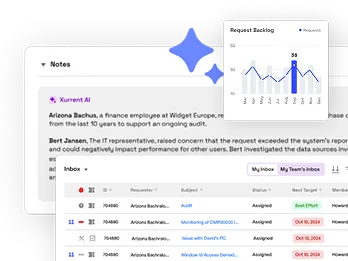
Unifiy IT, HR, Facilities, Finance, and more on a single, AI-powered service platform.
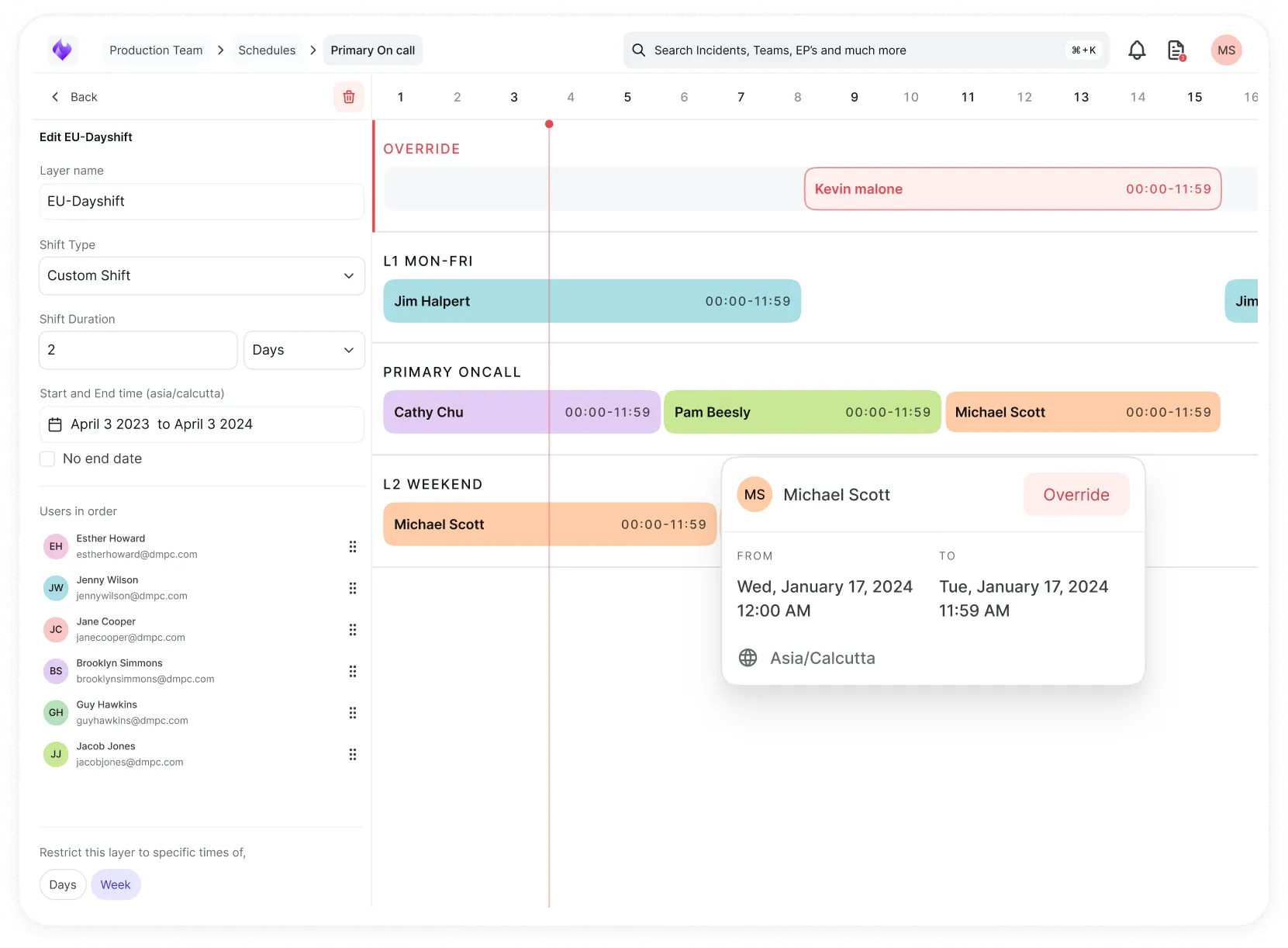
Simplify on-call scheduling, automate escalations, and reduce burnout.
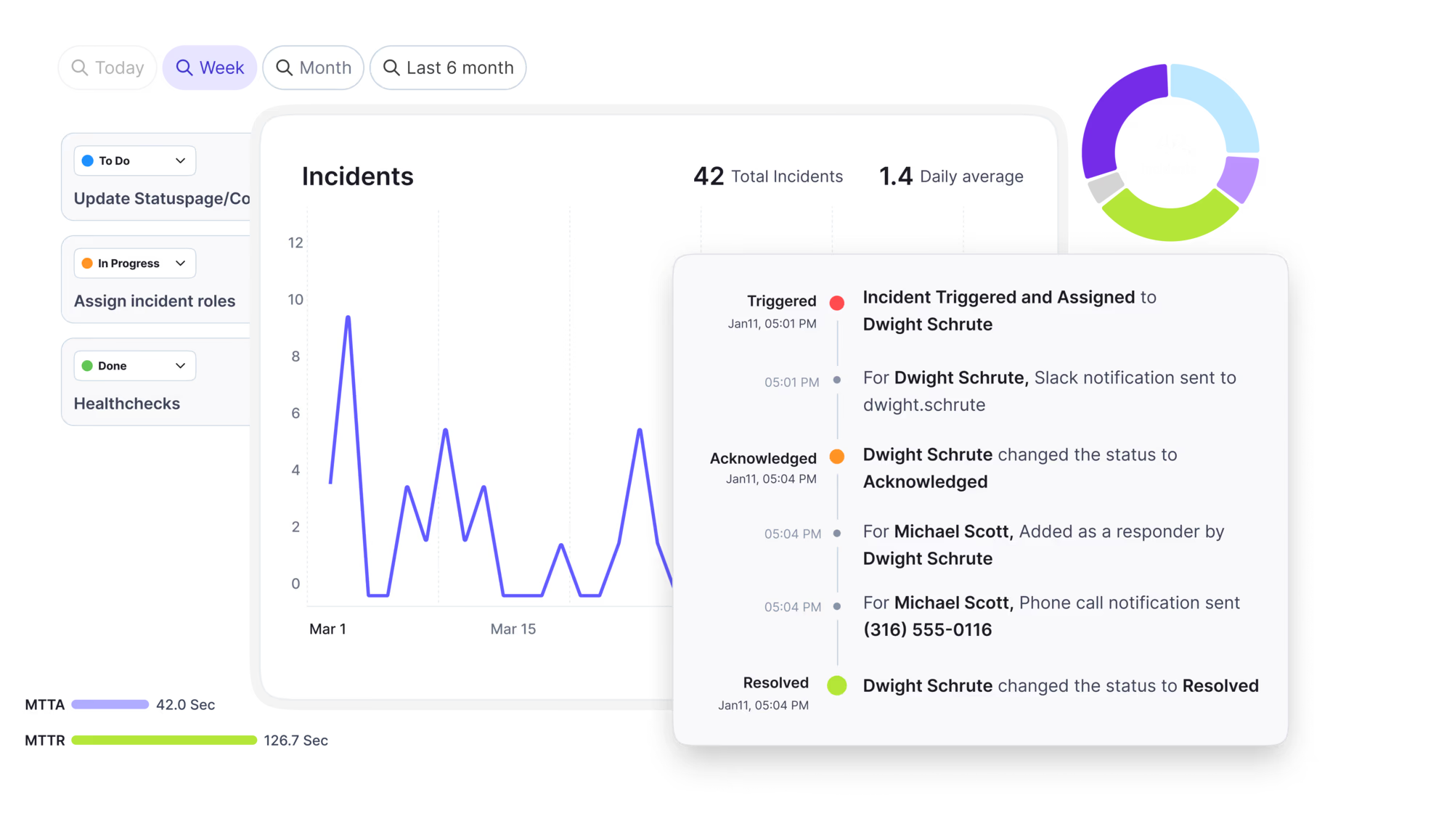
Automate postmortems, AI summaries, and post-incident workflows
Create, organize, and continuously improve your knowledge base to find the right answers with Sera AI.
We're here to help

The integration with Atlassian Jira using the Xurrent Integration Service is

The integration with Atlassian Jira using the Xurrent Integration Service is

The integration with Atlassian Jira using the Xurrent Integration Service is

The integration with Atlassian Jira using the Xurrent Integration Service is

The integration with Atlassian Jira using the Xurrent Integration Service is

The integration with Atlassian Jira using the Xurrent Integration Service is

The integration with Atlassian Jira using the Xurrent Integration Service is

The integration with Atlassian Jira using the Xurrent Integration Service is
Resolve issues quickly with an AI-powered system that automates ticketing.
Unifiy IT, HR, Facilities, Finance, and more on a single, AI-powered service platform.
Simplify on-call scheduling, automate escalations, and reduce burnout.
Automate postmortems, AI summaries, and post-incident workflows
Create, organize, and continuously improve your knowledge base to find the right answers with Sera AI.
Resolve plant floor and IT issues before they disrupt production.
Stay audit-ready while resolving issues and reducing operational risk.

Detect, respond, and resolve incidents fast to cut downtime and MTTR.

Keep your store online, even during your biggest sales moments.

Protect patient data and resolve issues fast, so care teams stay focused on care.

Standardize service delivery across every store and channel.

We are here to help 24/7

Connect with other Xurrent Users

Get insights and tips on how to get the most out of Xurrent

Apps, APIs, and updates

Xurrent service functionality

Eliminate manual tasks, optimize workflows, and deliver faster resolutions.
Learn how organizations have reduced downtime, improved 50% MTTA & MTTR, and cut costs with Xurrent IMR.
Discover Xurrent IMR's quick support, bidirectional integrations with Jira and Slack, and more cohesive incident response capabilities compared to Opsgenie.
Understand why users value Xurrent IMR for its intuitive interface, efficient incident alerting, customizable On-call schedules, and escalations.
This post is a living document, updated throughout the month as new product releases roll out. Each update listed here is released to our QA environment on the date shown and typically promoted to production the following week. Along the way, customers can review changes, share feedback, and help shape what ships next. Xurrent delivers product updates on a weekly cadence to keep enhancements moving continuously.
An account that reaches Xurrent on a domain it owns can now present its own identity on the pages users pass through before they sign in. Three things are configurable: the logo, a link to the account's own terms, and the colors of the page. Previously, those pages carried the Xurrent logo, the Xurrent brand gradient, and a footer with the Xurrent copyright and terms link.

The logo is the Organization logo the account already uploads. It replaces the Xurrent logo on the sign-in page, the two-factor code entry page, the security key verification page, the password recovery and password reset pages, the first-time welcome page and the access verification page. Clicking it opens the account's “Website URL” when one is set, and xurrent.com when it is not. No new upload or setting is needed.
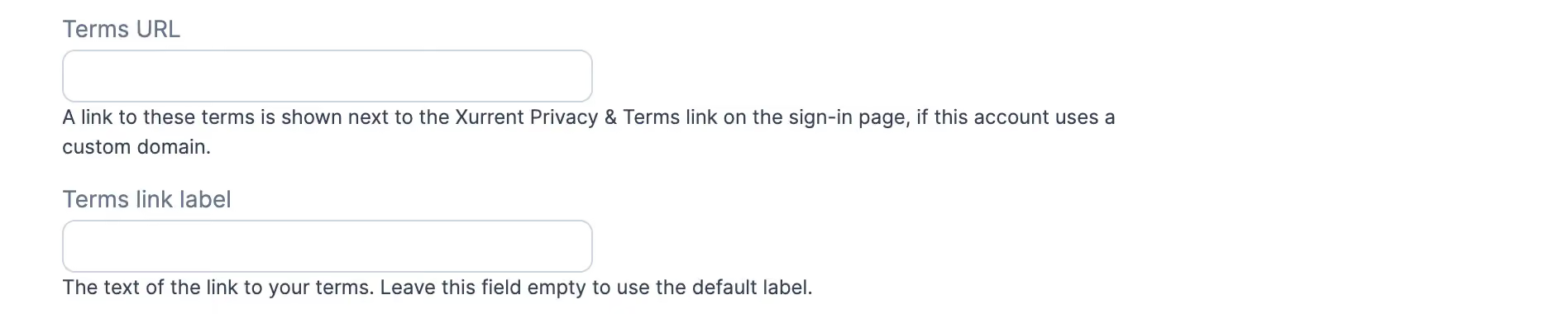
The terms link is new on the Legal & Compliance settings page, as “Terms URL” with an optional “Terms link label”. When it is set, the shared footer shows a link to those terms next to the Xurrent privacy and terms link. The account link never replaces the Xurrent link, and the Xurrent copyright line stays on every page. The terms link reaches a wider set of pages than the logo: the pages listed above plus the single sign-on pages, the OAuth consent page, the MCP consent page, the click-through agreement page, the account privacy statement page, and the token entry gate in front of public dashboards and public change calendars.
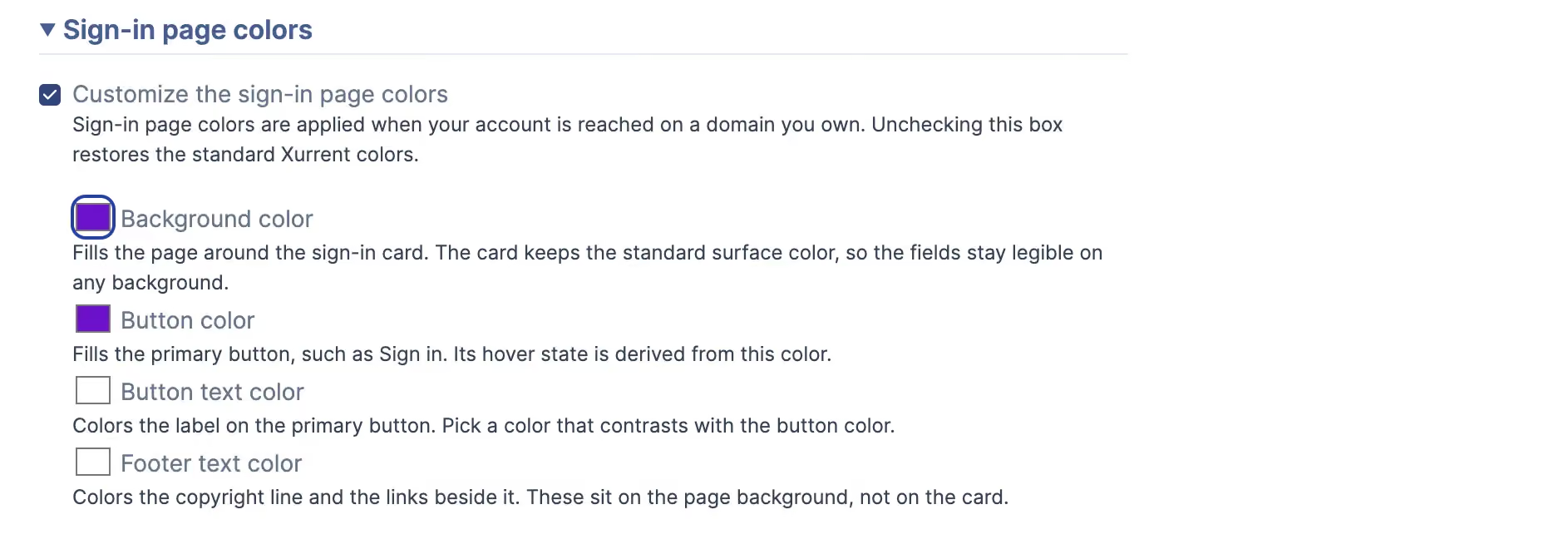
The colors are four new settings in a “Sign-in page colors” section on the Account Design page, opened by the “Customize the sign-in page colors” checkbox: “Background color”, “Button color”, “Button text color” and “Footer text color”. The background color fills the area behind the sign-in card. The card itself keeps the standard surface, so no combination of settings can make the fields where a user types their password hard to read. Each value falls back independently to the standard Xurrent color when it is not set, and the same values apply in light and dark color mode. The Self Service portal colors are separate settings and neither side copies the other.
Branding applies only on a domain the account owns. An account reached on a xurrent.com host, including its own sitename host, sees the standard Xurrent page, so the brand on the page always matches the address in the browser.
Page structure and field positions do not change, so the sign-in page stays recognizable as the same page across every account. An account that configures none of this sees no change.
Self Service users who can submit requests on behalf of someone else can now start a request for another person and hand it off for them to finish. Access follows the "Allow requests to be submitted on behalf of someone else" setting on your Self Service settings page, so no role assignment is needed. When the setting is on, all Self Service users who belong to an organization can use it. Guests and self-registered users can't.
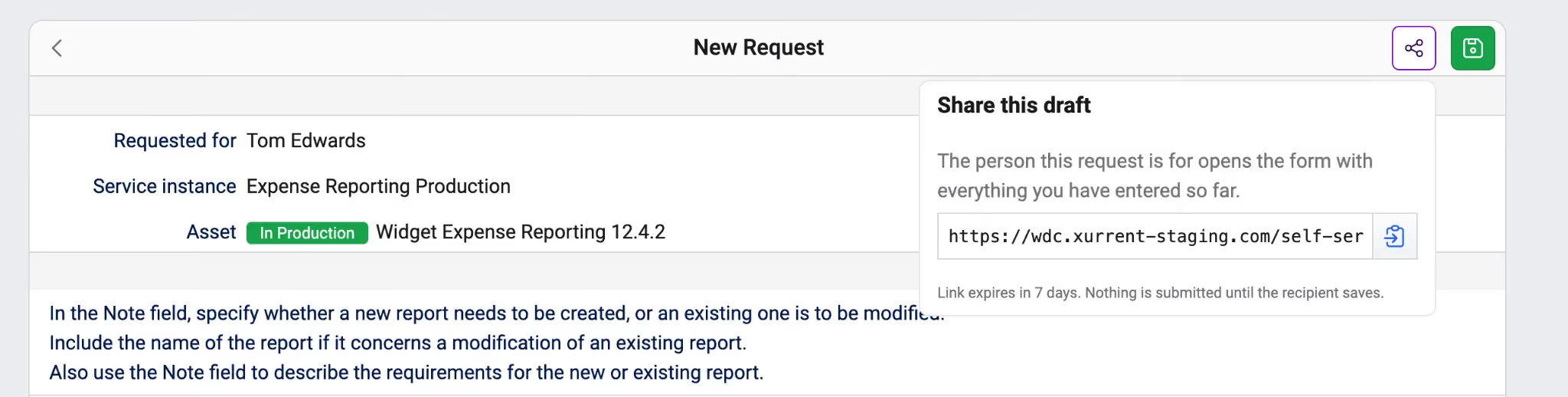
The person the request is for opens the link and sees the form as it was left, adds what only they know, and submits. "Requested for" and "Requested by" are then both that person, and the SLA coverage and the service catalog are theirs. Creating the link submits nothing.
The person the draft was created for can always open it. Anyone else can open it only if they may submit on behalf of that person; others see the standard access-denied page. A draft expires seven days after it is created, and its link then shows the standard page for a record that is not available. Once a request has been submitted from a draft, the link opens that request instead of a new form.
Self Service users can now act on several items at once in the table view of "My Inbox" and "My Teams Inbox". Approvers who handle many approvals with the same decision no longer need to open each one separately.
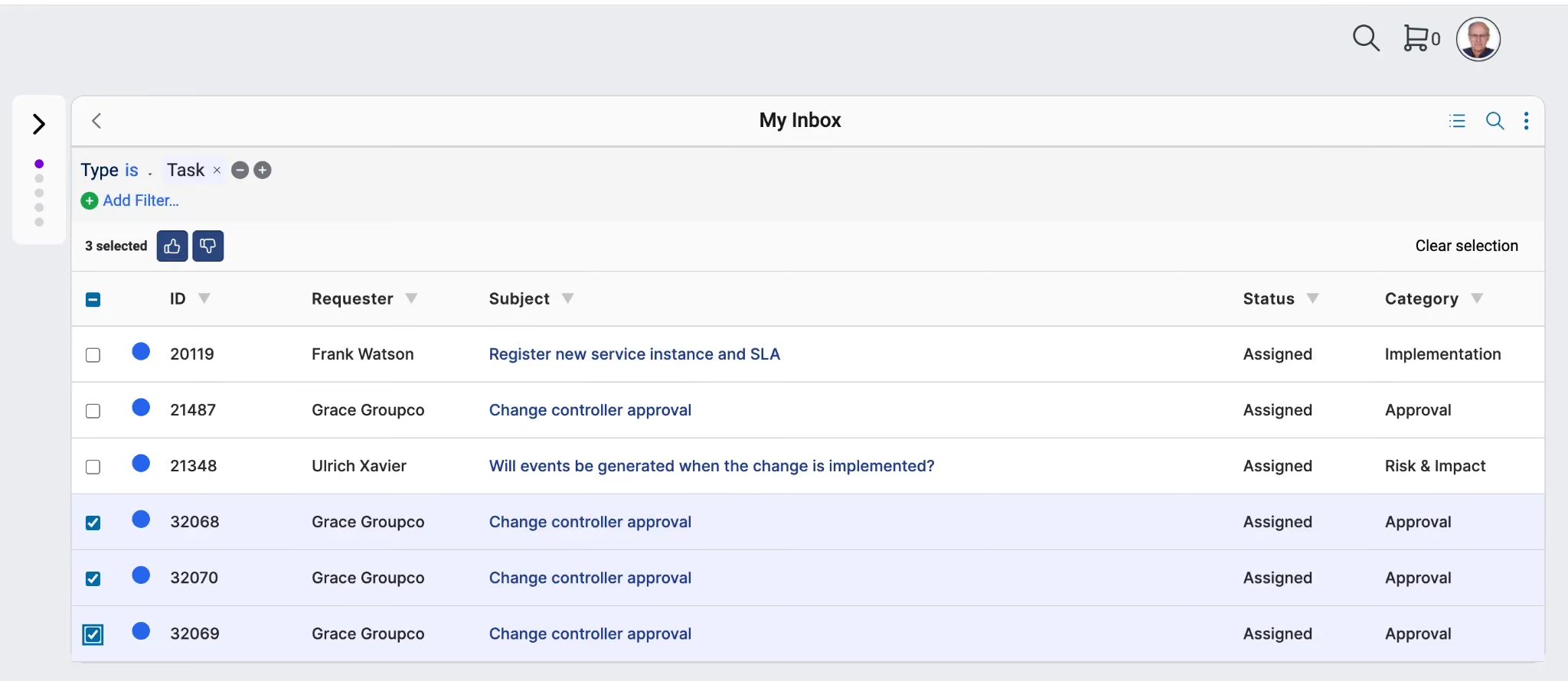
Each row in the table view now has a checkbox. Select one or more rows and a bar appears above the filters showing how many items you selected, the actions available, and an option to clear the selection.
The available actions are "Approve", "Reject", "Accept", "Decline" and "Start". An action appears only when it applies to every selected item. For example, if you select an approval and a request together, no actions appear. "Approve" appears only when the selected approvals share the same note requirement. "Forward" and "Complete" stay available on individual items, since they need a team or completion reason.

You confirm every action before it runs. "Reject" and "Decline" require a note, and "Approve" requires one when the approval is set to "Required on Approval." The action runs in the background, and you receive a notification when it finishes, including a list of any items that were skipped. Sorting, filtering or changing pages clears your selection.
Each item is checked against its own rules as the action runs, so a bulk action can only do what you could do one item at a time.
A project's subject, and a project task's subject and instructions, are now translated for the reader the way a request already is. A project manager authors in whatever language they work in, and colleagues who read another language can follow what the project is and what their task asks of them, with nobody maintaining a second copy of the project.
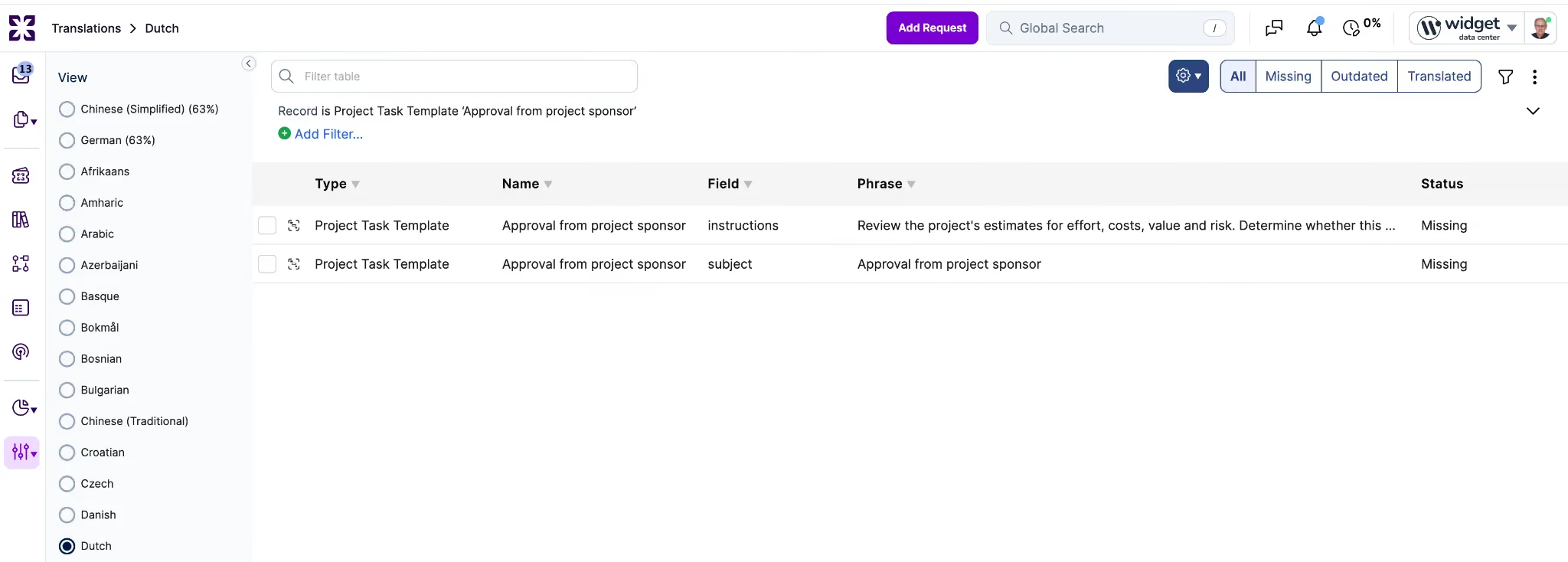
Project templates and project task templates gain manual translation, matching request templates and task templates. An administrator enters each language once in the “Translations” screen and the template shows that text to readers of that language. The templates themselves are not auto-translated.
Where a project task's subject or instructions are unchanged from its template, the reader sees the template's maintained translation for their language when one exists. Edit the task's text and machine translation takes over. Workflow tasks follow the same rule. An account without auto-translation enabled still gets maintained template translations on its project tasks.
Instructions holding a checklist are shown translated only when every translated item pairs with an item in the original. Where they do not pair, the instructions are shown as they were written. Auto-translations stay out of the manual translations view and out of the translation audit trail, as they already do elsewhere.
Typing @ in a note on a request now lists the people already involved in that request first, under their own heading, before you type anything. This group includes the requester, the person the request is for, the assigned member, note authors, and anyone mentioned in those notes. Previously, the picker listed everyone you could mention in alphabetical order, which made finding the right person slow in large accounts.
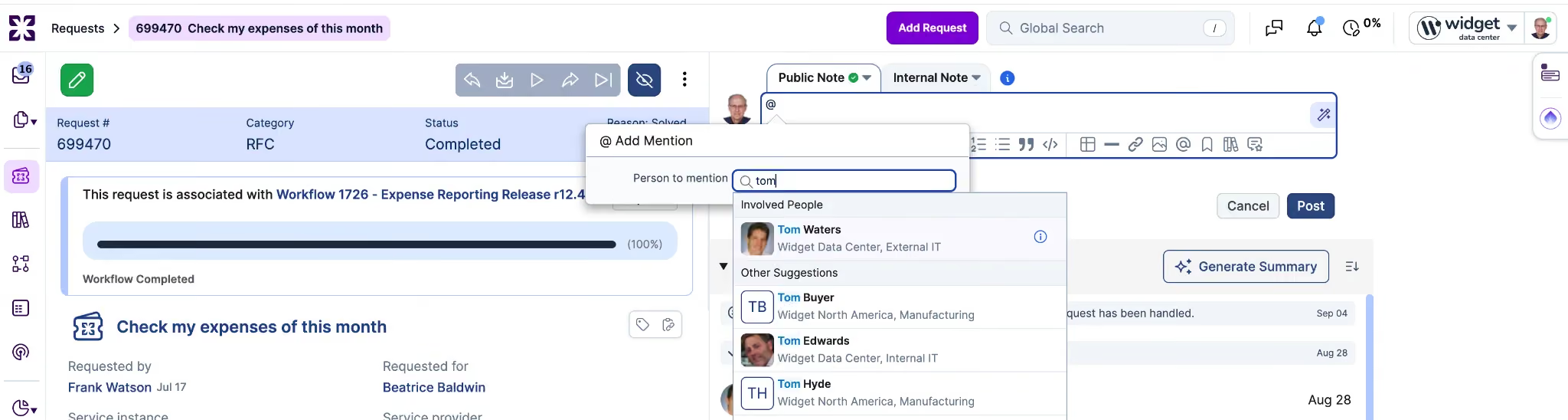
The involved group draws only on notes you can read, so end users who see only public notes won't see specialists who wrote internal notes. In the internal note field, the picker uses the same involved group but still lists only specialists who can receive internal notes. People who can't be mentioned in an internal note, such as the requester, don't appear there.
This change affects ordering only. The picker offers no one who can't already see the request, and the confirmation before mentioning someone from an external organization still applies. Members of the team handling the request aren't added to the involved group. Mention pickers on problems, tasks, workflows, projects and releases are unchanged.
This extends last week’s change, "Internal email recipients and request access in Strong Privacy accounts", to every account. A recipient in "To" or "Cc" on an internal email note now gains access to the request only when they may read that note. Previously, every recipient was recorded as a mention, and a mention grants access.
Either of two conditions is enough. The person holds "Specialist", "Auditor" or "Account Administrator" in the account the internal note is linked to. Or the note's account is an enabled support domain of a directory account, the person holds "Specialist" in one of the request's accounts under that same directory account, and the note's account has Strong Privacy switched off with "Internal notes and internal UI extension fields are visible in other support domains" switched on. The product already uses this rule to decide which internal notes a person sees, so recipient access and internal note visibility stay aligned. Before this change, outside Strong Privacy accounts, a recipient who could not read the internal note gained the request, its full public note history and the ability to post, and an address matching nobody created a person record that picked up the same access.
Nothing else about the email changes. It goes to the same people, a person record is still created or reused for an address that matches nobody, and a reply from a recipient whose person record sits in one of the request's accounts still lands on the request as a note. Recipient validation is unchanged and no new error appears on "To" or "Cc".
The rule applies wherever an internal email note is created: composing one on a request, copying a note to a grouped request, replying to or forwarding one, the automation rule "send email" action, and the API. It is evaluated when the email note is created and not revisited, so an account joining the request later neither gains nor loses access.
Strong Privacy accounts keep the behavior released last week, and public email notes still grant access to every recipient in every account. See Important Messages for what this means for access already granted.
The Workflows module now opens with three tabs. Workflows shows the list you know, with its views, filters, and toolbar unchanged. Calendar opens the change calendar, now at its own address inside the Workflows module. Agenda shows a "Coming soon" placeholder. In Q4, this tab will introduce new functionality for managing change advisory meetings, tasks, and checkpoints.
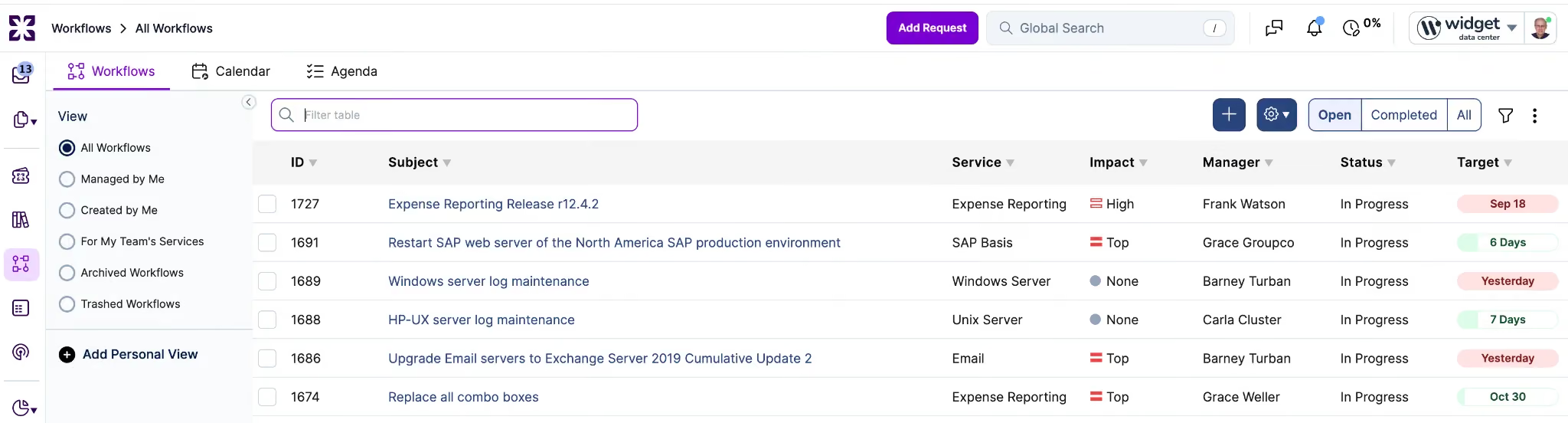
The change calendar moves out of the Analytics module, and its entry under "Changes & Projects" in the Analytics left menu is removed. Links to /analytics/change_calendar, including shared short URLs, redirect to the new address, so existing bookmarks keep working. The "Change Calendar" action on the workflows Gantt chart remains available.
Each tab appears only for users with access to its content. For example, a user whose only role is Financial Manager can open the Workflows module but not the change calendar, and sees the Workflows and Agenda tabs. The URL reflects the selected tab, so users can bookmark and reload it, and the page name in the top left updates to match.
Screen readers now announce the record list as a list of selectable records, and each row announces its name and its position in the set.
The update also makes the list faster to move past with a keyboard. The list is now a single stop in the tab sequence, so one press of Tab moves focus out of it regardless of how many records it holds. The column header row is also a single stop: use the left and right arrow keys to move between headers, and Enter or Space to sort. Previously, every row and every sortable column header was its own tab stop, so moving past a large view took many key presses.
Inside the list, the up and down arrow keys move between records and Enter opens the focused record, as they do today. When you tab away and back, focus returns to the record you left instead of the top of the list. A focus indicator shows when the list has focus and which record is active.
Mouse behavior does not change. Selecting records, multi-selecting with checkboxes, and dragging records all work as before.
The update covers the standard record list, the table view, the to-do list, and the activity list. It does not affect Self Service, which uses a different layout, or the mobile layout.
When Sera AI finds no knowledge article that answers an end user's question, it now takes them straight to filing a request. Sera carries the user's description into the request flow, offers the matching request template, and prepares a request they can submit. Previously, Sera asked whether they wanted to file a request and left them to find the template and describe the problem again.
Matching holds up as users add detail. A longer, more specific description finds the same templates a short one does, so users can describe the problem in their own words and still land on the right template.
Agent Designer now includes six agents: Intake, Triage, Resolution, Closure, Knowledge and Problem Management. Each owns one stage of the request lifecycle and all six are built the same way, so the rules below apply to every one of them.
The six feed each other: an article drafted by the Knowledge Agent from one request and published by a person is the kind of article the Resolution Agent answers a later request from. Agent Designer is available in QA and demo to accounts with Sera AI enabled.
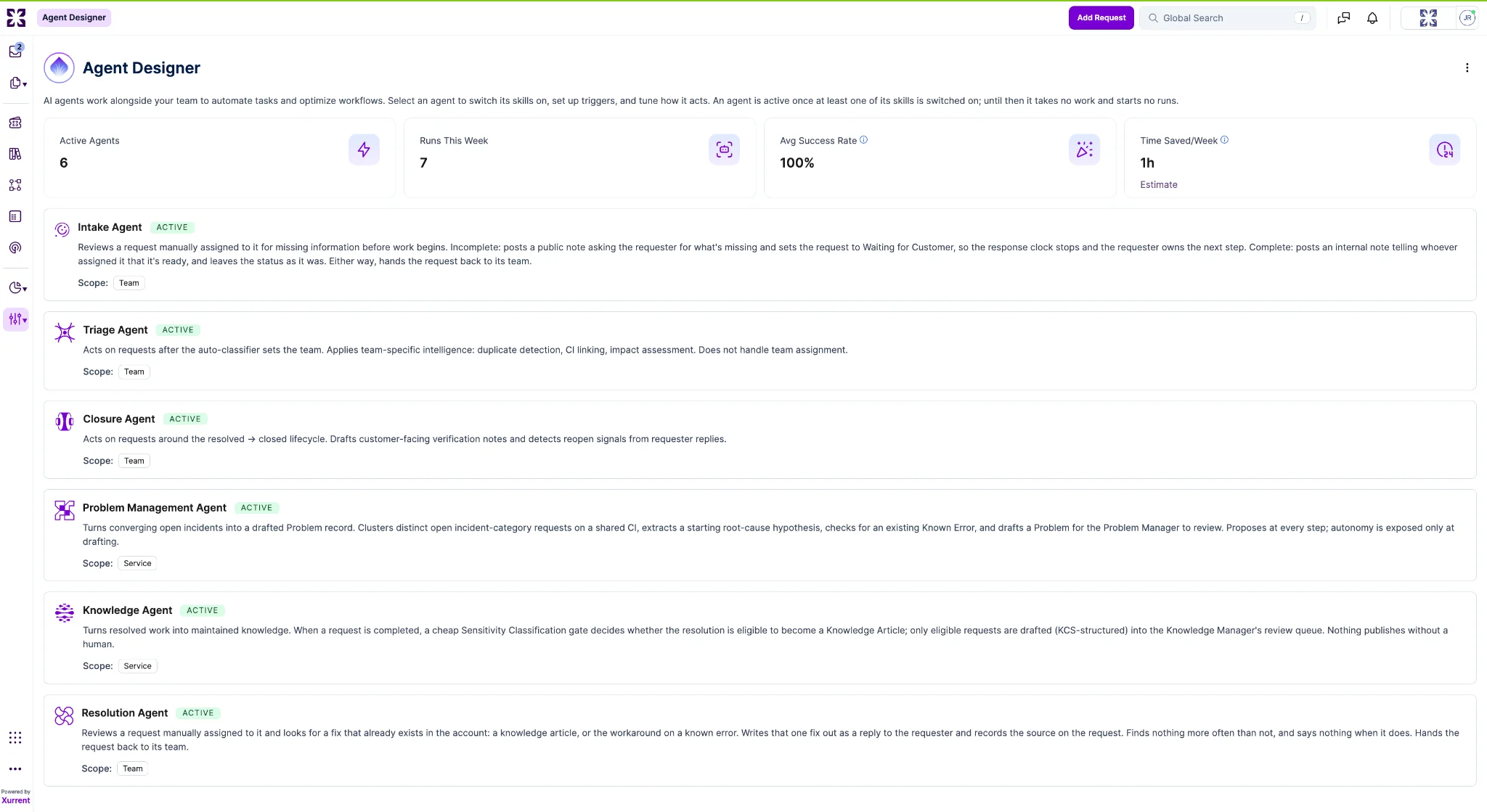
Five of the six are new in this release. The walkthrough below shows each one against the Expense Reporting service on the Widget Data Center demo account.
The Intake Agent reads a newly assigned request and decides whether there is enough in it to work on. Take a request whose entire subject is "Expenses" and whose note reads:
I can't submit my expenses. It keeps giving me an error. Month end is Friday and I'm already late, can someone look at this today.
There is little to act on: no error message, no step it fails at, no expense report named. The Intake Agent posts a note asking the requester for what is missing and moves the request to "Waiting for Customer", so the response clock stops and the request sits with the person who can answer rather than in the team's queue. Where it finds a request complete, it says so in an internal note and assigns the request back to its team.
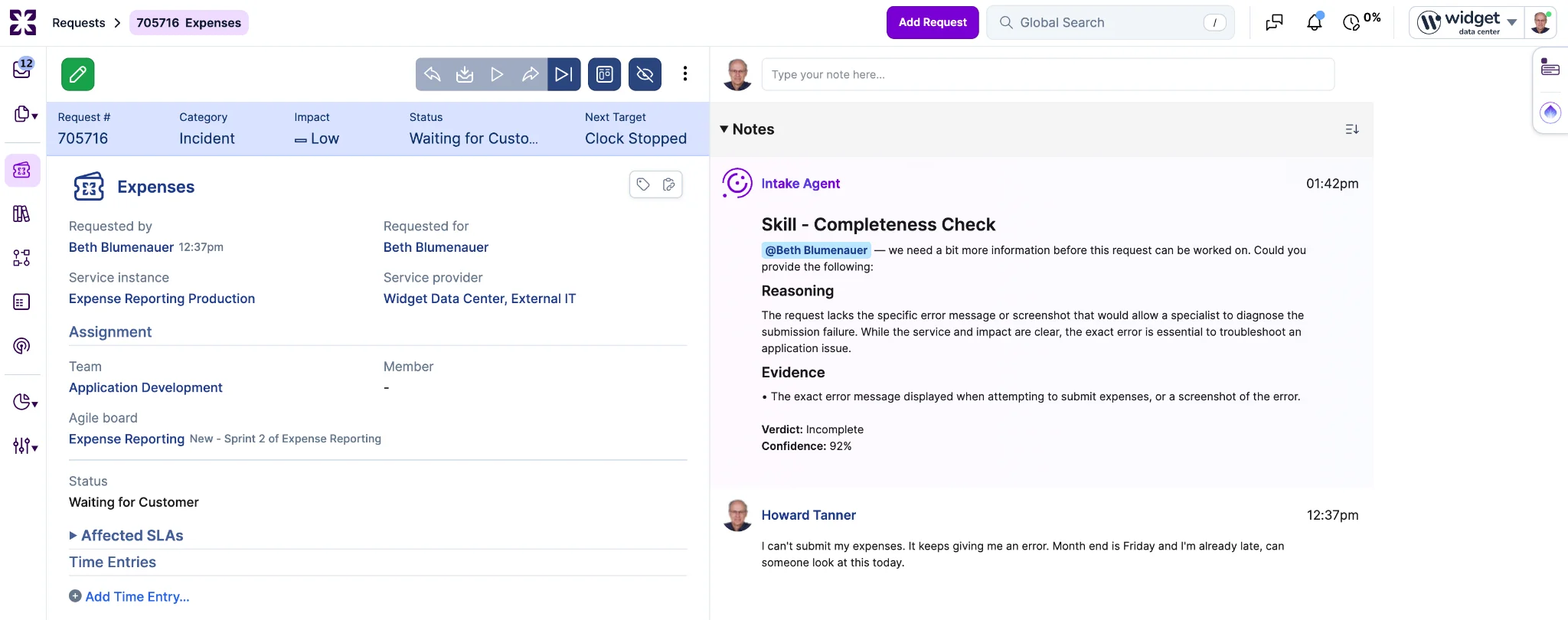
The requester-visible note will be reduced to the ask only, with the agent's reasoning kept as an internal note. That change is in development and expected in next week's release.
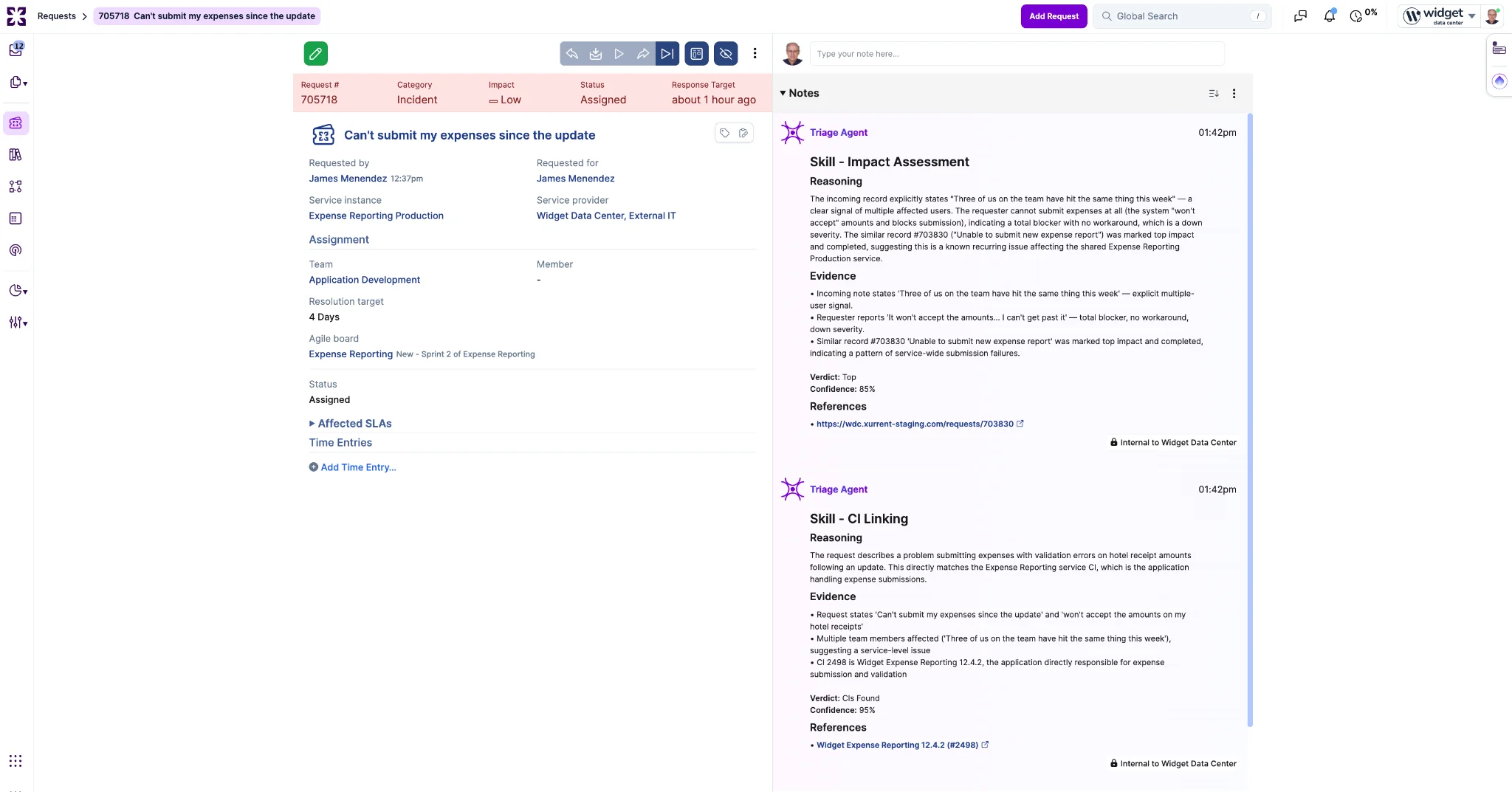
The Triage Agent picks up a request once the auto-classifier has set the team and applies duplicate detection, configuration item linking and impact assessment. It does not assign the team itself. Take a request worded like this:
It won't accept the amounts on my hotel receipts, just says invalid and I can't get past it. Three of us on the team have hit the same thing this week. Nothing changed at our end.
Nothing in it names a system, and it arrived at Low impact. The agent reads "three of us on the team" as several people blocked, notes that the requester has no way past it, and raises the impact. It also links the request to the Expense Reporting configuration item that the wording never mentions. Both judgments are posted as internal notes with the evidence behind them, so the specialist who picks the request up can see what the agent read and disagree with it.
The Resolution Agent answers the requester directly. A specialist assigns it to a request that reads:
I've tried three times. I pick the photo of the hotel bill and the page just sits there, then the report won't submit. Other receipts on the same report went on fine. It's the Barcelona one, which is a photo of two pages.
The account already holds a validated knowledge article, "Expense report will not submit when a receipt attachment is too large", published to end users. The agent finds it and writes the requester a reply in the account's own voice telling them what to do about that particular receipt.
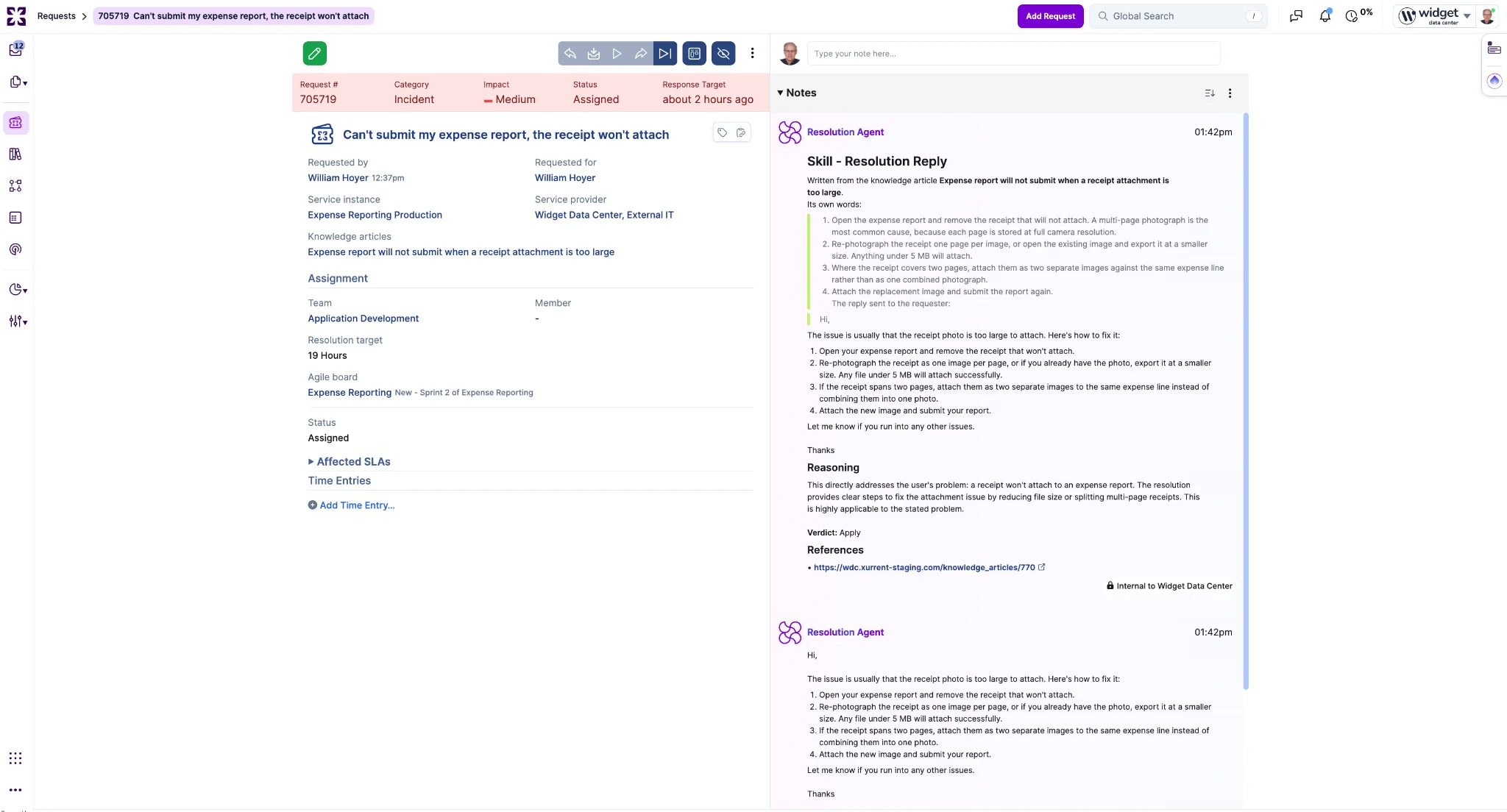
If the Resolution Agent finds no validated resolution step, it hands the request back to the team without taking any further action.
The Closure Agent looks at a request as it is completed and compares the resolution against what was asked for. A mileage claim was refused as over the annual cap when it was not, and the specialist closed it with a note explaining that the cap was measured against the submission date rather than the travel date. That note is written for a colleague. The requester receives this:
Your claim has been cleared. The issue was that the system was evaluating the annual cap against submission date rather than travel date, which caught your September journeys against last year's total. Re-dating those lines to their actual travel dates fixed it. Finance has confirmed your running total is now correct.
Where the resolution and the original request do not line up, the agent tells the specialist in an internal note before the request closes over the gap, and stays quiet when they do. It also watches later replies for a sign that the requester does not consider the matter finished.
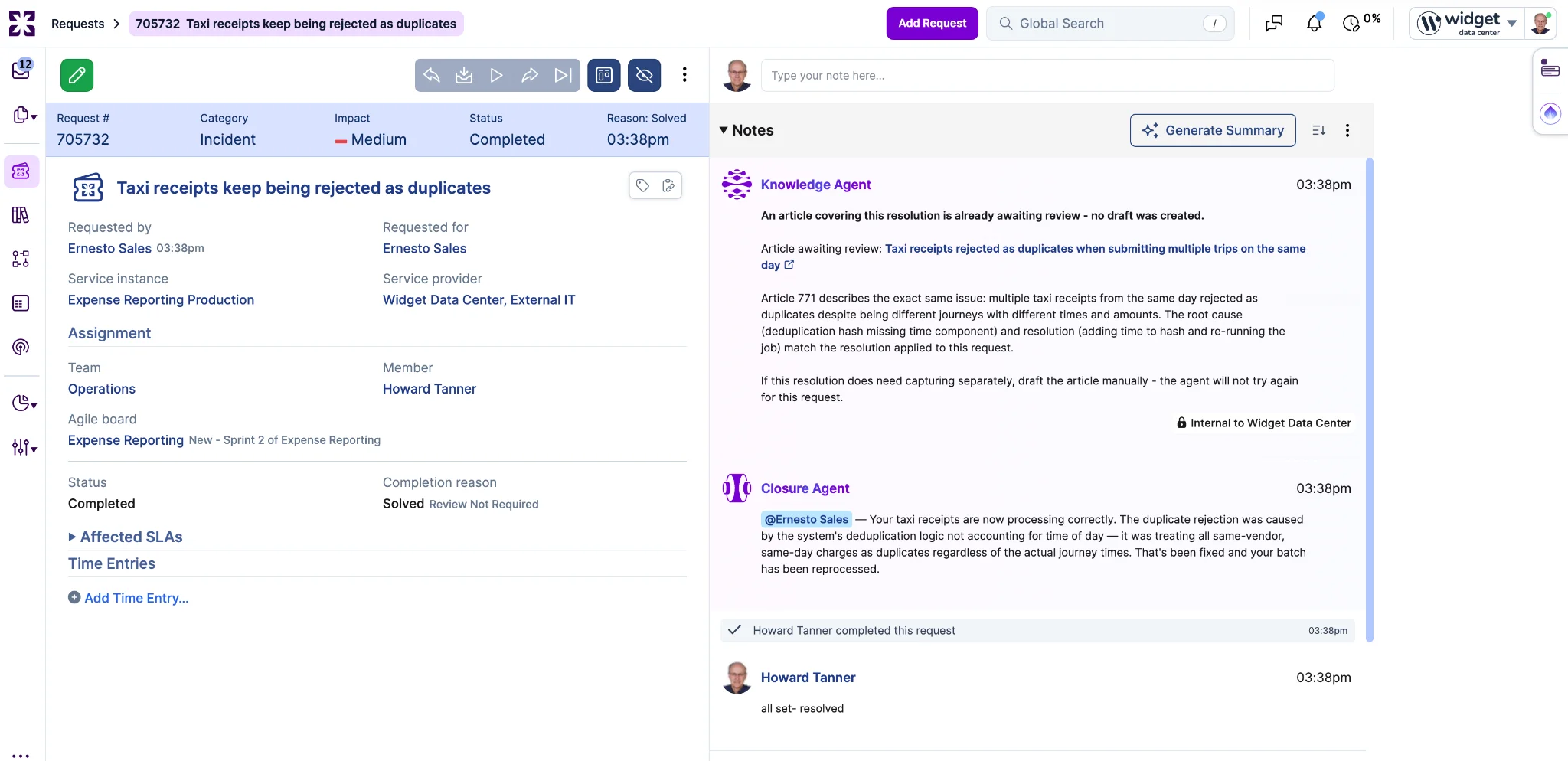
The Knowledge Agent turns resolved work into knowledge others can use. The mileage claim above is a candidate: the cause was general, the fix is repeatable, and nobody had written it down. Not every resolution should become an article, so when a request closes a classification step first decides whether the resolution is reusable and non-sensitive; only then is a structured draft written into the Knowledge Manager's review queue. Nothing publishes without a person. Two weekly maintenance passes look after what is already there: flagging articles past their review date or whose underlying requests have moved on, and surfacing pairs of articles that give conflicting guidance for a Knowledge Manager to settle.

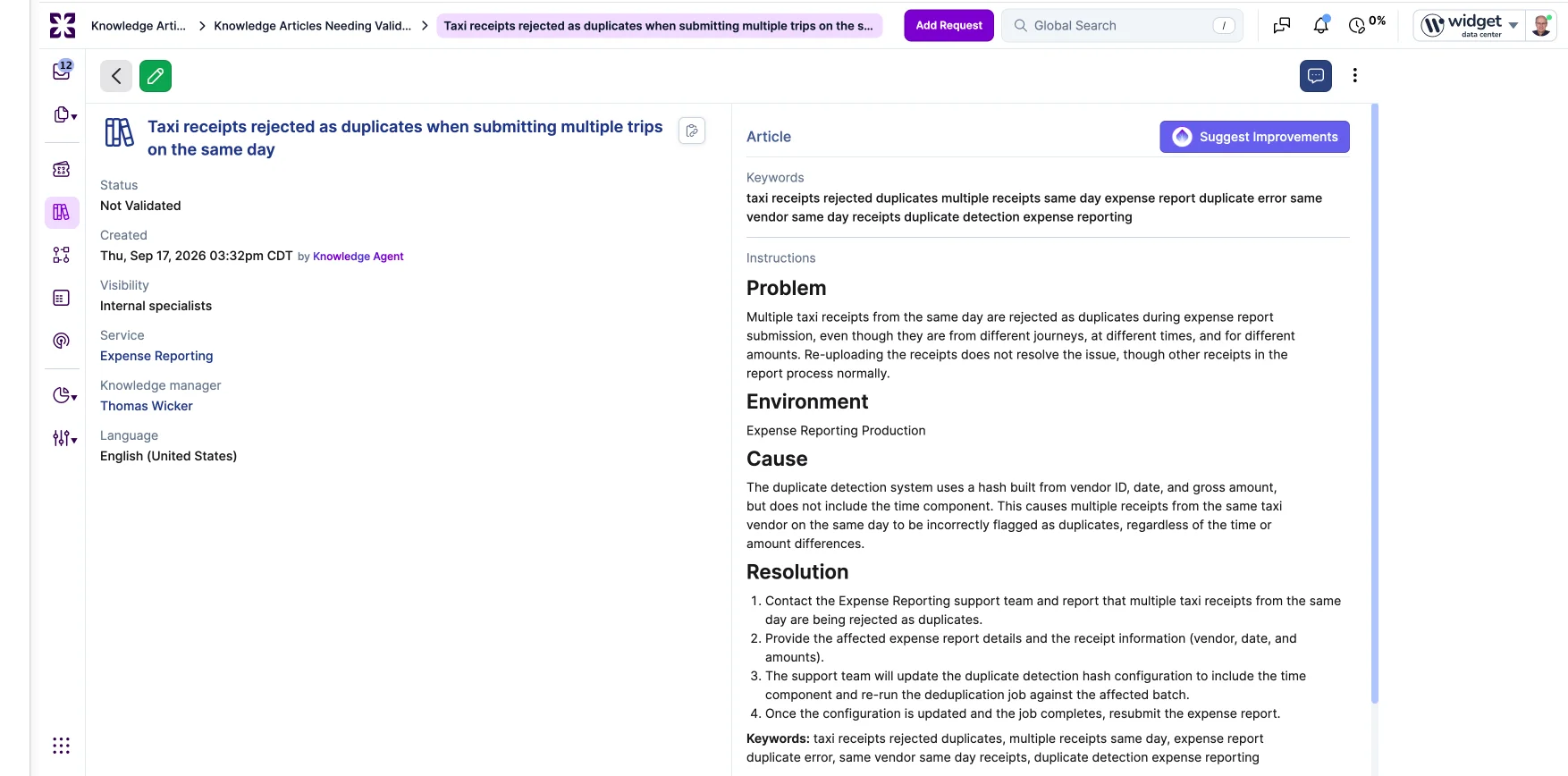
The Problem Management Agent looks across the account's open incidents for a group converging on one configuration item. The two requests the Triage Agent worked above are not alone. Four people have reported the same amount validation fault in different words: one names the number format, one hotel receipts, one a decimal comma, one a folder of unpaid European supplier invoices. Nothing in the wording ties them together. The configuration item does: Widget Expense Reporting 12.4.2, the same one the Triage Agent identified on a single request.
The agent groups the four, works out a starting root cause from the shared configuration item and any recent change touching it, checks whether it is already a known error, and drafts the problem with those incidents linked to it, for the service's Problem Manager to review.
A few additional notes as you are getting started:
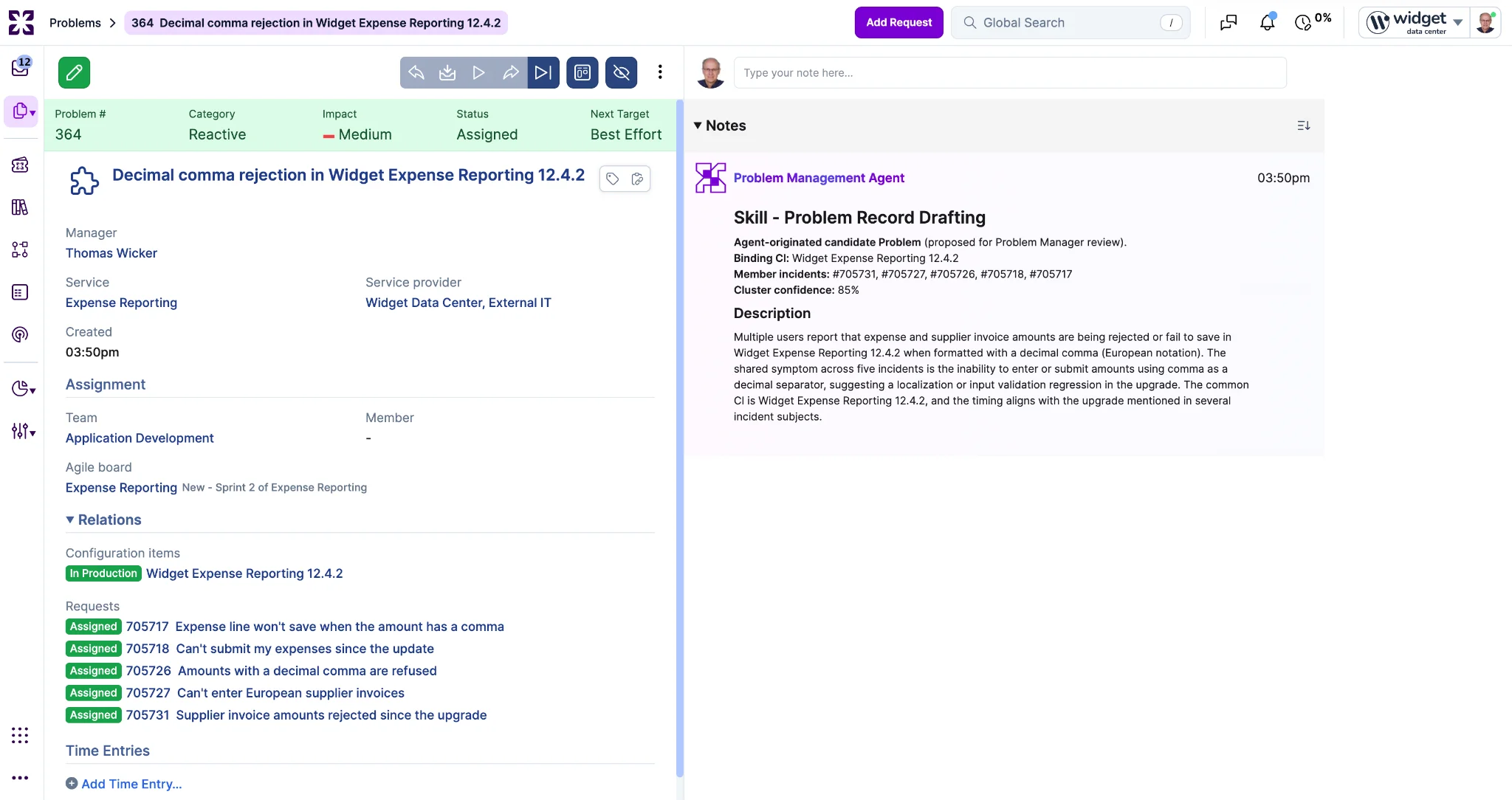
Knowledge and Problem Management are scoped by service, not by team, because what they produce belongs to a service and its reviewer. Switch one on for a service and it acts there and nowhere else, so either can be tried on a single area first. Clustering still looks across teams within the service, since incidents on one service land in several queues.
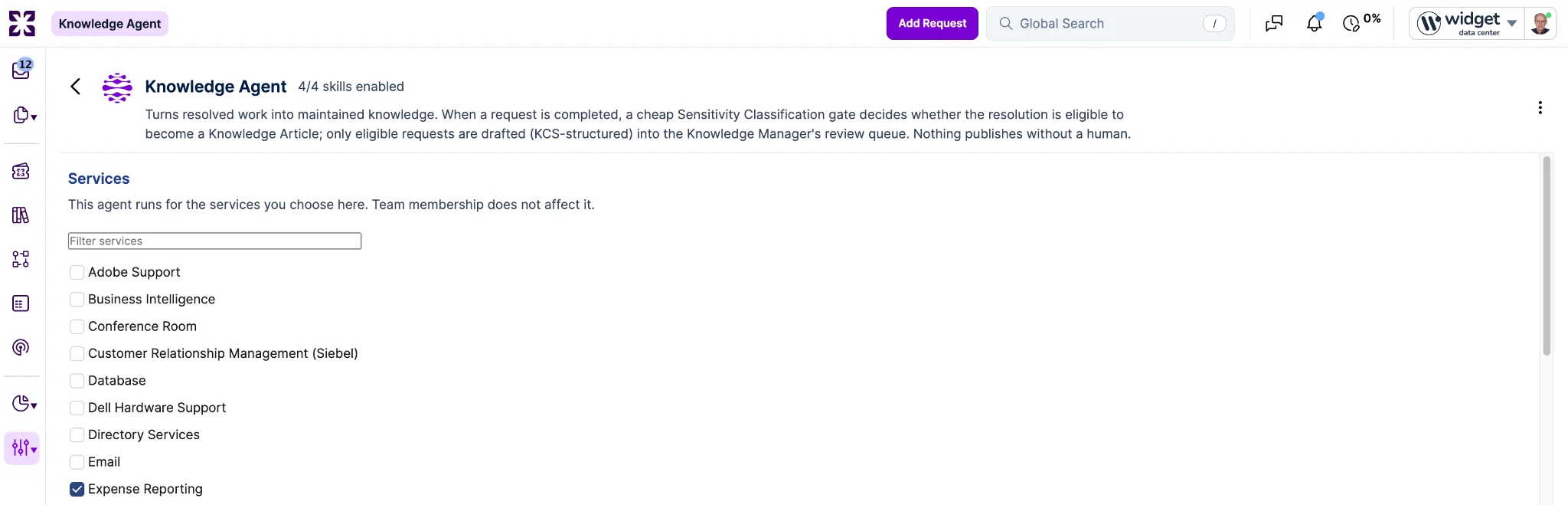
An agent is enabled by its skills. The Agent Designer index is a read-only status view with three states: "NOT ONBOARDED", "NOT ENABLED" (onboarded, no skills on) and "ACTIVE" (at least one skill on). Switching an agent on and off happens on its own page, and one action there stops it while keeping each skill's settings.
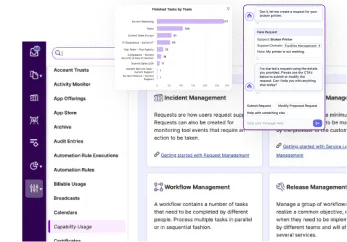
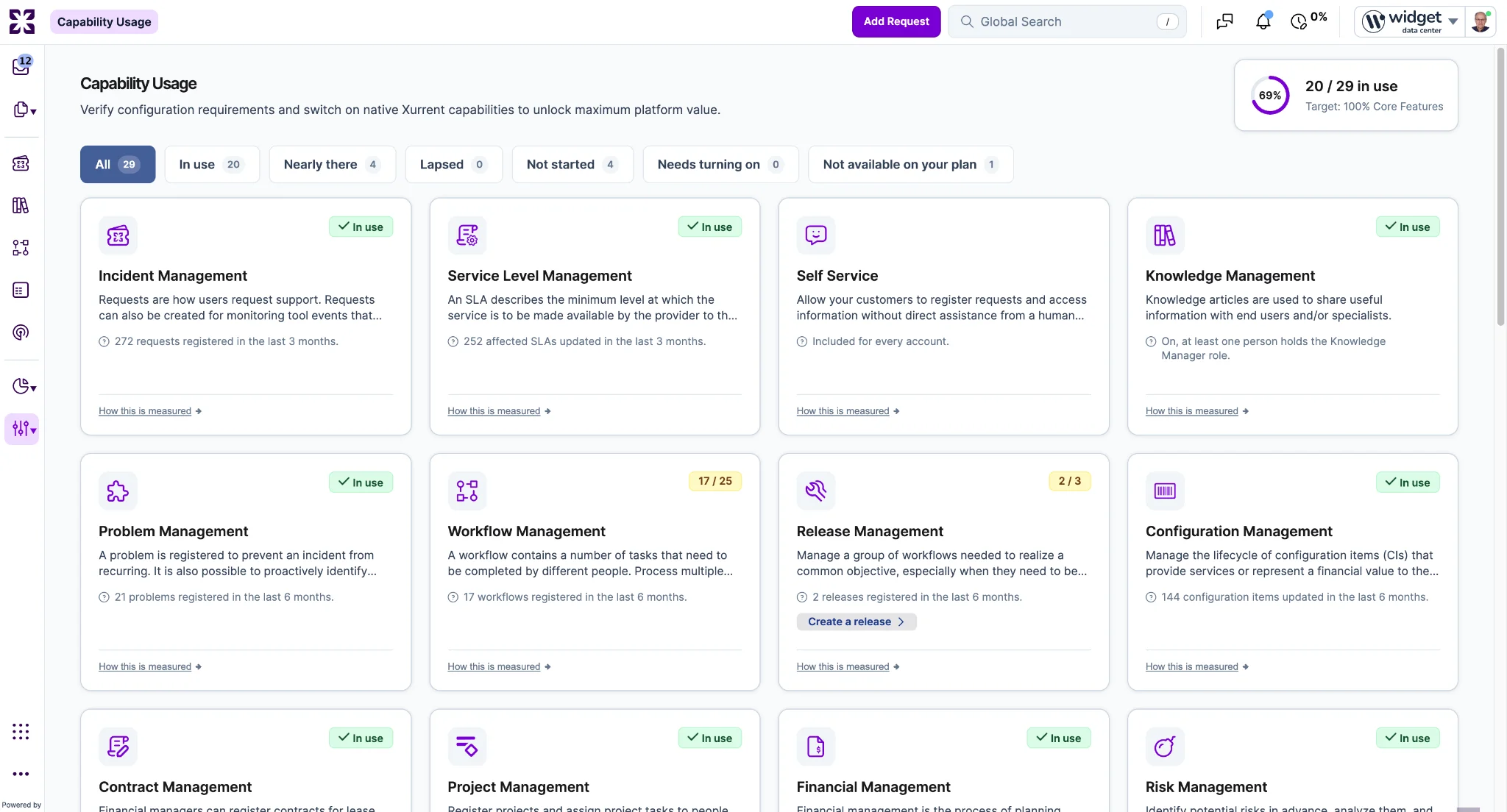
The "Capability Usage" page under Settings has been redesigned. It shows how many of the capabilities in the Xurrent license the account is using and what it would take to get more value from the rest.
The page opens with a summary of where the account stands: how many capabilities are in use out of those available, a percentage ring, and the target to aim at. Each card shows the account's usage numbers rather than a tick box.
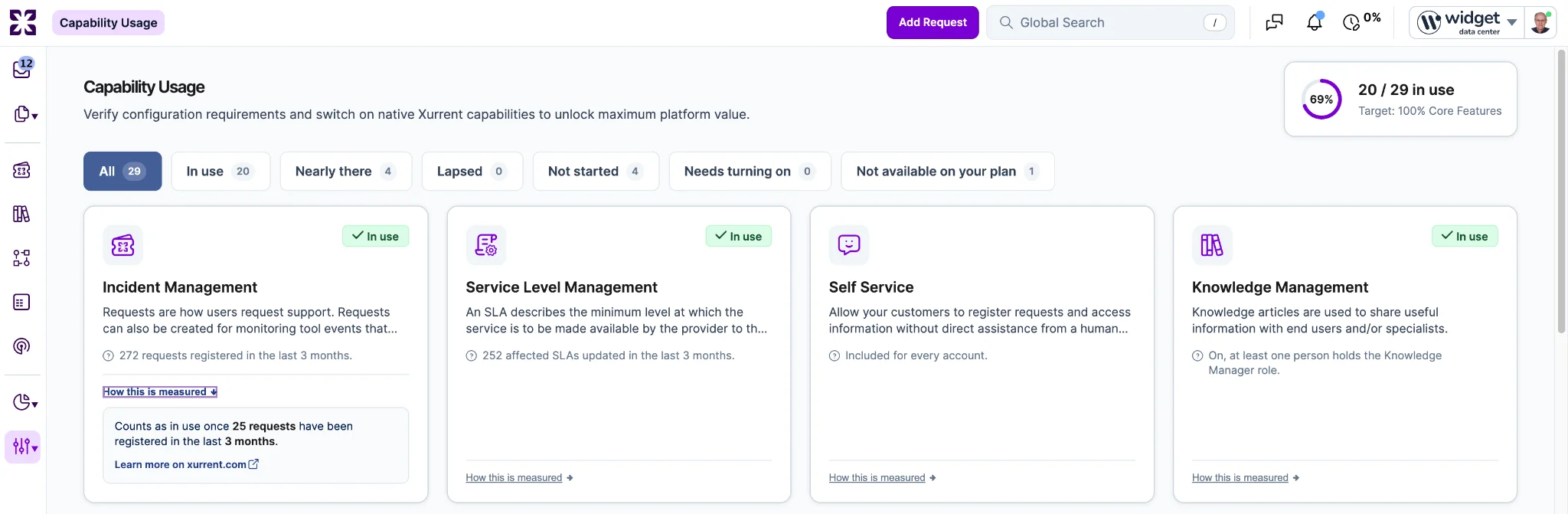
A "How this is measured" section, folded away until opened, explains what the account has to do for a capability to count as in use, including the number and the period it is counted over, with a link to read more on xurrent.com.
Two of the measurements behind the page change with this release, and the customer export follows them.
One change to a record now produces exactly one run of each automation rule it fires. The rules a change sets off belong to that change alone, so a second save of the same record does not repeat them. Where two separate changes inside a cascade each schedule the same delayed rule, both runs now happen and each reports the values its own change started from.
Previously a rule could run twice for a single change. An approval task with a rule on status update produced two executions about two minutes apart, each repeating every action in the rule. A delayed rule scheduled twice inside a cascade ran once, and the dropped run left no entry in the rule execution list.
A rule that keeps scheduling itself still stops, and a schedule that arrives twice for one change still produces one run.
SCIM groups are corrected alongside this. A SCIM group change that only adds or removes members skips the group rules; that skip no longer persists on the group, so a later change to the group's name, external id or classification runs the rules again. Previously the skip stayed on the group and it never finished processing.
The Activity Monitor page under Account Settings now carries an "API Last Activity IP" column beside "API Last Activity", showing the address the person's most recent API call came from.
Previously the Activity Monitor showed when a person's API access was last used but not where from. A person with no personal access token, or none that has ever been used, shows an empty value rather than a placeholder or their browser session address. No token value appears on the page or in its export.
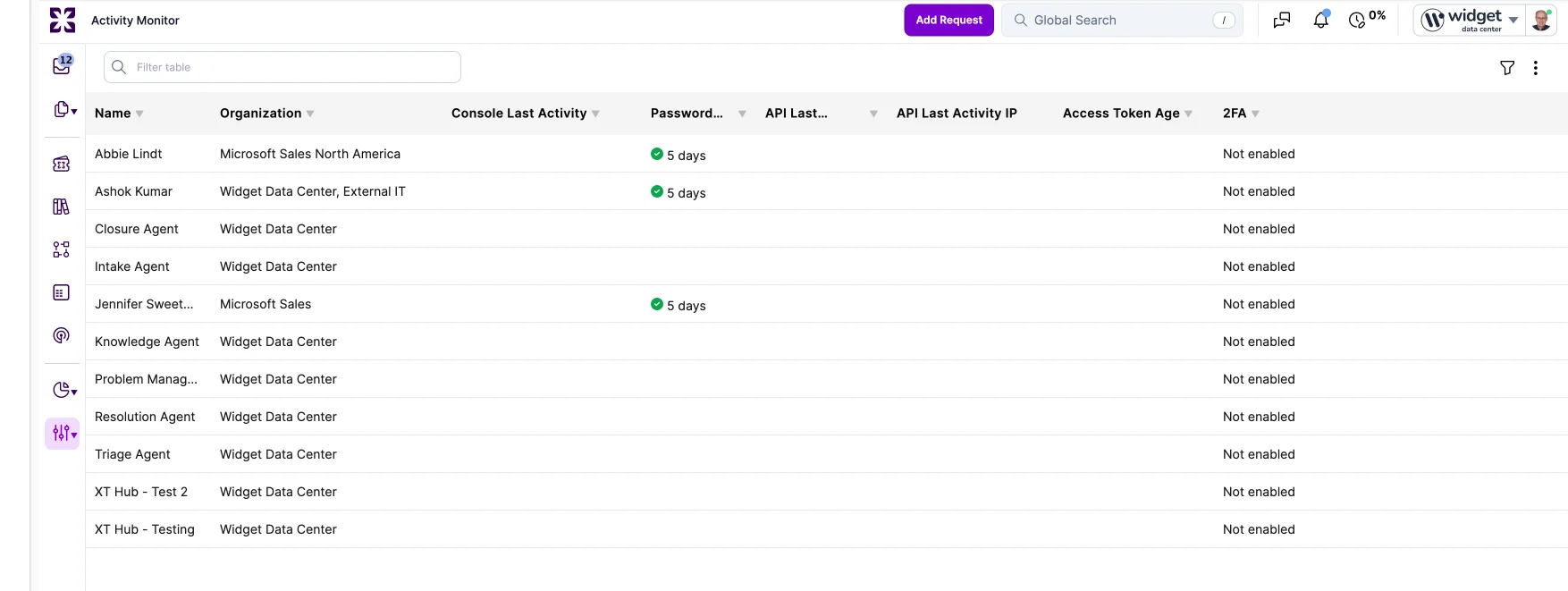
"API Last Activity" also now reflects the most recent API call made by any of a person's personal access token secrets, including secrets since retired or revoked. Previously the date reflected only the currently active secret and went blank when a token was revoked, and a token rotated to a new secret showed the last call of the old one.
For tokens with a single active secret nothing changes. For rotated or revoked tokens the date moves later or appears where the column was empty.
"Access Token Age" is unchanged and shows which of a person's tokens are live. Both columns are available to Account Administrator and Auditor, the roles that can open the Activity Monitor. MCP calls made with a personal access token are counted in both columns; MCP calls signed in through OAuth are not.
A custom domain on an account under a support domain is now accepted when it points at the support domain's Xurrent address, as well as at the account's own. A customer with several accounts under one support domain can publish a single wildcard DNS record instead of one per account per environment. Previously only the account's own address was accepted.
A domain pointing anywhere else is still refused, and the refusal names every address that would have been accepted. A custom domain still belongs to one account only.
The Jamf integration app, available from the Xurrent App Store, synchronizes computer and mobile device information from Jamf Pro and creates or updates the corresponding Configuration Items in Xurrent. The integration:
To get started:
All three privileges are required. Without "Read Sites", synchronization can fail with a 403 error that does not identify the missing privilege.
The ClickUp connector lets integration teams manage ClickUp tasks from Xurrent iPaaS solutions and start runbooks from ClickUp events, without the generic HTTP connector. The connector:
The connector documentation, including authentication setup and the available actions and trigger, is at xurrent.com/help/clickup-connector.
A reservation offering backed by several interchangeable configuration items now renders as a single row on the reservation calendar, with the number of items free shown inside each span. A requester asking "when is anything available" reads the answer off one row instead of paging through the items three at a time.
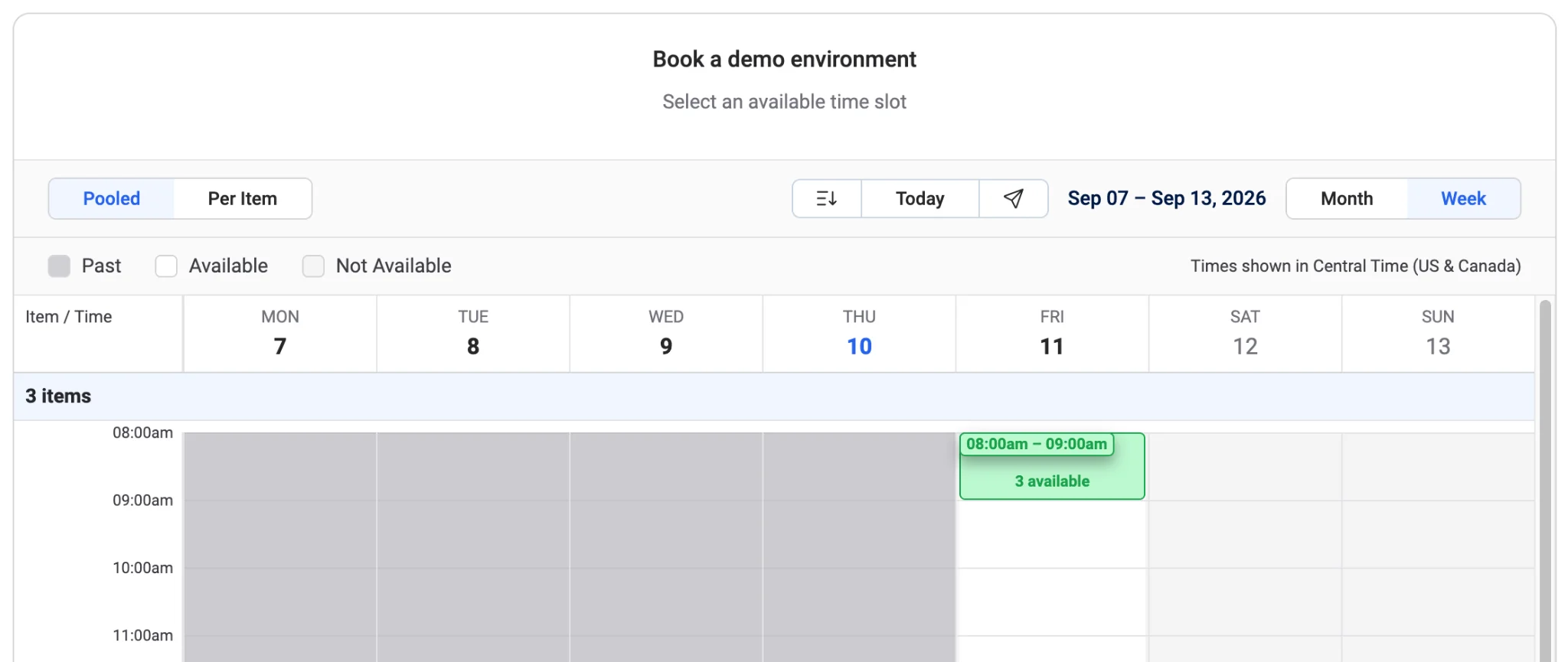
The week view shows a Pooled/Per Item toggle for any offering with more than one reservable item and opens on Pooled. Per Item keeps the existing layout: one row per item, with paging, and a span drawn on an item's row books that item directly. An offering with a single reservable item shows one row and no toggle. The month view has no toggle.
Selecting a start takes a span of the offering's "Min. duration". The requester sizes it on the row itself, dragging or arrow-stepping either end through the lengths the offering accepts, from "Min. duration" to "Max. duration" in increments of "Step duration", and the count inside the span follows the window they choose. Clicking the span, or the "Continue" button riding its end, opens a "Select an item" dialog listing the items free for that window with their name, status and product category, subtitled with the date, the window and how many of the pool are available. A keyword search field narrows a long list as the requester types. Where exactly one item is free the dialog does not open: that item is taken and the booking form opens directly.
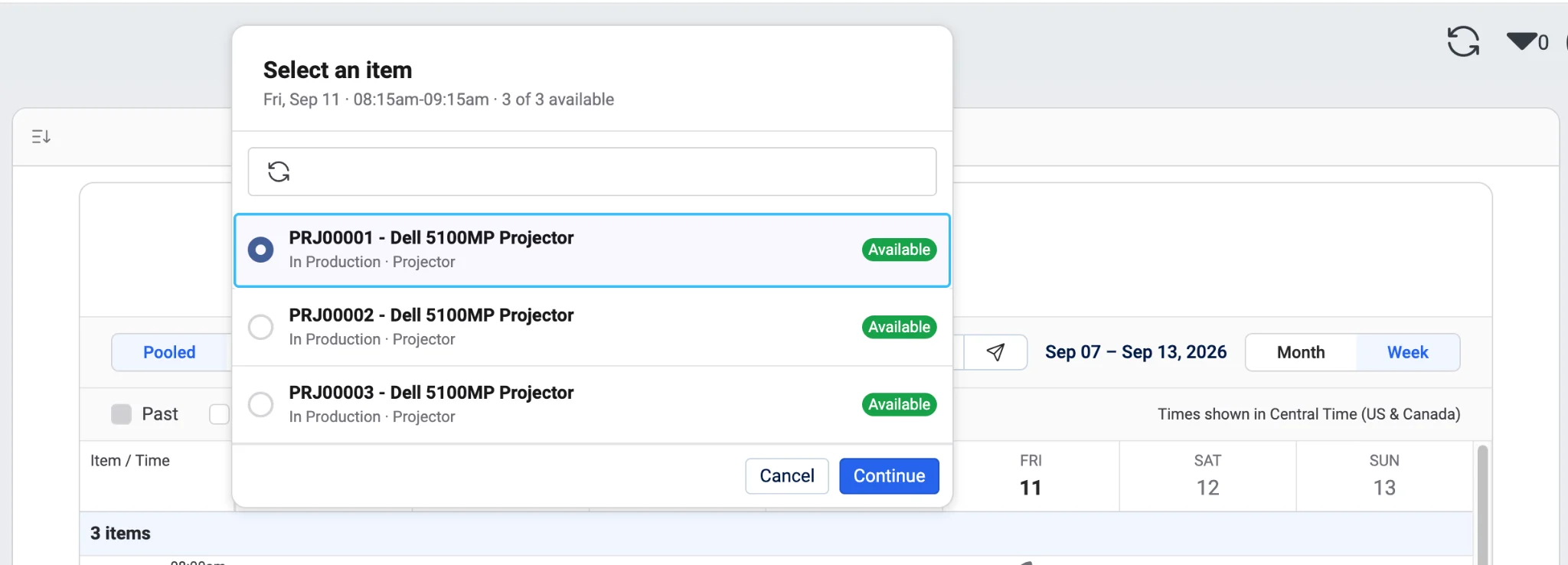
The offering's configured filters narrow the pool the counts are computed from, so the row, the counts and the dialog always describe the same set of items.
The calendar can also be used on a phone. The span's resize handles and its "Continue" button are sized for a finger, a press takes the gesture rather than scrolling the page or selecting text, and a drag continues wherever the finger travels. Where the viewport cannot give every day of the week a readable column, the calendar shows only as many days as fit and the previous and next arrows run that window along the week before moving to the adjacent week. The calendar opens on the day it was asked for, and "Today" returns to it. A viewport wide enough for the whole week behaves as it does on a desktop, where nothing changes.
The "Automatically translate knowledge articles" setting now translates an article when somebody opens it in Self Service, into that reader's own language, through the same mechanism that translates notes. Switching the setting on translates nothing by itself. Publishing an article, editing one, adding a supported language, listing articles in search results, a widget or the request wizard, and a Guest opening an article all translate nothing.
The first reader of a language sees the article in the language it was written in, under a banner reading "This article is being translated into your language…". The translated subject and instructions replace the source text where they stand as each one lands, without the reader reloading, and the banner changes to say the article was translated automatically. From there, "Show original text" shows the article as it was written, and switching back needs no further request.
A hand-written translation still takes precedence over an automatic one, and editing the text a translation was made from discards that field's translations. A reader who has turned auto translation off in their own preferences, or who listed the article's language as one not to translate, reads the article as it was written even when a translation exists. Search is unchanged: it continues to match on hand-written translations only.
This replaces the version released in August, which translated every published article into every supported language at publish time and, when the setting was switched on, started a backfill across the whole knowledge base. That version was withdrawn from production and the setting disabled while refinements were made for this release. Translations produced by that version remain available.
Every machine translation is now checked against its source text before anybody sees it: each run of digits in the source has to still be present in the translation. Amazon Translate can drop a character from a run of repeated characters, so a subject reading "0114" comes back as "014", and it does so silently. A branch number that loses a digit sends a technician to the wrong place.
Almost every translation passes the check and is shown exactly as it is today. A translation that lost a run of digits is requested a second time, with the numbers in the text marked as not to be translated. A translation that still lacks a digit run after that second attempt is not shown at all, and the text is presented in its source language instead, which is what a reader already sees when a translation fails for any other reason. Nobody is shown a number that differs from the one the author typed.
A translation may still format a number differently from the source, so "1.000,50" may become "1,000.50" and a date may be reordered, as long as no digit is lost or changed. A source number written out in words by the translation counts as lost, so a number in the source is always a number in the translation.
The check governs every text that is machine translated: notes, subjects, descriptions, knowledge articles and the texts an AI response is translated into. The per-template "Translate subject" setting released in r691 behaves exactly as it did, in both states.
A person whose only role in an account is Specialist now finds "Request Templates", "Workflow Templates", "Task Templates", "Knowledge Article Templates", "Project Templates" and "Project Task Templates" in the Records console. Each entry opens the full list of that template type in the account, browsable, sortable and filterable like any other list. The list is not narrowed to the services that person is covered for, because the published access rights grant the role read access to all of them. Reaching these lists no longer requires the Auditor role, which is the broad grant an access review sets out to remove.
These lists are strictly read only. No "New", "Edit", "Duplicate", bulk edit or "Delete" action is offered on these lists or on the records in them, and the same refusal applies through the API. A person holding Specialist together with Service Level Manager keeps the ability to edit the "Standard Service Requests" section of a request template, which is a deliberate grant and is unchanged.
Plan gating is unchanged, so a template type stays hidden in accounts whose plan does not offer it. In a Basic account a Specialist sees Request Templates and Knowledge Article Templates and does not see Workflow, Task, Project or Project Task Templates.
Every specialist-tier role carries the Specialist flag, so Service Desk Analyst, Service Desk Manager, Knowledge Manager, Problem Manager, Workflow Manager, Workflow Requestor, Release Manager, Project Manager, Service Level Manager and Configuration Manager reach the same six lists.
Pressing Ctrl+Enter on Windows or Linux, or Command+Enter on macOS, saves the record being edited. On a record being read, the same combination posts the note being written. Both work while the cursor is in a field, the note field included, unlike the single-letter shortcuts.
The combination is available to every user and is not gated on the "Use custom shortcuts" personal preference, which exists for single letters that compete with typing. Every shortcut that exists today keeps its key and its behavior, so Shift+S still saves. The keyboard shortcuts overlay lists the combination on a "Save record" row and a "Post note" row, labeled for the platform the user is on.
The combination does nothing while Shift or Alt is held with it, and nothing when a control nearer the cursor has already acted on it, so typing in the global search box still opens the search in a new tab and saves no record. Outside a rich text field it does nothing while a panel the user opened covers the record, so it never saves the record behind that panel. Holding the combination down saves or posts once rather than once per repeat. Saving this way runs the same checks as the "Save" button, so a record with a required field still empty stops on the validation.
When the Sera AI virtual agent creates a request from a conversation, the category now follows what the user described. A user reporting a broken or degraded service gets an incident, even where the closest request template is an information request. A matched template still supplies category, impact, service instance and team when its category agrees with the described problem. When it does not, Sera applies the category and impact from the conversation, ignores the template's other defaults, and locates the service instance and team from the conversation, the same way it does for a topic no template covers. Requests corrected this way carry an impact: a reported outage maps to "Medium - Brings Service Down for One User" and a reported degradation to "Low - Service Degraded for One User". Sera does not assume several users are affected from a single reporter.
Template matching in conversations now uses the same confidence threshold as classification after a request is saved. Below the threshold, no template is applied: the conversation falls through to the account's fallback request template, or to the generic request form if none is configured. The internal note records either that no confident match was found or, where the category was corrected, which template matched and which category was applied instead.
Classification after save now reads the full conversation rather than the first message, so a conversation that ends on a different problem than it started with classifies on the final understanding.
Previously, the highest-scoring template set the category regardless of what the user described, so incidents raised through Sera could be filed as information requests and miss their service level targets.
Impact is unchanged on requests where the template's category was accepted and on requests classified without a template, so no existing service level targets move. A template a user selects themselves in Self Service remains the user's choice and is unaffected.
When a specialist marks an auto-classified request as inaccurate, or rejects a classification suggestion, the past request that produced it is no longer used as the top classification match for new requests in that account. Rejections recorded before this release count as well. The exclusion is per account, so a rejection in one account never affects another, and a new rejection takes effect within an hour.
A correction that narrows the classification to a child of the suggested service instance counts as a successful classification, not a rejection, so that source request stays in use. If every candidate source for a new request is excluded, the request follows the same path as when no confident match exists: template match, then service match, then an unclassified note.
Previously, a rejected classification remained a source for future requests, so the same wrong classification could repeat in the same account. No configuration or migration is required.
A request created from an email sent to a team's own inbox now stays on that team. Sera recovers the addressed team from the inbound email and limits the service instances that the template match, the similar-request match and the service fallback consider, so the team the sender chose is preserved on all three paths. Mail addressed to the account's service desk still routes onward, since the service desk is an intake point.
Previously, email to a team inbox was classified from the nearest past request regardless of its team, and the team was then taken from that request's service instance, which could move operational alerts onto unrelated teams and services.
An explicit "#team:" mail parameter, or a rule that reassigns the request on create, takes precedence over the mailbox. If the addressed team supports none of the requester's covered services, classification proceeds without the team restriction rather than failing.
Sera Assist now receives the images and documents attached to the notes it already reads. A specialist can ask what a screenshot shows and get the error message quoted back, and can be told which note the image came from. A summary of the request accounts for what its attachments show without the specialist asking about them.
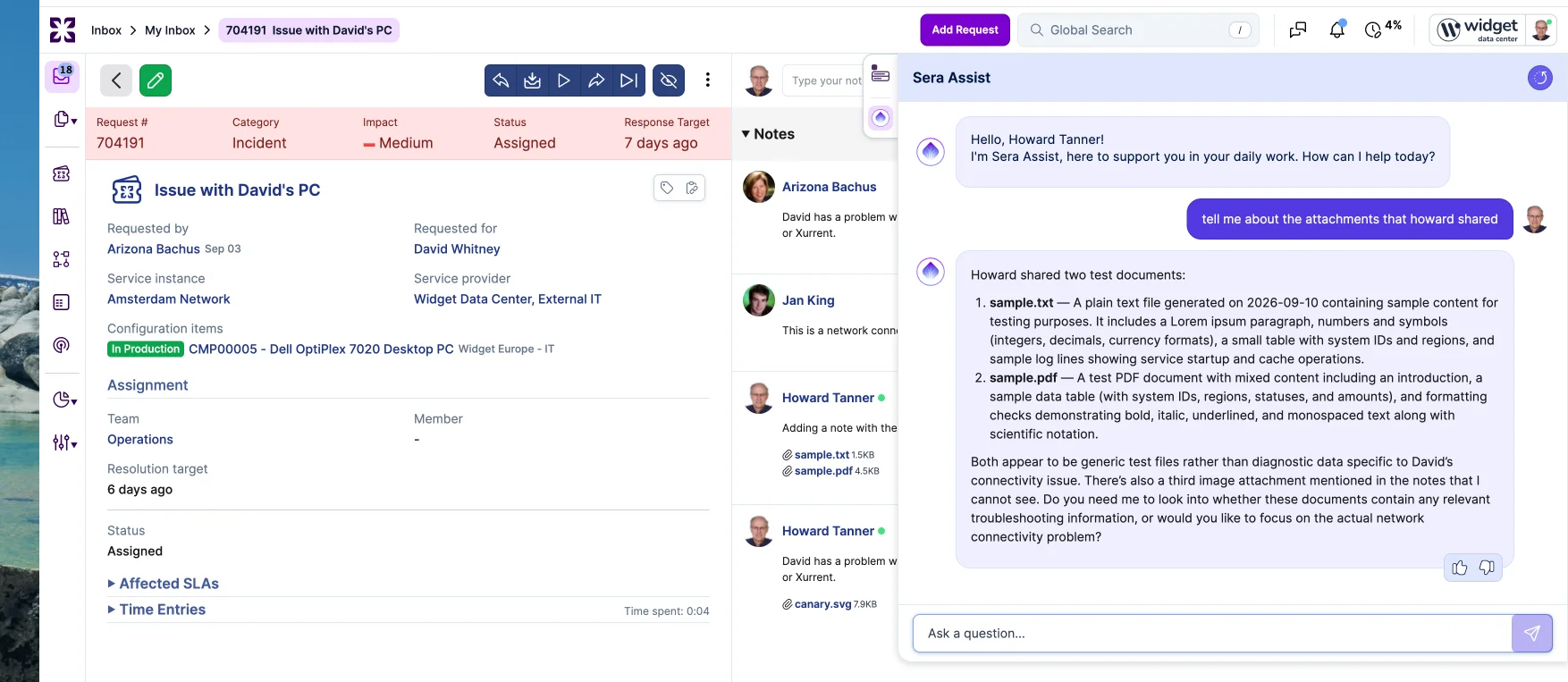
A file is offered to the assistant only where the note carrying it is one the assistant already receives, so every rule that decides which notes it reads also decides which files it reads. A specialist who cannot see a note cannot reach that note's attachment through the assistant. Audit, system, reference, redacted and AI notes are left out as they are today, as are notes left out by paging. A file whose virus scan failed is never offered.
Only the image formats the AI service can read are offered, so an SVG or a BMP produces no claim about its content. No more than five images and five documents travel with one question, newest first, and the images are bounded by a total size as well as by that count. Where a file is left out by those bounds, or cannot be fetched or read, the assistant says it cannot see that file rather than describing content it does not have.
Request Summary, Sentiment, Autonomous Follow-up and the knowledge article suggestions share the same note reading path and are unchanged.
A "Generate with Sera AI" action now sits beside the "Description" label on the automation rule edit form. It reads the rule in front of the person, its name, trigger, expressions, condition logic and every action, and drafts a plain-language description for review. Documenting a rule stops being a separate chore.
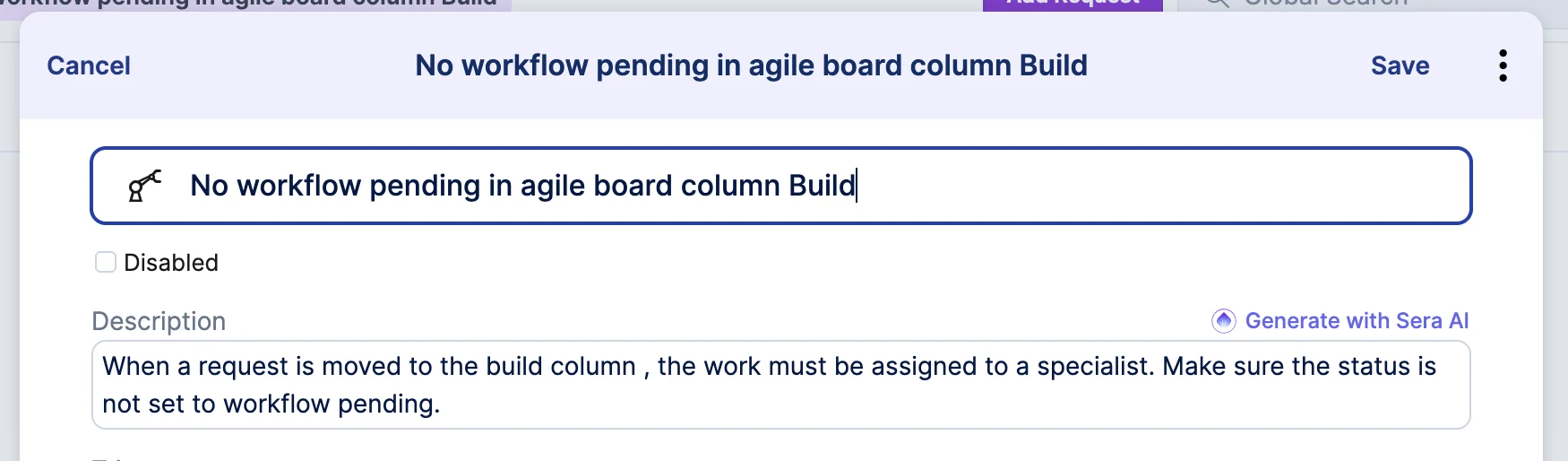
Nothing is written to the rule until a person accepts it. While a draft is on its way the "Description" field is locked and the rule cannot be saved, so a rule cannot be stored half generated. When the draft arrives it occupies the field, marked as unaccepted, with three choices: "Accept" keeps the text, "Retry" reads the rule again and asks for another draft, and "Cancel" restores exactly what the field held before the first attempt, formatting included, including an empty field. Leaving the form without accepting leaves the stored description unchanged.
The action is not offered on the rules of an App Offering. It is enabled once the rule has both a trigger and an action, and until then it explains that a trigger and an action are needed first. A generation that fails, returns nothing or does not arrive in time reports that no description could be generated and leaves the field holding what the person wrote. Each generation that produces a draft is recorded in the AI usage report; a failure is not.
While looking at a record, a user presses W to start watching it, and presses it again to stop. The key does what the "Start watching" and "Stop watching" items of the watch menu do, without opening the menu, and it works both while a record is being read and while it is being edited. Watching is independent of the form, so the key never saves the record and never changes what is on the form.

The key is available to a user who has the personal preference "Use custom shortcuts" on, which is the preference every user starts with. It is listed in the keyboard shortcuts overlay that Shift+? opens, alongside the E key for the edit form.
The key stands down wherever acting on it would be wrong: while the cursor is in a field, so the letter can still be typed; while a menu, dialog or picker the user opened covers the record, the watch menu included; on an index view with several rows selected, where the watch button starts a mass action rather than a toggle; and where the record offers no watch button or offers one the user may not use. A record shown in a dialog, as an agile board shows one, is the record the key acts on, never the record on the page behind it.
The watch button announces the key to a screen reader only where the key works. It announces nothing in Self Service, where the key does not exist, nothing on a multiple-row selection, nothing where the user may not toggle watching the record, and nothing when the preference is off.
Automation Rules gain the trigger "On update of reservation". A rule on this trigger fires when the start date, start time, end date, end time or reserved configuration item of an existing reservation changes, whoever makes the change and wherever they make it: the requester in the Self Service Portal, a specialist on the reservation edit page or from inside the request, or the API.

This closes a gap that made reservation automation unreliable. A schedule change reached the parent request, and therefore the automation on it, only when the person making the change was neither the reservation's owner nor its creator. A requester moving their own booking saved and displayed correctly while nothing downstream heard about it, so workflow tasks carrying the booking time held outdated values with nobody aware of it.
A rule on the trigger reads the reservation's new values through reservation and the values it held before the change through reservation_was, so a rule can report the move itself and write the new start time into a related workflow task.
Two points are worth knowing before an administrator builds on this. The trigger is offered on the Automation Rules of every request, because the trigger list is per record type rather than per category; it never fires on a request that has no reservation. And existing rules change no behavior: an owner-initiated date or time change is visible to automation only through the new trigger, so a rule on any update of the request does not start firing on edits it never saw before. Creating a reservation, and changing a provisional one, still fire nothing.
The person who makes a change is still not notified about their own edit. See Important Messages for the effect an owner-initiated reschedule now has on the request's Updated timestamp and its update webhook event.
A task template gains an "Auto-assign" checkbox. When it is checked, a task created from that template is assigned to an available member of its team at the moment the task would otherwise wait for assignment with no member, which is when its predecessors finish and the workflow sets it to "Assigned".

The member is selected on the basis requests already use: members who are out of office or set to do not disturb are skipped, working hours are respected, the member who last held the task is avoided, the available member with the fewest open items in their inbox is preferred, and assignments rotate across members whose workload is equal. Where no member of the team is available the task stays unassigned rather than going to someone who is not there. A system note on the task names the member that was selected.
The checkbox is offered on an Implementation task template when a team is selected, no member is selected and no dynamic assign-to option is checked, and it is cleared when any of those stops being true, on the same basis the template already clears the team and member fields. It defaults to unchecked, so every existing task template behaves as it does today.
The Auto-assign box on the Team record is unchanged and continues to govern requests only. Checking or clearing it changes no task behavior. A team that wants its tasks distributed leaves the Member field empty on the template and checks the box there.
Selecting a slot on the Self Service reservation calendar opens the booking form in a dialog over the calendar, so the calendar the slot was chosen on is still visible behind it and reconsidering the slot costs nothing.
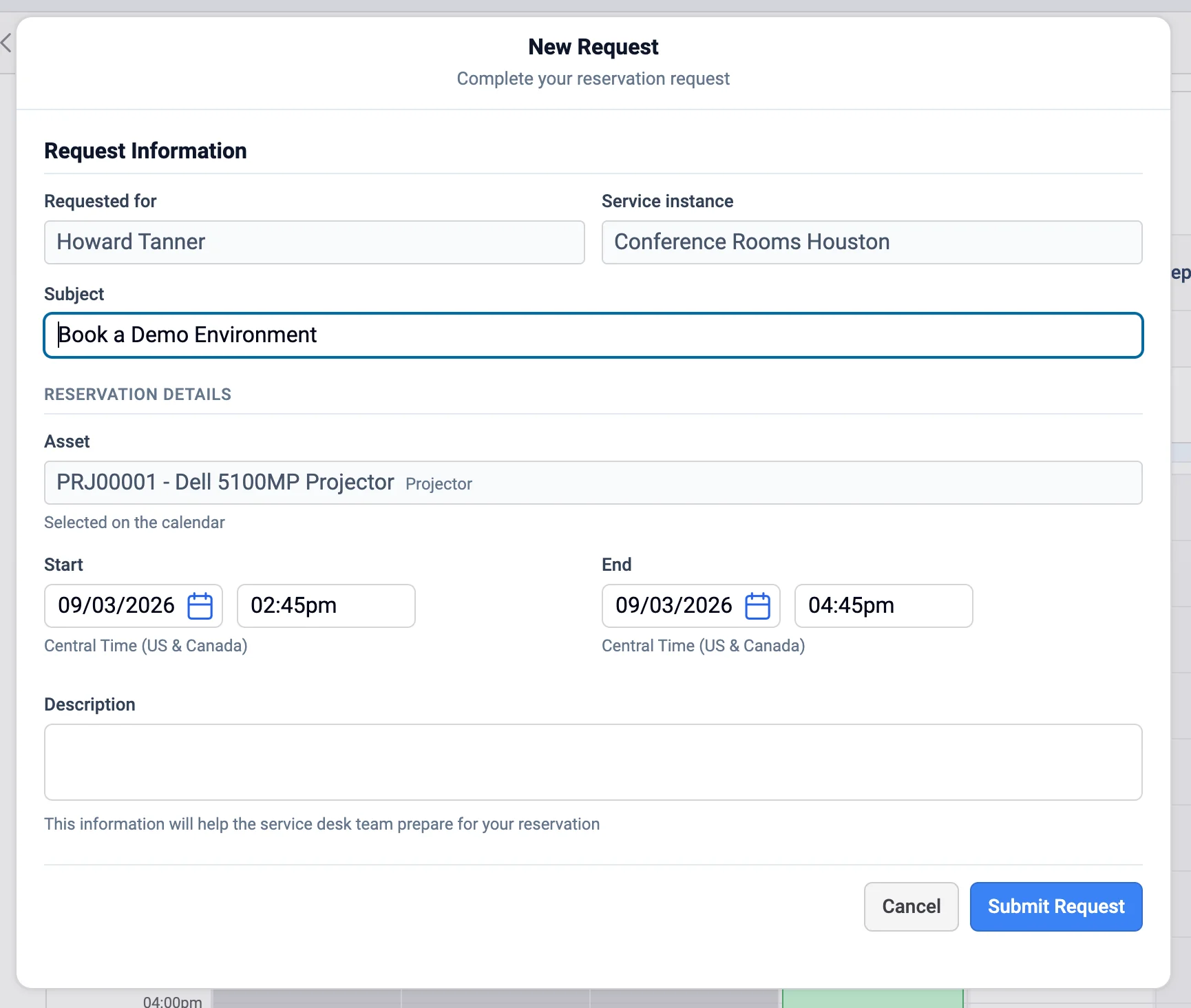
The form groups its fields under two headings, "Request Information" carrying "Requested for", "Service instance" and "Subject", and "Reservation Details" carrying the reserved item, "Start", "End", "Repeats" and "Description". The reserved item is read only, with helper text saying it came from the calendar selection: changing it means returning to the calendar, which is the only place its availability is known.
The offering's rules are now reported while a person types rather than on save. A duration that is not the offering's minimum plus a whole number of step durations, or that exceeds the offering's maximum, is reported inline with the permitted increments or the maximum stated. A start or end outside the offering's operating hours is reported with the nearest valid time. One message covers both, positioned with the "End" pair rather than repeated across four inputs. The date pickers no longer offer days the offering's calendar and maximum duration disallow, up to a year ahead.
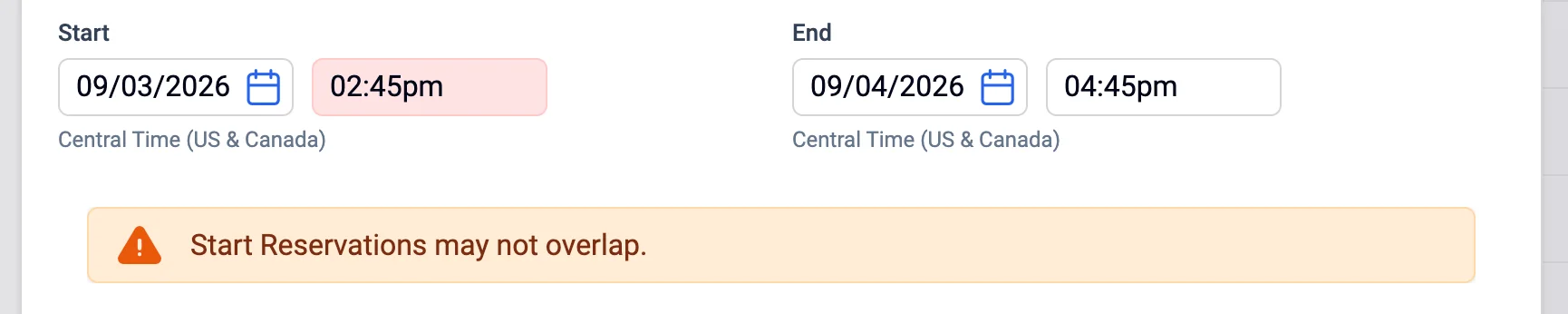
Times render in the requested-for person's timezone and that timezone is labeled, matching the calendar cell the slot was chosen on. Where the offering's timezone differs, it is shown alongside.
"Cancel" leaves the person on the calendar without creating a request, releases the held slot straight away rather than leaving it standing until the provisional sweep reaches it, and asks first when there is entered content to lose. "Submit Request" creates the request, confirms the reservation, assigns it to the offering's fulfillment team and opens the request. A slot taken between selection and submit is refused with the conflict stated, returning the person to the calendar with what they typed still in the form.
A new "Product Custom Fields" section in Settings lists every custom field the account's product UI extensions define, once, with its ID, its name, its value type, the number of products using it and whether the extensions that define it disagree.
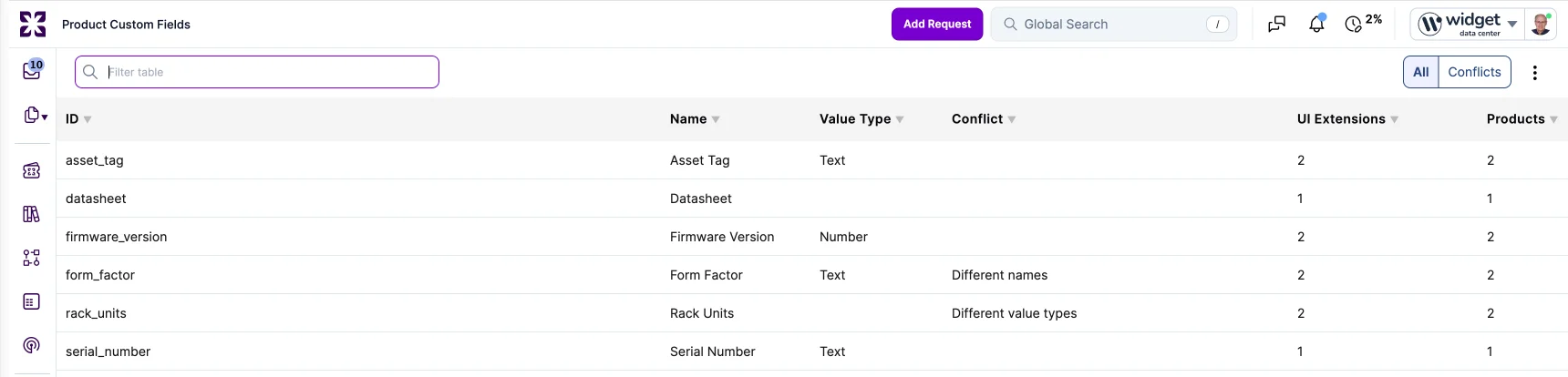
Each product can carry its own product UI extension, so a mature CMDB account holds hundreds of them, authored at different times by different people. Until now the only answerable question was which custom fields one product has, never which fields the account already uses, and the result is drift: firmware_version, firmware_ver and fw_version living side by side, invisible until someone tries to report across them. The section names two kinds of disagreement directly. A field whose value type differs between the extensions defining it is flagged as a type conflict and reports no single value type. A field whose name differs between them is flagged as a naming inconsistency.
Fields from both the active and the being-prepared version of an extension are listed, so a field counts as soon as a designer has drafted it. Where both versions define the same ID, the active version decides its type, because that is what the configuration items carry. Attachment, suggest and location fields appear with no value type, since the UI extension field type has no value-type equivalent. The list is read only; to change a field, an administrator opens the UI extension that defines it.
The section is available to a Configuration Manager, an Account Administrator, an Account Designer and an Auditor, on support domain accounts above the basic plan.
A Location saved with an accented name keeps that name. Where an account already holds Munster and a record is saved with Münster, the two are now separate Locations rather than the second collapsing silently into the first.
The old behavior was decided by whichever spelling reached the account first, in either direction, and it was not limited to German umlauts: Pérbig collapsed into Perbig the same way. The save reported success, nothing appeared in the import log and no message appeared on screen, so a customer with two different towns, such as 29633 Munster (Niedersachsen) and 48143 Münster (Westfalen), could not represent both. A nightly integration writing the correct value showed the field being set back on every run.
Names that differ only by capitalization still share one Location. Munster and munster remain a single entry, which is intended and unchanged. The same treatment applies to Product Brand and to Project Program, which use the same name lookup, and the behavior is identical through the user interface, a CSV import and the API.
Records that were already merged keep the merged name. The change stops the loss from happening again. See Important Messages for the effects this has beyond accents.
AI usage is recorded once per calendar month, and the AI Usage report's date filter now matches that. "Quick Ranges" offers month, quarter and year based ranges, and the "Custom Range" interval dropdown offers Month and Quarter. Quick ranges phrased as "X to date" are labeled "current X" on this report. Day and week based ranges are removed; a saved link or API call that still requests one resolves to a monthly interval. No other report's date filter changes.

Previously, a range shorter than a month could show no data, and a month-aligned range charted at a daily or weekly interval showed the whole month's total as a spike on the 1st.
The report's totals are also corrected. The nightly job that records non-Sentiment AI usage left stale data behind on each run, which inflated totals over time. A daily reconciliation now removes it, and a one-off repair is available for the months already affected. See Important Messages for the effect on totals already reported.
Sentiment analysis usage is now attributed to every account that participates in a request and has "AI Sentiment" enabled. Accounts with the feature off are not attributed, including the account that owns the request. In service provider setups, a provider with the feature on now receives sentiment on the requests its customers assign to it, regardless of the owning account's setting.
Previously, attribution followed the owning account. A customer with "AI Sentiment" off could appear in the AI Usage report as using it when a provider analyzed its requests, while the provider that enabled the feature showed no usage.
The AI Usage report now shows a sentiment entry only for accounts that currently have "AI Sentiment" enabled. Earlier entries are kept, not deleted, and reappear if the feature is switched back on. See Important Messages for how per-account figures change.
The request page also now labels a sentiment explanation with the language it was generated in, the owning account's language, so a specialist viewing a request owned by an account in another language is offered a translation. Previously the label used the viewing account's language and no translation was offered.
A few weeks ago we described the settings rework. This release finishes that work. "Sera AI" is now the single setting that turns AI on or off for an account, honored on every path. "Enable Virtual Agent" governs exactly one thing: the Self Service chat widget.
Until now "Enable Virtual Agent" reached well beyond the chat. It was checked before the Sera AI Studio would open, before an AI caller could reach the conversation API, before the tools that file a request would accept one, when choosing which support domain fulfils a request filed by AI, and by Sera Assist, which involves no chat at all. The Studio has grown the Golden Set, agent instructions, template readiness and knowledge article readiness, none of which involve the chat. Through the API with the chat off, a caller could update a request, post notes, search and read records, but not create one.
For an account with "Sera AI" on and the chat off, the Studio and every tab inside it now open, MS Teams and iPaaS conversations are answered, integrations can file requests, Sera Assist works, and the account is a valid support domain for a request filed by AI. A person no longer has to belong to a Self Service skill pool for AI to file a request on their behalf; skill pools continue to control who is offered the chat widget.
Nothing needs to change on your side for this release. If the Self Service chat showed "Sera AI not enabled for the account" after the settings changes a few weeks ago, that is the directory-account case described in "A brief note on AI settings," and the fix there still applies: the account owner turns "Sera AI" on for the directory account. The only addition here is that the chat now blocks at the entrance when either "Sera AI" or "Enable Virtual Agent" is off, including when the endpoint is called directly rather than through the rendered widget.
"Enable Virtual Agent" itself is unchanged. It stays on the Self Service Settings page and keeps its stored value when "Sera AI" is unchecked. No account with "Sera AI" on loses access on any channel. An administrator who switched the chat setting off in order to stop an MS Teams integration should revoke that integration's scope grant instead.
A request template designated as Sera's fallback in Sera AI Studio stops being something anyone can pick. It is withdrawn from the Self Service request catalog, category browse and the request template widgets on the Self Service home page, from Self Service global search and type-ahead, from agent global search, from the template picker on a new request and the browse-by-service panel, and from every path that returns request templates inside a Sera AI conversation.
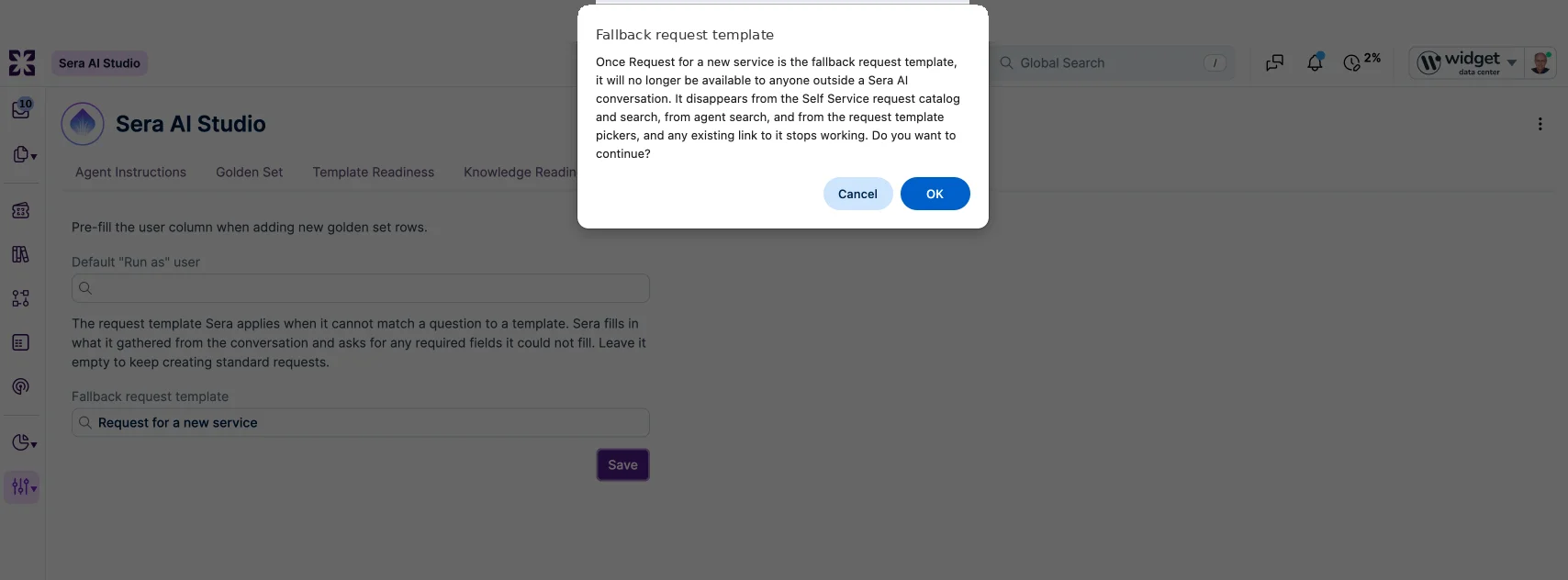
The fallback template exists to catch conversations Sera cannot match, and it is built for that job: a store field, a note structure and downstream automation keyed to low-quality inbound questions. It is not a service the account offers, so a request created from it by hand carries none of the conversational context it was designed to hold, and putting a deliberately generic catch-all in the catalog takes users away from the specific template they would otherwise have found.
The one route that still works is a Sera AI conversation that could not match anything else, including when the conversation hands the requester into the full request form to finish a template it cannot complete in chat. That hand-off is authorized by the conversation itself, so copying, editing or constructing the link returns the standard not-available result rather than the form. A direct link or an existing short URL to the template's new request form returns the same result, for a specialist as well as an end user.
A designated template is now eligible as the fallback when it is active and covers the requester, independent of its "End users" and "Specialists" settings, so a template that is not available to end users at all can be designated and still works.
The template remains a record throughout. It stays in the Request Templates administration list, can be opened, edited, enabled, disabled and reported on, keeps its audit trail and its automation rules, and Sera AI Studio still offers it in the designation picker. Clearing the designation, or pointing it at a different template, restores it everywhere in the same save. See Important Messages for the effect on specialists who were applying the template and on existing links to it.
Sera Assist in Analytics applies the conditions in a question to the report it opens. A user asking "open requests per team for the last 30 days" gets the matching report with the date filter set to the last 30 days, rather than the report's default view.
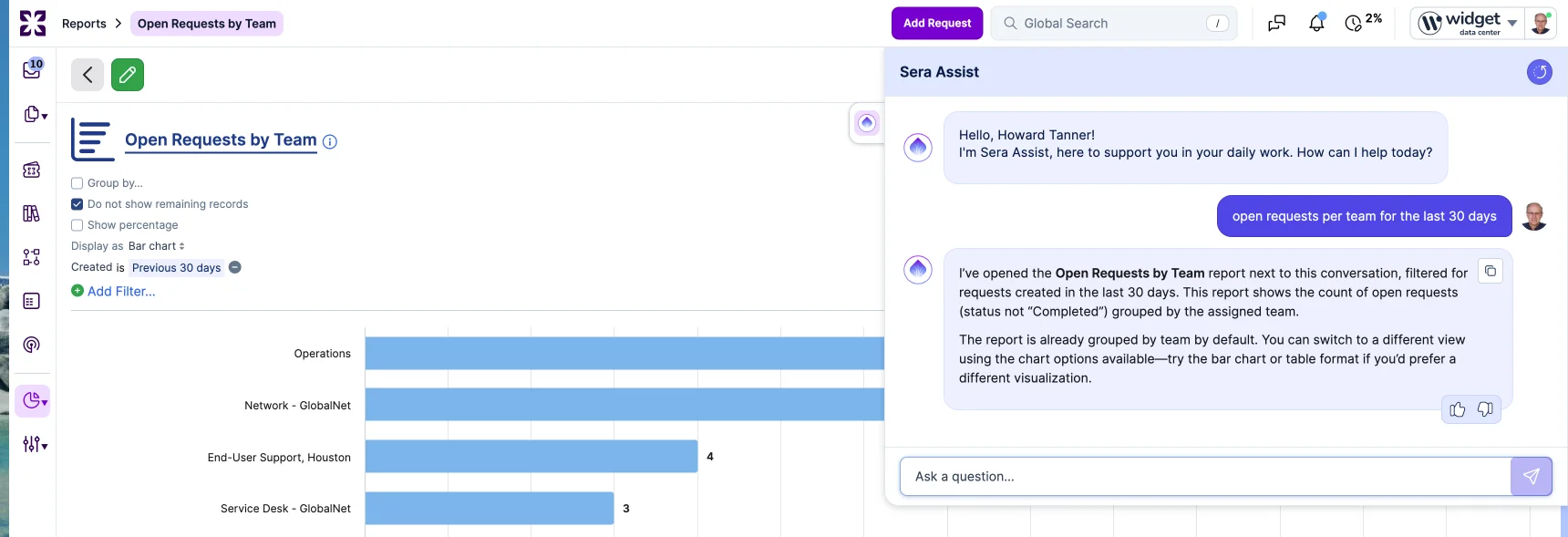
Previously the report opened in its default view and the conditions in the question were not applied.
Applied filters appear in the standard filter controls where they can be changed or cleared. A condition is applied only where it matches one of the filters the report declares; a condition the report cannot filter on is never applied and never turned into a query of its own. A filter value that resolves to no account data, such as a misspelled team name, or that resolves to more than one record, is named in the response rather than guessed at, and the report opens without that filter. Every condition that could not be applied is named alongside the opened report, so the user knows what the view does and does not reflect. A question with no conditions opens the report in its default view as before.