





Blog
Insights & updates from our experts


Resolve plant floor and IT issues before they disrupt production.

Stay audit-ready while resolving issues and reducing operational risk.
Resolve issues quickly with an AI-powered system that automates ticketing.
Unifiy IT, HR, Facilities, Finance, and more on a single, AI-powered service platform.
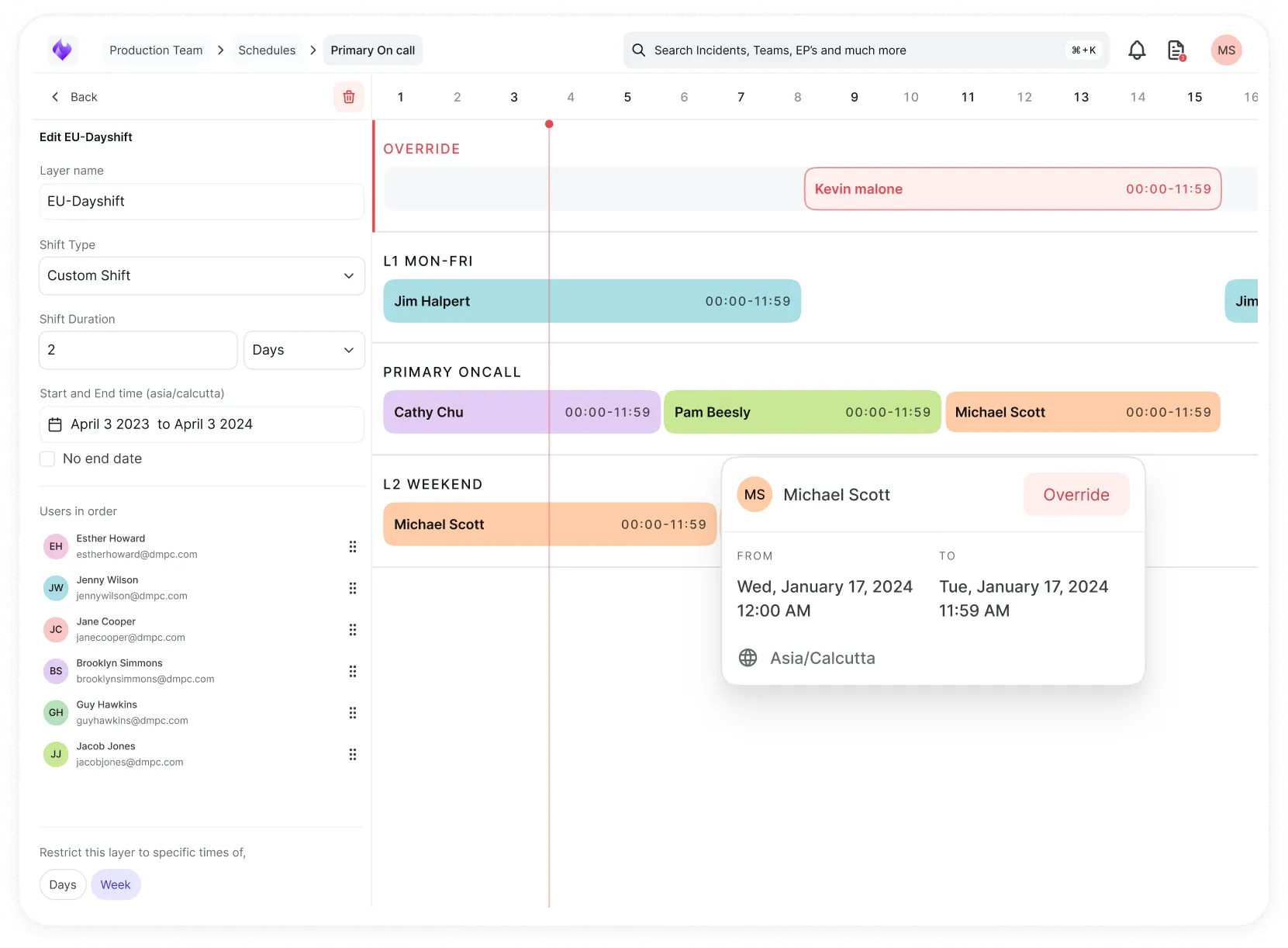
Simplify on-call scheduling, automate escalations, and reduce burnout.
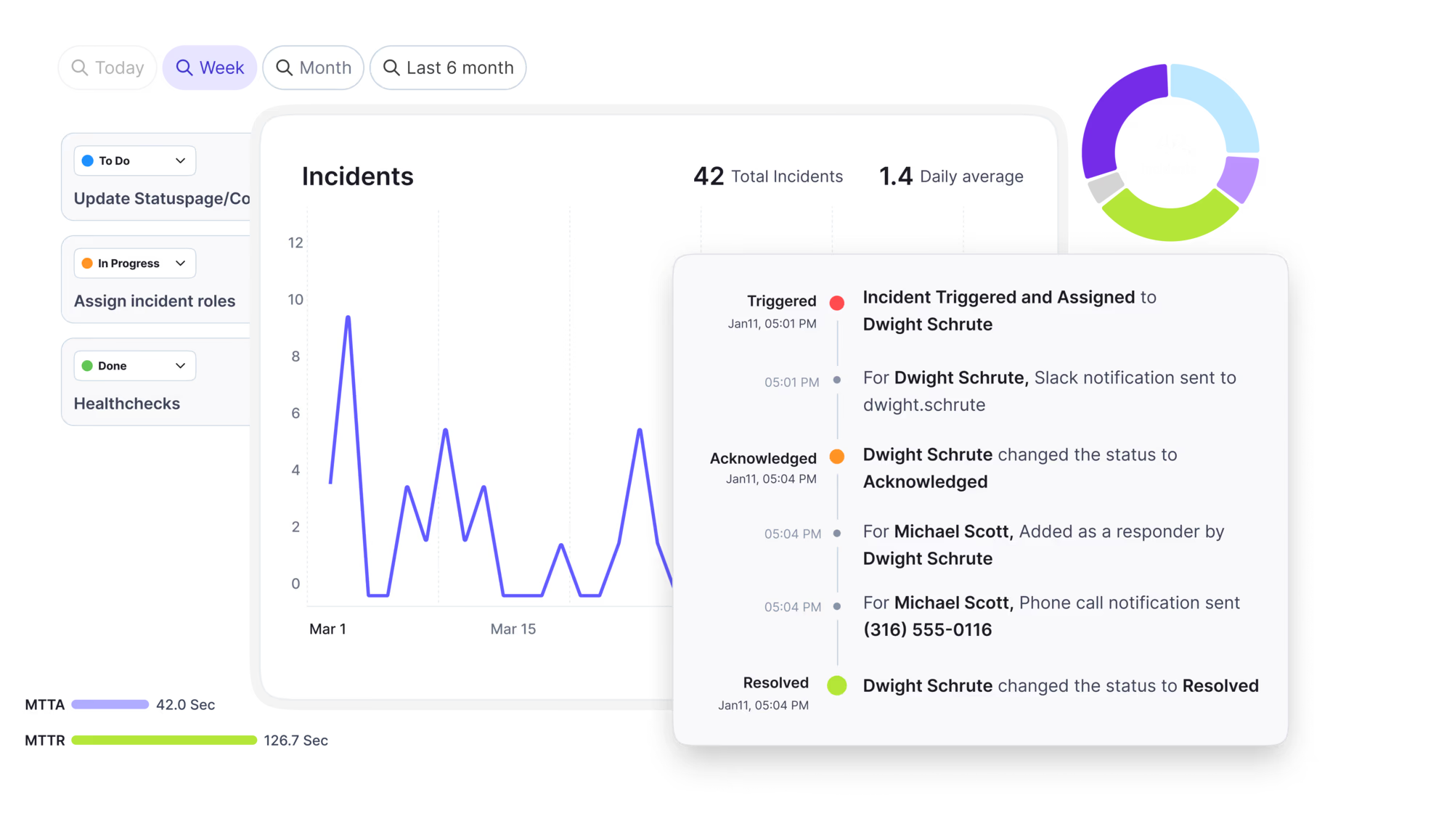
Automate postmortems, AI summaries, and post-incident workflows
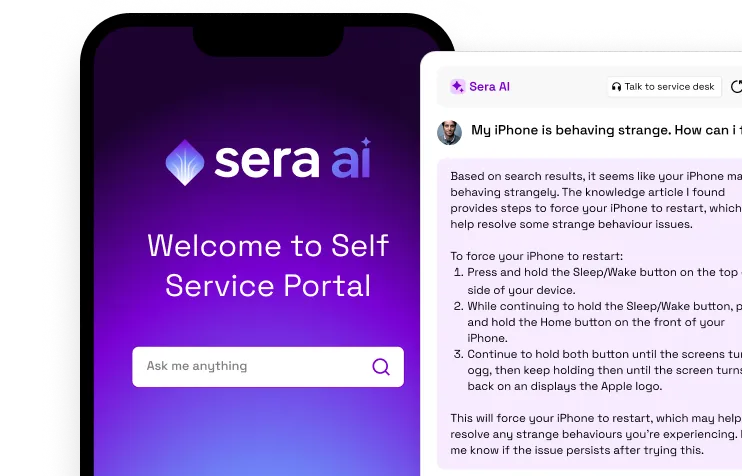
Create, organize, and continuously improve your knowledge base to find the right answers with Sera AI.
We're here to help

The integration with Atlassian Jira using the Xurrent Integration Service is

The integration with Atlassian Jira using the Xurrent Integration Service is

The integration with Atlassian Jira using the Xurrent Integration Service is

The integration with Atlassian Jira using the Xurrent Integration Service is

The integration with Atlassian Jira using the Xurrent Integration Service is

The integration with Atlassian Jira using the Xurrent Integration Service is

The integration with Atlassian Jira using the Xurrent Integration Service is

The integration with Atlassian Jira using the Xurrent Integration Service is
Resolve issues quickly with an AI-powered system that automates ticketing.
Unifiy IT, HR, Facilities, Finance, and more on a single, AI-powered service platform.
Simplify on-call scheduling, automate escalations, and reduce burnout.
Automate postmortems, AI summaries, and post-incident workflows
Create, organize, and continuously improve your knowledge base to find the right answers with Sera AI.
Resolve plant floor and IT issues before they disrupt production.
Stay audit-ready while resolving issues and reducing operational risk.

Detect, respond, and resolve incidents fast to cut downtime and MTTR.

Keep your store online, even during your biggest sales moments.

Protect patient data and resolve issues fast, so care teams stay focused on care.

Standardize service delivery across every store and channel.

We are here to help 24/7

Connect with other Xurrent Users

Get insights and tips on how to get the most out of Xurrent

Apps, APIs, and updates

Xurrent service functionality

Eliminate manual tasks, optimize workflows, and deliver faster resolutions.
Learn how organizations have reduced downtime, improved 50% MTTA & MTTR, and cut costs with Xurrent IMR.
Discover Xurrent IMR's quick support, bidirectional integrations with Jira and Slack, and more cohesive incident response capabilities compared to Opsgenie.
Understand why users value Xurrent IMR for its intuitive interface, efficient incident alerting, customizable On-call schedules, and escalations.

Learn how to install and configure the Jamf app in Xurrent to securely synchronize device data into the Xurrent CMDB and keep configuration items up to date automatically
The Jamf integration enables Xurrent to synchronize device information from Jamf Pro into Xurrent Configuration Items (CIs).
The integration can synchronize:
You can configure which device types are synchronized and control how devices that are no longer present in Jamf Pro are handled.
Before installing and configuring the Jamf integration, make sure you have:
403 error that does not explicitly identify the missing privilege.
After installation, the Jamf App Instance is available for configuration.
Open the Jamf App Instance and configure the following settings.
Enter the URL of your Jamf Pro environment.
Example:
https://your-company.jamfcloud.com
Use the URL of your own Jamf Pro environment.
Enter the Client ID generated for the Jamf Pro API Client.
Enter the Client secret generated for the Jamf Pro API Client.
Keep this value confidential.
The Jamf integration provides separate options for synchronizing computers and mobile devices.
Enable this option to synchronize computers from Jamf Pro to Xurrent.
When enabled, the integration retrieves computer information from Jamf Pro and creates or updates the corresponding Configuration Items in Xurrent.
Required Jamf permission: Read Computers
Enable this option to synchronize mobile devices from Jamf Pro to Xurrent.
When enabled, the integration retrieves mobile device information from Jamf Pro and creates or updates the corresponding Configuration Items in Xurrent.
Required Jamf permission: Read Mobile Devices
You can enable either option or both, depending on your requirements.
Enable this option if personal devices should not be synchronized from Jamf Pro.
When enabled, devices identified as personal devices by Jamf Pro are excluded from the synchronization.
Use Full resync when you want the integration to perform a complete synchronization rather than relying only on incremental changes.
A full resynchronization can be useful after:
Because a full resynchronization may process a large number of devices, use it when required.
The Jamf integration provides settings to control how devices that are no longer actively reporting to Jamf Pro are handled.
Specify the number of days after which a device is considered stale.
For example, if this value is set to 30, a device that has not been updated within the defined period can be treated as stale.
Select the status that should be assigned to a CI when the corresponding Jamf device becomes stale.
Available statuses include:
Choose the status that matches your organization's CI lifecycle process.
After entering the required configuration:
After the App Instance has been configured, run the synchronization.
The execution summary provides information about the synchronization, including:
The Execution Summary provides a complete overview of the latest integration run, including synchronization results, errors, and missing configuration items.
Note: This integration runs automatically once per day.
Execution Status: Shows the results of the most recent execution, including the current status and, in case of failures, the reason for failure.
Example:
Execution Output:
Displays the results of the most recent execution, including timestamps, statuses, and any error messages. Example:
Errors:
Missing OS Configuration Items:
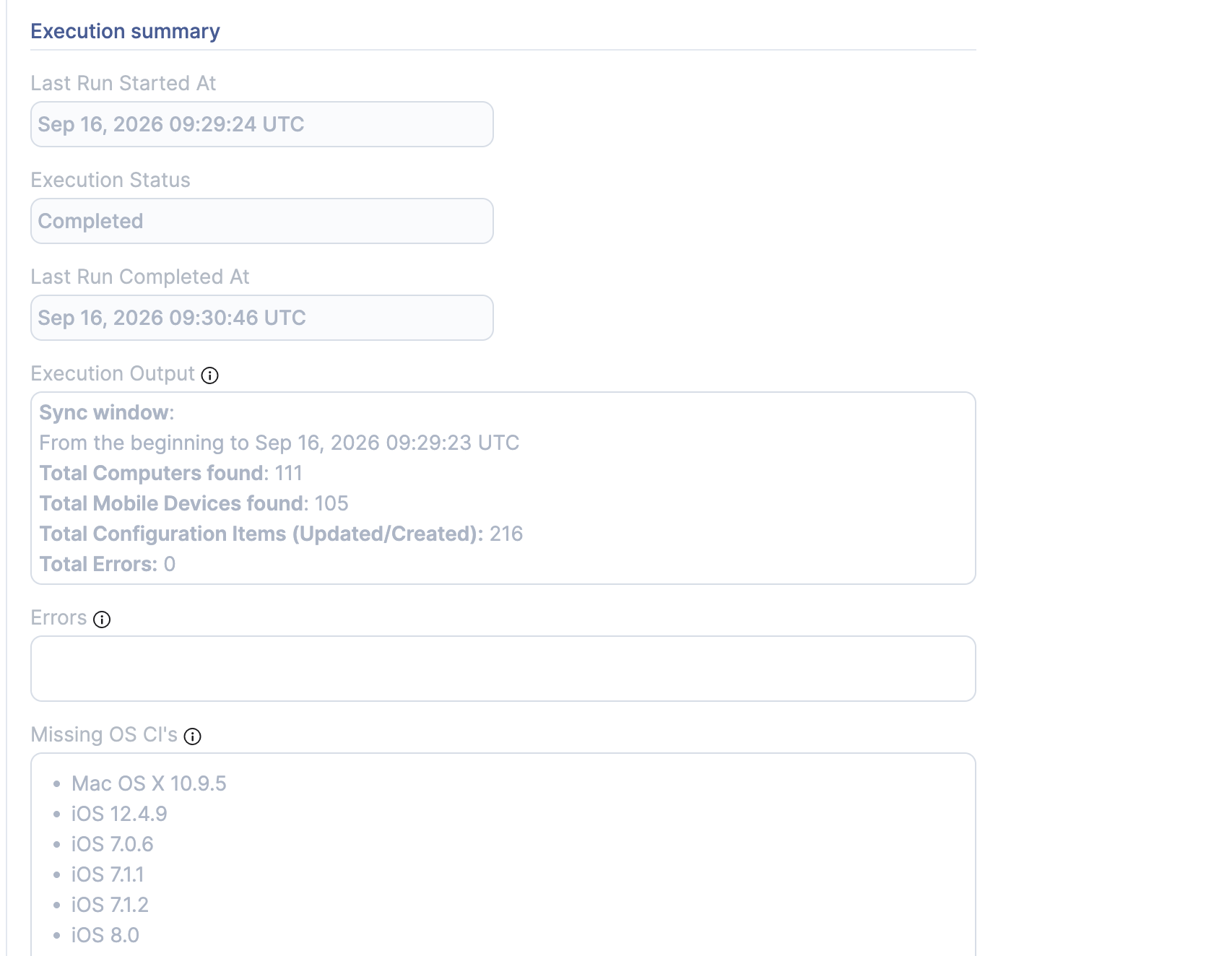
After the run completes, review the execution output.
A successful synchronization should show:
The actual numbers will depend on the devices available in your Jamf Pro environment.
If the App Instance cannot authenticate with Jamf Pro:
If no computers are found:
If no mobile devices are found:
If personal devices are not appearing in Xurrent:
If a CI is being treated as stale:
The Jamf integration uses credentials to access the Jamf Pro API.
Follow these practices: