





Blog
Insights & updates from our experts


Resolve plant floor and IT issues before they disrupt production.

Stay audit-ready while resolving issues and reducing operational risk.
Resolve issues quickly with an AI-powered system that automates ticketing.
Unifiy IT, HR, Facilities, Finance, and more on a single, AI-powered service platform.
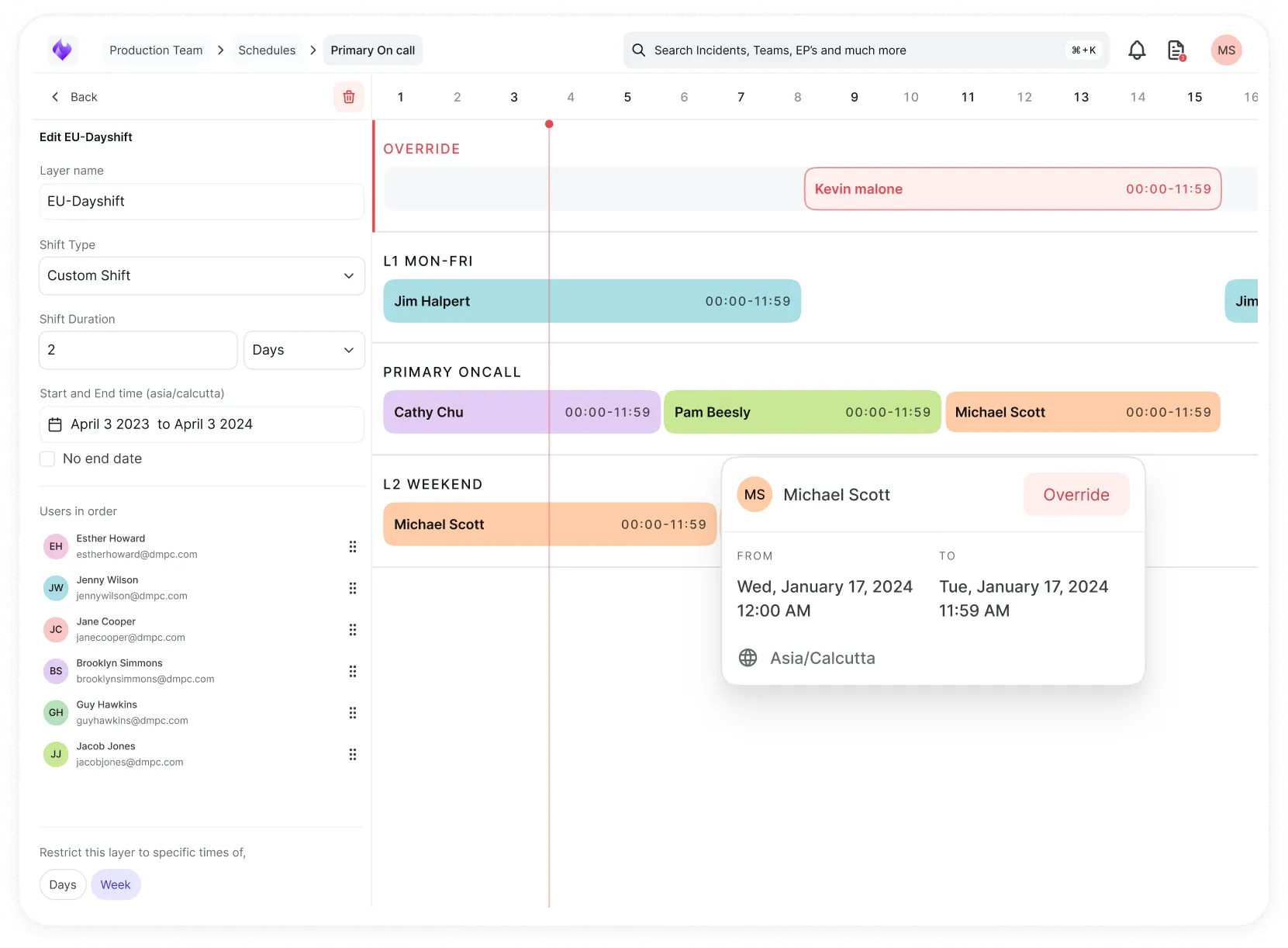
Simplify on-call scheduling, automate escalations, and reduce burnout.
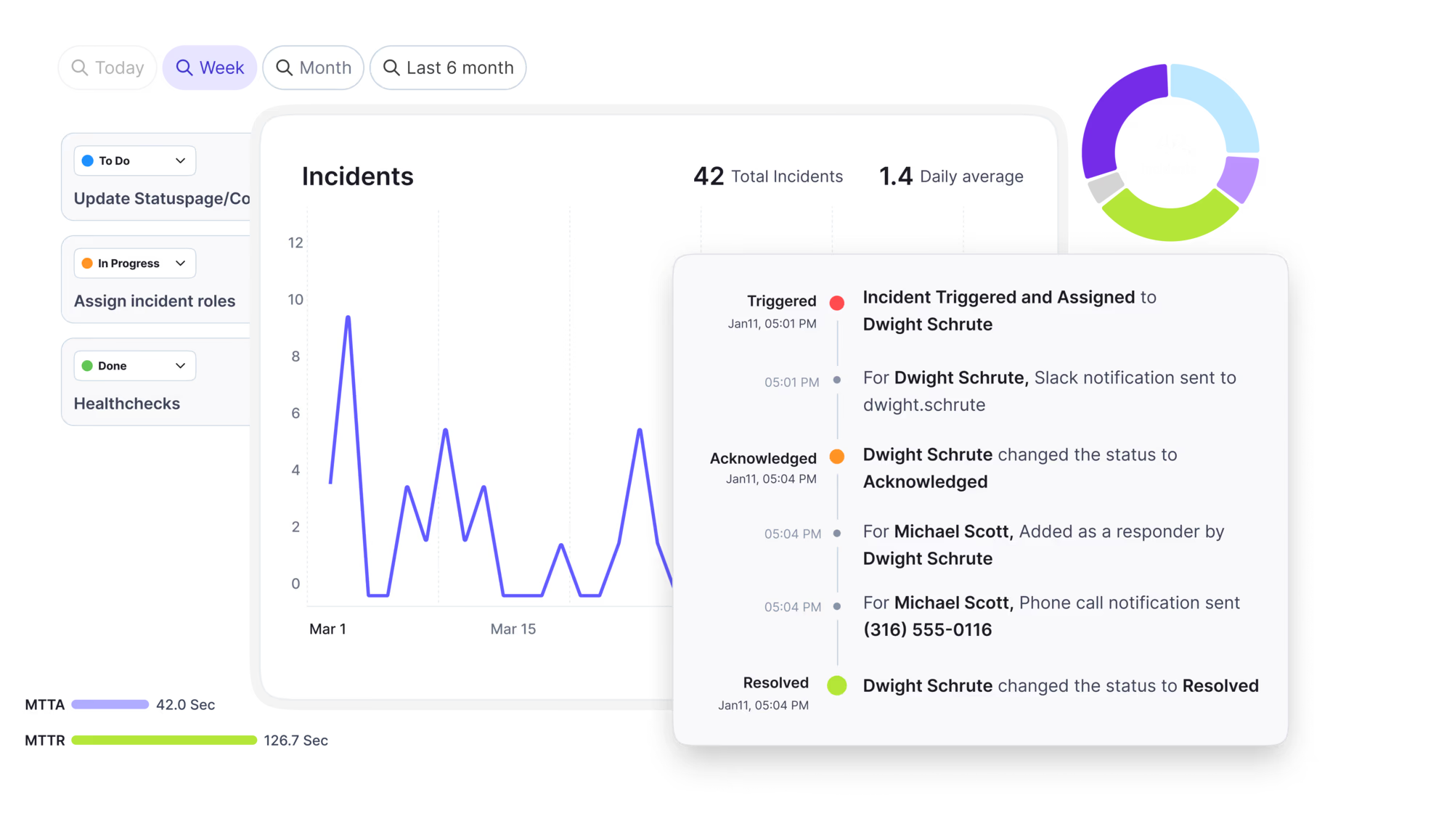
Automate postmortems, AI summaries, and post-incident workflows
Create, organize, and continuously improve your knowledge base to find the right answers with Sera AI.
We're here to help

The integration with Atlassian Jira using the Xurrent Integration Service is

The integration with Atlassian Jira using the Xurrent Integration Service is

The integration with Atlassian Jira using the Xurrent Integration Service is

The integration with Atlassian Jira using the Xurrent Integration Service is

The integration with Atlassian Jira using the Xurrent Integration Service is

The integration with Atlassian Jira using the Xurrent Integration Service is

The integration with Atlassian Jira using the Xurrent Integration Service is

The integration with Atlassian Jira using the Xurrent Integration Service is
Resolve issues quickly with an AI-powered system that automates ticketing.
Unifiy IT, HR, Facilities, Finance, and more on a single, AI-powered service platform.
Simplify on-call scheduling, automate escalations, and reduce burnout.
Automate postmortems, AI summaries, and post-incident workflows
Create, organize, and continuously improve your knowledge base to find the right answers with Sera AI.
Resolve plant floor and IT issues before they disrupt production.
Stay audit-ready while resolving issues and reducing operational risk.

Detect, respond, and resolve incidents fast to cut downtime and MTTR.

Keep your store online, even during your biggest sales moments.

Protect patient data and resolve issues fast, so care teams stay focused on care.

Standardize service delivery across every store and channel.

We are here to help 24/7

Connect with other Xurrent Users

Get insights and tips on how to get the most out of Xurrent

Apps, APIs, and updates

Xurrent service functionality

Eliminate manual tasks, optimize workflows, and deliver faster resolutions.
Learn how organizations have reduced downtime, improved 50% MTTA & MTTR, and cut costs with Xurrent IMR.
Discover Xurrent IMR's quick support, bidirectional integrations with Jira and Slack, and more cohesive incident response capabilities compared to Opsgenie.
Understand why users value Xurrent IMR for its intuitive interface, efficient incident alerting, customizable On-call schedules, and escalations.
This post is a living document, updated throughout the month as new product releases roll out. Each update listed here is released to our QA environment on the date shown and typically promoted to production the following week. Along the way, customers can review changes, share feedback, and help shape what ships next. Xurrent delivers product updates on a weekly cadence to keep enhancements moving continuously.
A Select field with "Multiple" on can now show its options as a list of checkboxes instead of a list box. Requesters tick the answers they want. Previously, choosing more than one value in the list box meant holding down a key while clicking, which many requesters overlooked.
The new setting is "Show as checkboxes" in the field's settings in the UI extension designer. It appears once "Multiple" is ticked and is off by default. With it on, the form shows one checkbox per option under the field's label, in the order the options are listed. This applies in both the specialist interface and Self Service.
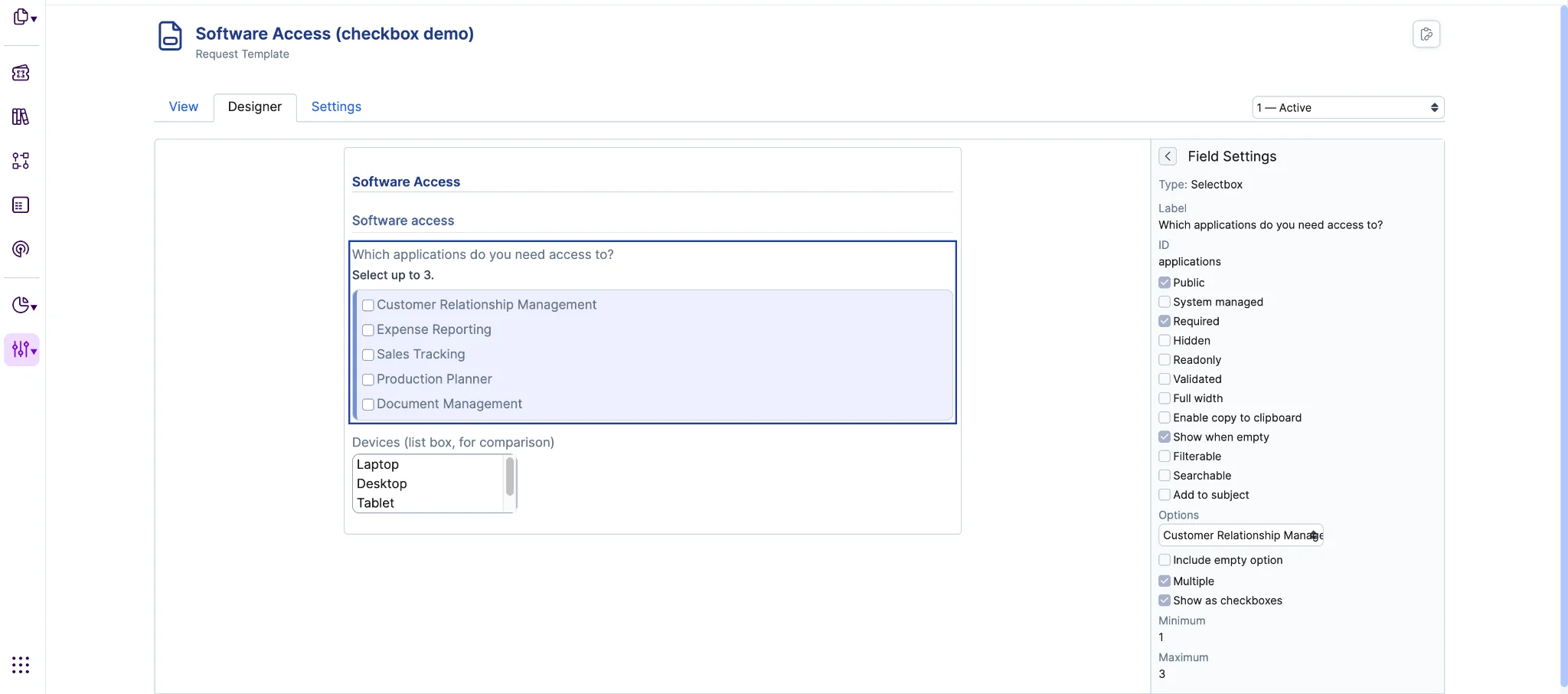
The answer is stored exactly as the list box stores it. Filters, reports, views, automation rules, the API and exports are unchanged. The setting can be turned on or off on a UI extension that is already in use, and answers people have already given stay as they are.
"Required", "Minimum", "Maximum" and option visibility conditions work on the checkboxes as they do on the list box. Option labels appear in the reader's language. "Include empty option", "Placeholder" and "Visible items" are not offered while the setting is on. "Show when empty" is offered, so the question can stay on the record when the requester ticks nothing.
Specialists see the question and the chosen answers on the record. Existing forms are unchanged until the setting is turned on in the UI extension.
A dashboard can now be exported to PDF as a document of A4 pages, with charts and text at normal print size. Previously, a dashboard always exported as one sheet as large as the dashboard, so the text on a wide dashboard became too small to read.
The "Print Dashboard to PDF" dialog and the dashboard export form both have a new "Page layout" choice: "Single page" or "A4 pages". "Single page" is the default and produces the same output as before. Existing export schedules keep "Single page".
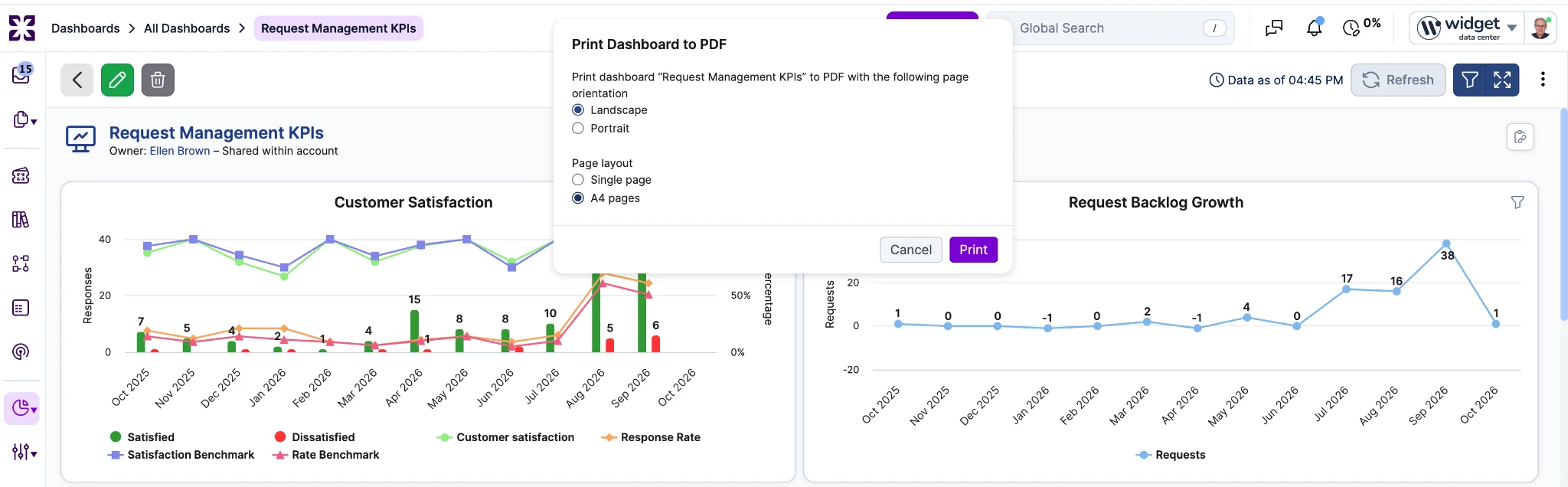
With "A4 pages", the dashboard is laid out at the width of the page and continues onto as many pages as it needs, in the orientation you choose. A widget that does not fit on the rest of a page moves whole to the next page. A widget taller than a page is split. The title and filters appear on the first page only, and pages are not numbered. A scheduled export uses the same choice on every run.
An account that has changed the widget markup in its dashboard PDF design may see a widget that fits on one page split across two pages with "A4 pages".
When an AI agent skill runs in "Suggest", its suggestion now waits for a decision in a new "Agent Actions" view in the Inbox, next to "My Inbox", "My Team's Inbox" and "Watchlist". Previously, a suggestion arrived only as an internal note on the request and was easy to miss. The internal note is still added, and the "Agent Actions" item points to it for the agent's reasoning.
Each item goes to the request's "Member" and to the team that holds the request. Nobody else sees it. The "Agent Actions" view appears only when you have at least one open item.
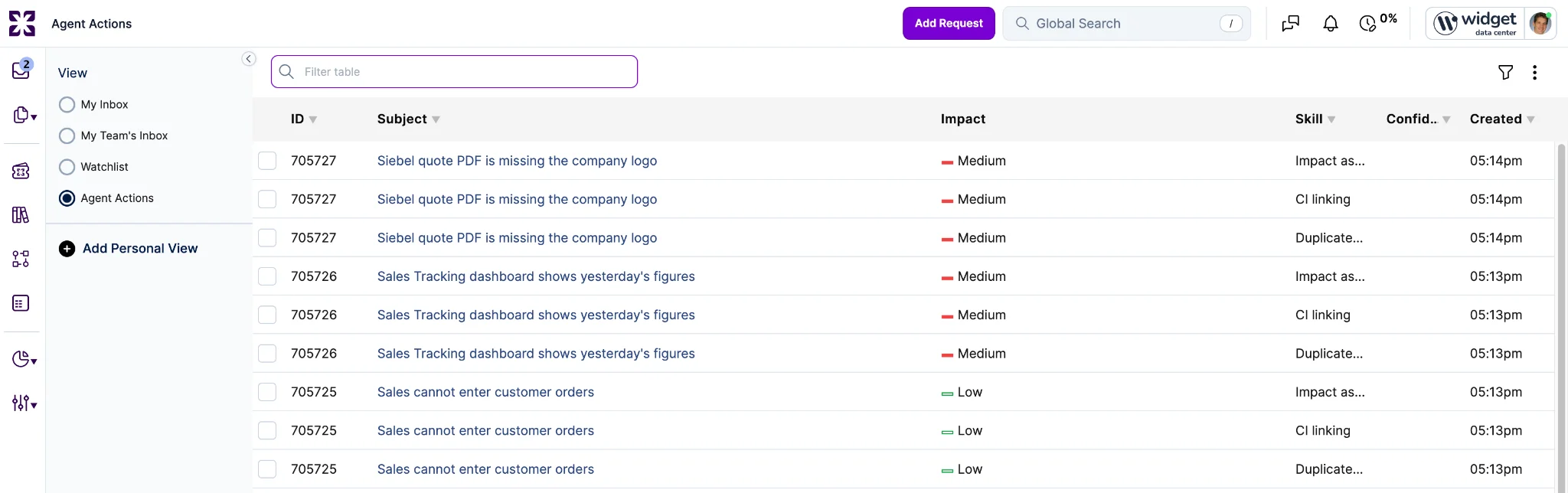
Six skills send their suggestions here: "Reopen Signal Detection" and "Verification Note Generation" on the Closure Agent, "Duplicate Detection", "CI Linking" and "Impact Assessment" on the Triage Agent, and "Resolution Reply" on the Resolution Agent. A skill running in "Auto Confirm" applies its change directly and adds nothing to the view.
Each row shows the request, its impact, the skill and the agent's confidence. Clicking a row opens the request. When you act on the suggestion there, the item closes on its own.
Sera AI Studio has a new "Insights" tab. Its first section, "Service Coverage Gaps", lists requests Sera could not route because a support path is misconfigured. Previously, Sera gave the end user a fallback message and nothing told administrators that the path was broken.
Each row shows the service or request template Sera tried to route to (the "Subject" column), the support domain, the reason, the number of occurrences and when the gap was last seen. The reason is one of "Sera AI not enabled", "No service desk team" or "No active support agreement". A matching button opens the place to fix it: "Enable Sera AI", "Assign team" or "Configure SLA".
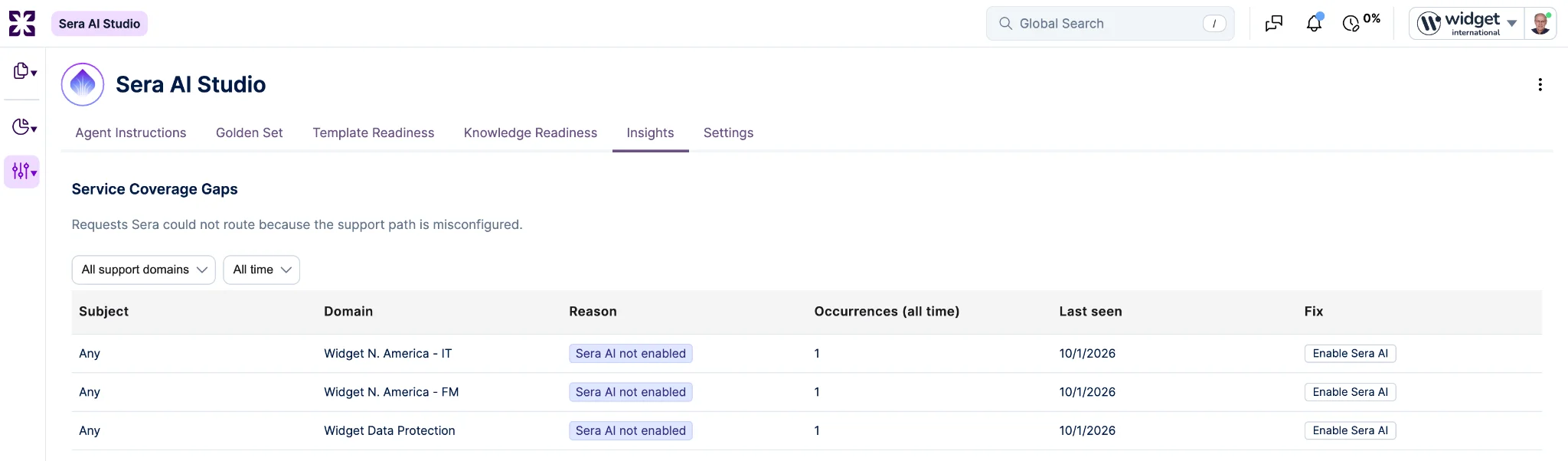
A row clears on its own once the misconfiguration is fixed, and comes back if the gap recurs. You can filter by support domain and by period. A row for a support domain you cannot administer has no fix button, because the change is made in that domain's own account. A row shows "Any" when the gap involved no particular service or template. The tab stores no requester names and none of the text requesters type.
The tab is available to Account Administrators, Account Designers and Auditors.
CI Reconciliation now checks custom field values against the product before applying them. When a record proposes a field that the product's UI extension does not define, the record waits in a new "Product Enhancement" view of the Reconciliation Queue, with the on hold reason "Product custom fields pending". Previously, such values were saved on the CI without being added to the product's form, so nobody saw them.
This applies to accounts with "Enable CI Reconciliation" turned on in Account Settings, and to saves that provide both a Source and a Source ID. That includes API integrations, asset discovery, and CI form saves with the Reconciliation option ticked. Records that carry no custom field values go straight on to review.
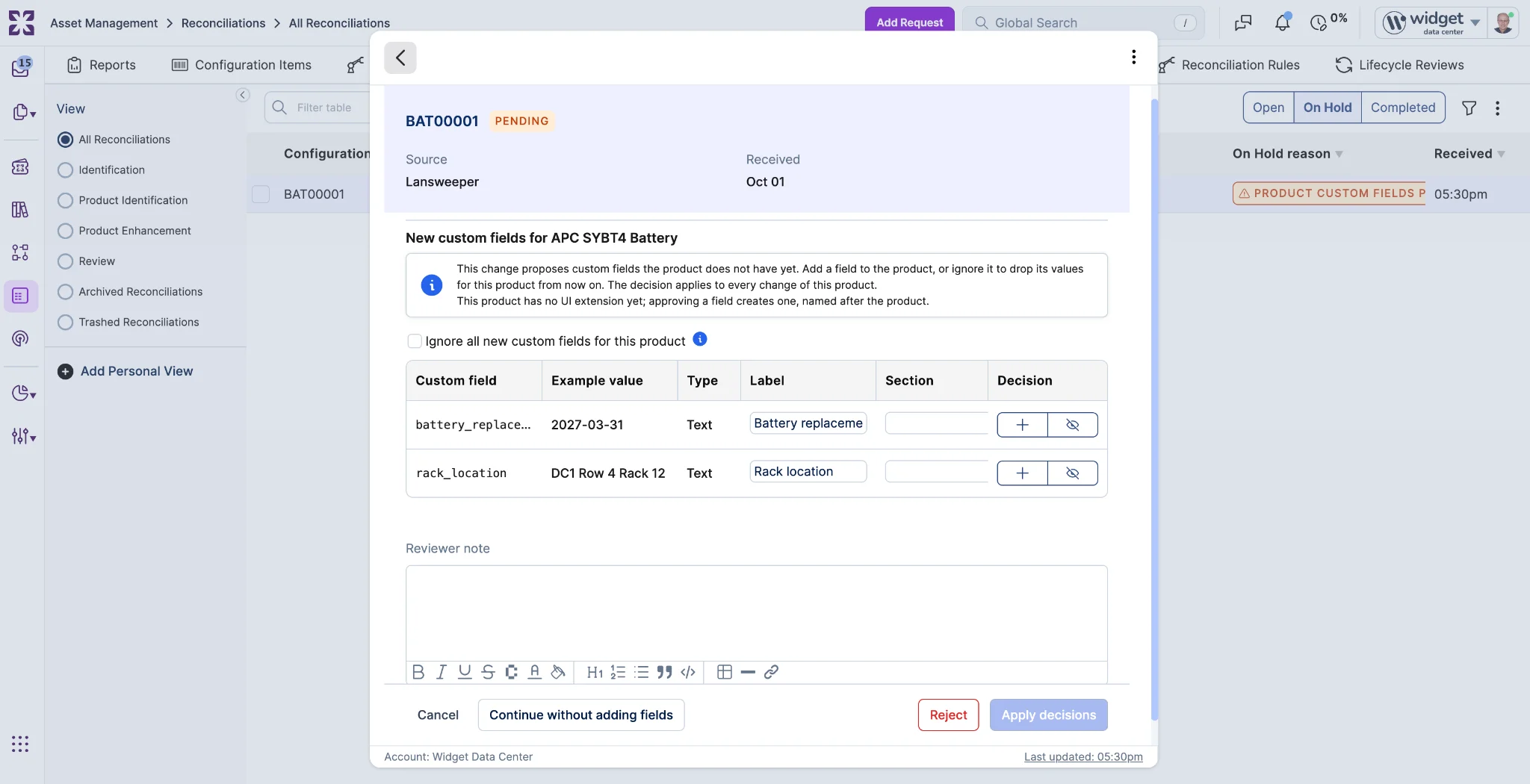
A Configuration Manager or Account Administrator decides each new field once per product. The view shows the product each record is waiting on. Opening a record lists its pending fields with an example value. Choosing Add puts the field on the product's UI extension with the label and section you choose. If the product has no UI extension yet, the first Add creates one, named after the product. The field is searchable and filterable, and internal, so it does not appear in Self Service. Choosing Ignore drops the value, and the question is not asked again for that product. One decision releases every record waiting on the same product. Automation rules in the new Product Enhancement Rules group can react when a record starts waiting.
Add is not available when the product's UI extension is a legacy HTML extension, or has a draft version in progress. Add the field in the UI extension instead, or activate or discard the draft. The waiting records are then released automatically.
A product can opt out with the new "Ignore new custom fields" option on the product. New field values for that product are then dropped without waiting. Ignored fields are listed on the product's edit form, and removing one there lets the question come back. Configuration Managers can now add fields to product UI extensions in the designer, but cannot edit their HTML, JavaScript or CSS.
See Important Messages for what this means for integrations that already send custom field values.
Every agent page in Agent Designer now has a "Scope" section. You choose the teams or services the agent runs on there. The Intake, Triage, Closure and Resolution Agents list the account's teams. The Knowledge and Problem Management Agents list its services. Previously, a team-scoped agent was switched on by adding it as a member of each team. Adding an agent as a team member still works, and existing settings are honored.
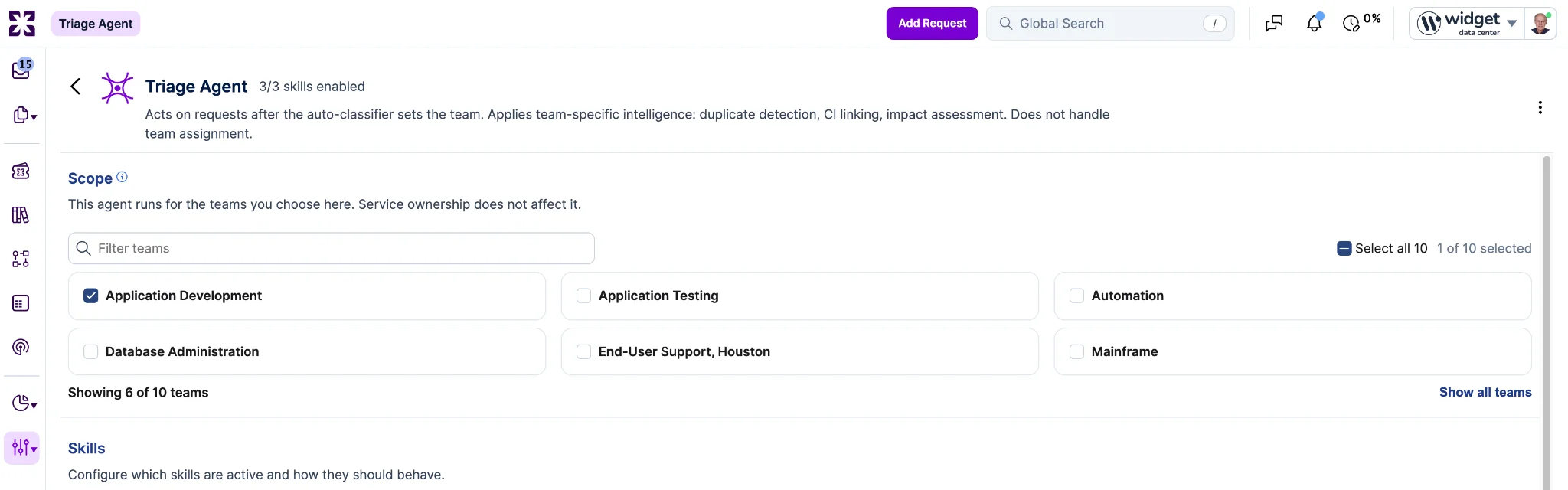
The section shows six entries, with the ones the agent already runs on first, and a "Show all teams" or "Show all services" link for the rest. You can filter the list and use "Select all", which applies to the entries that match the filter. A ticked entry stays selected when it is filtered or collapsed out of view. When nothing is chosen, the section warns that the agent does nothing yet. Account Administrators and Account Designers can change the scope; Auditors see it read-only.
Teams and services also show their agents. The Team page has a new "Agents" section below "Members", and "Members" now lists people only. The Service page has an "Agents" section below "Responsibilities". Changing an agent's scope in one place updates the other, and changing it on the agent page never adds or removes any of the team's people. The API is unchanged: a team's members still include its agents.
Apply connector updates when iPaaS shows them. Xurrent updates iPaaS connectors on a regular basis to fix bugs and improve performance. This update does not list connector changes that have no visible effect. When an updated connector version is available, iPaaS shows a notification in each solution that uses the connector. Apply the update when the notification appears. The new version then goes out with the next promotion of the solution.



.webp)
.webp)