


Blog
Insights & updates from our experts


Resolve plant floor and IT issues before they disrupt production.

Stay audit-ready while resolving issues and reducing operational risk.
Resolve issues quickly with an AI-powered system that automates ticketing.
Unifiy IT, HR, Facilities, Finance, and more on a single, AI-powered service platform.
Simplify on-call scheduling, automate escalations, and reduce burnout.
Automate postmortems, AI summaries, and post-incident workflows
Create, organize, and continuously improve your knowledge base to find the right answers with Sera AI.
We're here to help

The integration with Atlassian Jira using the Xurrent Integration Service is

The integration with Atlassian Jira using the Xurrent Integration Service is

The integration with Atlassian Jira using the Xurrent Integration Service is

The integration with Atlassian Jira using the Xurrent Integration Service is

The integration with Atlassian Jira using the Xurrent Integration Service is

The integration with Atlassian Jira using the Xurrent Integration Service is

The integration with Atlassian Jira using the Xurrent Integration Service is

The integration with Atlassian Jira using the Xurrent Integration Service is
Resolve issues quickly with an AI-powered system that automates ticketing.
Unifiy IT, HR, Facilities, Finance, and more on a single, AI-powered service platform.
Simplify on-call scheduling, automate escalations, and reduce burnout.
Automate postmortems, AI summaries, and post-incident workflows
Create, organize, and continuously improve your knowledge base to find the right answers with Sera AI.
Resolve plant floor and IT issues before they disrupt production.
Stay audit-ready while resolving issues and reducing operational risk.

Detect, respond, and resolve incidents fast to cut downtime and MTTR.

Keep your store online, even during your biggest sales moments.

Protect patient data and resolve issues fast, so care teams stay focused on care.

Standardize service delivery across every store and channel.

We are here to help 24/7

Connect with other Xurrent Users

Get insights and tips on how to get the most out of Xurrent

Apps, APIs, and updates

Xurrent service functionality

Eliminate manual tasks, optimize workflows, and deliver faster resolutions.
Learn how organizations have reduced downtime, improved 50% MTTA & MTTR, and cut costs with Xurrent IMR.
Discover Xurrent IMR's quick support, bidirectional integrations with Jira and Slack, and more cohesive incident response capabilities compared to Opsgenie.
Understand why users value Xurrent IMR for its intuitive interface, efficient incident alerting, customizable On-call schedules, and escalations.
This post is a living document, updated throughout the month as new product releases roll out. Each update listed here is released to our QA environment on the date shown and typically promoted to production the following week. Along the way, customers can review changes, share feedback, and help shape what ships next. Xurrent delivers product updates on a weekly cadence to keep enhancements moving continuously.
What this gets you: A major incident is counted once, on its request group, and Xurrent asks before grouping takes a value away from a request.
When requests are grouped, the "Major incident status" now stays on the request group. A grouped request shows the status of its group as read-only, followed by "(on the request group)". Previously, the group copied its status to every grouped request.
A new request group takes the highest status of the requests being grouped, and their own statuses are cleared. A request added to an existing group also loses its own status. The status of the group does not change, unless the person grouping has no Specialist role in the account of the request. The group then takes the higher of the two. A requests view filtered on "Major incident status" lists only the group.
When you add requests to an existing group, a confirmation now appears first if a request would lose a value. This happens when the request has a "Major incident status" and the group has none or a lower one. It also happens when the request has the impact "Top" and the group does not. The request then also loses its downtime start and end.
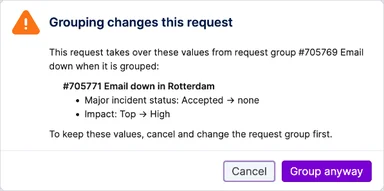
The dialog lists each value that changes. Choose "Group anyway" to continue, or "Cancel" to leave the requests as they are. No confirmation appears for a new group, or when requests are grouped through the API or an automation rule. See Important Messages.
What this gets you: Self Service records read the same way on every screen, and a form built in the designer looks the same wherever it appears.
On every Self Service page that shows or edits a record, the label of a field now sits above its value. This applies at every screen width and for everyone, including specialist forms that open in Self Service. On the new request form, "Requested for" and "Service instance" line up with "Subject". Previously, labels and values could sit side by side.
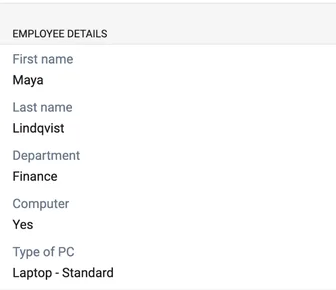
UI extensions built in the Drag & Drop Designer now look the same in the designer, on the new request form, on the submitted request and in the specialist view. Checkbox rows stay side by side, as do headers with a picture and a name, such as those of a service or a profile. In Self Service v2, labels have a muted color.
UI extensions written in HTML and CSS keep their layout while they are being edited. When their fields are only shown in Self Service, the labels now sit above the values too. The specialist interface outside Self Service does not change.
What this gets you: Configuration items whose next step is always the same get their request without anyone opening the review.
Each watched date on a product category, such as "Warranty expiry" or "End of support", now has an outcome: "Review in queue" or "Create request". "Review in queue" is the default and works as before. For "Create request", you also select a request template in its field, such as "Warranty expiry request template". Previously, every lifecycle review waited in the queue until someone opened it and chose "Create request".
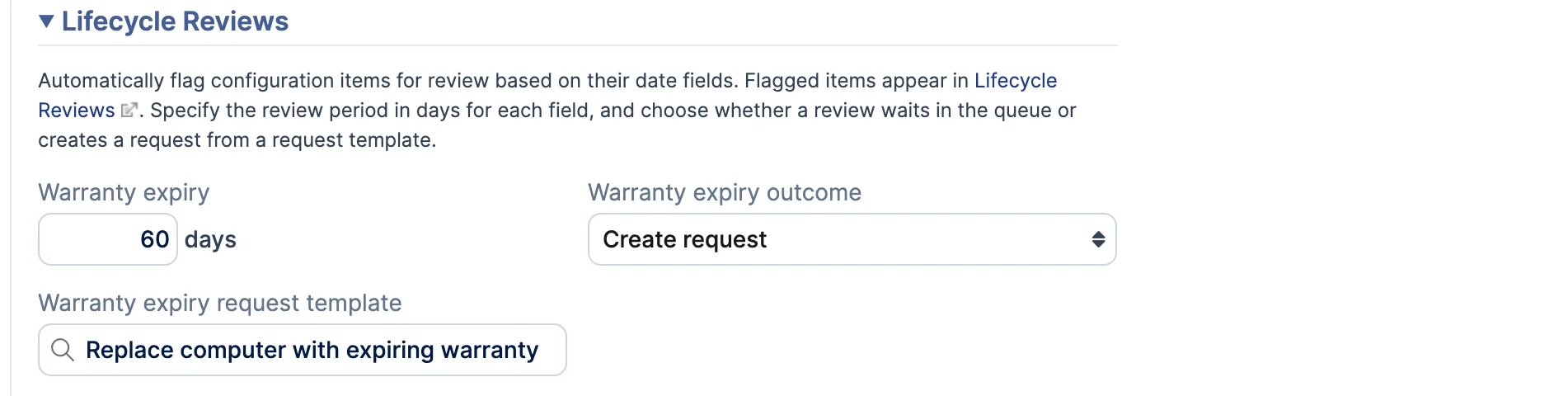
When a watched date of a configuration item crosses the review period, the daily run creates the review and a request from the template. The coordinator of the support team of the configuration item is the requester, and the configuration item is linked to the request. The review is completed with the status "Request created". While that request is open, the configuration item is not flagged again for the same date.
The review waits in the queue instead when no request can be created. This happens, for example, when the support team has no coordinator, when the template is disabled, or when the configuration item has no instance of the service on the template.
Reviews already in the queue when you switch a date to "Create request" stay there. On the next run, a request is created for each configuration item that is already inside the review period and has no review yet. An Account Administrator or Account Designer can change a product category, under "Settings" > "CMDB" > "Product Categories".
What this gets you: Every product in a category gets the right configuration item fields, including the products that an integration creates.
A product category has a new field, "Configuration item UI extension". Products in the category without a UI extension of their own use it for their configuration items. A product saved without a UI extension gets it too, whether it is saved in Xurrent, through the API, by an import or by an integration. Previously, the UI extension had to be set on each product.

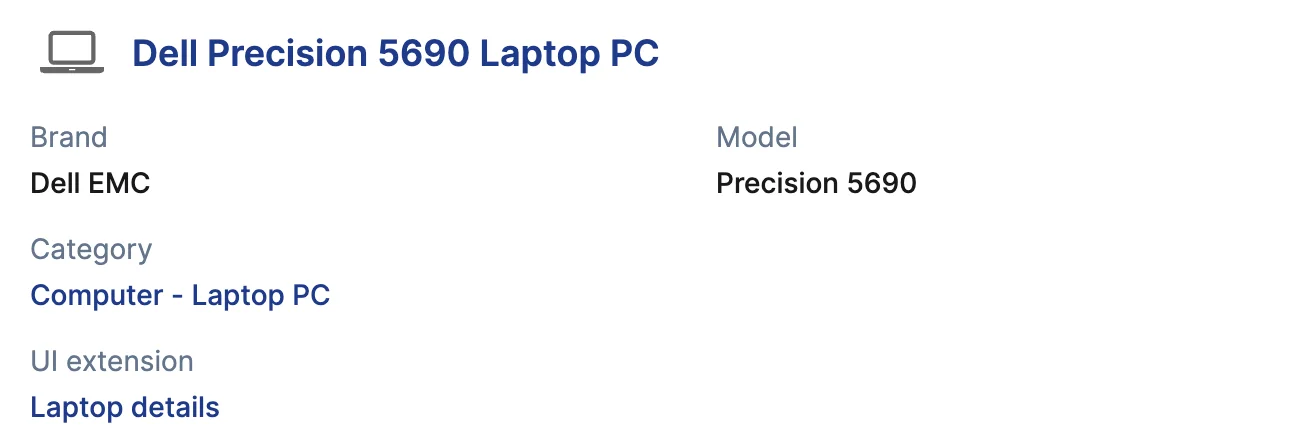
When you change the default, the products that use it change with it. Clearing the default removes it from those products. Products with another UI extension of their own are not affected. Values already stored on configuration items are kept.
Only UI extensions of the category "Product" can be selected, and the field appears once the account has one. On a product of the category, the "UI extension" field lists the "Default" first, then "Other UI extensions". In the UI extension designer, a banner names the product categories that use the extension as their default.
An Account Administrator or Account Designer can change a product category. Each product that changes is saved on its own, so its audit trail records the change. See Important Messages.
What this gets you: Sizes such as storage or memory read as "16 GB" instead of a long number of bytes.
A number field without decimals now has a "Show as bytes" option in the UI extension designer. The value is then shown in binary units, as the memory of a configuration item is: 1 KB is 1,024 bytes, with at most two decimals. Hover over the value to see the exact number of bytes. This applies on the record, in views, in exports and in PDFs.

To enter a value, you type a number and pick a unit: Bytes, KB, MB, GB, TB or PB. GB is the default. Xurrent stores the number of bytes. The minimum and maximum are set in bytes, and the API reads and writes bytes.
The option is hidden when "Decimal places" is above 0. While it is on, "Show thousand separator" is hidden. Existing fields do not change. Binary units can differ from the decimal sizes some vendors quote.
What this gets you: A reply that suggests a completed request should be reopened reaches the right specialist, even before anyone acts on it.
When the "Reopen Signal Detection" skill of the Closure Agent runs in "Suggest" mode, a completed request with a reopen suggestion now appears in the Inbox. It is listed in "My Inbox" of the member of the request, or in "My Team's Inbox" when there is no member, and counts toward the Inbox badge. The row shows the status "Completed" and "Reopen Suggested". Previously, the suggestion was only listed in "Agent Actions".

Reopening the request or dismissing the suggestion removes the row. Dismissing it on the request also dismisses it in "Agent Actions", and the other way around. The member receives the new "Reopen Suggested for Request" email. It is enabled in every account and can be disabled under "Email Templates".

The skill now follows the "Reopen requests" period in the Self Service settings. When a requester replies after that period, no suggestion is made. The Closure Agent instead adds a public note that asks the requester to submit a new request and mention the number of the completed one. The text of this note is fixed. Requests in the categories "Reservation", "Order" and "Fulfillment" never get a reopen suggestion.
This applies to accounts with Sera AI enabled that use the Closure Agent. Suggestions that were open before the release appear in the Inbox once the request or the suggestion next changes. See Important Messages.
What this gets you: You can send the Closure Agent's sign-off after a quick review, and a reopened request goes back to the specialist who resolved it.
When the "Verification Note Generation" skill of the Closure Agent finds a request fully resolved, "Accept" now puts the drafted sign-off in a public note for you to review. The draft mentions the requester, and nothing is sent until you save the note. When "Requested by" and "Requested for" are different people, the draft is written to both and mentions both.
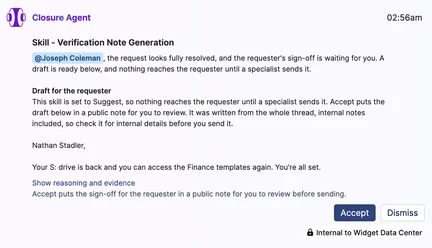
When the request is only partly resolved, "Accept" reopens it. A question for the requester is added only when you need information that only the requester has. When the agent holds back a draft, for example because it is not confident enough, its note says why and offers no "Accept" or "Dismiss".
The "Reopen Signal Detection" skill now also responds to replies from "Requested by". Previously, only replies from "Requested for" counted. In "Auto Confirm" mode, a reopened request goes back to the specialist who resolved it, with an internal note that says why. When that specialist is no longer a member of the team, the request goes to the team without a member. See Important Messages.
What this gets you: You can see what an AI agent did on a request in one line, without reading its reasoning.
Internal notes written by the Intake, Triage, Closure and Problem Management Agents now open with a short summary. For example: "Mark Baca is asked for 3 more details in a public note. Work starts when they reply." The reasoning, evidence and verdict of the agent are folded under "Show reasoning and evidence". Previously, the full reasoning filled the note.
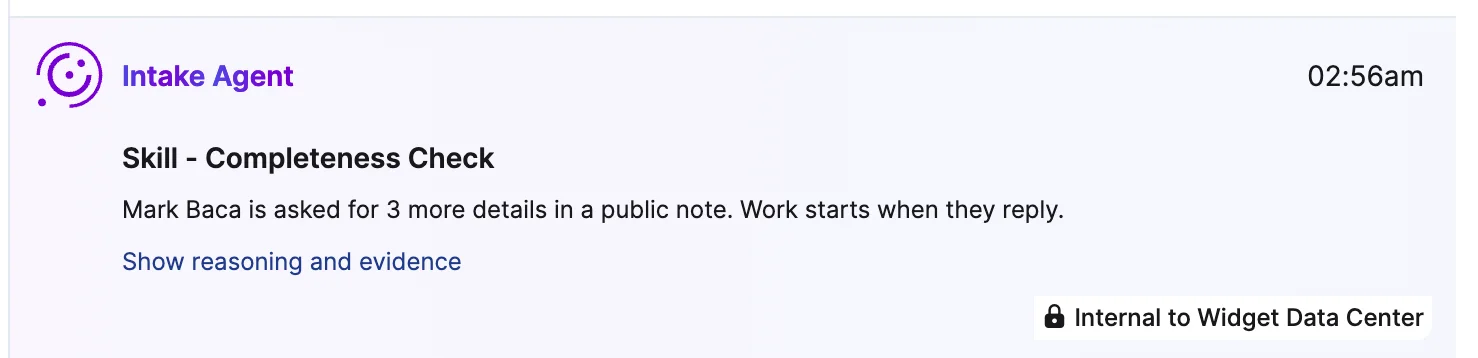
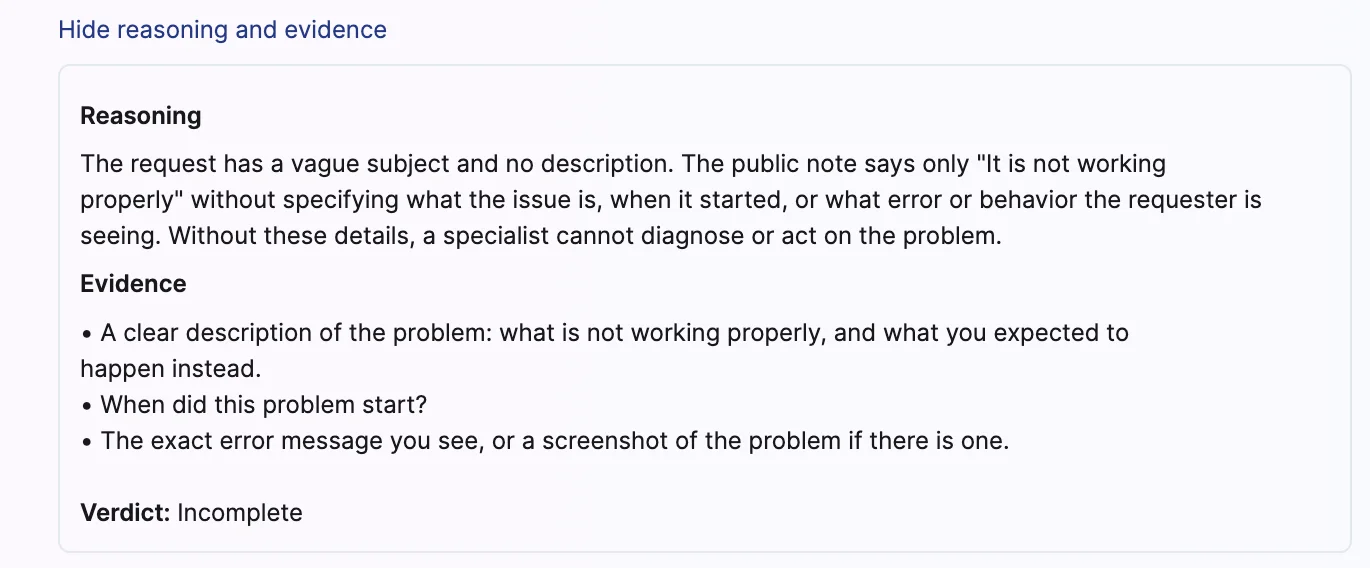
Notes written before the release stay as they are. The stored text of a note does not change, so search, exports and the API still return the full note. The public note of the Intake Agent to the requester does not change.
The Universal Data Connector (UDC) now syncs Team Involvement data to a new TeamInvolvement table. You can report on team handoffs, ownership periods and holding times in your own data warehouse, alongside your other Xurrent data. Previously, the UDC did not sync Team Involvement data.
Team Involvement tracks which teams handled a request, when each team started and stopped owning it, and how long it held the request. Each record includes:
You can join this data with your other UDC tables, and use it to filter, group and build reports in your data warehouse.
While a team is still assigned to a request, its record has no end time or duration. Both are filled in during the next sync after the request moves to another team. Team Involvement data is available only from the point tracking was enabled for your account. Earlier history is not backfilled.
To start syncing Team Involvement data, update the UDC V2 app from the Xurrent App Store to the latest version. Until the app is updated, the TeamInvolvement table stays empty and each sync logs an error for this table. All other UDC tables keep syncing as usual.
You can now add your own logo to a solution, which makes solutions easier to tell apart. The logo appears next to the solution name in the Solutions list. Previously, solutions could not carry a logo of their own.
To add a logo: