





Blog
Insights & updates from our experts


Resolve plant floor and IT issues before they disrupt production.

Stay audit-ready while resolving issues and reducing operational risk.
Resolve issues quickly with an AI-powered system that automates ticketing.
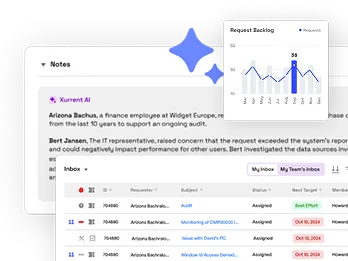
Unifiy IT, HR, Facilities, Finance, and more on a single, AI-powered service platform.
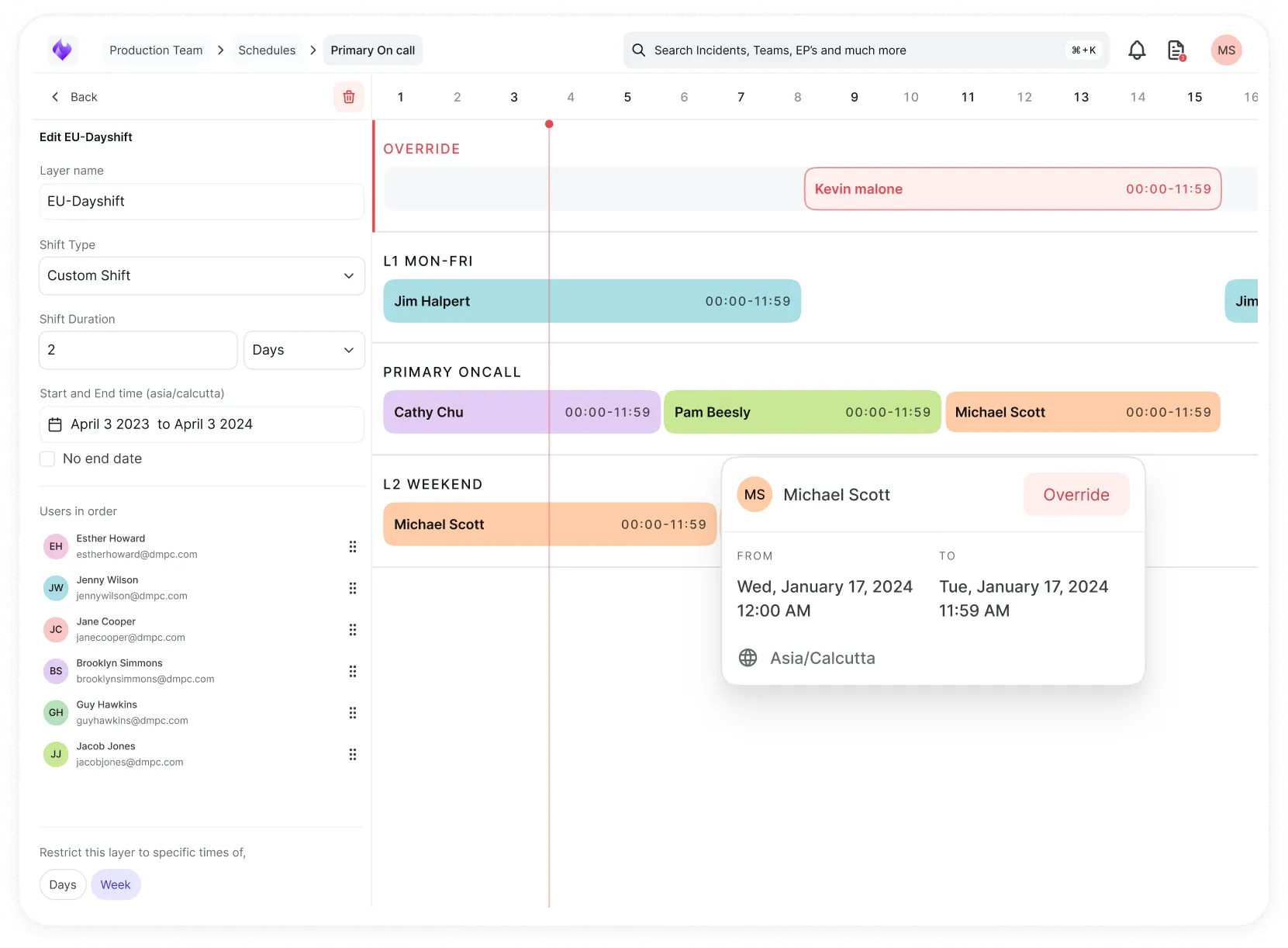
Simplify on-call scheduling, automate escalations, and reduce burnout.
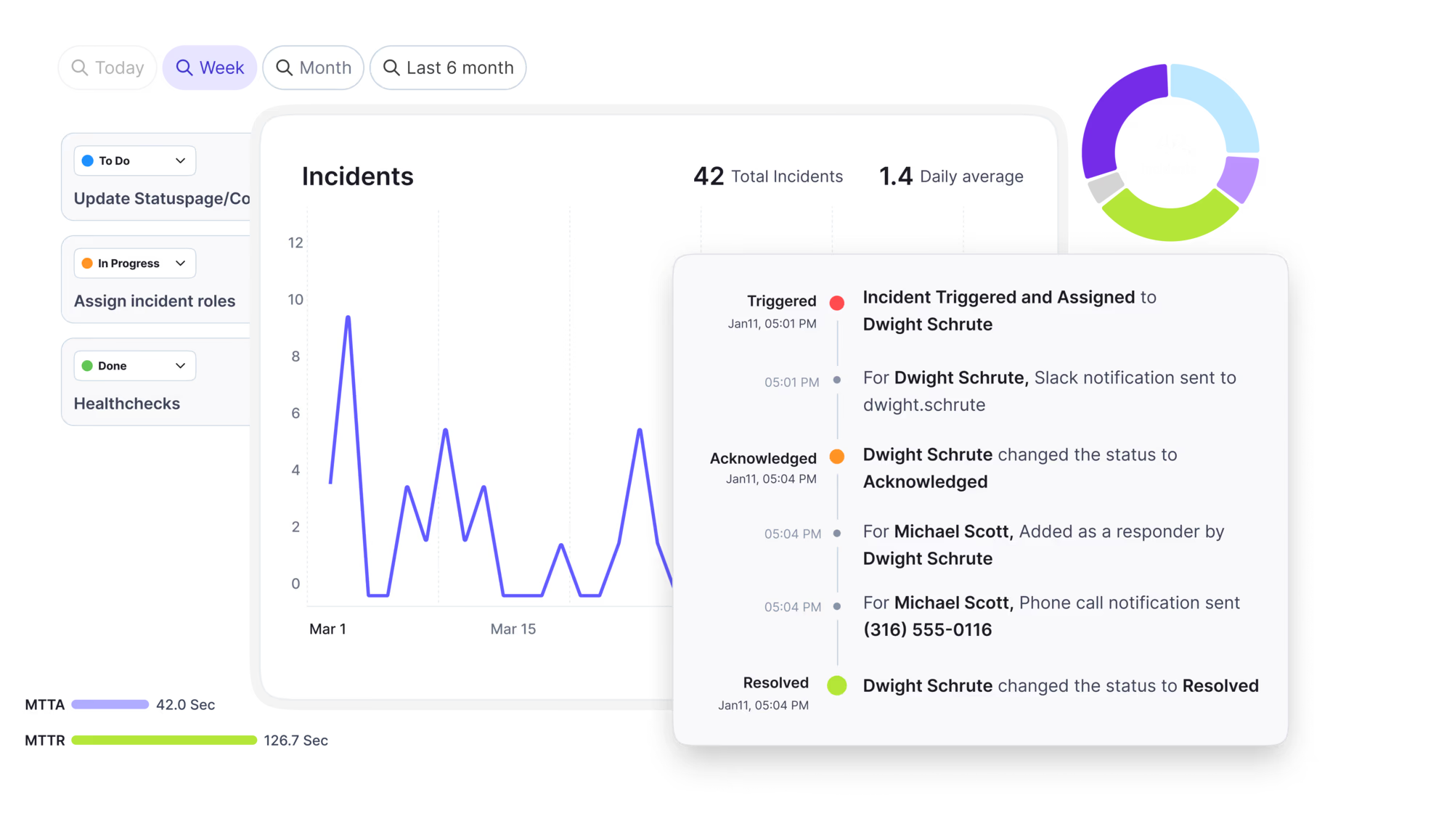
Automate postmortems, AI summaries, and post-incident workflows
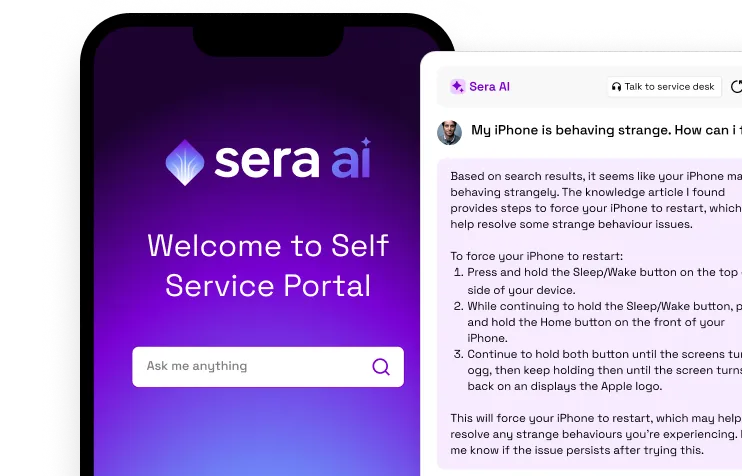
Create, organize, and continuously improve your knowledge base to find the right answers with Sera AI.
We're here to help

The integration with Atlassian Jira using the Xurrent Integration Service is

The integration with Atlassian Jira using the Xurrent Integration Service is

The integration with Atlassian Jira using the Xurrent Integration Service is

The integration with Atlassian Jira using the Xurrent Integration Service is

The integration with Atlassian Jira using the Xurrent Integration Service is

The integration with Atlassian Jira using the Xurrent Integration Service is

The integration with Atlassian Jira using the Xurrent Integration Service is

The integration with Atlassian Jira using the Xurrent Integration Service is
Resolve issues quickly with an AI-powered system that automates ticketing.
Unifiy IT, HR, Facilities, Finance, and more on a single, AI-powered service platform.
Simplify on-call scheduling, automate escalations, and reduce burnout.
Automate postmortems, AI summaries, and post-incident workflows
Create, organize, and continuously improve your knowledge base to find the right answers with Sera AI.
Resolve plant floor and IT issues before they disrupt production.
Stay audit-ready while resolving issues and reducing operational risk.

Detect, respond, and resolve incidents fast to cut downtime and MTTR.

Keep your store online, even during your biggest sales moments.

Protect patient data and resolve issues fast, so care teams stay focused on care.

Standardize service delivery across every store and channel.

We are here to help 24/7

Connect with other Xurrent Users

Get insights and tips on how to get the most out of Xurrent

Apps, APIs, and updates

Xurrent service functionality

Eliminate manual tasks, optimize workflows, and deliver faster resolutions.
Learn how organizations have reduced downtime, improved 50% MTTA & MTTR, and cut costs with Xurrent IMR.
Discover Xurrent IMR's quick support, bidirectional integrations with Jira and Slack, and more cohesive incident response capabilities compared to Opsgenie.
Understand why users value Xurrent IMR for its intuitive interface, efficient incident alerting, customizable On-call schedules, and escalations.

Register configuration items manually, by bulk import, or through the API and discovery.
There are three ways to get configuration items into the CMDB, in ascending order of scale. Which one you use depends on how many records you are registering and whether they arrive on an ongoing basis.
Use the + button on the Configuration Items tab to register a configuration item by hand. This is the right choice for one-offs, and for validating that your category and field design works before you load data in bulk. If a required field is missing or the wrong fields are showing, fix the Rule Sets design before going further.
Import configuration items from a CSV or Excel file using the Bulk API. This is the right choice for an initial load, for example a laptop fleet exported from your MDM. Map the file's columns to configuration item fields, and confirm the serial number column is mapped, since serial number is what lets reconciliation match records later.
For ongoing synchronization, use the REST and GraphQL interfaces, or a discovery integration app. Records that arrive this way, from discovery, an integration, an import, or the ingest API, flow through the Reconciliation Queue, which matches each incoming record against your existing configuration items before it lands. That is what keeps a second source from creating a duplicate of a device you already track.
Turn reconciliation on before you connect an ongoing source, so matching is in effect from the first sync. See Getting Started with Reconciliation, and The Reconciliation Queue for how records are matched and resolved.



.webp)
.webp)