




Blog
Insights & updates from our experts


Resolve plant floor and IT issues before they disrupt production.

Stay audit-ready while resolving issues and reducing operational risk.
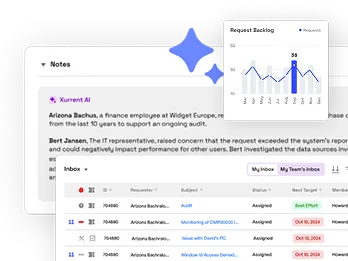
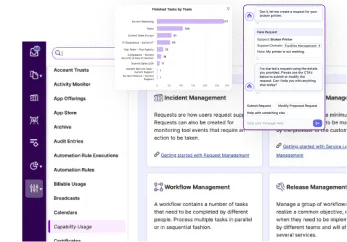
Resolve issues quickly with an AI-powered system that automates ticketing.
Unifiy IT, HR, Facilities, Finance, and more on a single, AI-powered service platform.
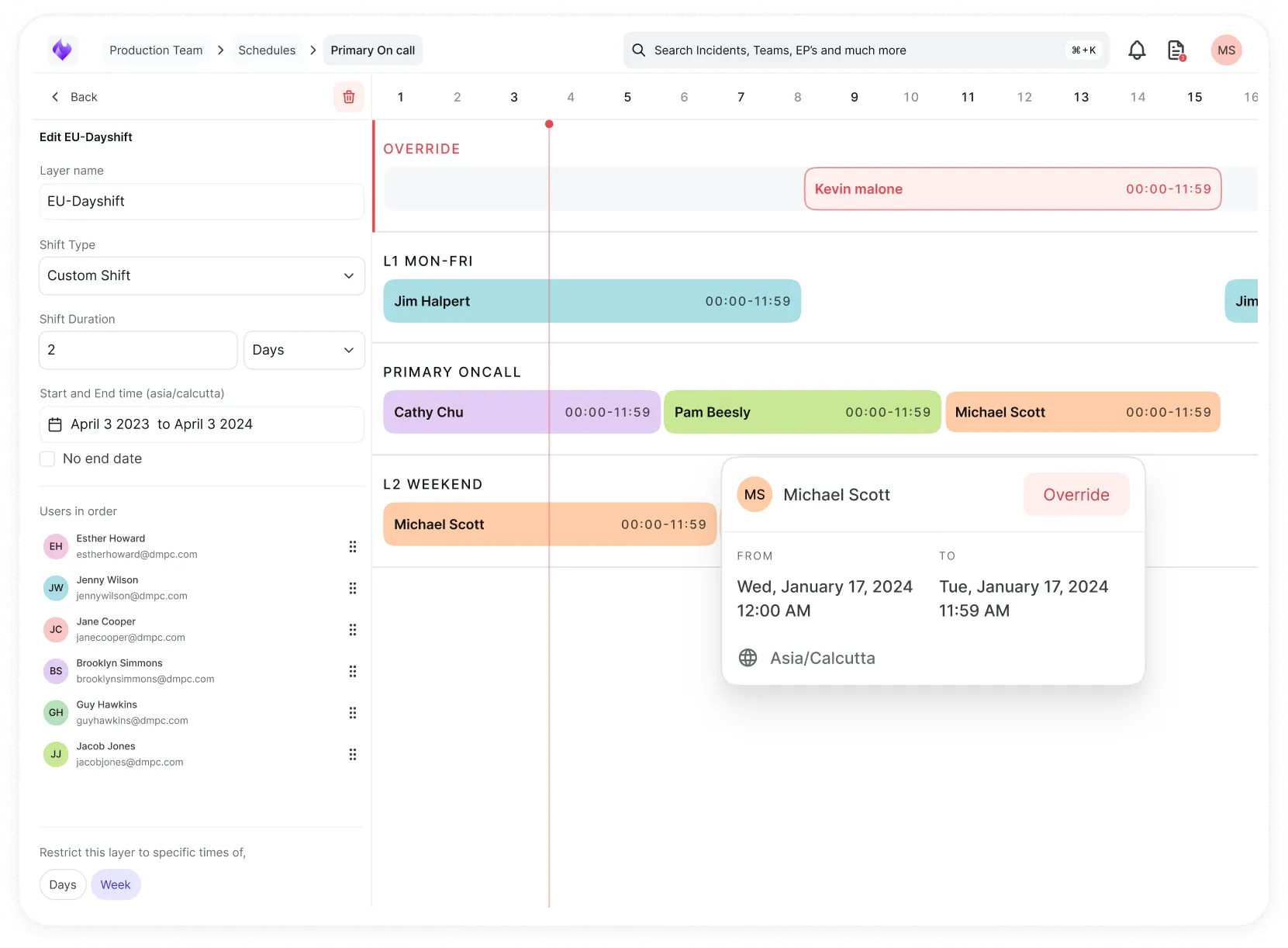
Simplify on-call scheduling, automate escalations, and reduce burnout.
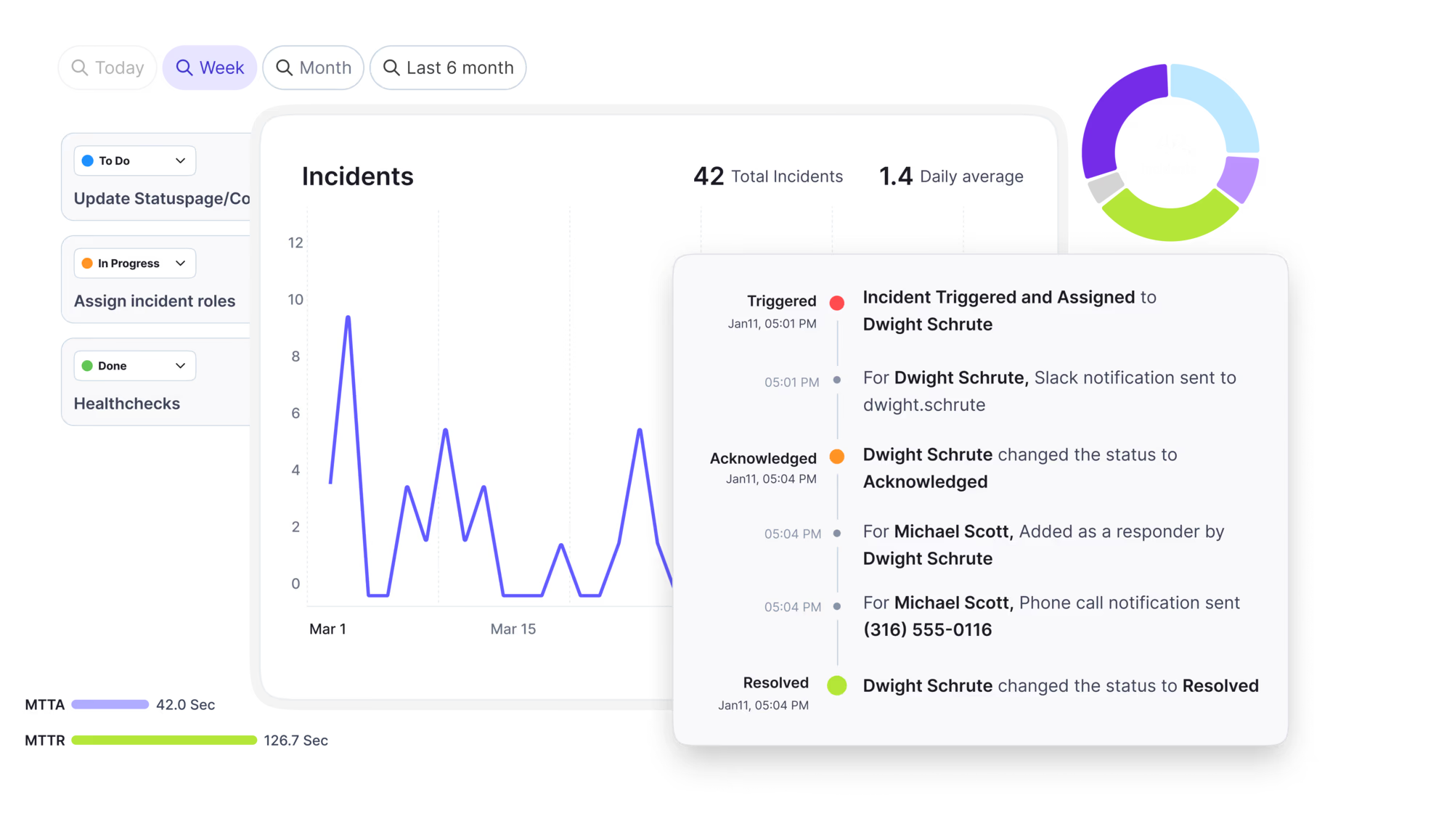
Automate postmortems, AI summaries, and post-incident workflows
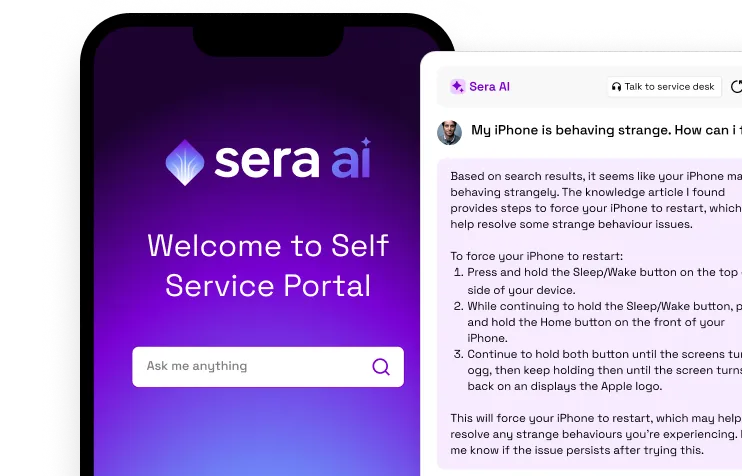
Create, organize, and continuously improve your knowledge base to find the right answers with Sera AI.
We're here to help

The integration with Atlassian Jira using the Xurrent Integration Service is

The integration with Atlassian Jira using the Xurrent Integration Service is

The integration with Atlassian Jira using the Xurrent Integration Service is

The integration with Atlassian Jira using the Xurrent Integration Service is

The integration with Atlassian Jira using the Xurrent Integration Service is

The integration with Atlassian Jira using the Xurrent Integration Service is

The integration with Atlassian Jira using the Xurrent Integration Service is

The integration with Atlassian Jira using the Xurrent Integration Service is
Resolve issues quickly with an AI-powered system that automates ticketing.
Unifiy IT, HR, Facilities, Finance, and more on a single, AI-powered service platform.
Simplify on-call scheduling, automate escalations, and reduce burnout.
Automate postmortems, AI summaries, and post-incident workflows
Create, organize, and continuously improve your knowledge base to find the right answers with Sera AI.
Resolve plant floor and IT issues before they disrupt production.
Stay audit-ready while resolving issues and reducing operational risk.

Detect, respond, and resolve incidents fast to cut downtime and MTTR.

Keep your store online, even during your biggest sales moments.

Protect patient data and resolve issues fast, so care teams stay focused on care.

Standardize service delivery across every store and channel.

We are here to help 24/7

Connect with other Xurrent Users

Get insights and tips on how to get the most out of Xurrent

Apps, APIs, and updates

Xurrent service functionality

Eliminate manual tasks, optimize workflows, and deliver faster resolutions.
Learn how organizations have reduced downtime, improved 50% MTTA & MTTR, and cut costs with Xurrent IMR.
Discover Xurrent IMR's quick support, bidirectional integrations with Jira and Slack, and more cohesive incident response capabilities compared to Opsgenie.
Understand why users value Xurrent IMR for its intuitive interface, efficient incident alerting, customizable On-call schedules, and escalations.

Turn reconciliation on and reach your first resolved match.
Reconciliation keeps your CMDB clean at the moment data arrives: it matches each incoming Configuration Item against the ones you already have, so a second source reporting the same device updates the existing Configuration Item instead of creating a duplicate.
This guide takes you from a switched-off feature to your first resolved match, then shows you how to work the queue and tune matching. If you are standing up Asset Management from scratch, start with Getting Started with Asset Management first, then come back here.
Every discovery tool, integration, and import that feeds your CMDB is a separate source of truth. Connect two of them and, without reconciliation, the same laptop lands twice: once from the discovery scan, once from the MDM sync. Those duplicates then distort every count, report, and impact analysis downstream.
Reconciliation sits in front of the CMDB and intercepts incoming Configuration Items from those sources. It searches for a matching Configuration Item, scores how confident the match is, and either resolves it automatically or parks it for a reviewer to decide. A strong, unambiguous match updates the existing Configuration Item. Anything uncertain waits for a person.
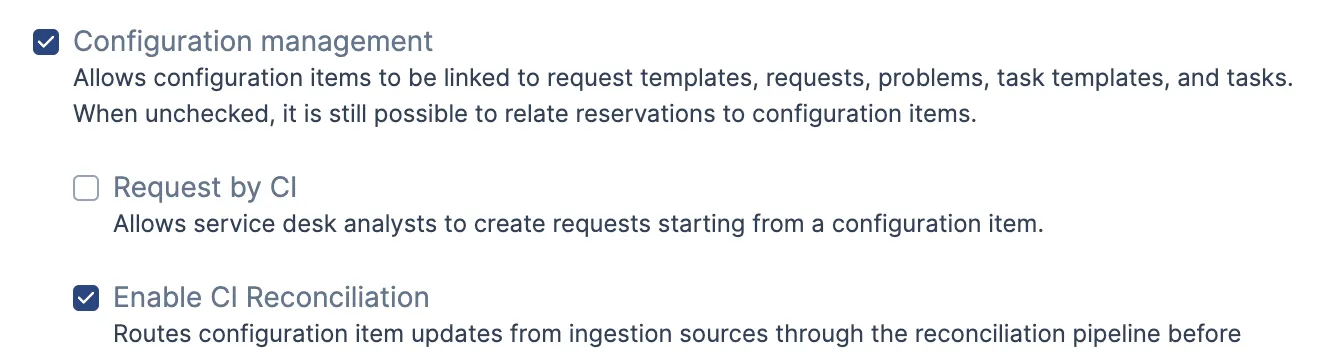
In the account settings, under "Configuration management", check "Enable CI Reconciliation".
Turning it on changes how the CMDB guards Configuration Item uniqueness. The queue becomes the integrity check for incoming data, so the previous hard block on duplicate serial numbers relaxes in favor of the matching engine. This is expected. It is what lets a second source resolve to an existing Configuration Item rather than being rejected outright.
Point an ingestion source at your CMDB. An iPaaS connector such as Microsoft Intune or Jamf is the best first source, because those feeds carry the fields that make matching work well, including serial number and asset tag.
To connect Microsoft Intune, follow Intune CMDB. For other connectors, see Integrations.
A note on discovery-only sources. Records that arrive from a raw discovery scan carry a thinner field set, typically name, serial number, and hardware specifications, without an asset tag. Those records can still match on serial number, but the asset-tag matching described below needs a source that sends one, which is why a connector feed is the stronger starting point.
Once the source runs, open the Reconciliation Queue in the Asset Management navigation.
The clearest proof that reconciliation is working: connect a second source for a device you already track, and watch the incoming record resolve to the existing Configuration Item by serial number instead of creating a new one. Your Configuration Item count does not move, and the existing record picks up whatever fresh values the new source reported.
Everything below is about handling the records that cannot resolve that cleanly on their own.
Not every incoming record has an unambiguous match. When the engine cannot resolve one on its own, it parks the record at one of three statuses and waits for a reviewer:
Filter the queue to Parked to see everything waiting on you.
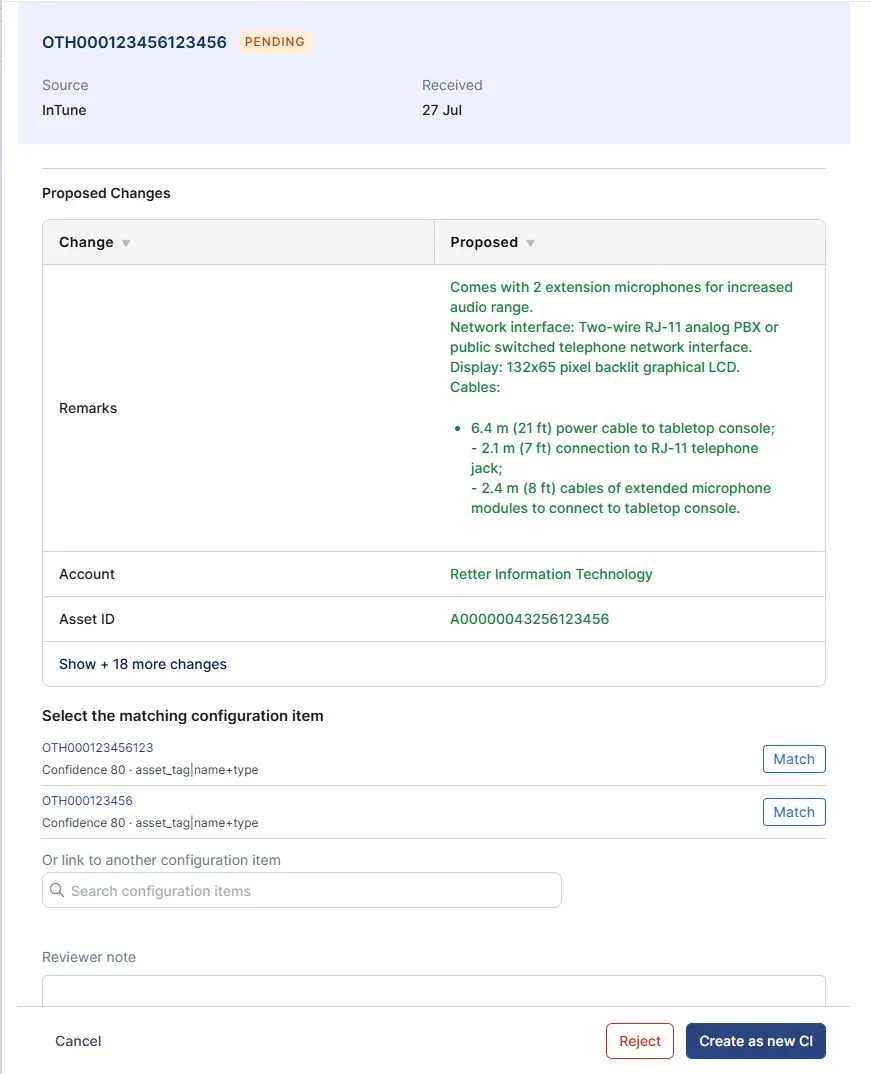
Open a parked record to work it in the reconciliation modal, which has two panels. The Identify panel runs while a record is still being matched: it lists candidate Configuration Items with their confidence scores, lets you search your own Configuration Items to link one by hand, and offers Create as new CI when the incoming record genuinely is a new asset. The Review panel runs once a Configuration Item is resolved and shows a current-versus-proposed field comparison, so you can see exactly what the update would change before you accept it.
From the Review panel you have three ways to finish a record: apply the proposed values to the matched Configuration Item, accept the record as a new Configuration Item, or dismiss it with no change. If you resolved a record to the wrong Configuration Item, Back to identification returns it to matching so you can try again.
Once you have watched a few records flow through, you will want the engine to handle more of them without a reviewer. That is what reconciliation rules are for: they let you auto-resolve the cases you trust and escalate the ones you do not, using your own data. Start with the defaults, watch the queue for a week, then add rules where you see the same manual decision repeating.
See Reconciliation Rules for the full set of triggers and conditions.
The CMDB Health dashboard is where the payoff becomes visible over time. Until reconciliation is running, its duplicate tiles read Detection not configured rather than No data available, which is your signal that the capability is off, not that your data is clean. Once reconciliation is on and a source is feeding it, the duplicate tiles begin reflecting real candidate activity, and check-in freshness moves as sources report.
If a tile says Detection not configured, the next action is this guide: turn reconciliation on and connect a source.



.webp)
.webp)