





Blog
Insights & updates from our experts


Resolve plant floor and IT issues before they disrupt production.

Stay audit-ready while resolving issues and reducing operational risk.
Resolve issues quickly with an AI-powered system that automates ticketing.
Unifiy IT, HR, Facilities, Finance, and more on a single, AI-powered service platform.
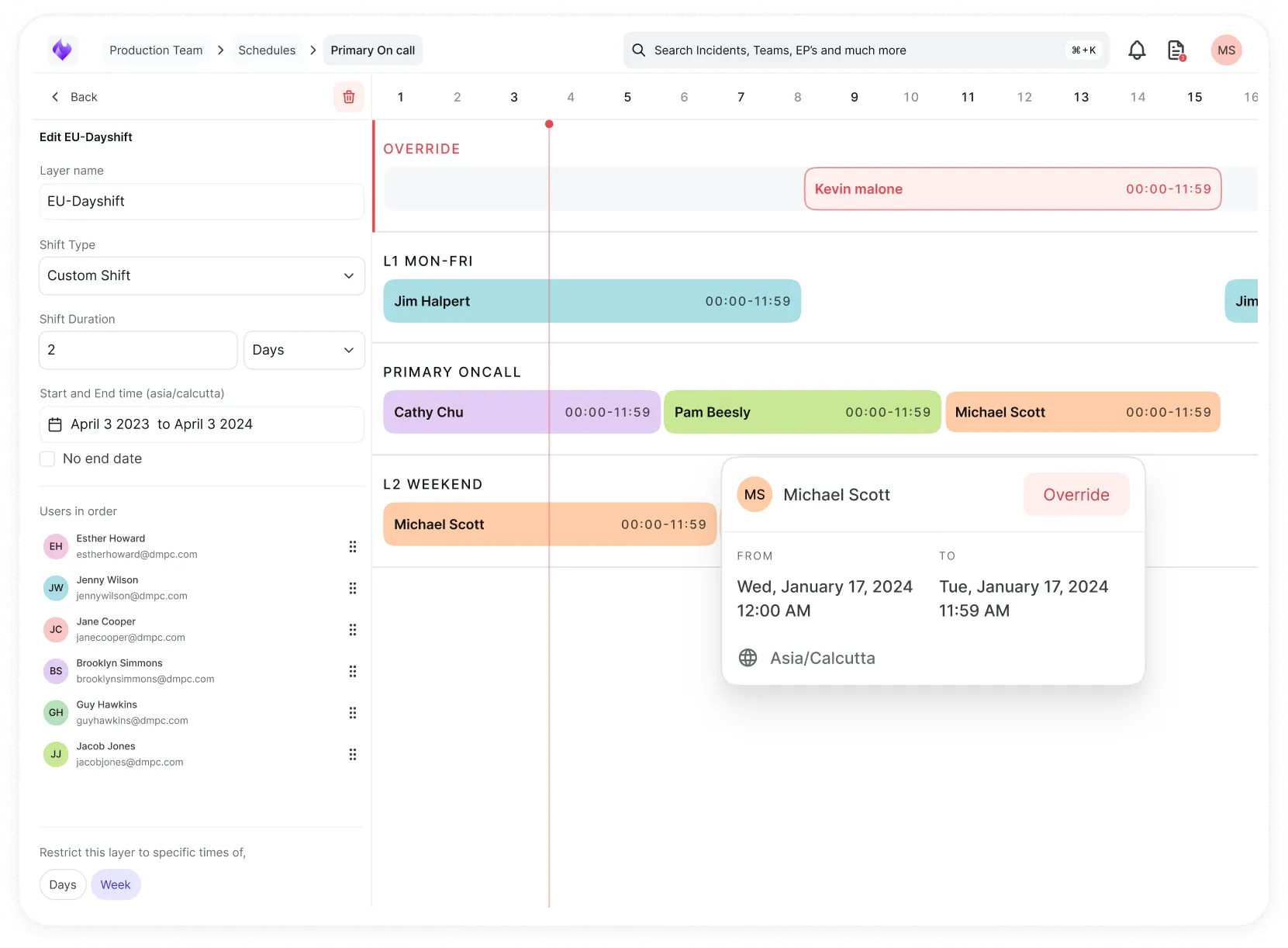
Simplify on-call scheduling, automate escalations, and reduce burnout.
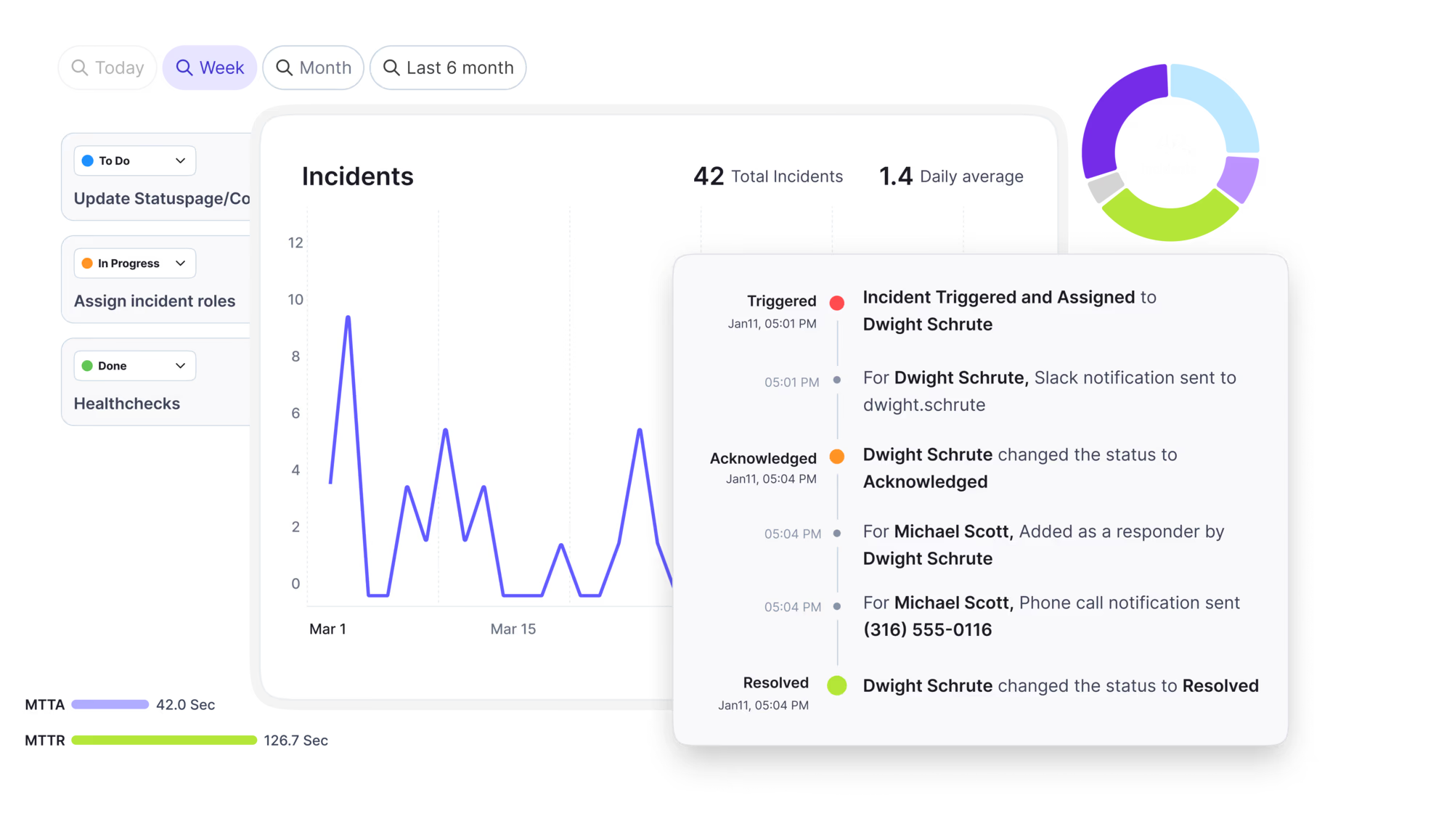
Automate postmortems, AI summaries, and post-incident workflows
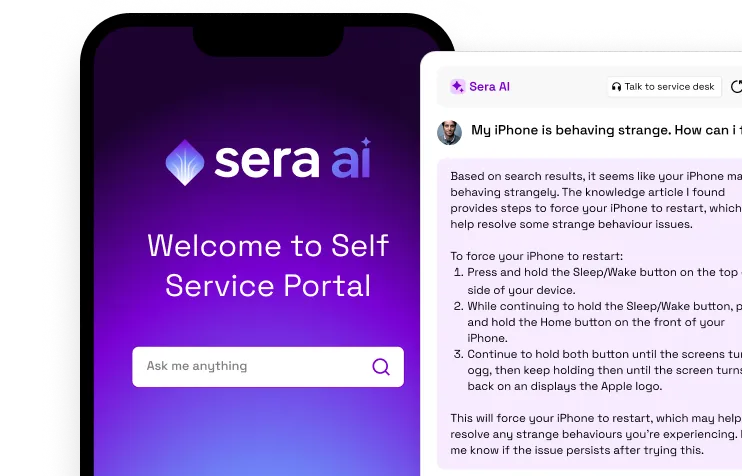
Create, organize, and continuously improve your knowledge base to find the right answers with Sera AI.
We're here to help

The integration with Atlassian Jira using the Xurrent Integration Service is

The integration with Atlassian Jira using the Xurrent Integration Service is

The integration with Atlassian Jira using the Xurrent Integration Service is

The integration with Atlassian Jira using the Xurrent Integration Service is

The integration with Atlassian Jira using the Xurrent Integration Service is

The integration with Atlassian Jira using the Xurrent Integration Service is

The integration with Atlassian Jira using the Xurrent Integration Service is

The integration with Atlassian Jira using the Xurrent Integration Service is
Resolve issues quickly with an AI-powered system that automates ticketing.
Unifiy IT, HR, Facilities, Finance, and more on a single, AI-powered service platform.
Simplify on-call scheduling, automate escalations, and reduce burnout.
Automate postmortems, AI summaries, and post-incident workflows
Create, organize, and continuously improve your knowledge base to find the right answers with Sera AI.
Resolve plant floor and IT issues before they disrupt production.
Stay audit-ready while resolving issues and reducing operational risk.

Detect, respond, and resolve incidents fast to cut downtime and MTTR.

Keep your store online, even during your biggest sales moments.

Protect patient data and resolve issues fast, so care teams stay focused on care.

Standardize service delivery across every store and channel.

We are here to help 24/7

Connect with other Xurrent Users

Get insights and tips on how to get the most out of Xurrent

Apps, APIs, and updates

Xurrent service functionality

Eliminate manual tasks, optimize workflows, and deliver faster resolutions.
Learn how organizations have reduced downtime, improved 50% MTTA & MTTR, and cut costs with Xurrent IMR.
Discover Xurrent IMR's quick support, bidirectional integrations with Jira and Slack, and more cohesive incident response capabilities compared to Opsgenie.
Understand why users value Xurrent IMR for its intuitive interface, efficient incident alerting, customizable On-call schedules, and escalations.

Keyboard shortcuts for saving records, global search, the Actions menu, rich text formatting, and code fields.
Xurrent offers keyboard shortcuts in four places: on any record, in the Actions menu, inside rich text fields, and inside code fields. The shortcuts below apply to the specialist interface.
Shortcuts that act on the whole page do nothing while the cursor sits in a text field, a text area, a dropdown, a rich text field, or a code field. This keeps a shortcut from firing while text is being typed.
| Shortcut | Action |
|---|---|
| Shift+S | Saves the record that is currently open. |
| Shift+F | Moves the focus to the global search box. |
| / | Moves the focus to the global search box. This shortcut is ignored while a dialog is open. |
| Shift+7 | Moves the focus to the global search box. This is the same key position as / on a German keyboard layout. This shortcut is ignored while a dialog is open. |
| J | Opens the next record of the view from which the current record was opened. |
| K | Opens the previous record of that view. |
| ← and → | Same as K and J. The arrows follow the reading direction, so they are swapped in right-to-left languages. |
| ↑ and ↓ | Move the highlighted row up or down in the list of a view. Holding Shift extends the selection. |
| Ctrl+Shift+S | Saves the current translation and opens the next one when translating a language pack. This shortcut is available in the Missing view only. |
J, K, and the arrow keys are available while a record that was opened from a view is being read, and not while a dialog is open. When the last retrieved record of the view is reached, the next records are loaded automatically; at the first or the last record of the view, the key does nothing. Moving to another record while the current record has unsaved changes brings up the usual warning. The same navigation is available with the 'Previous' and 'Next' buttons at the bottom of the record.
The options in the Actions menu of a record can also be selected with a keyboard shortcut. Each shortcut is listed next to its option in the menu, so the menu itself serves as a reminder.
| Shortcut | Action |
|---|---|
| Shift+D | Duplicates the current record. |
| Shift+T | Opens the audit trail of the current record. |
| Shift+P | Prints the current record. |
| Shift+C | Copies the share link of the current record to the clipboard. |
| Shift+O | Opens the Service Navigator or the Organization Navigator, depending on the record type. |
Shift+P and Shift+T are also available in the Gantt views of workflows, projects and their templates, in sprint planning, and in reservation calendars.
The formatting options of a rich text field each have a shortcut. In the table below, Ctrl stands for the Ctrl key on Windows and Linux and for the Command key on a Mac.
| Shortcut | Action |
|---|---|
| Ctrl+B, Ctrl+I, Ctrl+U, Ctrl+S | Bold, italic, underline, strikethrough. |
| Ctrl+J, or Ctrl+` | Monospace. |
| Ctrl+K | Inserts a link. |
| Ctrl+G | Inserts an image. |
| Ctrl+Z | Undo. |
| Ctrl+Y, or Ctrl+Shift+Z | Redo. |
| Ctrl+Shift+1 | Opens the heading dialog. |
| Ctrl+Shift+7, Ctrl+Shift+8 | Numbered list, bulleted list. |
| Ctrl+Shift+[ | Checklist. |
| Ctrl+Shift+9 | Quote. |
| Ctrl+Shift+0 (Mac), Ctrl+Shift+6 (Windows) | Code block. |
| Ctrl+Shift+L | Horizontal rule. |
| Ctrl+Shift+; | Inserts a table. |
| Ctrl+Shift+C, Ctrl+Shift+X | Text color, background color. |
| Ctrl+Shift+K | Applies a knowledge article. |
| Tab, Shift+Tab | Indents or outdents a list item. Inside a table, moves to the next or the previous cell. |
| Enter | Splits a list item. Inside a code block, adds a new line. |
| Shift+Enter | Adds a line break without starting a new paragraph. |
| Backspace, Delete, Ctrl+Backspace, Ctrl+Delete | Deletes the table when all of its cells are selected. |
| Ctrl+] | Joins the current block with the block below it. |
Rich text fields also respond to three typed characters rather than key combinations:
In the table below, Ctrl stands for the Ctrl key on Windows and Linux and for the Command key on a Mac.
| Shortcut | Action |
|---|---|
| Ctrl+S | Saves the code and keeps the editor open. |
| Ctrl+Shift+0 | Switches the code editor between the full window and its normal size. |
| Enter | Runs the global search on the term in the search box. |
| Ctrl+Enter | Runs the global search and opens the results in a new browser tab. |
Holding Ctrl (Command on a Mac) while clicking a record link opens that record in a new browser tab.
The search and replace shortcuts available inside a code field are listed on the Code Editor Shortcut Keys page.
Shortcuts are controlled by the 'Use custom shortcuts' preference on a person record, in the Preferences section. The preference is enabled by default. When it is disabled, the /, Shift+7, J, K, ←, and → shortcuts stop working, and the Actions menu shortcuts stop working as well; their hints are no longer shown in the menu. Shift+S and Shift+F remain available regardless of the preference, as do the shortcuts of rich text fields and code fields.



.webp)
.webp)