






Blog
Insights & updates from our experts


Resolve plant floor and IT issues before they disrupt production.

Stay audit-ready while resolving issues and reducing operational risk.
Resolve issues quickly with an AI-powered system that automates ticketing.
Unifiy IT, HR, Facilities, Finance, and more on a single, AI-powered service platform.
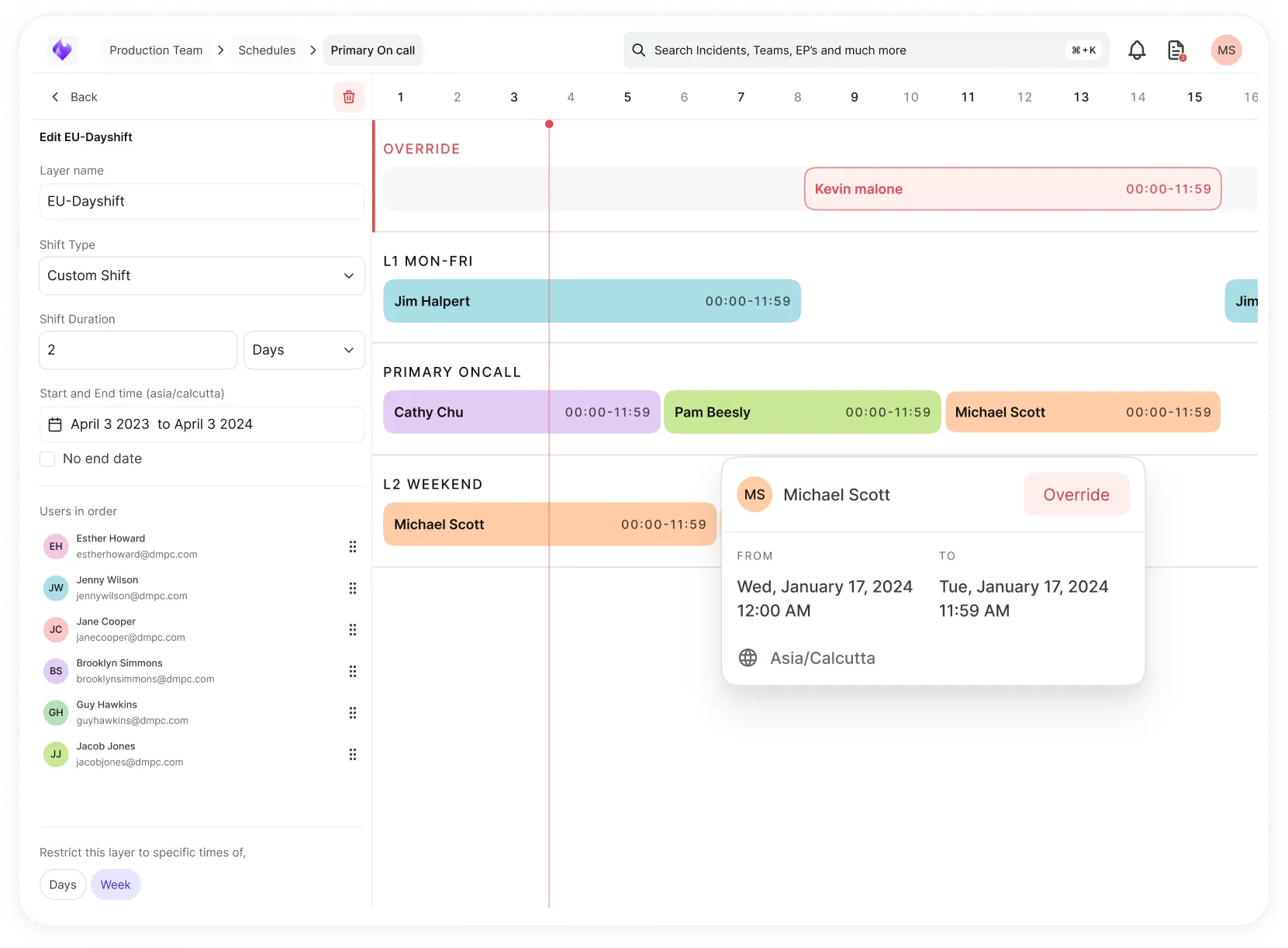
Simplify on-call scheduling, automate escalations, and reduce burnout.
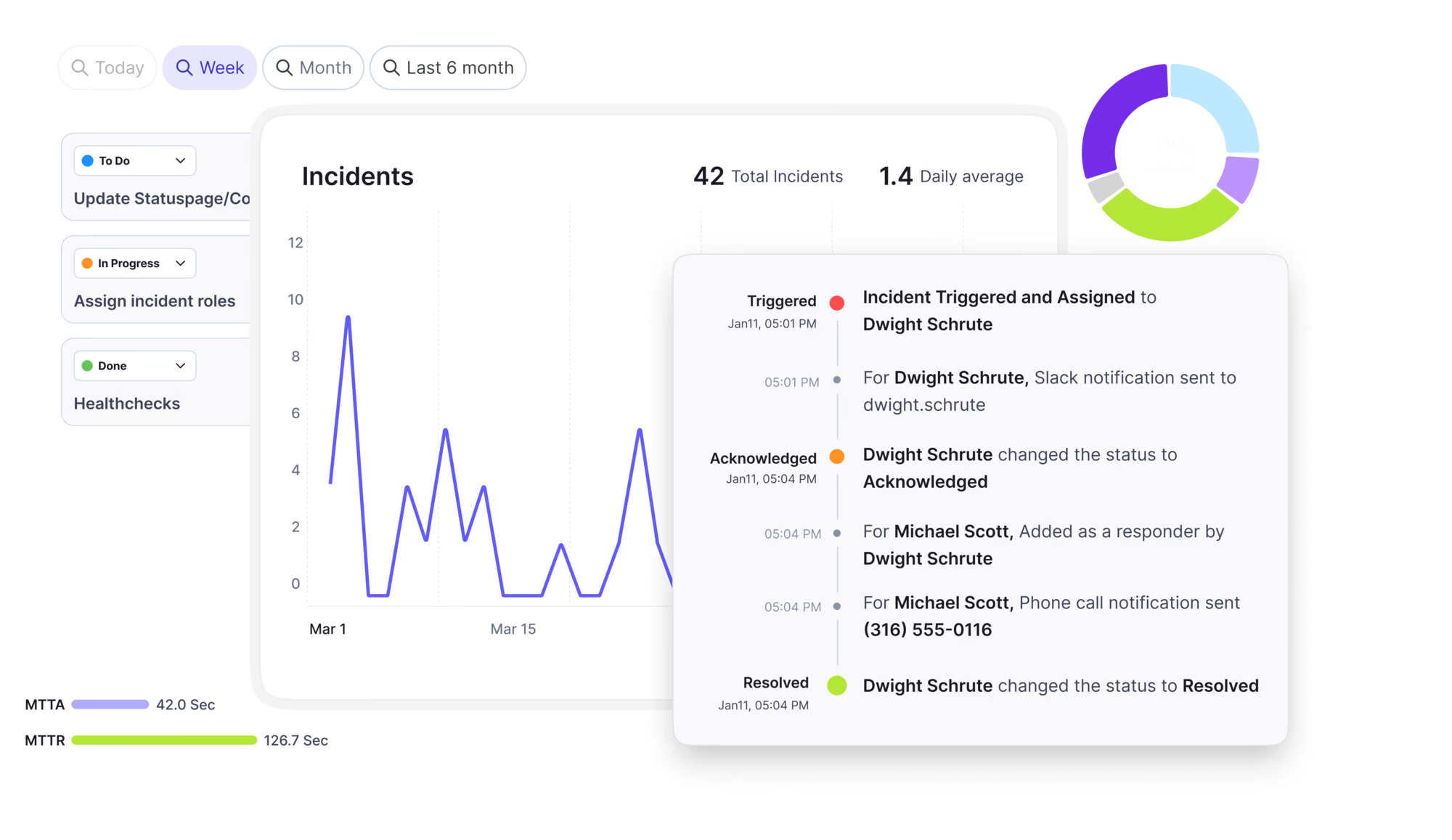
Automate postmortems, AI summaries, and post-incident workflows
Create, organize, and continuously improve your knowledge base to find the right answers with Sera AI.

We're here to help

The integration with Atlassian Jira using the Xurrent Integration Service is

The integration with Atlassian Jira using the Xurrent Integration Service is

The integration with Atlassian Jira using the Xurrent Integration Service is

The integration with Atlassian Jira using the Xurrent Integration Service is

The integration with Atlassian Jira using the Xurrent Integration Service is

The integration with Atlassian Jira using the Xurrent Integration Service is

The integration with Atlassian Jira using the Xurrent Integration Service is

The integration with Atlassian Jira using the Xurrent Integration Service is
Resolve issues quickly with an AI-powered system that automates ticketing.
Unifiy IT, HR, Facilities, Finance, and more on a single, AI-powered service platform.
Simplify on-call scheduling, automate escalations, and reduce burnout.
Automate postmortems, AI summaries, and post-incident workflows
Create, organize, and continuously improve your knowledge base to find the right answers with Sera AI.
Resolve plant floor and IT issues before they disrupt production.
Stay audit-ready while resolving issues and reducing operational risk.

Detect, respond, and resolve incidents fast to cut downtime and MTTR.

Keep your store online, even during your biggest sales moments.

Protect patient data and resolve issues fast, so care teams stay focused on care.

Standardize service delivery across every store and channel.

We are here to help 24/7

Connect with other Xurrent Users

Get insights and tips on how to get the most out of Xurrent

Apps, APIs, and updates

Xurrent service functionality

Eliminate manual tasks, optimize workflows, and deliver faster resolutions.
Learn how organizations have reduced downtime, improved 50% MTTA & MTTR, and cut costs with Xurrent IMR.
Discover Xurrent IMR's quick support, bidirectional integrations with Jira and Slack, and more cohesive incident response capabilities compared to Opsgenie.
Understand why users value Xurrent IMR for its intuitive interface, efficient incident alerting, customizable On-call schedules, and escalations.

Place a hub inside your network and confirm it is ready to scan.
An XT Hub is a Xurrent software package that you install on a server inside your own network. It reaches out to Xurrent for work, so it needs no inbound firewall rule. It scans from its own network position, so a device can only be discovered if the hub's server can reach it.
Registration always starts in a browser. The hub is then installed with one command that carries a one-time install key.
The install key is shown only once, can be used for one installation, and is valid for one hour; the page shows when it expires. If you lose the command or the key expires, select Issue a New Install Command. The new key replaces the previous one.
Use this when you can open Xurrent in a browser on the hub server itself, for example a server with a desktop session. You follow registration, installation and enrollment on one page.
Use this when the hub server is reached only through a terminal, for example an SSH session to a Linux server. You register the hub in a browser on another machine and run the command on the server.
curl -fsSL <download address>/install.sh | sudo bash -s -- --install-key <install key>. On Windows, run it in an elevated PowerShell, where it has this form: & ([scriptblock]::Create((irm <download address>/install.ps1))) -InstallKey <install key>sudo xt-hub status (on Windows, xt-hub status), or open the hub in the browser on your other machine, where the status changes to Active when the hub reaches Xurrent.If the key should not be part of the command, the installer accepts it in other ways. Whichever you use, the installer passes the key to the hub on standard input, so it does not appear in the process list of the server.
| Method | What it does |
|---|---|
| Run the installer without a key | The installer asks Please enter the install key. This needs an interactive terminal. |
XT_HUB_INSTALL_KEY environment variable | Supplies the key to scripts and automation tools. |
--non-interactive (Windows: -NonInteractive) | Never asks for anything. Without a key the installer finishes without enrolling instead of waiting for input. |
--skip-enroll (Windows: -SkipEnroll) | Installs the service and does not enroll. Enroll later with sudo xt-hub enroll <install key> (on Windows, xt-hub enroll <install key>). |
--require-tpm (Windows: -RequireTpm) | Enrolls only if the server's TPM holds the hub identity, never a key file. |
The exit code of the installer tells you whether the key can still be used.
| Exit code | Meaning | What to do |
|---|---|---|
| 5 | Xurrent refused the key: not valid, already used or expired. | Select Issue a New Install Command in Xurrent and run the installer again. |
| 4 | Xurrent or the release location could not be reached from the server. The key was not spent. | Check DNS, outbound HTTPS and any proxy, then run the installer again with the same key. |
| 9 | The address answered, but not as Xurrent's enrollment endpoint. The key was not spent. | Check any VPN the site requires and that the account has the feature enabled, then run the installer again with the same key. |
| 11 | The TLS connection to Xurrent could not be trusted from the server. The key was not spent. | Correct the reason the installer reports, then run it again with the same key. |
| 12 | Windows only: Group Policy forbids running the script that installs the service. | Allow the script for this run, then run the installer again. |
| Status | Meaning | What to do |
|---|---|---|
| Pending enrollment | Registered, but the install command has not run or the hub has not reached Xurrent yet. | Run the command. If nothing happens, run sudo xt-hub check on the server and confirm outbound HTTPS is allowed. |
| Active | The hub is polling Xurrent for work. | Nothing. |
| Down | Xurrent has had no contact from the hub for 15 minutes. Scans assigned to it wait. | Run xt-hub status on the server to see why. See Troubleshooting Native Discovery. |
The hub record also shows the maximum number of scans the hub runs at once. Further scans queue until a slot is free.
| Command | Use it to |
|---|---|
xt-hub status | See whether the hub is enrolled, running and in contact with Xurrent |
xt-hub check | Test DNS, TCP, TLS, HTTP and clock skew to Xurrent, and list proxy settings in effect |
xt-hub logs -since 2h | Read the recent hub log (the log never contains passwords or community strings) |
xt-hub diagnose | Create a support bundle to attach to a request |
xt-hub start, stop, restart | Control the service on any operating system |
To upgrade, run the same install command again. An enrolled hub keeps its enrollment.