




Blog
Insights & updates from our experts


Resolve plant floor and IT issues before they disrupt production.

Stay audit-ready while resolving issues and reducing operational risk.
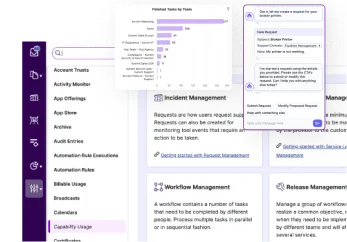
Resolve issues quickly with an AI-powered system that automates ticketing.
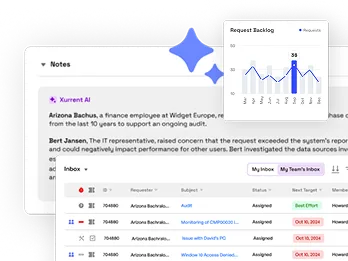
Unifiy IT, HR, Facilities, Finance, and more on a single, AI-powered service platform.
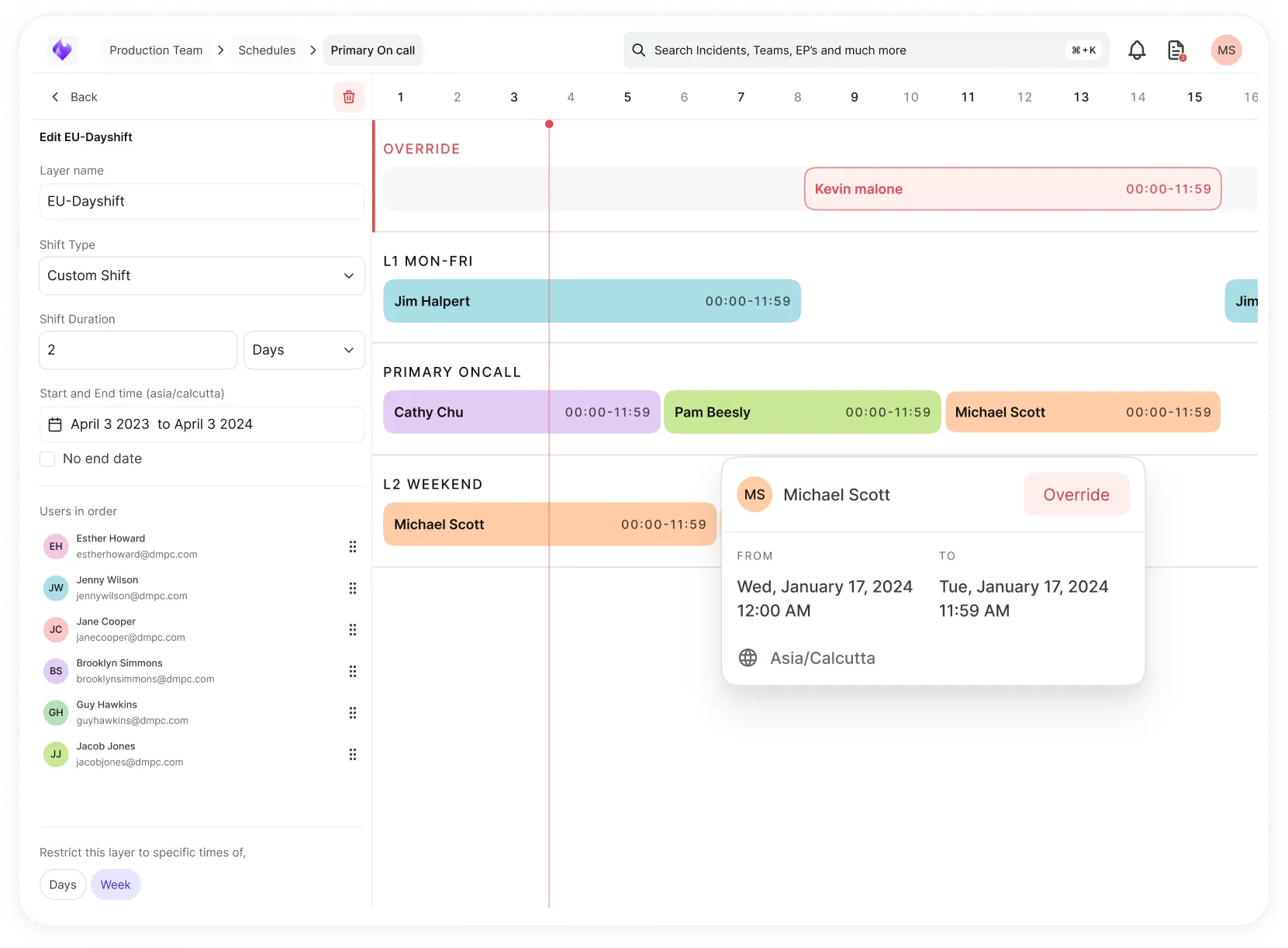
Simplify on-call scheduling, automate escalations, and reduce burnout.
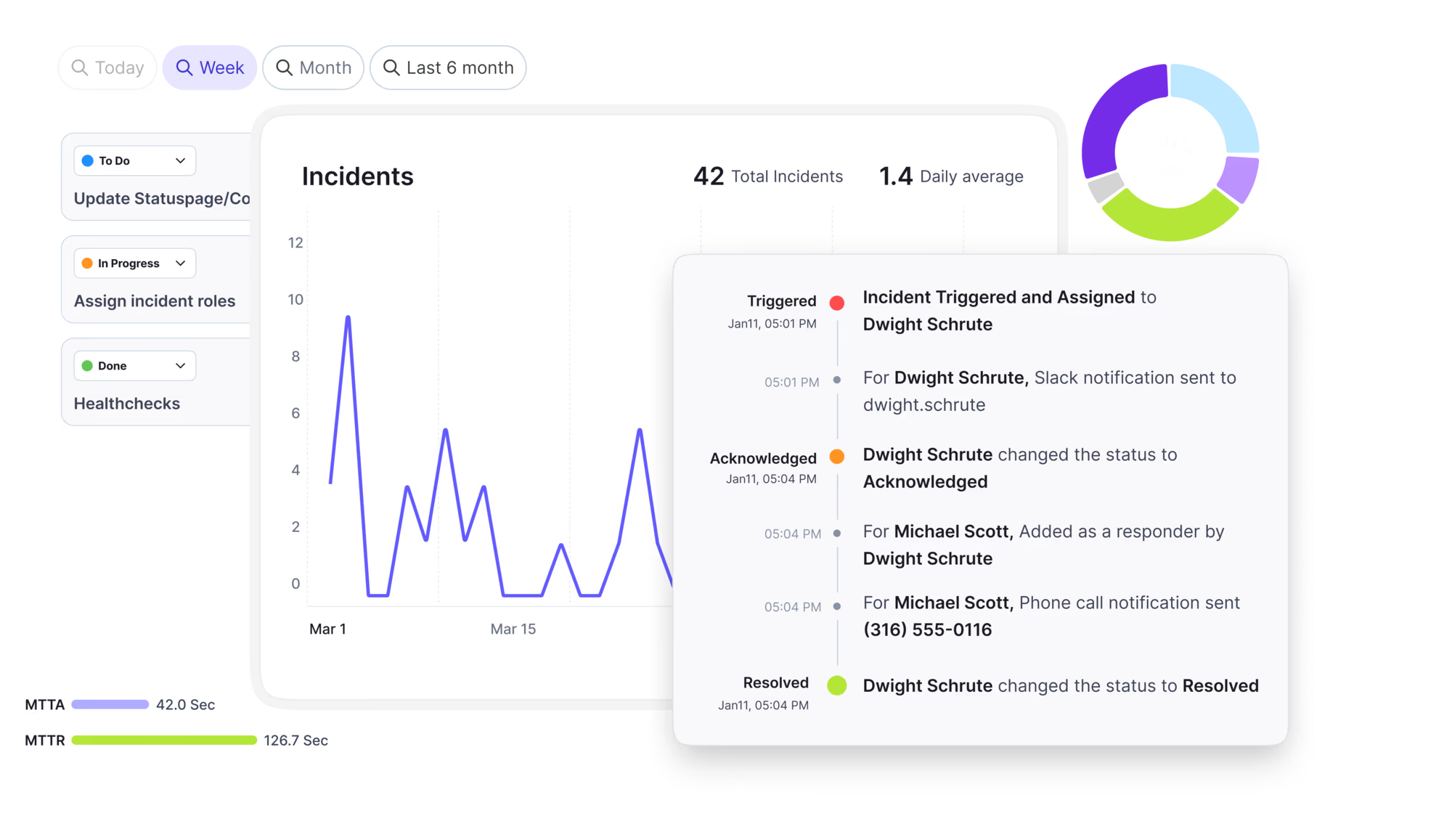
Automate postmortems, AI summaries, and post-incident workflows
Create, organize, and continuously improve your knowledge base to find the right answers with Sera AI.

We're here to help

Discover assets and keep your CMDB accurate, from any source.

Unified IT operations and service management

AI-powered ITSM for the Modern Enterprise

AI-native Incident Management for the Modern Enterprise

Communicate service health in real time

Integrate Xurrent with your full stack

The integration with Atlassian Jira using the Xurrent Integration Service is

The integration with Atlassian Jira using the Xurrent Integration Service is

The integration with Atlassian Jira using the Xurrent Integration Service is

The integration with Atlassian Jira using the Xurrent Integration Service is

The integration with Atlassian Jira using the Xurrent Integration Service is

The integration with Atlassian Jira using the Xurrent Integration Service is

The integration with Atlassian Jira using the Xurrent Integration Service is

The integration with Atlassian Jira using the Xurrent Integration Service is
Resolve issues quickly with an AI-powered system that automates ticketing.
Unifiy IT, HR, Facilities, Finance, and more on a single, AI-powered service platform.
Simplify on-call scheduling, automate escalations, and reduce burnout.
Automate postmortems, AI summaries, and post-incident workflows
Create, organize, and continuously improve your knowledge base to find the right answers with Sera AI.
Resolve plant floor and IT issues before they disrupt production.
Stay audit-ready while resolving issues and reducing operational risk.

Detect, respond, and resolve incidents fast to cut downtime and MTTR.

Keep your store online, even during your biggest sales moments.

Protect patient data and resolve issues fast, so care teams stay focused on care.

Standardize service delivery across every store and channel.

We are here to help 24/7

Connect with other Xurrent Users

Get insights and tips on how to get the most out of Xurrent

Apps, APIs, and updates

Xurrent service functionality

Eliminate manual tasks, optimize workflows, and deliver faster resolutions.
Learn how organizations have reduced downtime, improved 50% MTTA & MTTR, and cut costs with Xurrent IMR.
Discover Xurrent IMR's quick support, bidirectional integrations with Jira and Slack, and more cohesive incident response capabilities compared to Opsgenie.
Understand why users value Xurrent IMR for its intuitive interface, efficient incident alerting, customizable On-call schedules, and escalations.

Read and write the account's lookup tables from a runbook: tables of text values that outlive any single job, such as a map from one system's identifier to another's.
A lookup table is a table of text values that belongs to the iPaaS account, not to a single job or solution. Runbooks use it to keep data between runs, for example to remember which Xurrent request belongs to which ticket in another system, to translate codes from one system to another, or to note which records a scheduled job already processed.
Lookup tables are managed under Lookup tables in the left sidebar of iPaaS. The Lookup Tables connector gives runbook steps access to them. A connection names one table, and each step on that connection reads or writes that table.
true/false, times and dates are converted to text when they are written.ABC-1 does not match abc-1 or ABC-1 .The Lookup tables page lists every table in the account with its number of columns and entries and the time of the last change. Open a table to:
| Field | Type | Required | Description |
|---|---|---|---|
Table | String | Yes | The name of a lookup table in this account. When you save the connection, iPaaS finds the table and lists its columns. The table name must be a fixed value. It can't come from a variable or expression. |
The connection keeps a list of the table's columns. Each step on the connection shows one field per listed column. When columns are added or renamed later, the connection shows Refresh columns. Choose it so that steps show the new columns. Jobs always use the table's current columns.
A connection stays tied to its table after steps use it. To use another table, create a new connection. A step can't move to a connection for another table. Add a new step there instead.
None. This connector is used in runbook steps only.
All actions except Delete Entry and Truncate Table return the entry or entries together with columns, the list of the table's columns (column key and label). In the designer, the fields of entry show under their column labels.
Map each column field separately. A column field takes one mapping per column. You can't map the whole Values, Lookup by or Search by object from one expression, variable or fixed value.
Adds an entry to the connection's table.
Use case: Store the ID of a ticket created in another system against the Xurrent request it belongs to.
| Parameter | Type | Required | Default | Description |
|---|---|---|---|---|
values (Values) | Object, one field per column | Yes (at least one value) | – | A value per column. Each mapped column gets its value as text. A column left unmapped gets no value. An entry needs at least one value that is not blank. |
| Field | Type | Description |
|---|---|---|
entry_id | String | The Entry ID of the new entry. |
entry | Object | The entry's values, one field per column. Columns without a value are null. |
columns | Array | The table's columns: column (key) and label. |
The step fails when every value is blank, when the table has no columns, or when the table is full.
Finds the oldest entry whose mapped columns all match exactly (case-sensitive).
Use case: Translate a value from one system to another, such as a Jira project key to a Xurrent team.
| Parameter | Type | Required | Default | Description |
|---|---|---|---|---|
match (Lookup by) | Object, one field per column | Yes (at least one column) | – | The values to match. All mapped columns must match. A column may take a list of values. The column matches when it equals any of them. |
Same as Add Entry: entry_id, entry and columns.
The step fails when no entry matches. It also fails when a mapped value is blank, because a blank value can't be matched. To continue when nothing is found, put the step in a Try/Catch block, or use Search Entries and check whether entries is empty.
A nested action. It runs the steps inside once per page of matching entries, oldest first.
Use case: Process every entry for one customer, or check whether a value exists without failing the job.
| Parameter | Type | Required | Default | Description |
|---|---|---|---|---|
match (Search by) | Object, one field per column | Yes (at least one column) | – | The values to match, as for Lookup Entry. |
at_most (At most) | Integer | No | No limit | The most entries to return across all pages, as a whole number. |
| Field | Type | Description |
|---|---|---|
entries | Array | A page of entries, each with entry_id and entry. |
columns | Array | The table's columns: column (key) and label. |
When nothing matches, the steps inside run once with entries empty.
A nested action. It runs the steps inside once per page of entries, oldest first.
Use case: Export a whole table, or loop over every mapping during a scheduled sync.
None.
Same as Search Entries: entries and columns. An empty table runs the steps inside once with entries empty.
Changes the values of one entry.
Use case: Record the latest status or sync time of a linked record.
| Parameter | Type | Required | Default | Description |
|---|---|---|---|---|
entry_id (Entry ID) | String | Yes | – | The Entry ID of the entry to change, usually from a Lookup Entry or Search Entries step. |
values (Values) | Object, one field per column | No | – | A value per column to write. A mapped column is written as sent, so a blank value clears it. Unmapped columns keep their values. With no column mapped, nothing is written and the entry is returned unchanged. |
ignore_if_not_found (Ignore if not found) | Boolean | No | false | When on, a missing entry returns no entry (entry_id and entry are null) instead of failing the step. |
The whole entry after the change: entry_id, entry and columns.
The step fails when the entry would have no values left. Use Delete Entry instead.
Deletes one entry.
| Parameter | Type | Required | Default | Description |
|---|---|---|---|---|
entry_id (Entry ID) | String | Yes | – | The Entry ID of the entry to delete. |
ignore_if_not_found (Ignore if not found) | Boolean | No | true | When off, a missing entry fails the step. |
| Field | Type | Description |
|---|---|---|
deleted_entry_id | String | The Entry ID that was deleted, or null when there was no such entry. |
Permanently deletes every entry of the table. The table and its columns stay.
Important: The entries are deleted for every solution that uses the table, and this can't be undone.
None.
| Field | Type | Description |
|---|---|---|
count | Integer | How many entries were deleted. |
A table Jira links has two columns, Request ID and Jira key. A Lookup Entry step maps Request ID from the trigger. Its output looks like this:
{
  "entry_id": "01a159ba-0ad3-7361-975e-5156287da3b3",
  "entry": {
    "01a19d02-4c1e-7a10-8f3b-2d6e9c0a1b11": "81415508",
    "01a19d02-5e72-7b44-9c08-7f1a3d2e4c22": "OPS-1042"
  },
  "columns": [
    { "column": "01a19d02-4c1e-7a10-8f3b-2d6e9c0a1b11", "label": "Request ID" },
    { "column": "01a19d02-5e72-7b44-9c08-7f1a3d2e4c22", "label": "Jira key" }
  ]
}
In the job output, each field of entry is keyed by its column's key, and columns pairs each key with its label. In the designer you don't need the keys: the fields of entry show under their column labels (here Request ID and Jira key), so later steps can map Jira key directly.