
























Sera Scribe
1. Overview
Sera Scribe is an AI assistant built directly into your incident records. It joins your war room call (Zoom or MS Teams), transcribes the conversation, and automatically posts live updates and a final summary to the incident and to Slack.
Sera Scribe cuts down on manual note-taking and status updates, so you can stay focused on resolving the incident.
2. Turning on Sera Scribe
Sera Scribe is configured by an account admin under Account > AI Settings > Sera Scribe toggle. From there, you can turn the feature on or off and set how often it posts updates.
2.1 Sera Scribe
"Sera transcribes war room calls and posts updates and a summary to the incident and Slack."
Turn this toggle on to enable call transcription for your incidents.

The Sera Scribe toggle and Live update frequency setting in AI Settings.
Prerequisites
Before you turn on Sera Scribe, make sure the following outgoing integrations are enabled on the service:
- Zoom or Microsoft Teams: at least one of these outgoing integrations must be enabled. Sera Scribe joins the call through this integration and starts transcribing the updates.
- Slack (optional): enable the Slack outgoing integration if you want Sera's live updates and call summary posted to your incident's Slack channel, in addition to the incident record. Without it, Sera still posts to the incident, just not to Slack.
You can find and enable these under Teams > Service > Integrations. See the integration status example below.

Example: Slack and Zoom outgoing integrations enabled on a service.
- Live update frequency: controls how often Sera posts a progress update to the incident and Slack channel while a call is live. Choose a frequency (for example, every 5 minutes) from the dropdown next to this setting.
3. Using Sera Scribe during an incident
Sera Scribe lives on the incident's Details tab, in the "Sera Scribe" panel below the AI-generated summary. As your incident progresses, this panel moves through the states below.
3.1 Incident Created
When the incident is created, click Join call to start your war room call.
3.2 Call in progress (live)
Once Sera Scribe joins the call you can see this text on the incident details page.
"Sera Scribe is listening"
Sera posts a running live summary of what's happening on the call, refreshed automatically at the frequency you set in AI settings.
Two buttons are available while the call is live:
- Join call: join the ongoing war room.
- View notes: open Sera's structured notes panel (see Section 4).
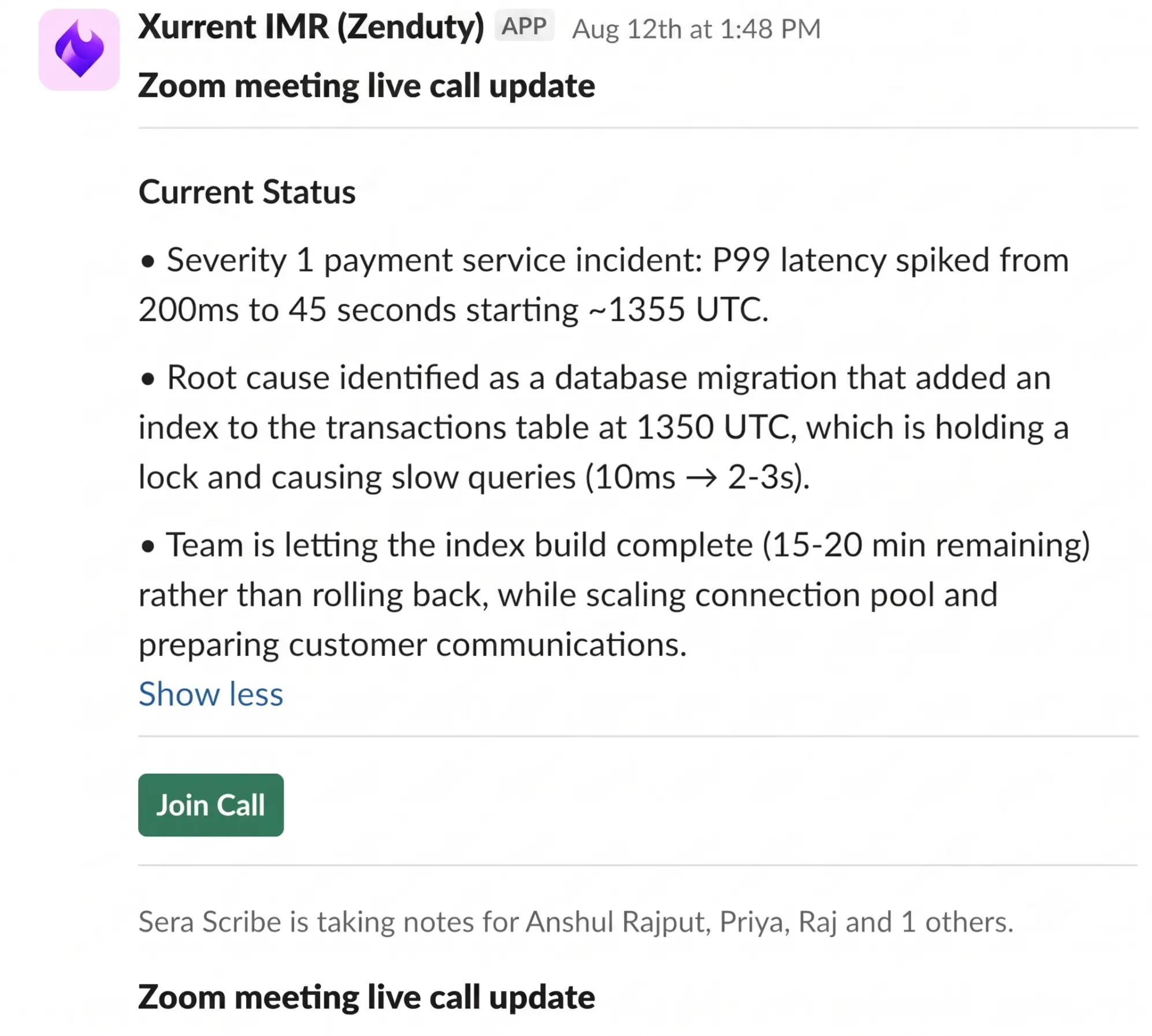
Example live update posted to Slack while the call is in progress.
3.3 Call ended
When the call ends, the panel shows a Sera Scribe not listening label. Click View notes to see Sera's full structured summary of the call.

The incident details page once the call has ended.
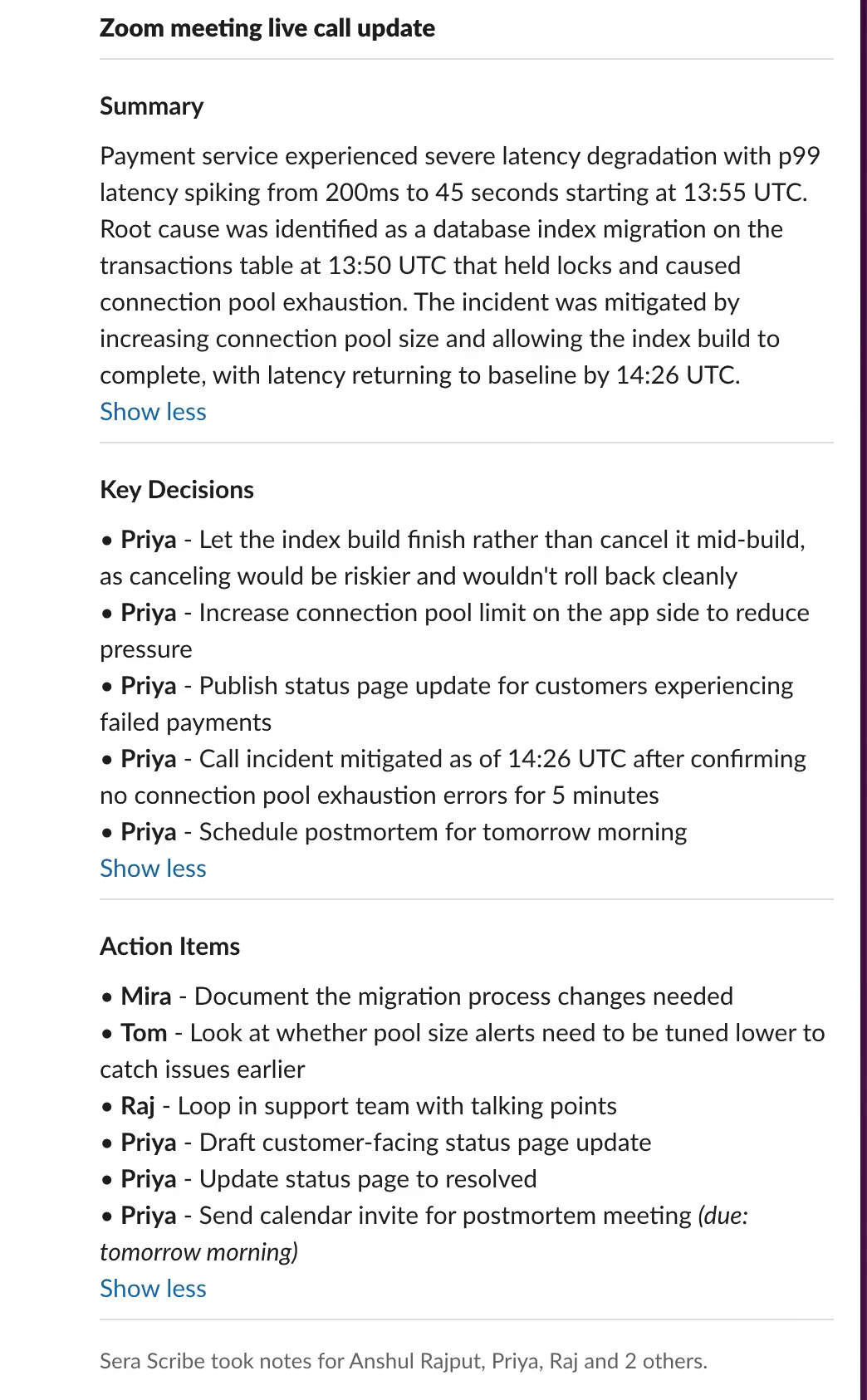
Example final summary posted to Slack when the call ends.
3.4 When Sera Scribe won't record a call
A couple of conditions stop Sera Scribe from recording, even when the feature is turned on:
- No one joins within 5 minutes: if no participant joins the war room within 5 minutes of the incident being triggered, Sera Scribe does not join or record the call.
4. Sera Scribe notes panel (View notes)
Clicking View notes opens a side panel titled "Sera Scribe" showing the call's time range and status. The panel is organized into four sections:
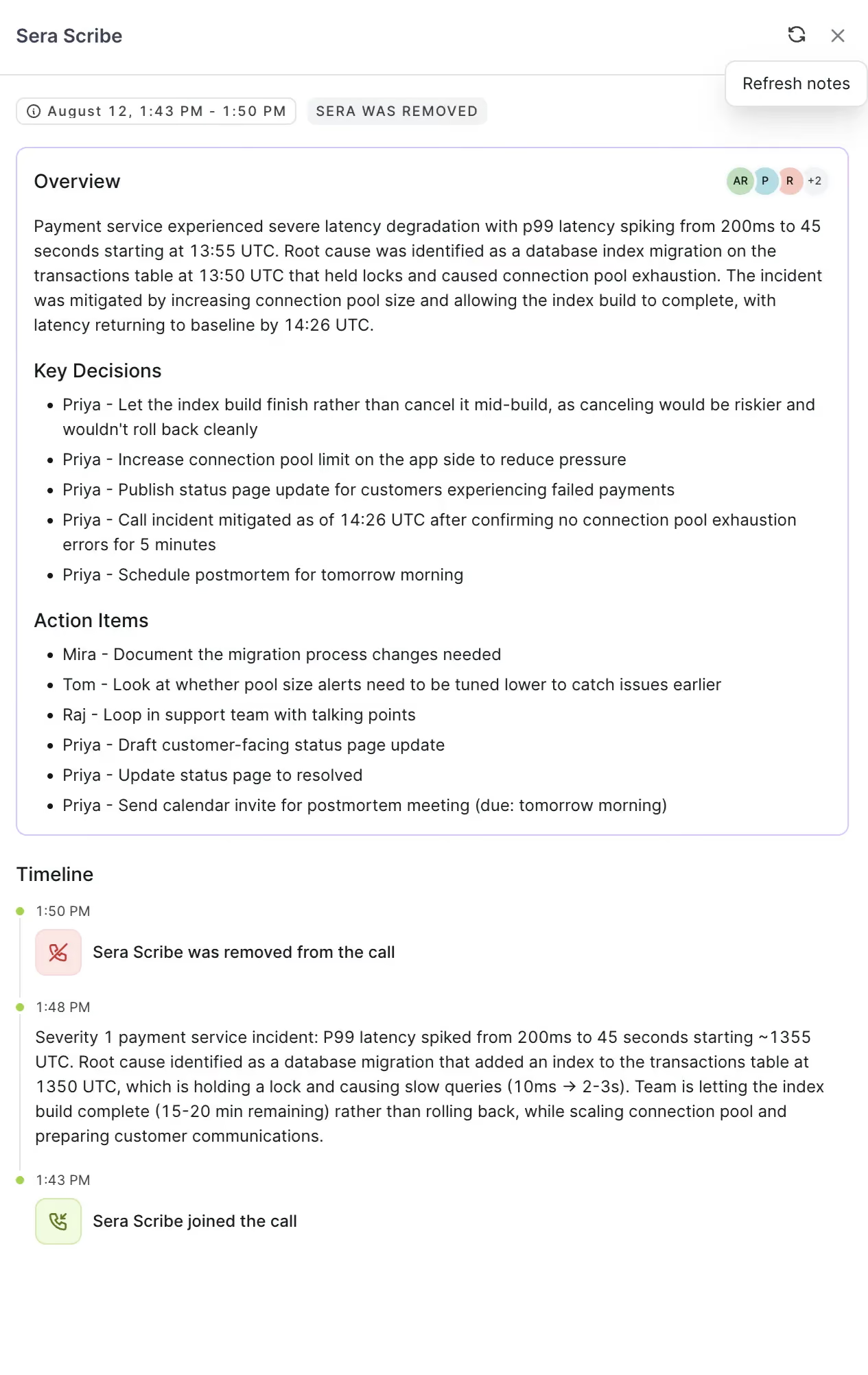
The Sera Scribe notes panel, opened via View notes.
4.1 Overview
A narrative paragraph summarizing what happened during the call from start to finish, written in plain language.
4.2 Key Decisions
A bulleted list of the important decisions the team made during the call. For example:
- Roll back to the previous version instead of applying a hotfix
- Drain active work before cutting over, to avoid failed requests
- Hold the incident open until metrics stabilize for a set period
4.3 Action Items
4.4 Timeline
A chronological, timestamped log of key moments and updates during the call. The most recent entry appears at the top, ending with the entry marking when Sera Scribe joined the call.