






























Heartbeat
Monitor scheduled jobs that fail silently
Heartbeat monitors scheduled jobs such as cron jobs, database backups, data pipelines, sync scripts, and monitoring agents.
After each successful run, your job sends a simple HTTP request (a ping) to a unique Ping URL, or an email to a unique Ping Email address.
If a heartbeat doesn't receive a ping within its configured interval, Xurrent IMR automatically creates an incident on the associated service and notifies the on-call responder through the service's escalation policy. When pings resume, the incident is resolved automatically.
Before you begin
Requirements
- Only Account Owners and Admins can create and manage Heartbeat. The Heartbeat page is not available to regular users.
- The selected service must have an escalation policy. Heartbeat use the service's escalation policy to notify responders when they expire.
Important
- The countdown starts as soon as you create a heartbeat. If it doesn't receive its first ping within the configured interval, an incident is created.
- Add the ping request to your scheduled job immediately after creating the heartbeat.
- Heartbeat are attached directly to services. No integration needs to be configured, and a service can have multiple Heartbeat.
Create a heartbeat
In Xurrent IMR
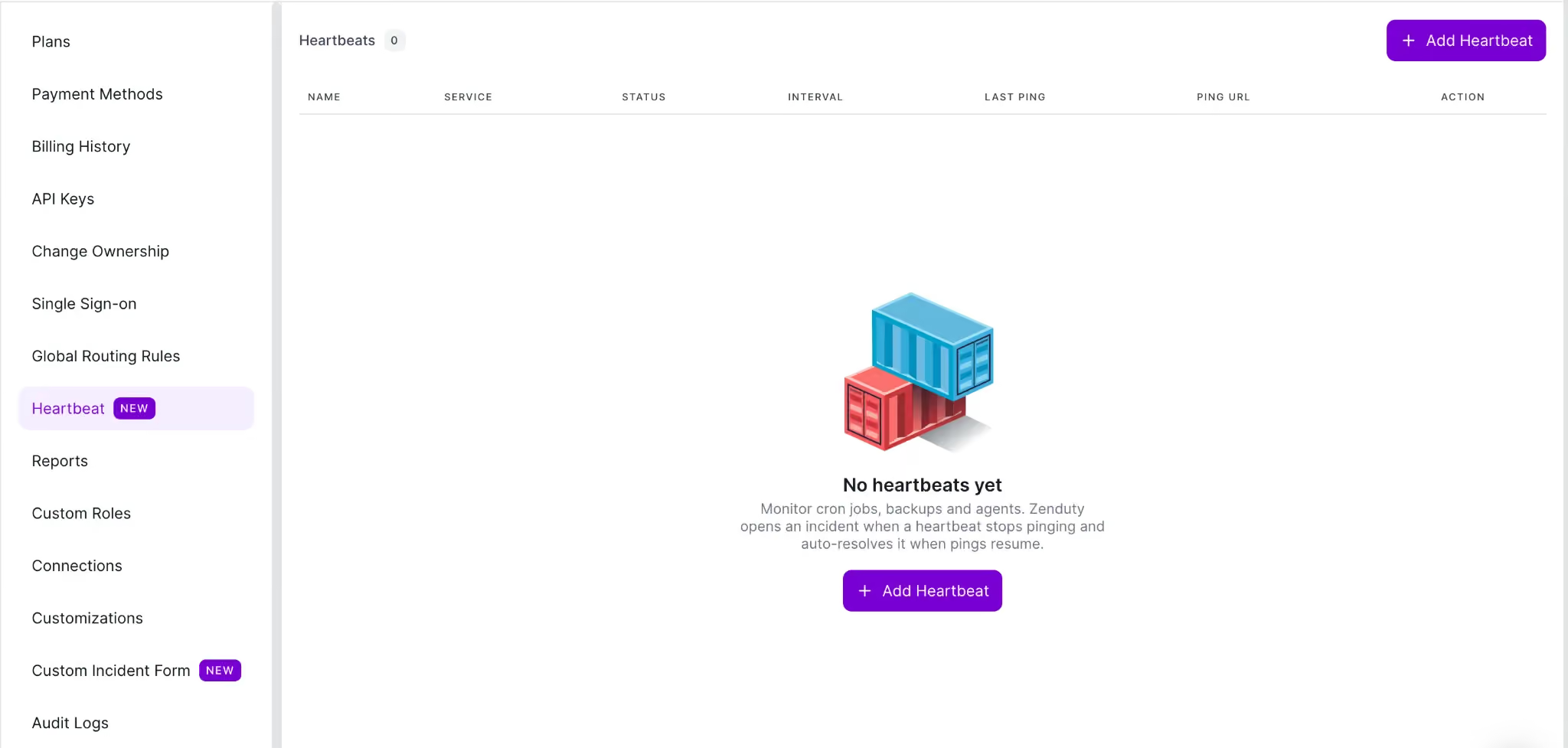
- Go to Account Settings > Heartbeat.
- Click Add Heartbeat.
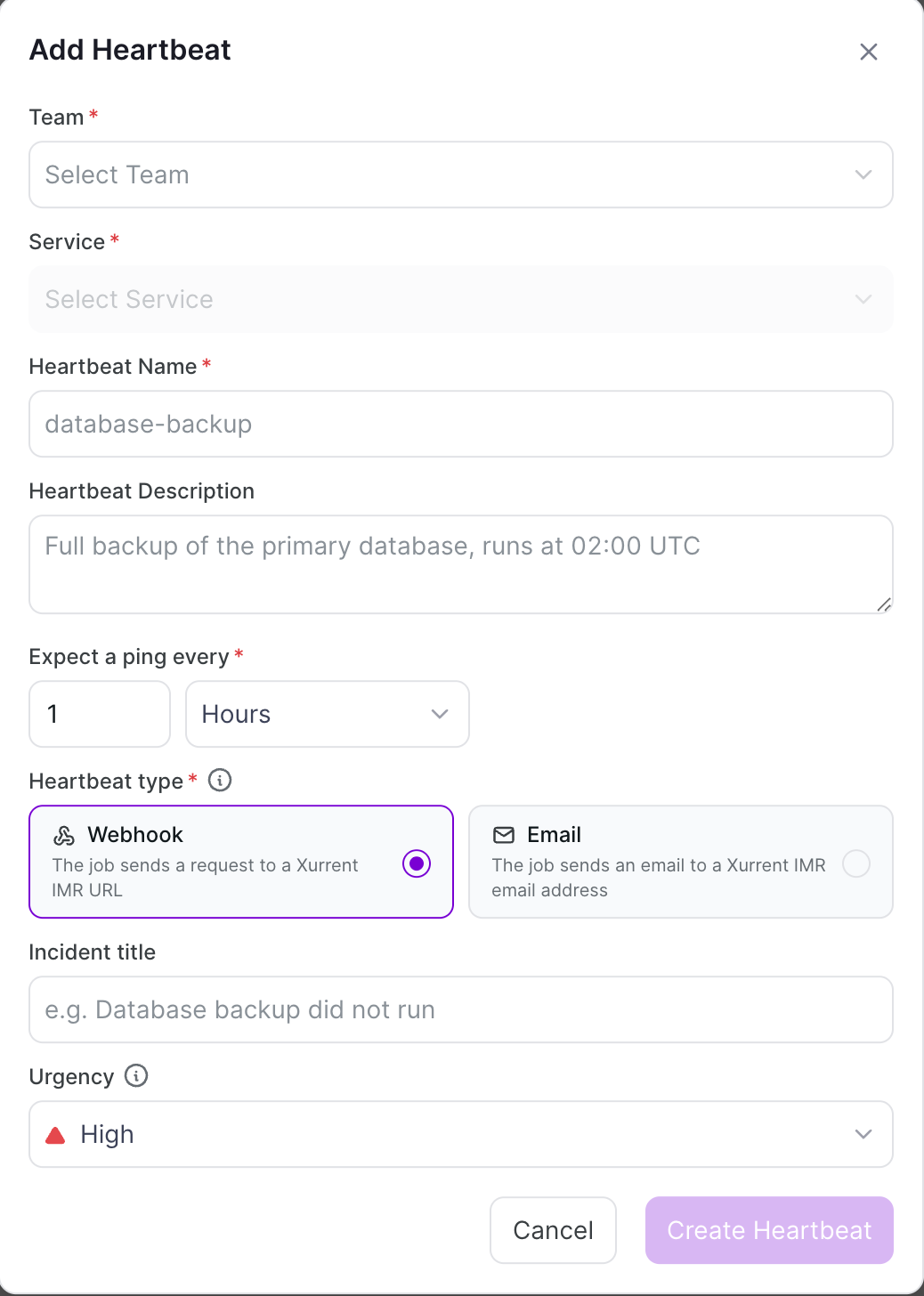
- Select the Team and Service that own the scheduled job.
If the heartbeat expires, an incident is created on this service and routed through its escalation policy. - Enter a unique Heartbeat Name (for example, database-backup).
- (Optional) Add a Description such as:
Full backup of the primary database, runs daily at 02:00 UTC. - Set Expect a ping every to the maximum time allowed between successful runs.
- Minimum interval: 1 minute
- Maximum interval: 90 days
- Tip: Give your job some headroom. For example, if a backup normally runs every 24 hours but occasionally takes an extra hour, configure the interval to 25–26 hours to avoid false alarms.
- Select the Heartbeat type: Webhook (the job sends a request to a URL) or Email (the job sends an email to an address). For Email, you can optionally set an Email subject filter only emails whose subject contains this text (case-insensitive) count as pings; other emails are ignored.
- (Optional) Enter an Incident title.
If left blank, the incident title defaults to:
Heartbeat '<name>' expired - Select the incident Urgency:
- High – for jobs requiring immediate attention.
- Low – for jobs that can wait until business hours.
- Click Create Heartbeat.
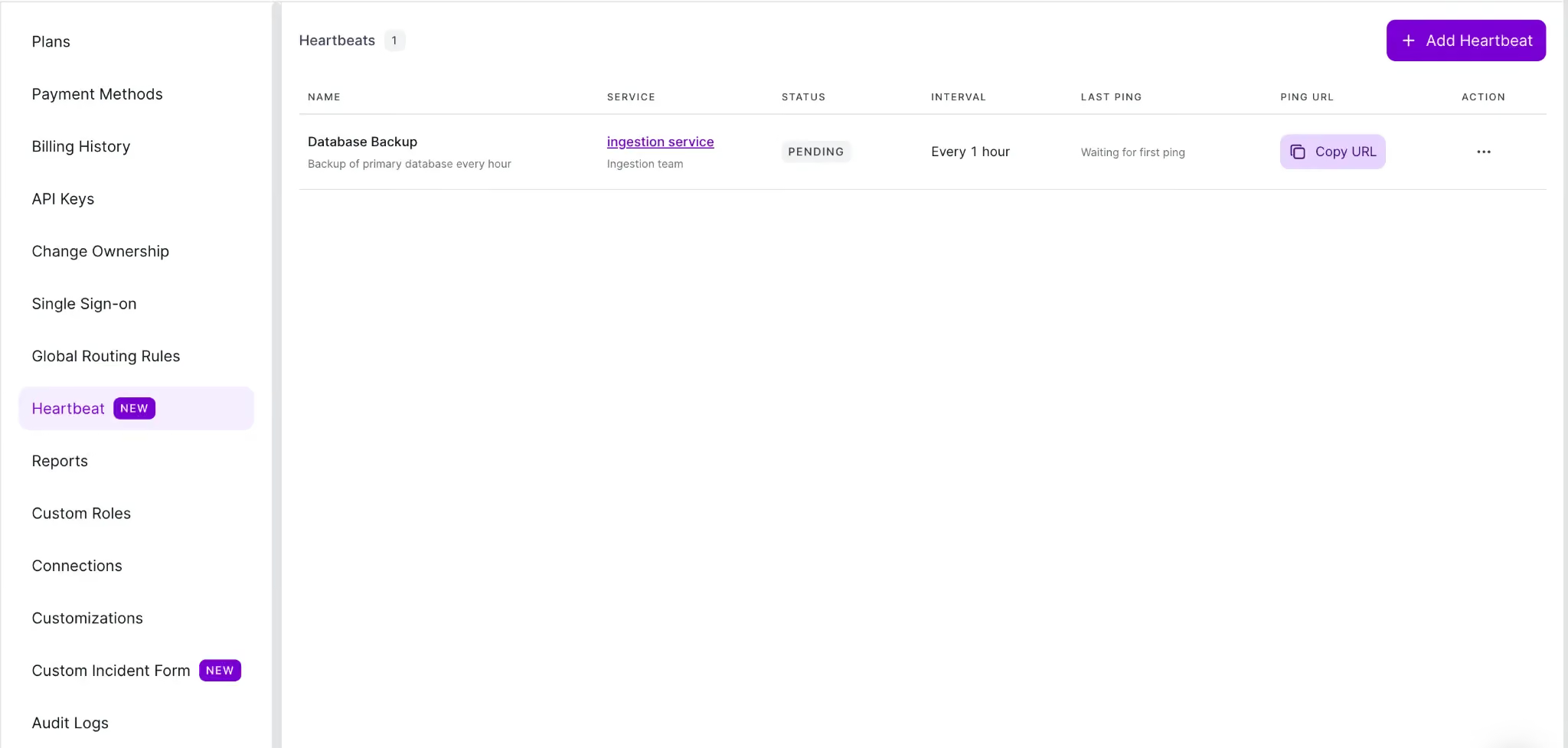
The heartbeat appears with a Pending status while waiting for its first ping.
Add the ping to your job
- In the Heartbeat list, locate the heartbeat.
- Click Copy URL (or Copy Email for email heartbeats) in the Ping Via column.
- Send a GET, POST, or HEAD request to the Ping URL - or an email to the Ping Email address - only after the job completes successfully.
Example cron job:
0 2 * * * /usr/local/bin/backup.sh && curl -fsS --retry 3 "<your ping URL>" > /dev/nullThe && ensures the ping is sent only if backup.sh completes successfully. If the job fails, no ping is sent, allowing the heartbeat to expire and trigger an incident.
Tip: Only send a ping after a successful run. A missing ping is what tells Xurrent IMR the job has failed.
After the first successful ping:
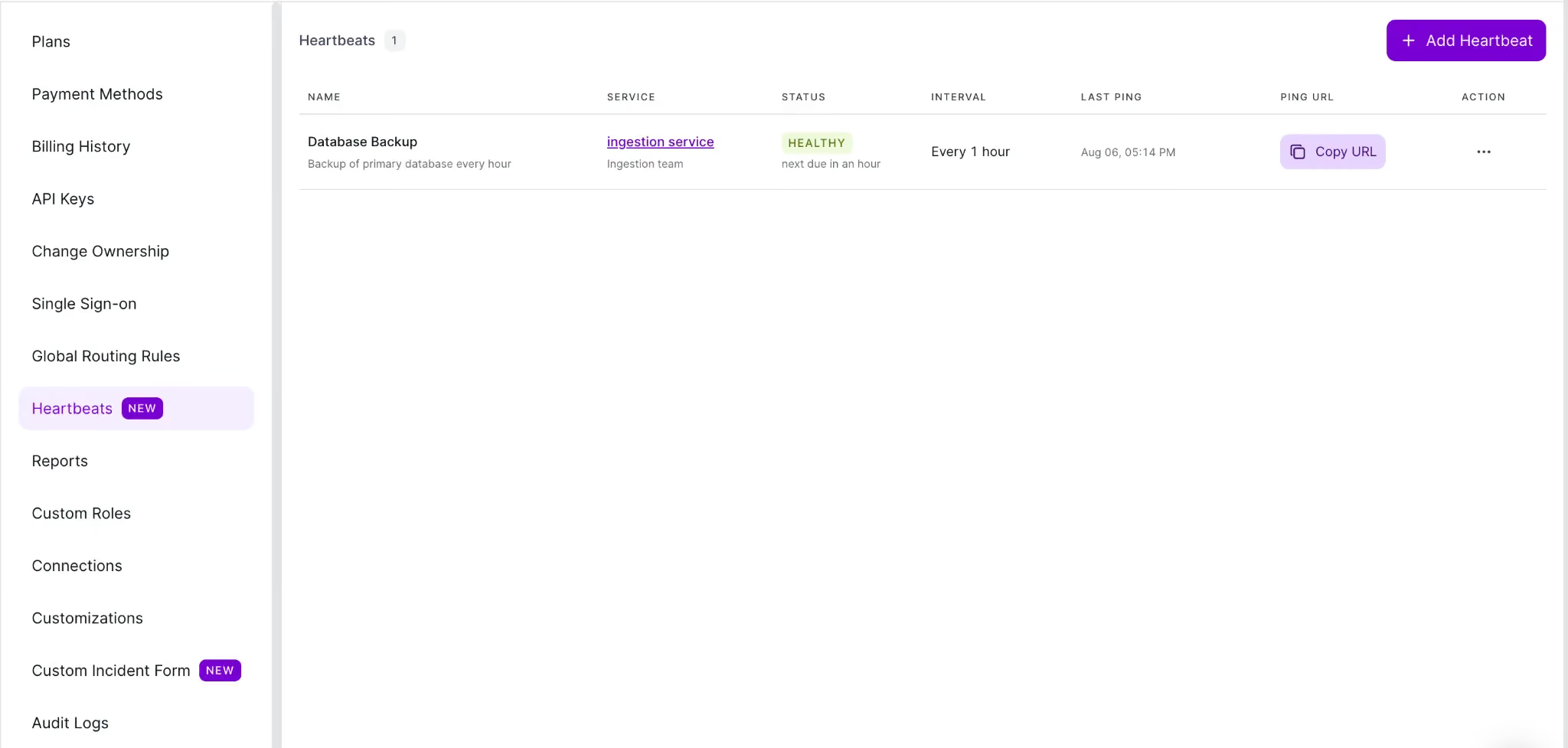
- The heartbeat status changes to Healthy.
- The Last Ping column displays the time of the latest ping.
Note: Pings are rate-limited (default: 5 requests per second and 40 requests per minute). This applies to both URL requests and emails. One ping per scheduled run is sufficient
What happens when a heartbeat expires?
If no ping is received before the configured interval:
- The heartbeat status changes to Expired.
- An incident is created on the associated service.
- The incident uses the configured title and urgency.
- The service's escalation policy notifies the on-call responder.
- The incident is linked directly from the heartbeat in the Heartbeat list.
When the job recovers
When the next successful ping is received:
- The heartbeat returns to Healthy.
- The open incident is resolved automatically, typically within one minute.
Important: Manually resolving the incident does not stop future incidents. If the job is still failing, another incident is created when the heartbeat expires again. To stop notifications, either fix the job or disable the heartbeat.
Heartbeat statuses
Manage Heartbeat
Open the ⋯ menu for a heartbeat to access the following actions.
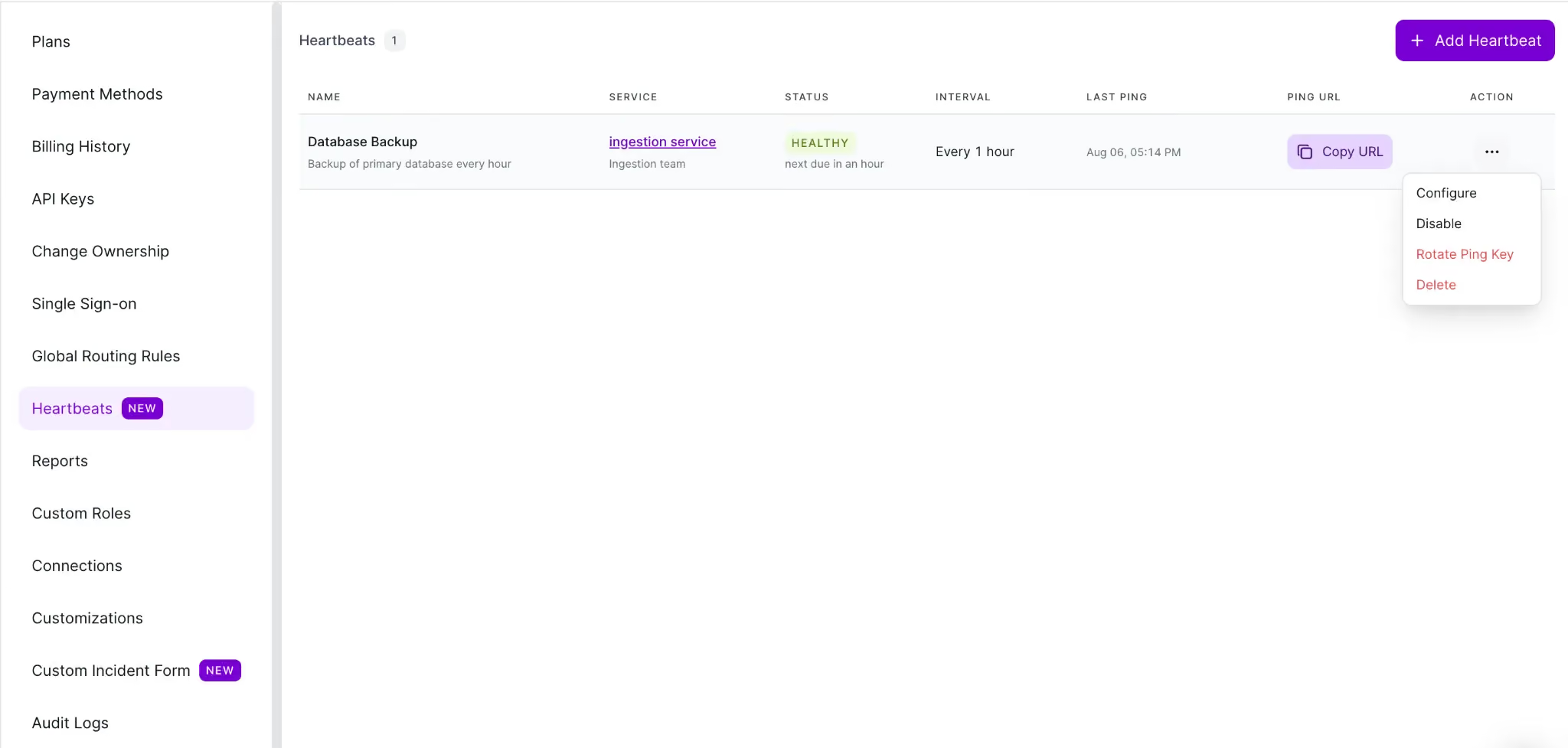
Configure
Edit the heartbeat's:
- Name
- Description
- Expected interval
- Incident title
- Urgency
- Heartbeat type and email subject filter
The associated service cannot be changed after creation. To monitor a different service, create a new heartbeat.
Changing the interval recalculates the next deadline based on the most recent successful ping.
Disable / Enable
Disable a heartbeat during planned maintenance or while a scheduled job is temporarily offline.
Disabling:
- Stops monitoring.
- Resolves any open incident.
Re-enabling:
- Returns the heartbeat to Pending.
- Starts a new monitoring interval and waits for the first ping.
Rotate Ping Key
Generate a new Ping URL if the existing one has been exposed.
Examples include:
- committed to a source repository
- shared in a ticket
- accidentally disclosed
Warning: Rotating the key immediately invalidates the previous URL. Update every scheduled job before the next deadline, or the heartbeat will expire.
Delete
Delete the heartbeat permanently.
Deleting:
- Resolves any open incident.
- Invalidates the Ping URL and Ping Email address.
- Cannot be undone.
Frequently asked questions
Can I create multiple Heartbeat for one service?
Yes. A service can have as many Heartbeat as needed, provided each heartbeat has a unique name within that service.
Do Heartbeat respect maintenance windows?
Yes. Heartbeat incidents follow the same maintenance window and incident behavior rules as any other incident created on the service.
What does the ping endpoint return?
Successful requests return:
{ "status": "ok"}Unknown, disabled, or deleted Heartbeat return 404 Not Found.
Do the Ping URL and Ping Email need authentication?
No. The unique secret embedded in the URL identifies the heartbeat.
Treat the Ping URL as a credential. Do not commit it to public repositories, and rotate the ping key if it is exposed.