











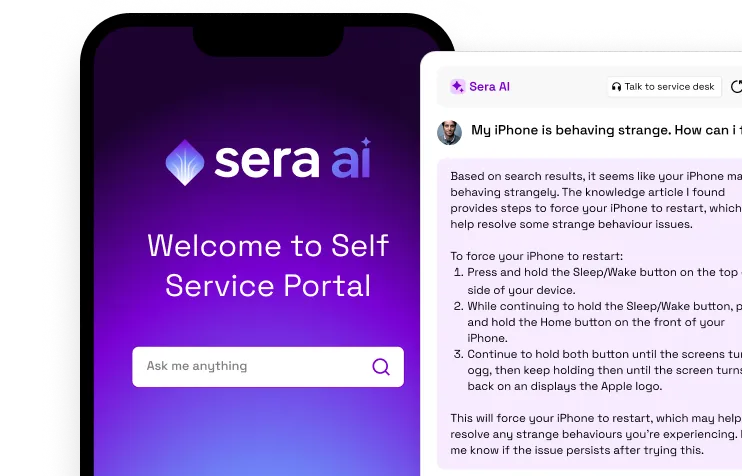




















AI Scheduling
Generate an on-call schedule from a description
On-call rotations are quick to describe and slow to build. "Daily rotation across the backend team, primary and secondary" is one sentence, and a long series of clicks.
Sera AI builds the rotation from the sentence. Describe the rotation you want, mention the users it covers, and Sera generates the layers inside the schedule, ready to review and adjust.
Where the description is incomplete, Sera asks before generating rather than guessing.
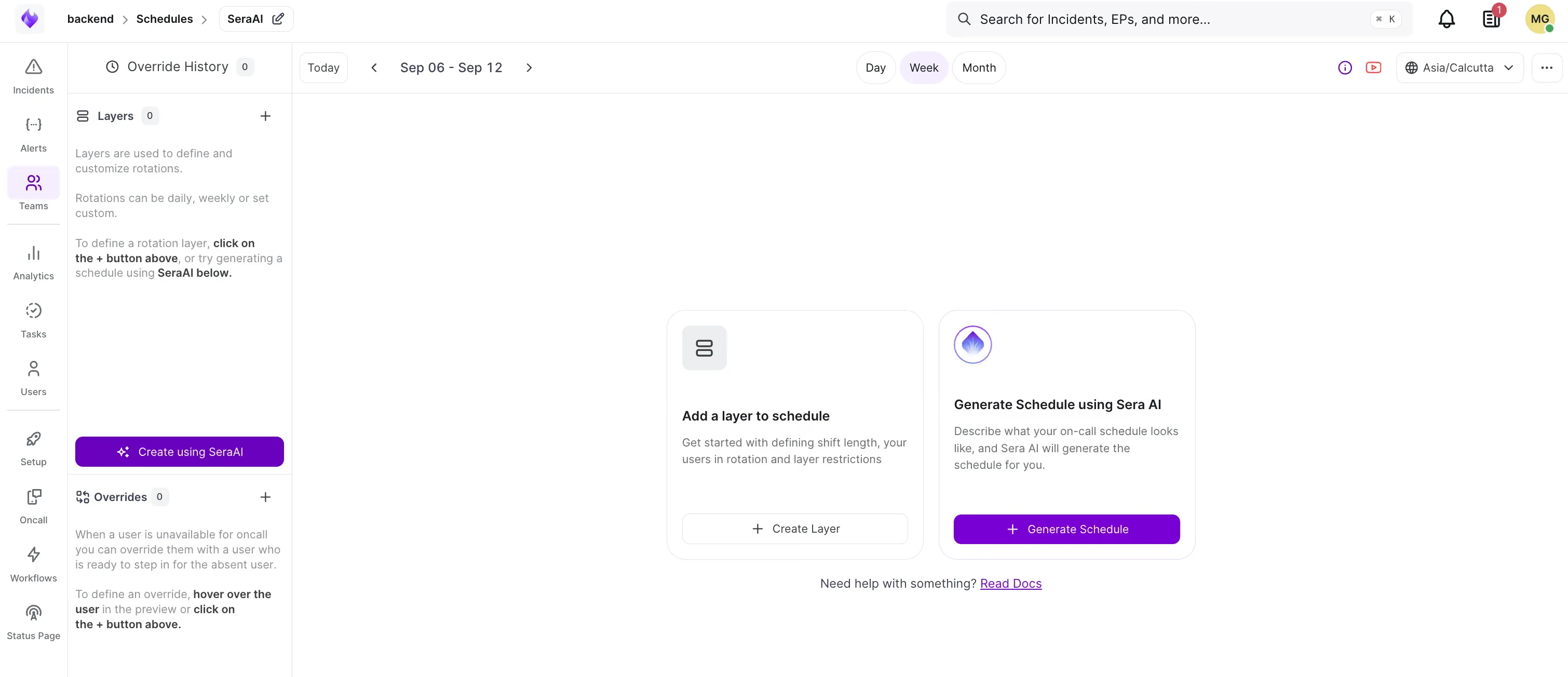
Generate a schedule with Sera AI
- Open the team, go to Schedules, and open or create a schedule.
- Click Generate Schedule, or Create using SeraAI in the Layers panel.
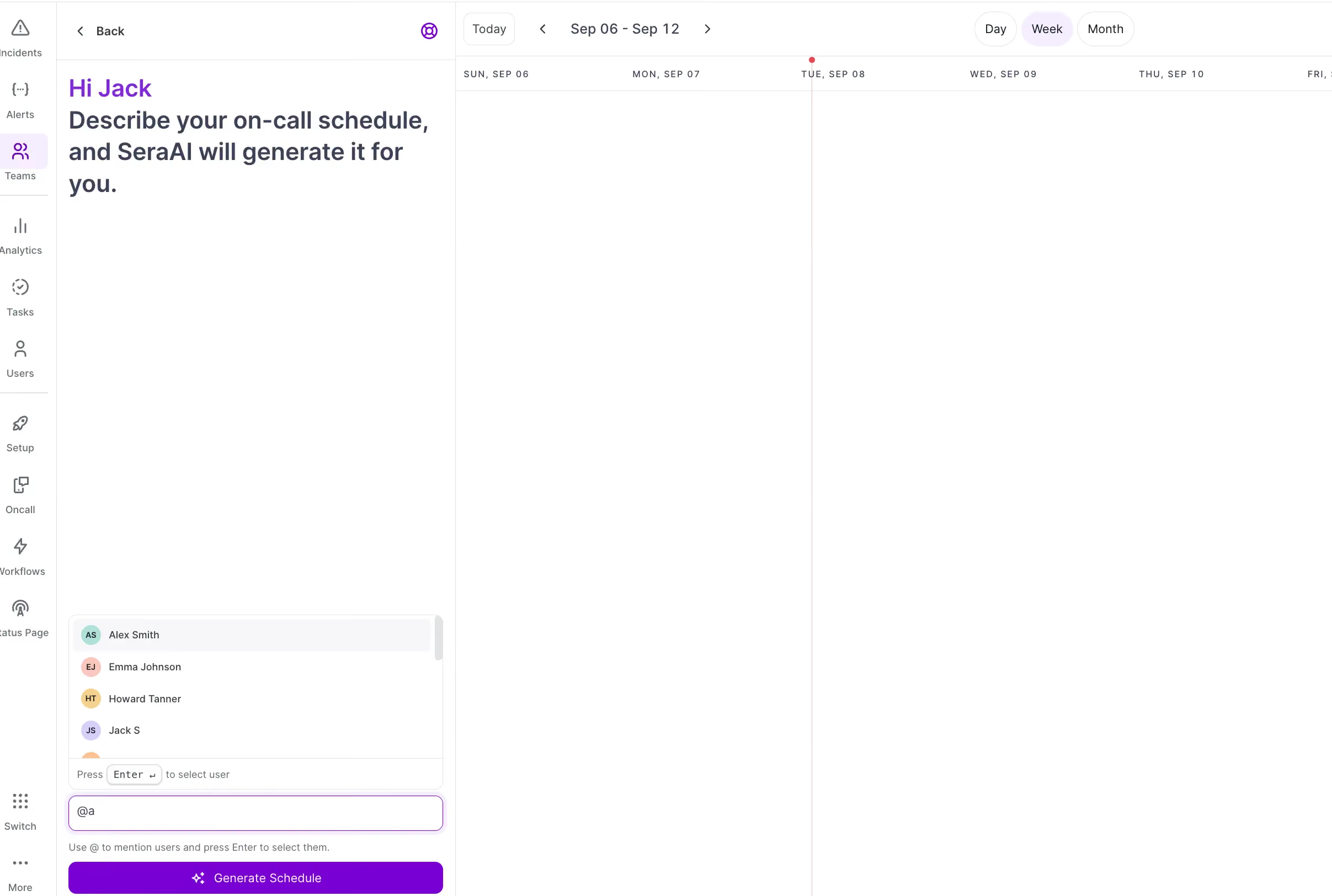
- Type your description. Use @ to mention each user in the rotation and press Enter to select them from the list.
- Click Generate Schedule.
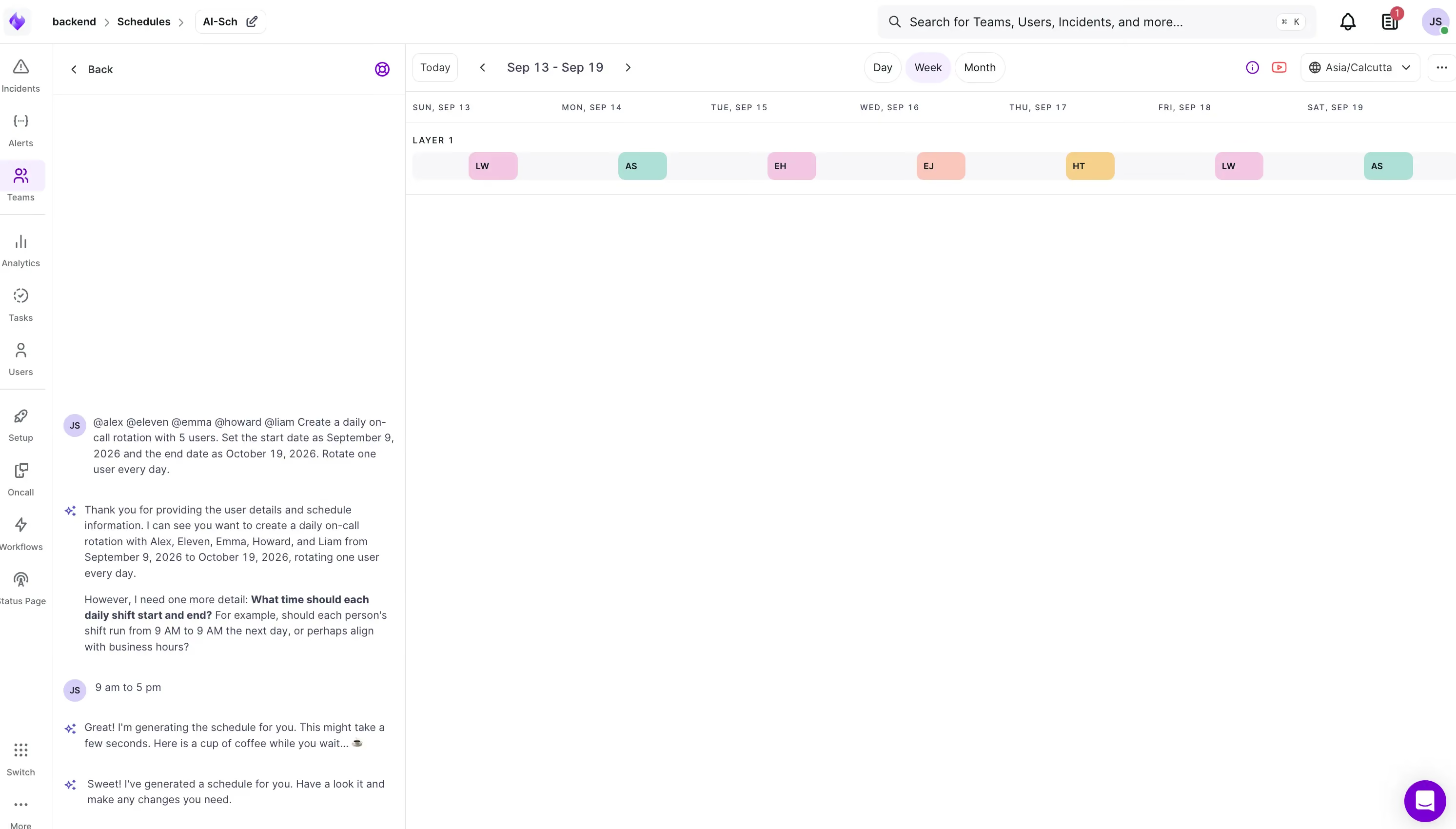
- Answer any follow-up questions Sera asks, then wait a few seconds while the rotation is built.
- Review the generated layers in the calendar.
The schedule keeps the name you gave it when you created it. Sera adds layers to it, which you can rename when you edit them.
Tip: Mention the users first, then describe the rotation. Sera confirms which users it found before it starts, so a missing or misspelled name is caught early.
Describe the schedule you want
Describe the rotation, not the schedule. The schedule's name and timezone are already set; Sera needs to know how the rotation runs and who is in it.
Example: a single daily rotation
@alex @eleven @emma @howard @liam Create a daily on-call rotation with 5 users. Set the start date as September 9, 2026 and the end date as October 19, 2026. Rotate one user every day.
Sera will ask for the shift timings, because the description does not include them.
Example: primary and secondary layers
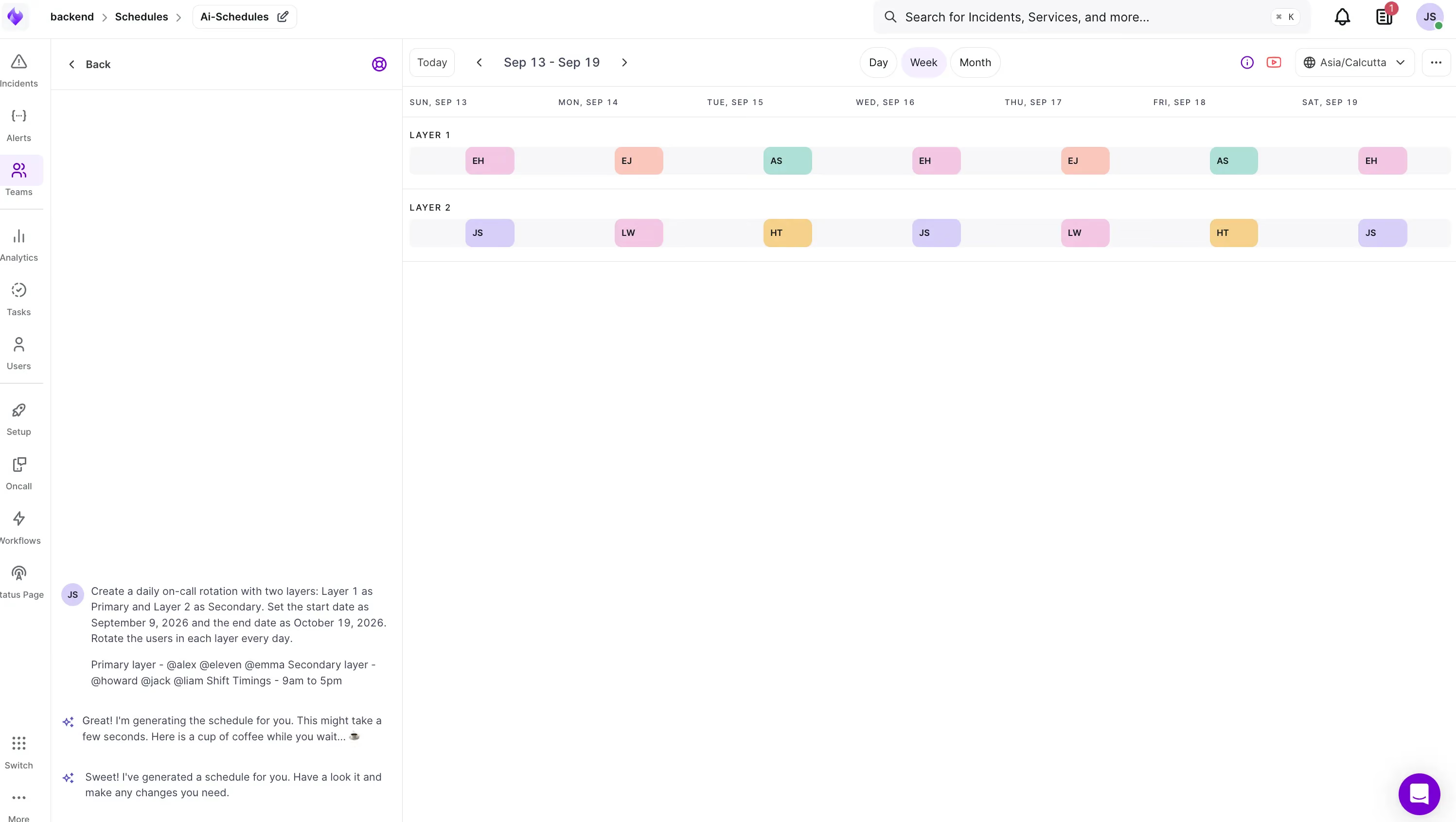
Create a daily on-call rotation with two layers: Layer 1 as Primary and Layer 2 as Secondary. Set the start date as September 9, 2026 and the end date as October 19, 2026. Rotate the users in each layer every day. Primary layer — @alex @eleven @emma Secondary layer — @howard @jack @liam Shift Timings — 9am to 5pm
This description is complete, so Sera generates both layers without asking anything further.
Tip: For continuous cover, give a shift window that wraps the full day — 9 AM to 9 AM the next day — rather than a business-hours window. Sera offers this choice when it asks about timings, and the answer decides whether anyone is on call overnight.
Review and adjust the generated layers
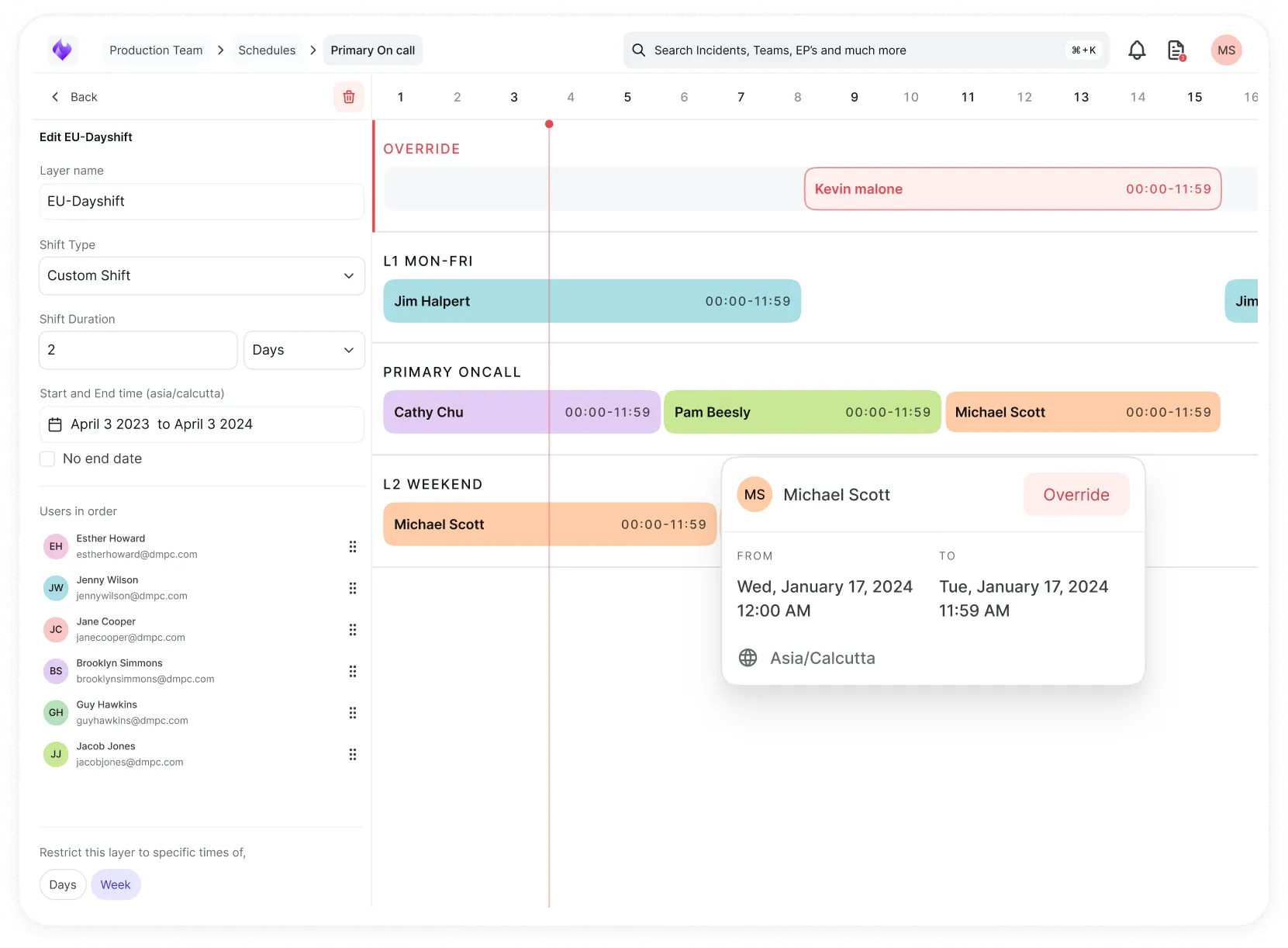
Everything Sera generates remains editable. Open a layer to change:
- Layer Name
- Shift Length — a number and a unit, such as 1 day or 1 week
- Start Time — in the schedule's timezone
- No End Date — or a fixed end date
- Users in Rotation — add users, or drag to reorder who is on call when
- Restrict this layer to specific times of the week — per-day start and end times, each removable

Switch between Day, Week, and Month views to check coverage before relying on the schedule. Week view shows the daily handoffs; month view is the fastest way to spot a gap.
Tip: Reordering Users in Rotation changes who takes which shift. Drag to match the sequence your team expects rather than rebuilding the layer.