




















AI Postmortem
Draft a postmortem report with Sera AI
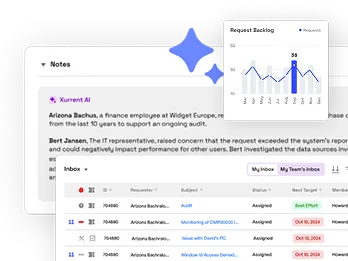
Sera AI helps you create a postmortem by bringing together information from the incident timeline, alert payloads, notes, Slack conversations, and Microsoft Teams / Zoom war room transcripts when Sera Scribe is enabled.
When multiple incidents are related to the same issue, you can include them in the same postmortem. Sera AI combines the information from all the incidents into a single report with a shared timeline, root cause, and recommended corrective actions.
Review the generated report, attach it to the postmortem, and convert the recommended actions into tracked tasks.
Create a postmortem
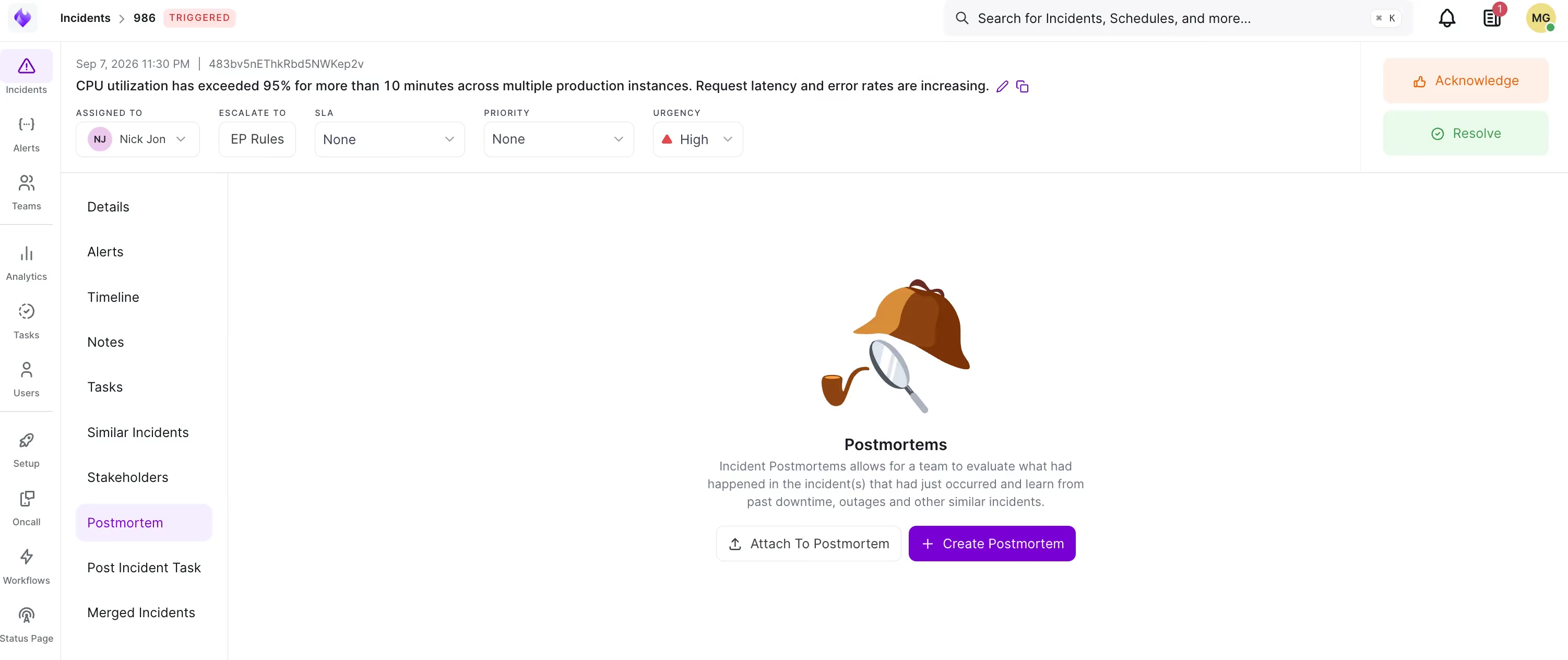
- Open the incident and select Postmortem in the left panel.
- Click Create Postmortem.
To add this incident to a postmortem that already exists, click Attach To Postmortem instead.
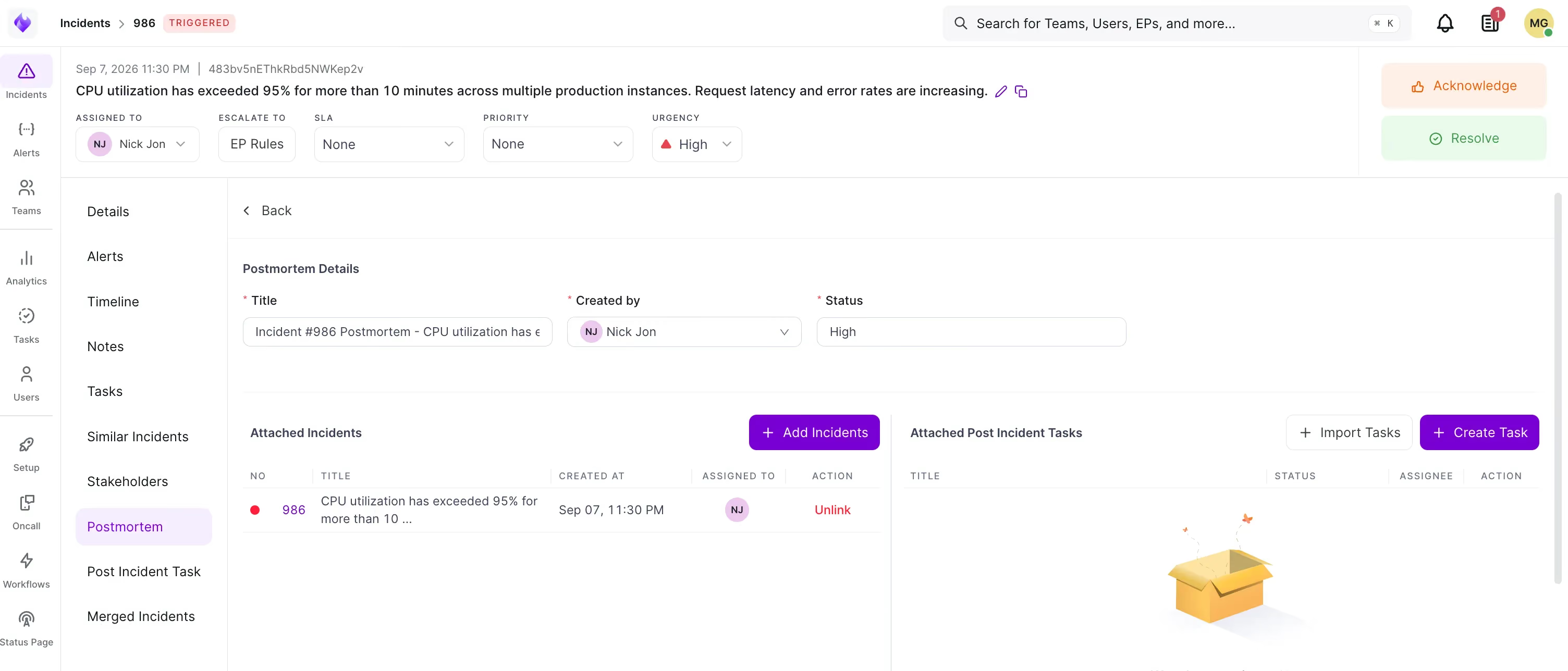
On the Postmortem Details page, set the Title and Status. The postmortem records who created it, and can be reached from any of its attached incidents.
Attach incidents and post-incident tasks
The Postmortem Details page holds both sides of the postmortem: the incidents it covers, and the work that comes out of it. Attach the incidents before generating the report, and add the tasks after reviewing it.
Attach related incidents
A cluster failure rarely produces one incident. It produces a CPU alert, a latency alert, a duplicate of each, and an escalation. One postmortem covering all of them is more useful than six covering fragments.
- Under Attached Incidents, click Add Incidents.
- Search by incident number or title in the Attach Incidents dialog.
- Click Add beside each incident to attach it.
- Close the dialog. Attached incidents are listed under Attached Incidents, and can be removed with Unlink.
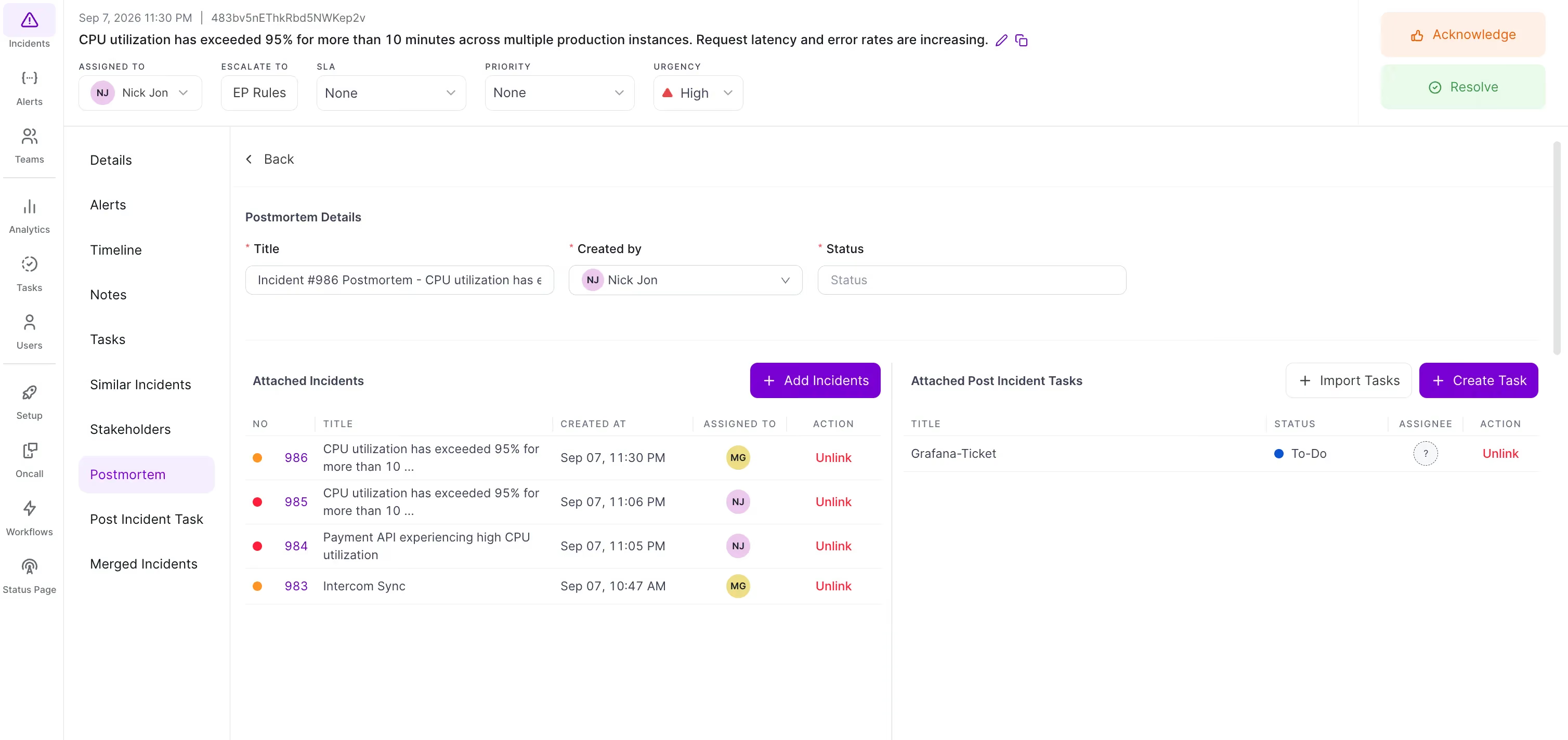
Tip: Attach every related incident, including duplicates, before generating with Sera. Duplicates are evidence: a run of near-identical incidents inside a few minutes is itself a finding, and Sera reports it in the corrective measures.
Add post-incident tasks
A postmortem that ends in recommendations changes nothing. Post-incident tasks turn them into assigned, tracked work on the postmortem itself.
Under Attached Post Incident Tasks:
- Create Task — add a task, with an assignee and status
- Import Tasks — bring in tasks already defined elsewhere
Tip: Work through the corrective measures Sera drafted and create a task for each one your team accepts. The draft gives you the candidate list; the tasks are what make it accountable.
Generate the report with Sera AI
- In the Postmortem Report section, click Write with Sera AI.
- Sera returns a draft for review, marked as generated by AI.
- Rate the draft using the feedback controls. This signal improves future output.
- Click Attach Postmortem to insert the draft into the Postmortem Report editor, or Go back to discard it.
- Edit the report, complete the remaining fields, and click Save Postmortem.
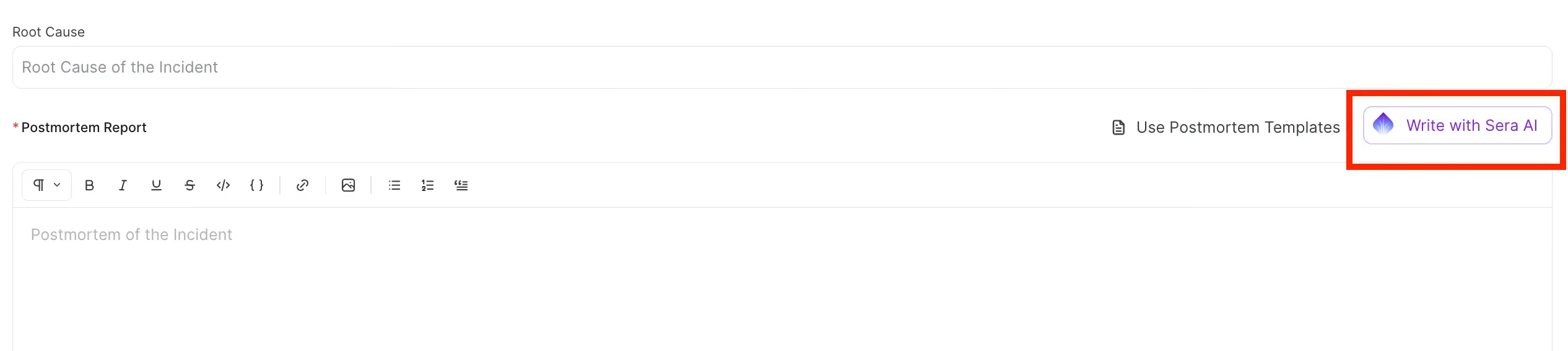
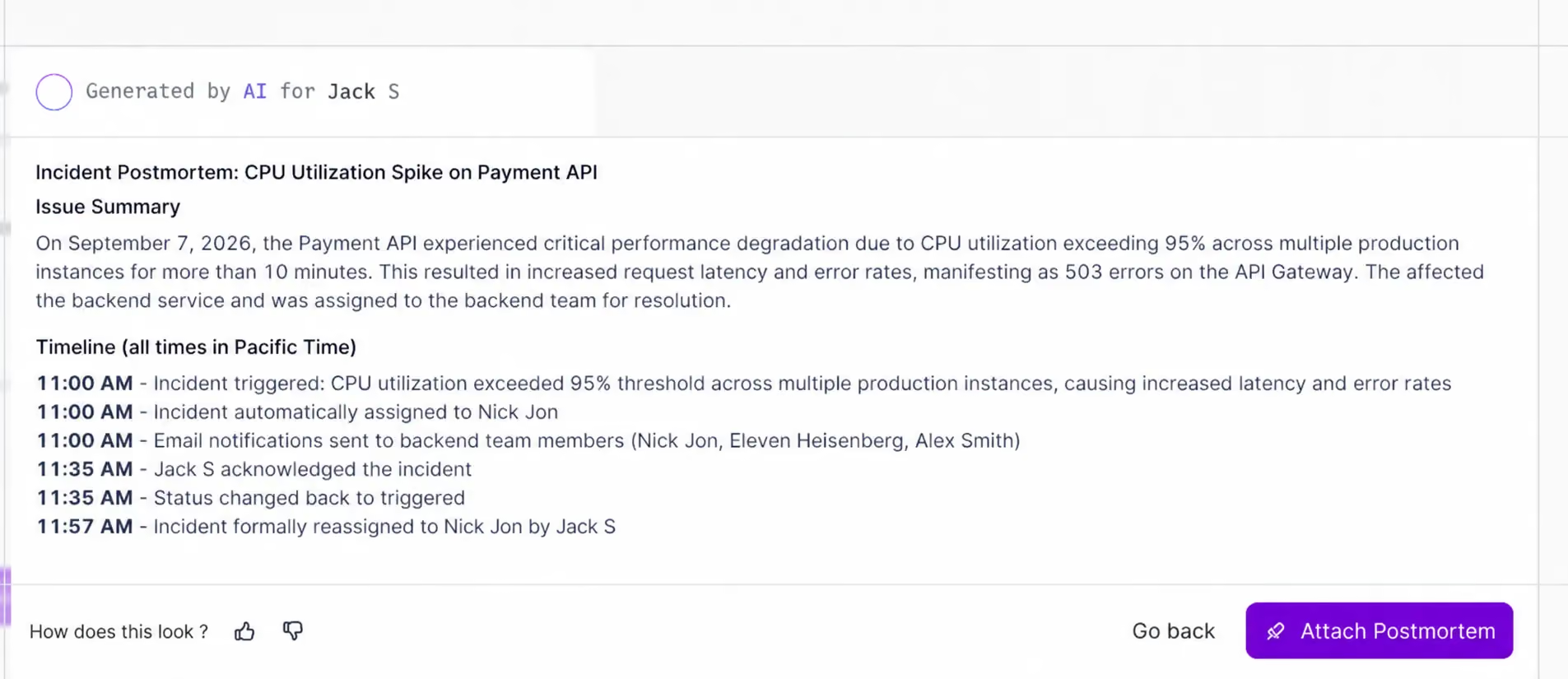
Once a draft has been attached, View Generated Postmortem replaces the generate control, so you can refer back to the original.
What the Default Draft Includes:
Sera draws all of this from the attached incidents. Detail your responders did not record will not appear in the draft, and the recommended measures are suggestions for your team to accept, reject, or replace.
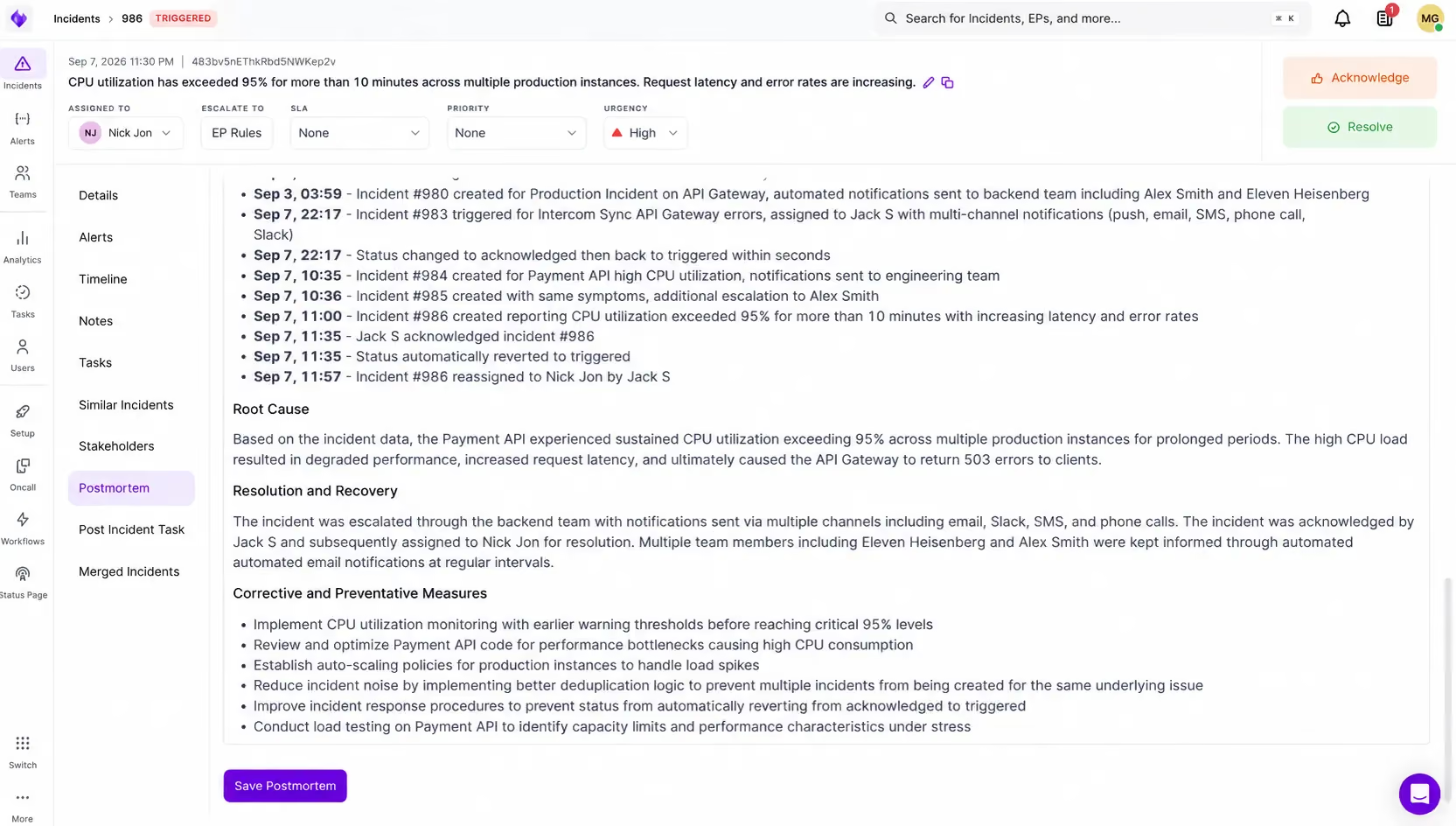
Use a postmortem template
A template gives every postmortem the same structure, so reviewers know where to look and responders are not deciding what to include at the end of a long incident.
In the Postmortem Report section, click Use Postmortem Templates and select a template. The report is populated with its structure, ready to write into.
Templates and Sera can be combined: generate a draft first and edit it into your template's structure, or start from the template and use the generated draft as the source for its timeline and summary sections.
