


























VMware vCenter Server Appliance (VCSA) Integration Guide
What can Xurrent IMR do for VMware vCenter users?
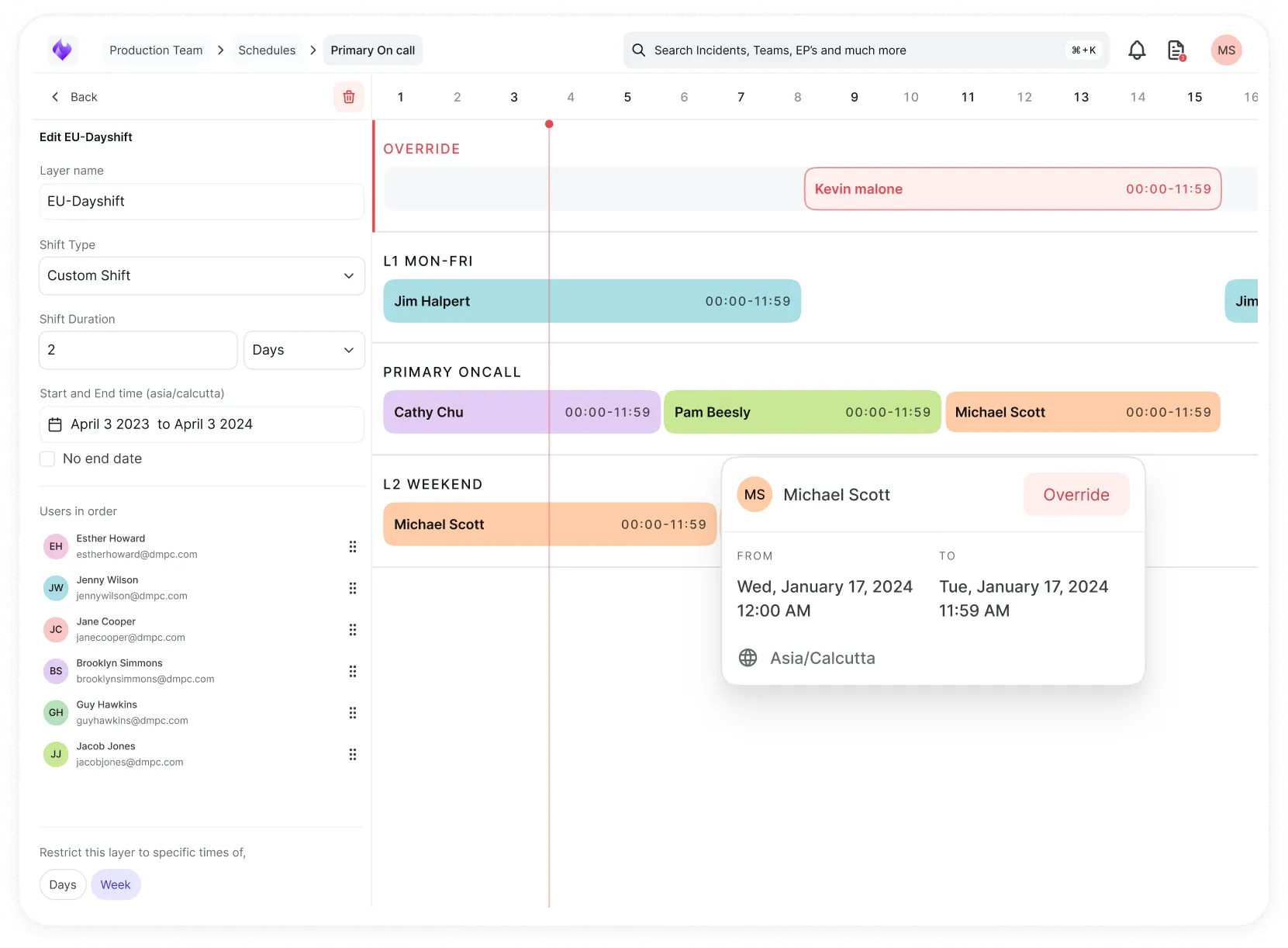
Xurrent IMR transforms vCenter alarms into incidents and automatically routes them to the right person based on your on-call schedules and escalation policies. This ensures critical alerts reach the appropriate team members immediately through multiple channels — phone, SMS, email, Slack, Microsoft Teams, and mobile push notifications.
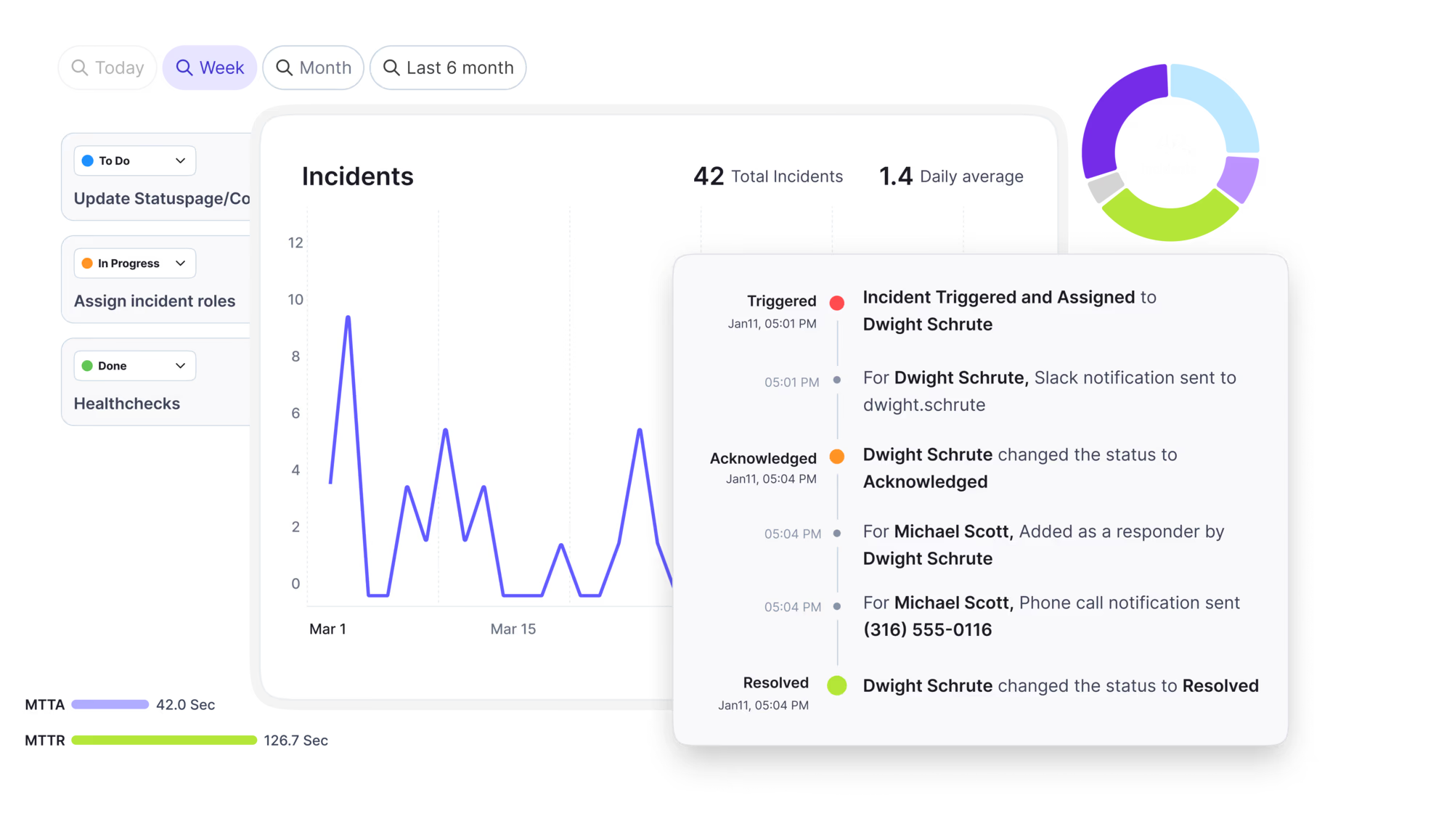
When an alarm returns to a healthy state, Xurrent IMR automatically resolves the associated incident, eliminating manual cleanup.
How it works
vCenter cannot send webhooks directly, so alarm actions are limited to sending mail, firing SNMP traps, or running scripts on the appliance. This integration installs a small package on the vCenter Server Appliance that intercepts alarm triggers and forwards the alarm details to Xurrent IMR in real time.
In Xurrent IMR
- Go to Teams on Xurrent IMR and click on the team you want to add the integration to.
- Next, go to Services and click on the relevant Service.
- Go to Integrations and then Add New Integration. Give it a name and select the application VMware vCenter (VCSA) from the dropdown menu.
- Go to Configure under your integrations and copy the generated Webhook URL. You'll need this URL when configuring the appliance.
In VMware vCenter
- Connect to the vCenter Server Appliance over SSH and clone the repository:
git clonehttps://github.com/xurrent/imr-VMware-integration
cd imr-VMware-integration
- Install the package. This installs the forwarder at /usr/local/bin/vcsa2zenduty:
sudo rpm -i zenduty-vcsa-<version>.rpm - Open the configuration file and paste in the Webhook URL you copied from Xurrent IMR, exactly as generated:
sudo vi /etc/zenduty/conf/zenduty-integration.conf
Add the following line:
url = https://events.zenduty.com/integration/<account>/vcsa/<integration_key>/ - In the vSphere Client, go to the object you want to monitor (virtual machine, host, datastore, cluster, or data center) and open Configure → Alarm Definitions.
- Click Add to create a new alarm, or select an existing alarm and click Edit.
- Give the alarm a name and set its trigger conditions as you normally would.
- Under the alarm's actions, add an action, choose Run script, and enter the full path to the forwarder:
/usr/local/bin/vcsa2zenduty - Enable the action on the status transitions you want to send. Each action has a column per transition — green to yellow, yellow to red, red to yellow, and yellow to green.
Important: Enable the action on the recovery transitions (red to yellow and yellow to green) as well as the escalating ones. Xurrent IMR resolves an incident when it receives the alarm's return to a healthy status. If the action only fires on the escalating transitions, incidents will open but never resolve automatically. - Save the alarm, then trigger it to test. The alert appears under Alerts on the Service in Xurrent IMR within a few seconds. Return the object to a healthy state and the incident resolves automatically.
Repeat steps 4 to 9 for each alarm you want to send to Xurrent IMR. The same forwarder is used by every alarm — you only install the package once.