




Blog
Insights & updates from our experts


Resolve plant floor and IT issues before they disrupt production.

Stay audit-ready while resolving issues and reducing operational risk.
Resolve issues quickly with an AI-powered system that automates ticketing.
Unifiy IT, HR, Facilities, Finance, and more on a single, AI-powered service platform.
Simplify on-call scheduling, automate escalations, and reduce burnout.
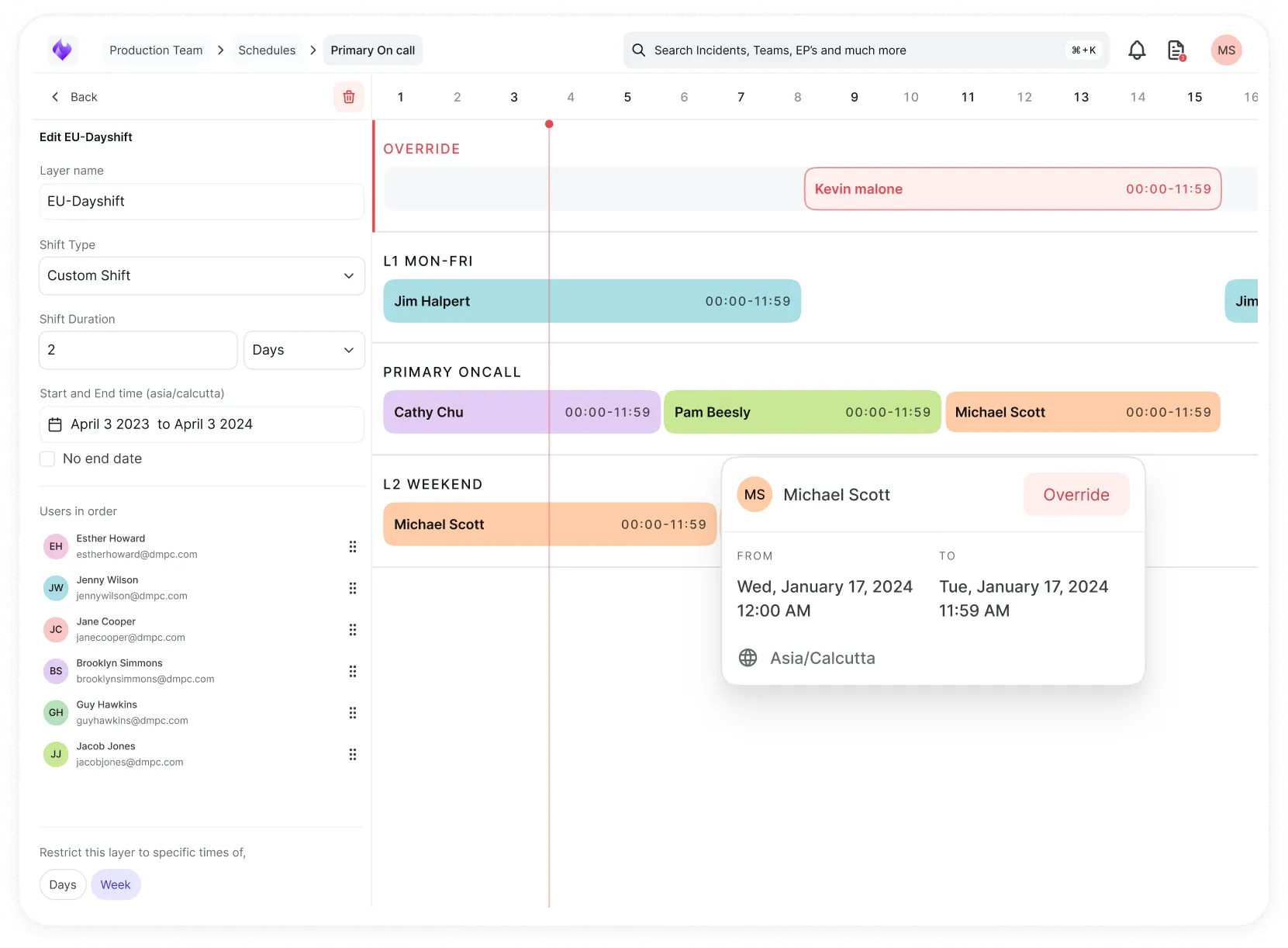
Automate postmortems, AI summaries, and post-incident workflows
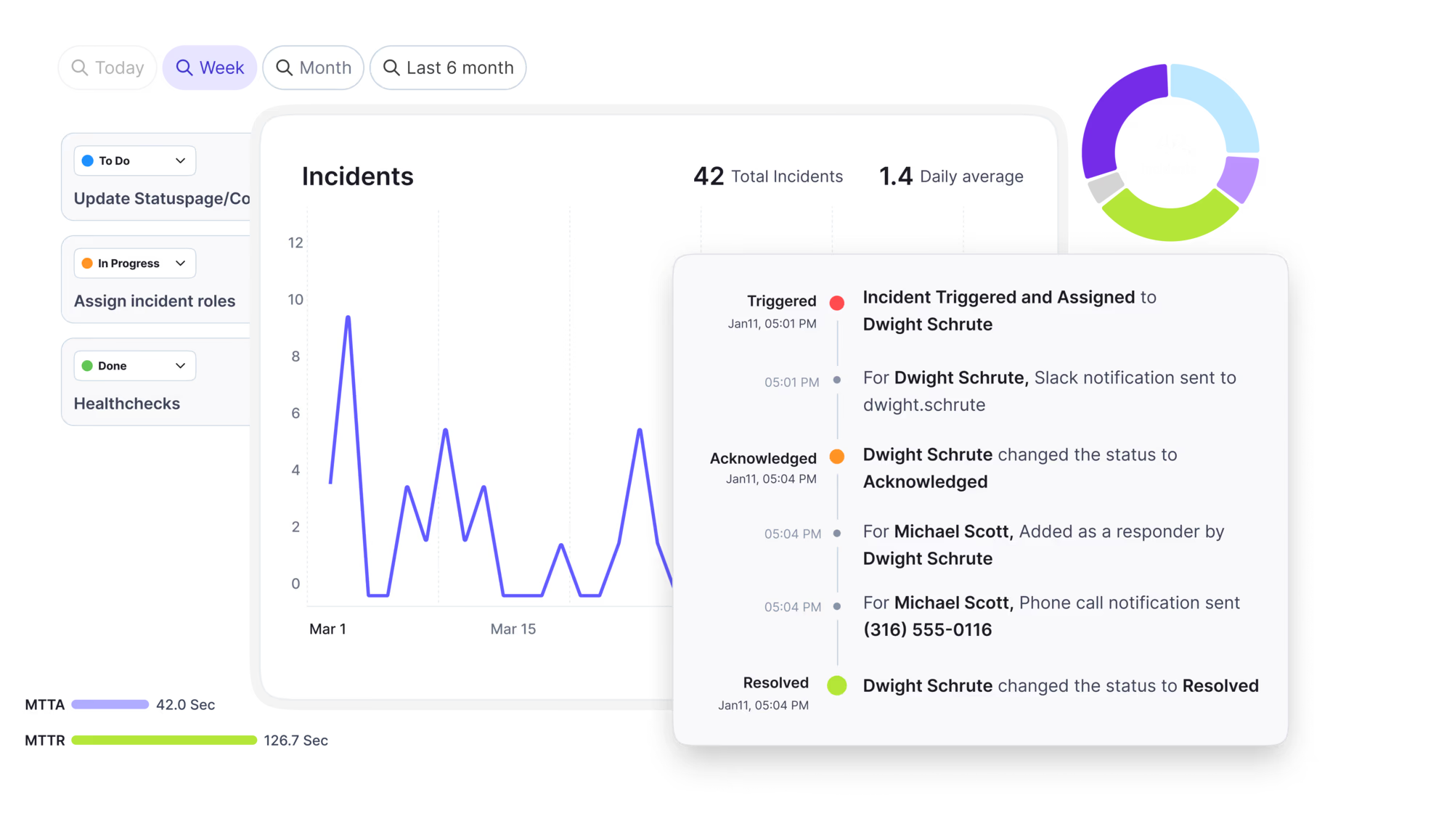
Create, organize, and continuously improve your knowledge base to find the right answers with Sera AI.
We're here to help

The integration with Atlassian Jira using the Xurrent Integration Service is

The integration with Atlassian Jira using the Xurrent Integration Service is

The integration with Atlassian Jira using the Xurrent Integration Service is

The integration with Atlassian Jira using the Xurrent Integration Service is

The integration with Atlassian Jira using the Xurrent Integration Service is

The integration with Atlassian Jira using the Xurrent Integration Service is

The integration with Atlassian Jira using the Xurrent Integration Service is

The integration with Atlassian Jira using the Xurrent Integration Service is
Resolve issues quickly with an AI-powered system that automates ticketing.
Unifiy IT, HR, Facilities, Finance, and more on a single, AI-powered service platform.
Simplify on-call scheduling, automate escalations, and reduce burnout.
Automate postmortems, AI summaries, and post-incident workflows
Create, organize, and continuously improve your knowledge base to find the right answers with Sera AI.
Resolve plant floor and IT issues before they disrupt production.
Stay audit-ready while resolving issues and reducing operational risk.

Detect, respond, and resolve incidents fast to cut downtime and MTTR.

Keep your store online, even during your biggest sales moments.

Protect patient data and resolve issues fast, so care teams stay focused on care.

Standardize service delivery across every store and channel.

We are here to help 24/7

Connect with other Xurrent Users

Get insights and tips on how to get the most out of Xurrent

Apps, APIs, and updates

Xurrent service functionality

Eliminate manual tasks, optimize workflows, and deliver faster resolutions.
Learn how organizations have reduced downtime, improved 50% MTTA & MTTR, and cut costs with Xurrent IMR.
Discover Xurrent IMR's quick support, bidirectional integrations with Jira and Slack, and more cohesive incident response capabilities compared to Opsgenie.
Understand why users value Xurrent IMR for its intuitive interface, efficient incident alerting, customizable On-call schedules, and escalations.

Role Based Access Control is a feature set available for growth and enterprise users providing fine-grained access management of Xurrent IMR. Xurrent IMR RBAC allows you segregate duties and access within your team and grant only the permissions to users that they need to perform their responsibilities.
If RBAC is not enabled, Xurrent IMR's default role structure follows with the pre-defined roles of Owner, Admin, Team Manager and User.
view permissions for all teams, allowing for visibility into the entire organization.An organisation can implement RBAC via 2 mediums:
By default, only the members of a team can view the incidents, escalation policies, schedules, services and other associated information. However, users can harness this ability to tinker with the privacy permissions of a team and make some or all data attached to the team visible to all non-team members of your Xurrent IMR account. This allows for the operational status of teams that are centerpieces of an organisation's engineering structure be accessible to all dependant members.
The final permission set of a user is a union of their account level permissions and a particular team's permissions, implying that even if a user with a custom role is denied permission to view incidents in general, they'll be able to access incidents of a particular team that has configured their incidents to be visible to all members in their team level permissions.
Only the Account Owner, Account Admins and Team Manager can modify team level permissions.
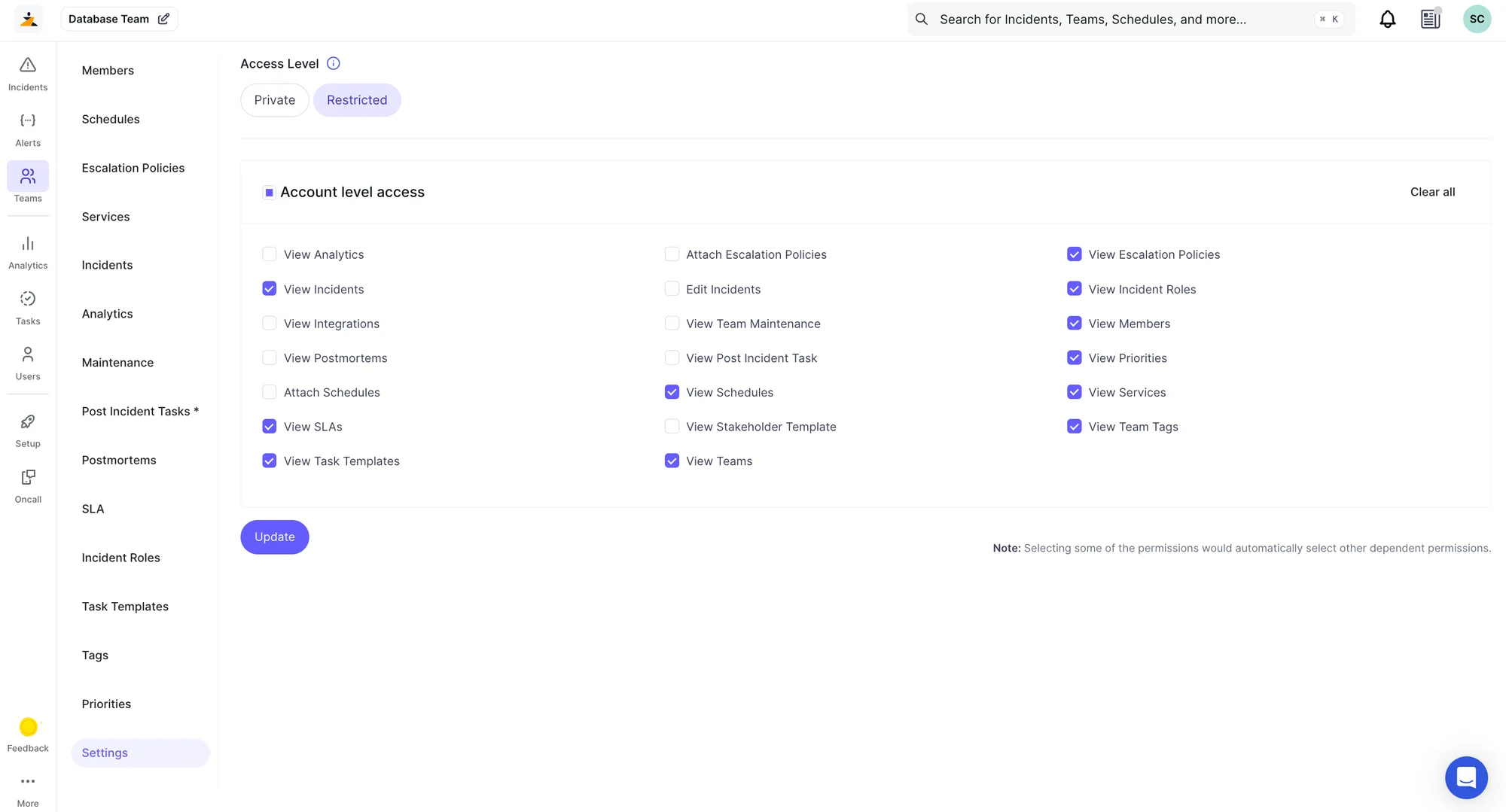
Note: Selecting some permissions would automatically select others that the chosen permission requires.
Via account level permissions, users can create custom roles and assign to users to grant them specific access to Xurrent IMR resources. This allows organisations to grant special privileges to certain power users and owners, thus lowering dependencies on other responders in dire situations and smoothening the incident resolution process.
Only the Account Owner and Account Admins can create custom roles and assign them to users.
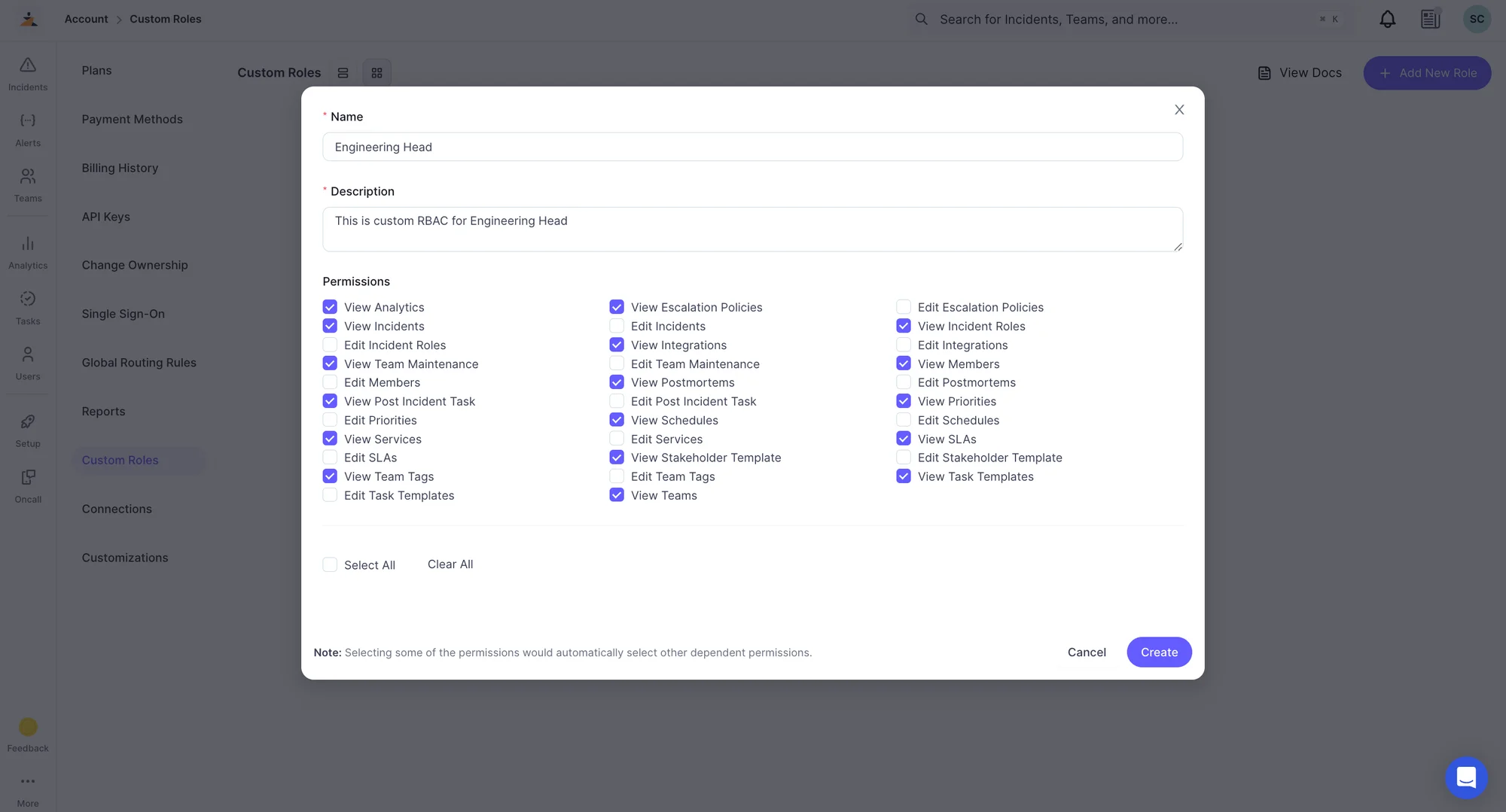

Note: Selecting some permissions would automatically select others that the chosen permission requires.
With RBAC enabled, can also leverage Xurrent IMR Alert Rules to automatically Assign the incident to a User from another Team, Attach Escalation Policies from other teams and Add Global Users and On-Call Users from Global Schedules as responders to incoming incidents.
Before proceeding with building your alert rules, please ensure that the necessary permissions have been enabled for the teams and users which you want to be accessible via alert rules.
So to use the Route to Escalation Policy action, the Attach Escalation Policies permission should be enabled on the Account Level Access settings for the team to which the Escalation Policy belongs to.
To assign an incident to a user outside the team via alert rules, grant them a role with the Edit Incidents permission.
Example: Add the On-Call User from a Global Schedule as an Incident Responder
To enable this action, please make sure that the team with the incoming incident has the View Incident permission enabled, and the team to which the Schedule belongs to has the Attach Schedules and View Services permissions enabled on the Account Level Access settings.
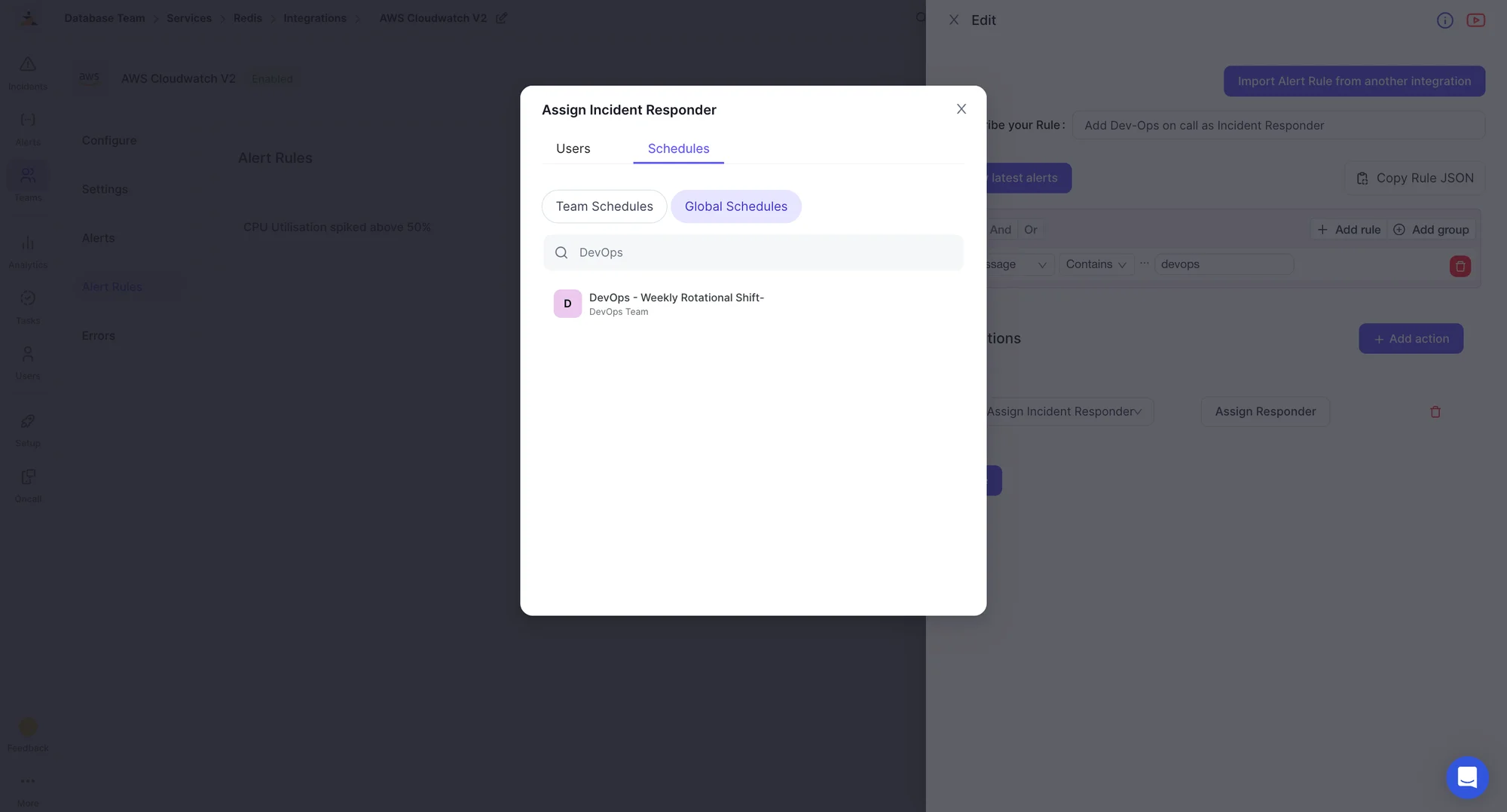
Discover more Alert Rules use-cases and examples here.



.webp)
.webp)