


.webp)


Blog
Insights & updates from our experts


Resolve issues quickly with an AI-powered system that automates ticketing.

Resolve issues quickly with an AI-powered system that automates ticketing.

Resolve issues quickly with an AI-powered system that automates ticketing.

Resolve issues quickly with an AI-powered system that automates ticketing.
Resolve issues quickly with an AI-powered system that automates ticketing.
Resolve issues quickly with an AI-powered system that automates ticketing.
Simplify on-call scheduling, automate escalations, and reduce burnout.

Automate postmortems, AI summaries, and post-incident workflows

We're here to help

The integration with Atlassian Jira using the Xurrent Integration Service is

The integration with Atlassian Jira using the Xurrent Integration Service is

The integration with Atlassian Jira using the Xurrent Integration Service is

The integration with Atlassian Jira using the Xurrent Integration Service is

The integration with Atlassian Jira using the Xurrent Integration Service is

The integration with Atlassian Jira using the Xurrent Integration Service is

The integration with Atlassian Jira using the Xurrent Integration Service is

The integration with Atlassian Jira using the Xurrent Integration Service is
Resolve issues quickly with an AI-powered system that automates ticketing.
Resolve issues quickly with an AI-powered system that automates ticketing.
Simplify on-call scheduling, automate escalations, and reduce burnout.
Automate postmortems, AI summaries, and post-incident workflows
Resolve issues quickly with an AI-powered system that automates ticketing.
Resolve issues quickly with an AI-powered system that automates ticketing.
Resolve issues quickly with an AI-powered system that automates ticketing.
Resolve issues quickly with an AI-powered system that automates ticketing.

We are here to help 24/7

Connect with other Xurrent Users

Get insights and tips on how to get the most out of Xurrent

Apps, APIs, and updates

Xurrent service functionality

Eliminate manual tasks, optimize workflows, and deliver faster resolutions.
Learn how organizations have reduced downtime, improved 50% MTTA & MTTR, and cut costs with Xurrent IMR.
Discover Xurrent IMR's quick support, bidirectional integrations with Jira and Slack, and more cohesive incident response capabilities compared to Opsgenie.
Understand why users value Xurrent IMR for its intuitive interface, efficient incident alerting, customizable On-call schedules, and escalations.

If you're experiencing issues logging into Xurrent IMR—whether using Email/Password or Single Sign-On (SSO) (Google, Okta, Azure AD, etc.)—follow the steps below to resolve common problems.
Xurrent IMR supports two login methods:
Before diving into specific fixes, ensure the basics:
When Do You Need Your Domain Name?
You’ll need your organisation's domain name only when logging in via SSO (e.g., Google, okta, Azure AD).
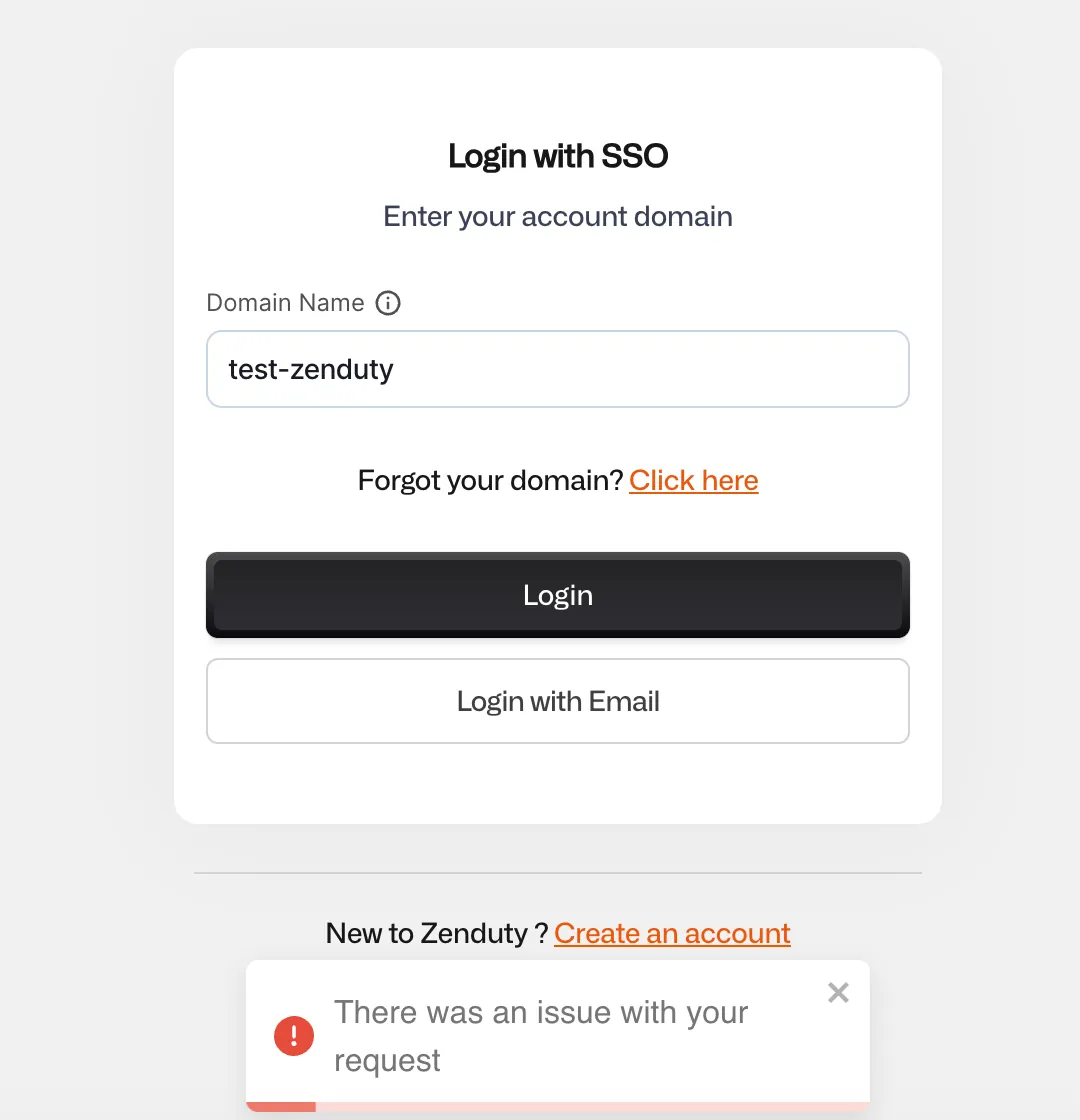
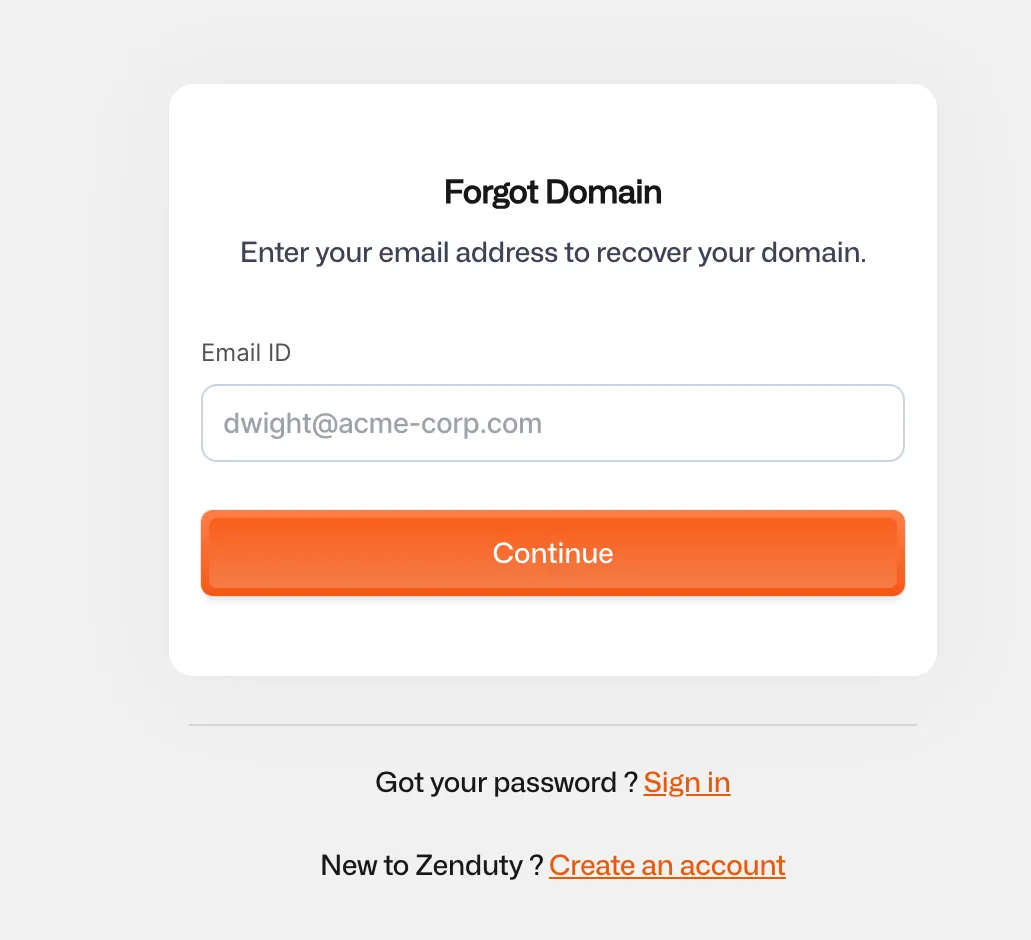
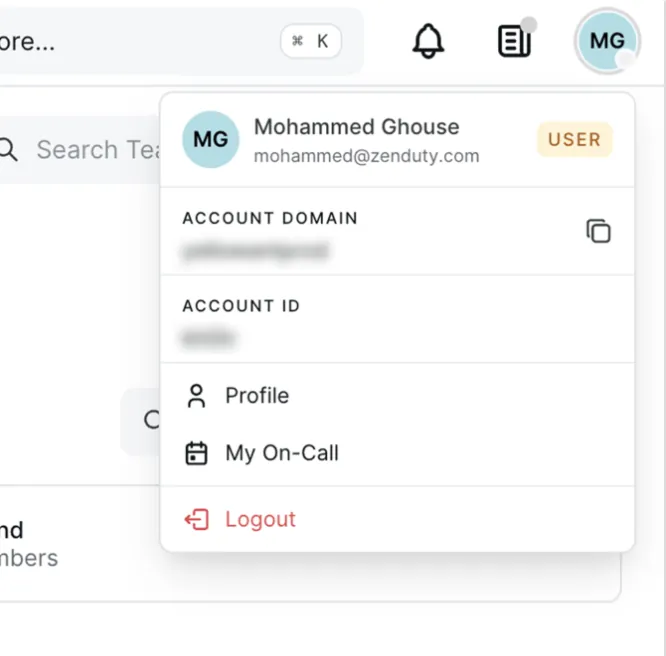
Possible causes:
Steps to resolve:
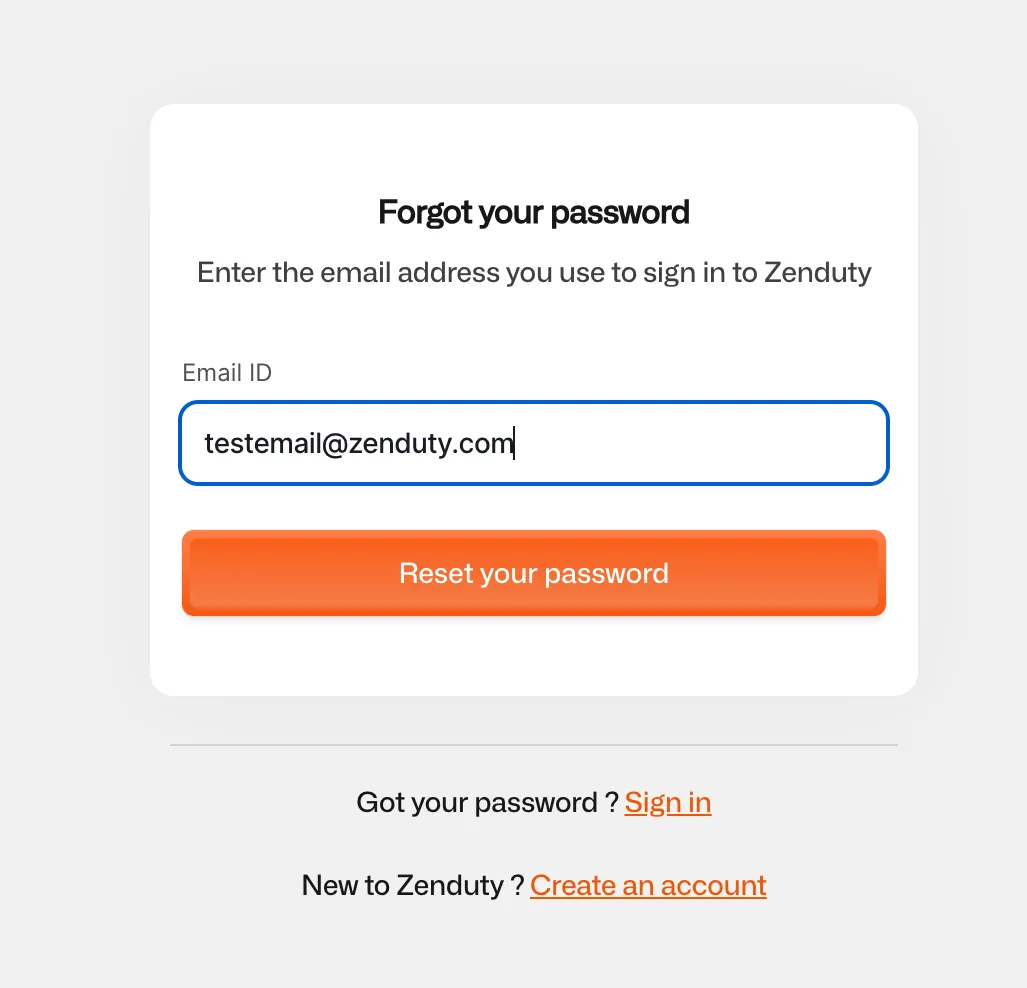
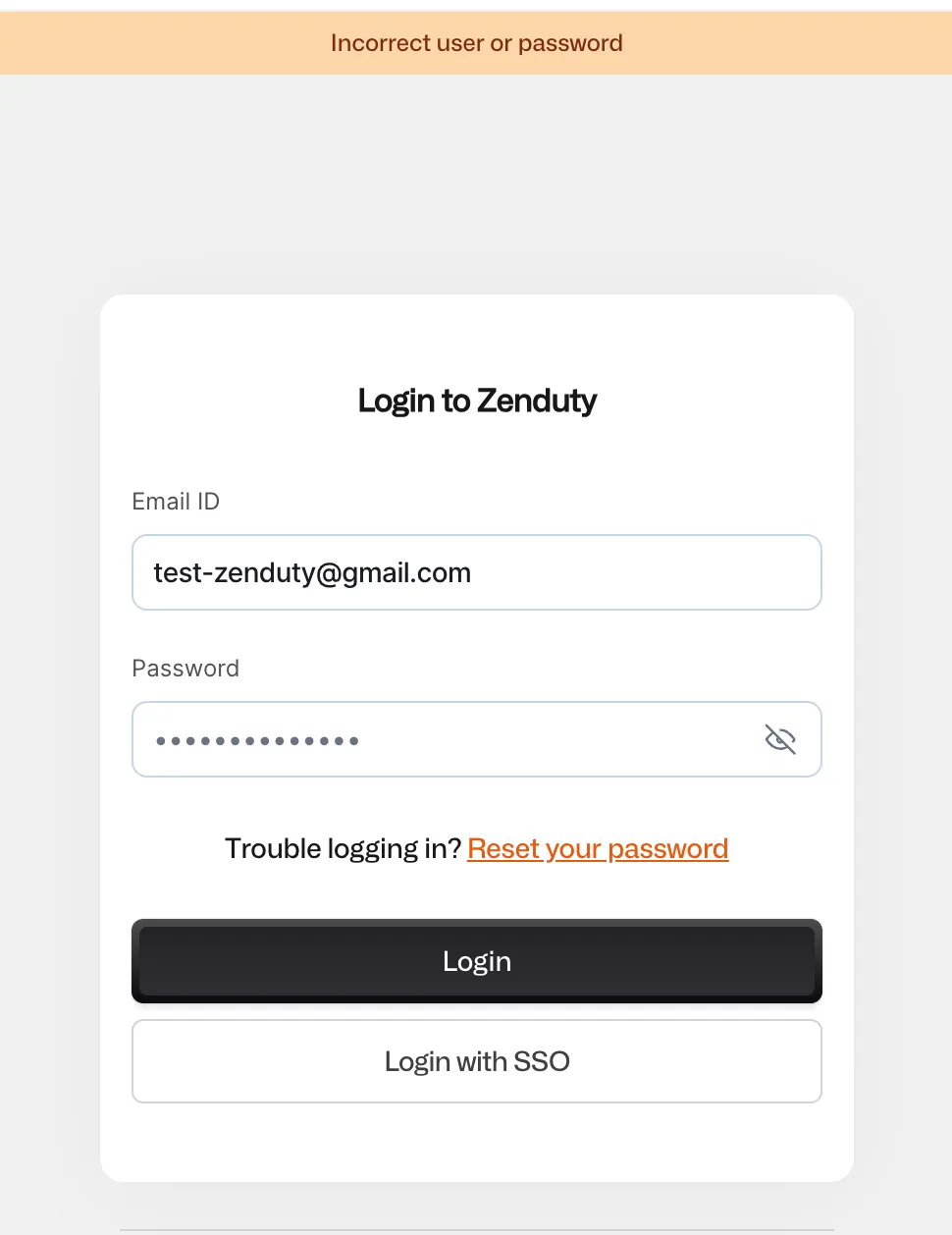
.com vs .co)VPNs or firewall settings may block authentication services.
Try the following steps in incognito mode,(Avoid opening multiple Incognito windows)
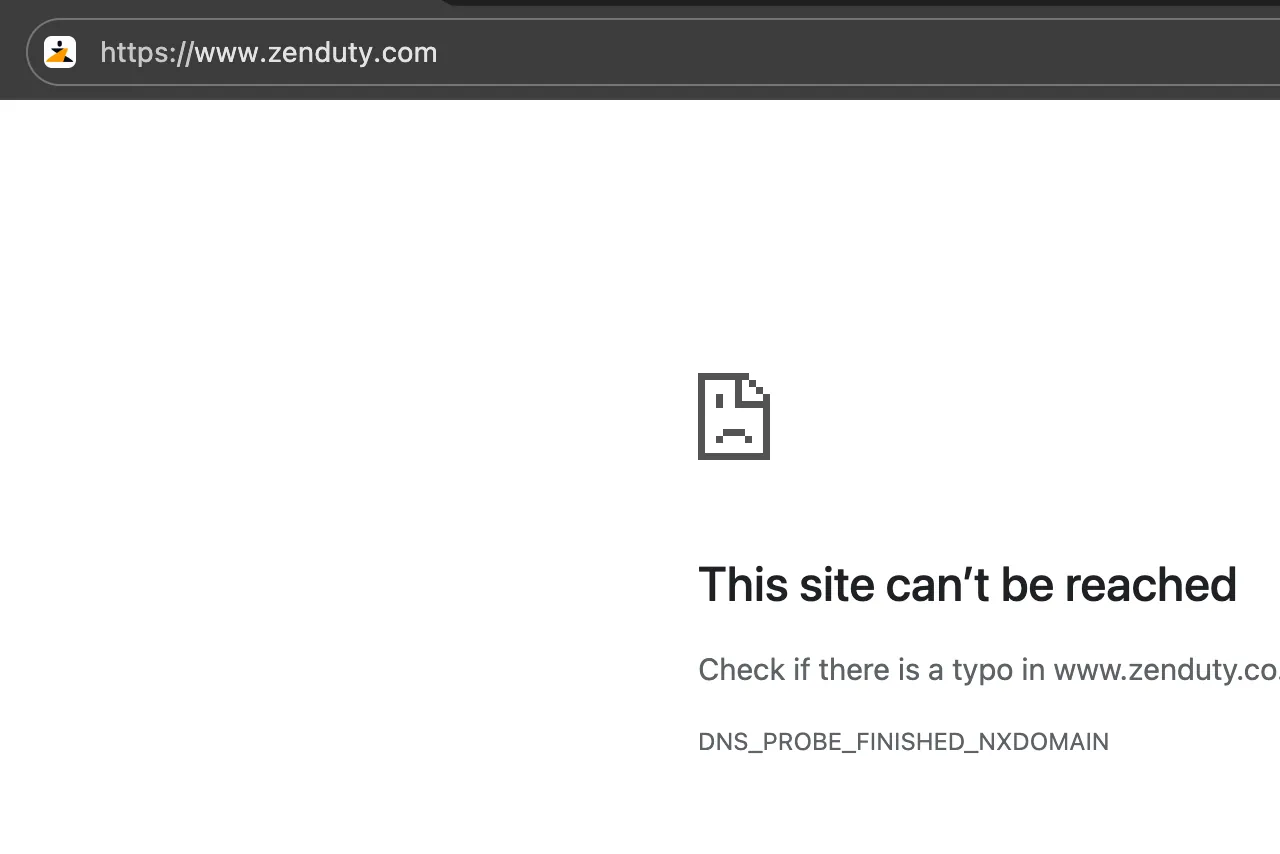
Allow the following domains in your network settings:
*.zenduty.com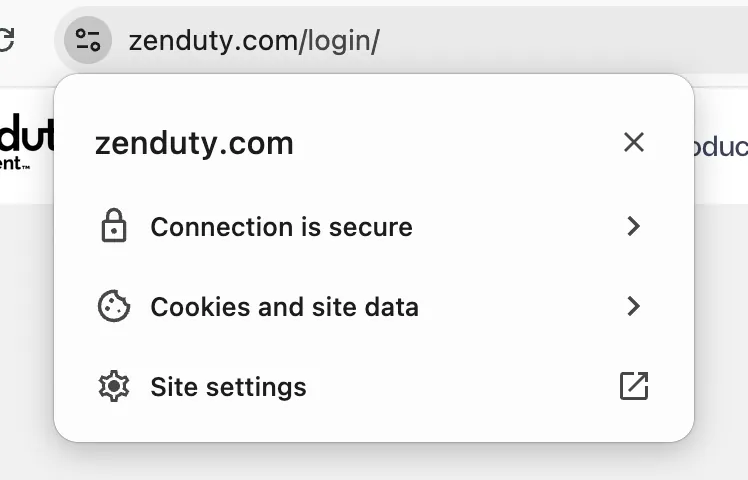
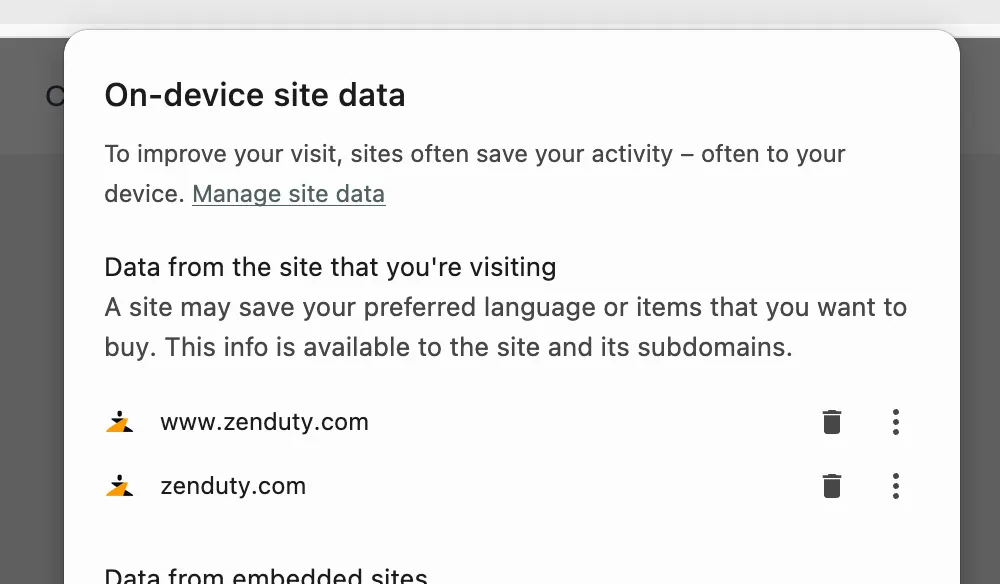
Note: Similar site-specific cache and cookie clearing options are available in other browsers like Firefox, Edge, and Safari via their respective site info menus or settings
Switch to Firefox, Edge, or Safari to rule out browser-specific issues.
If none of the above steps resolve the issue, please contact Xurrent IMR Support through chat or email:
Email:support@zenduty.com
Include:

.webp)
.webp)