




Blog
Insights & updates from our experts


Resolve plant floor and IT issues before they disrupt production.

Stay audit-ready while resolving issues and reducing operational risk.
Resolve issues quickly with an AI-powered system that automates ticketing.
Unifiy IT, HR, Facilities, Finance, and more on a single, AI-powered service platform.
Simplify on-call scheduling, automate escalations, and reduce burnout.

Automate postmortems, AI summaries, and post-incident workflows

Create, organize, and continuously improve your knowledge base to find the right answers with Sera AI.
We're here to help

The integration with Atlassian Jira using the Xurrent Integration Service is

The integration with Atlassian Jira using the Xurrent Integration Service is

The integration with Atlassian Jira using the Xurrent Integration Service is

The integration with Atlassian Jira using the Xurrent Integration Service is

The integration with Atlassian Jira using the Xurrent Integration Service is

The integration with Atlassian Jira using the Xurrent Integration Service is

The integration with Atlassian Jira using the Xurrent Integration Service is

The integration with Atlassian Jira using the Xurrent Integration Service is
Resolve issues quickly with an AI-powered system that automates ticketing.
Unifiy IT, HR, Facilities, Finance, and more on a single, AI-powered service platform.
Simplify on-call scheduling, automate escalations, and reduce burnout.
Automate postmortems, AI summaries, and post-incident workflows
Create, organize, and continuously improve your knowledge base to find the right answers with Sera AI.
Resolve plant floor and IT issues before they disrupt production.
Stay audit-ready while resolving issues and reducing operational risk.

Detect, respond, and resolve incidents fast to cut downtime and MTTR.

Keep your store online, even during your biggest sales moments.

Protect patient data and resolve issues fast, so care teams stay focused on care.

Standardize service delivery across every store and channel.

We are here to help 24/7

Connect with other Xurrent Users

Get insights and tips on how to get the most out of Xurrent

Apps, APIs, and updates

Xurrent service functionality

Eliminate manual tasks, optimize workflows, and deliver faster resolutions.
Learn how organizations have reduced downtime, improved 50% MTTA & MTTR, and cut costs with Xurrent IMR.
Discover Xurrent IMR's quick support, bidirectional integrations with Jira and Slack, and more cohesive incident response capabilities compared to Opsgenie.
Understand why users value Xurrent IMR for its intuitive interface, efficient incident alerting, customizable On-call schedules, and escalations.
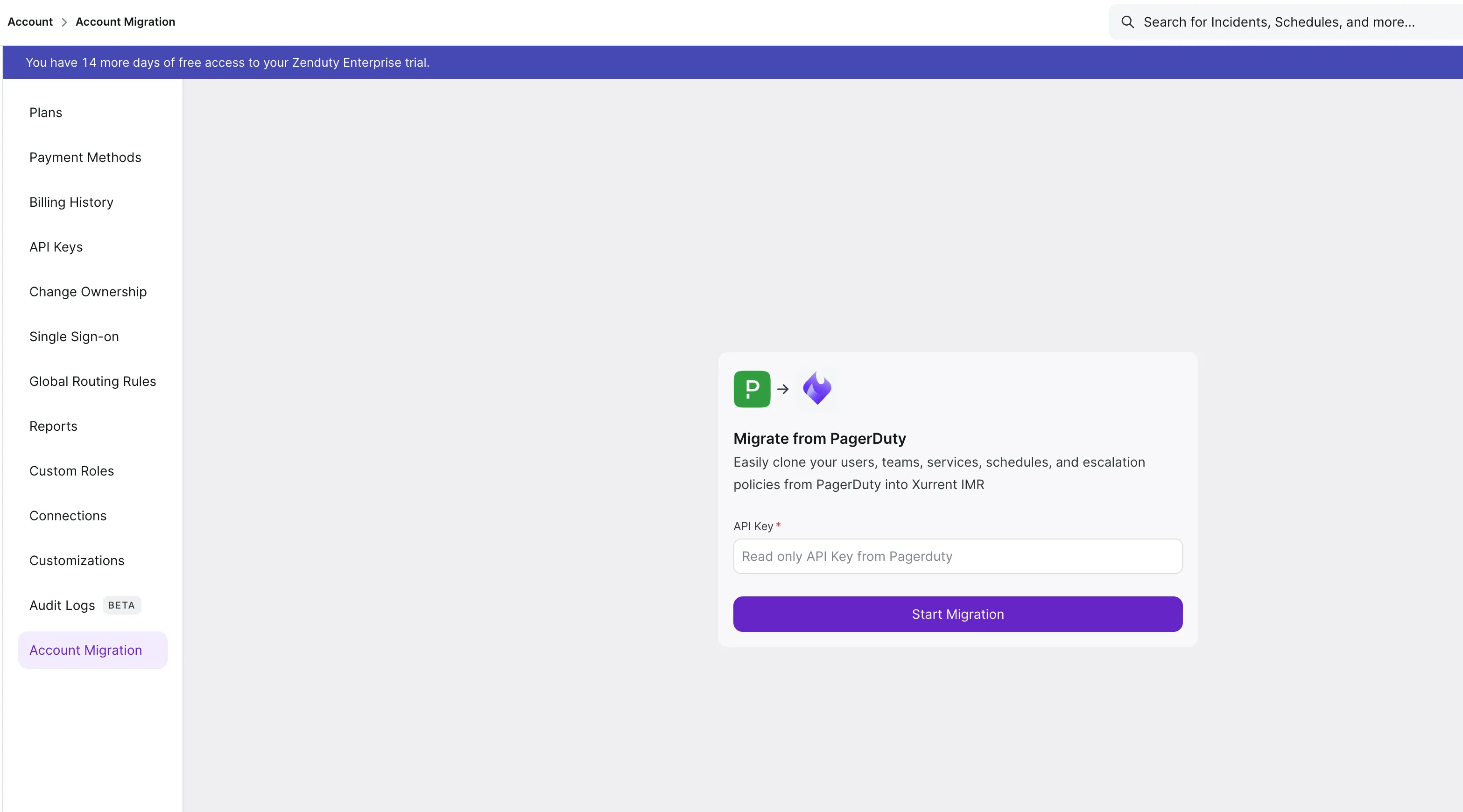
Switching tools can feel like a big task, so we built a migration tool to do the heavy lifting for you. It allows you to copy your existing teams, schedules, and policies from PagerDuty directly into Xurrent IMR.
The best part is that you are in total control. You don't have to move everything at once. If you are just testing Xurrent IMR out, you can choose to import only a specific team or a single schedule to see how it works.
Here's quick demo to see how it works:
Here is how to get it done.
First you need to give Xurrent IMR permission to read your current setup. You do this by creating a simple key in PagerDuty.

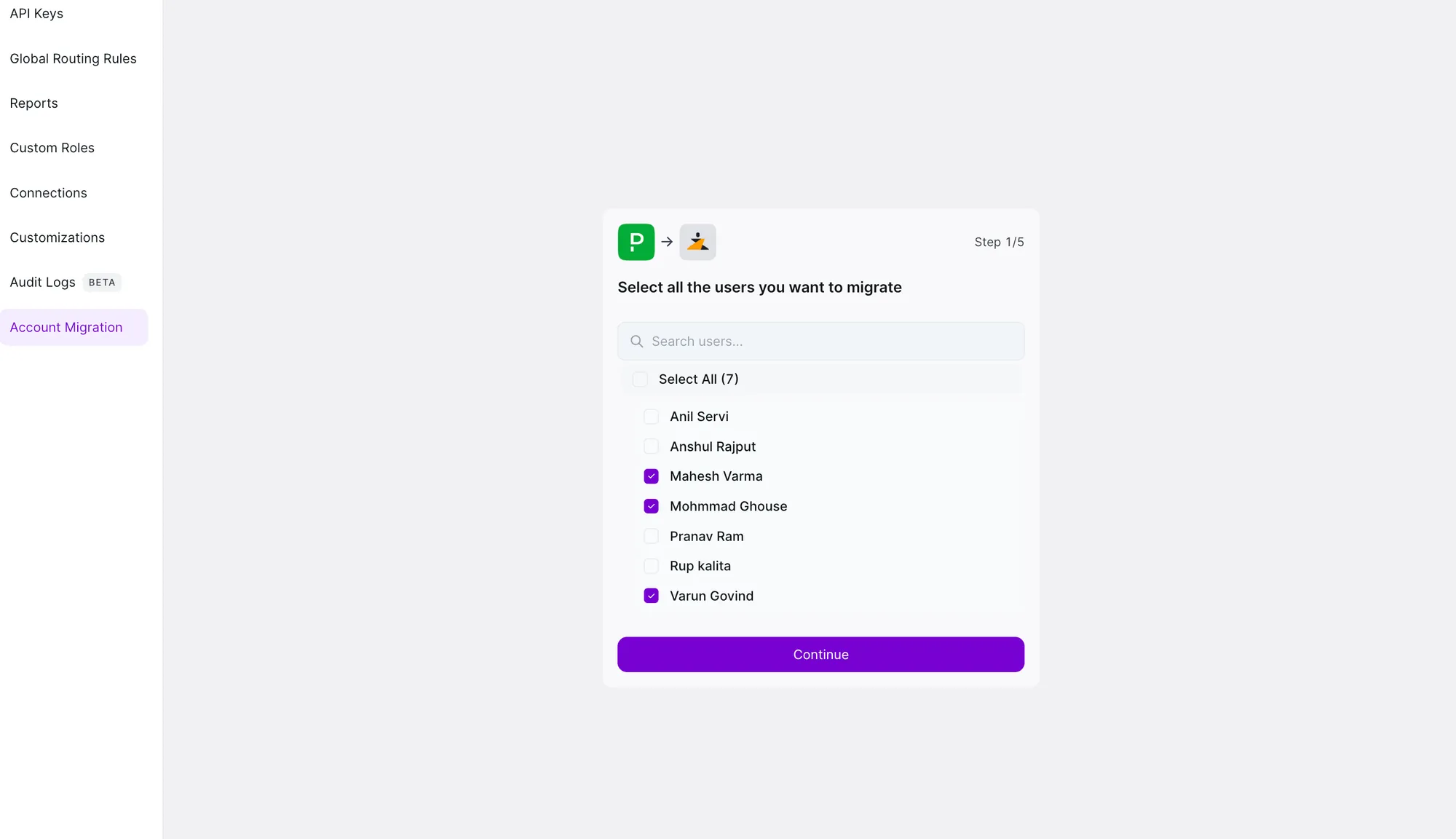
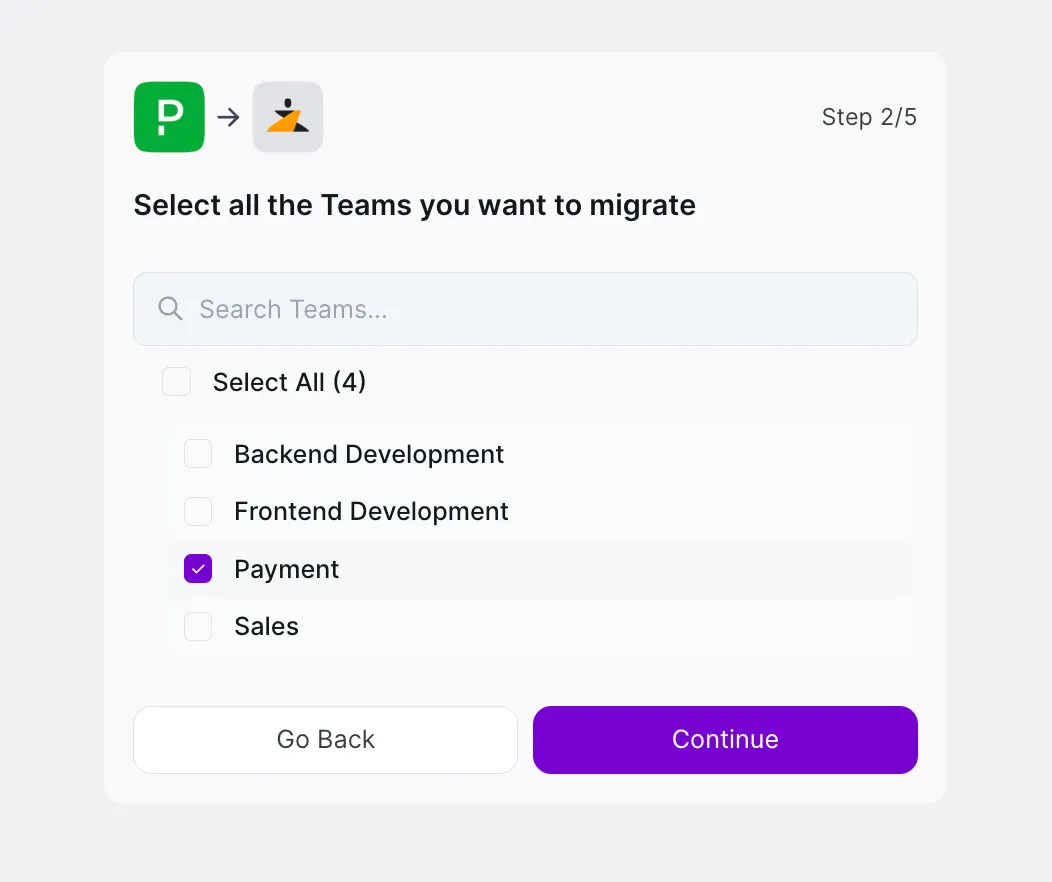
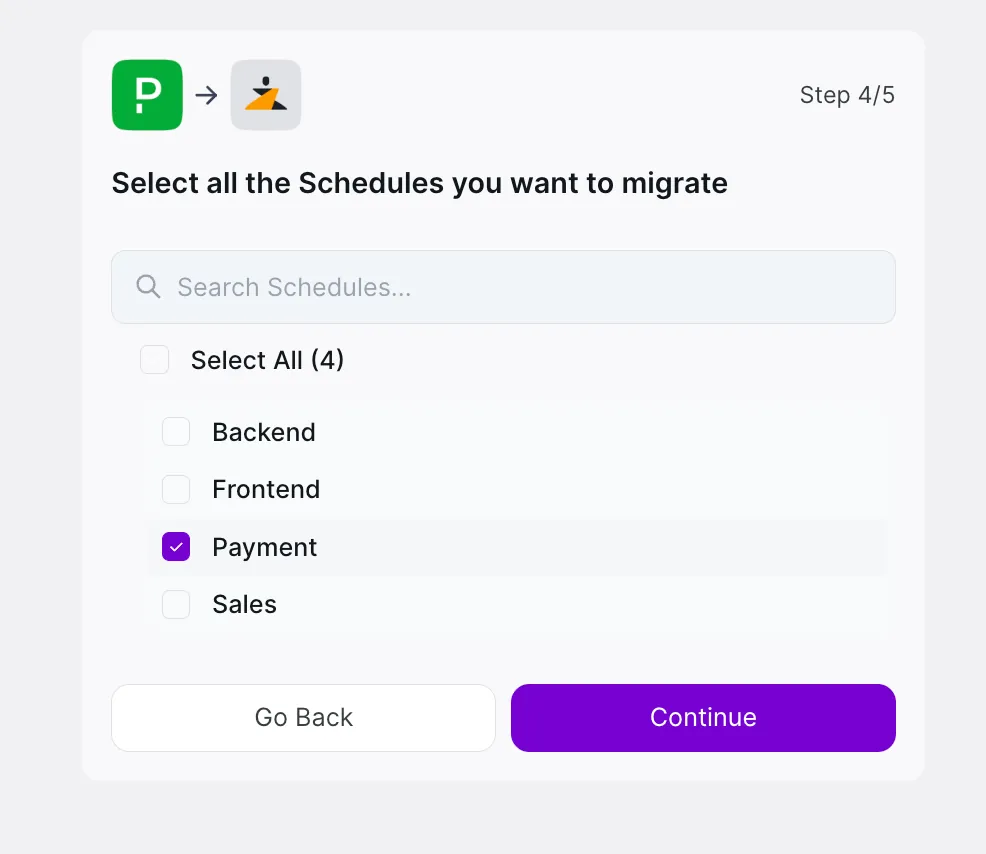
You likely spent a lot of time building your on-call rotations. You can bring those over exactly as they are. Whether you have complex rotations or simple daily shifts, just select the ones you want to keep.
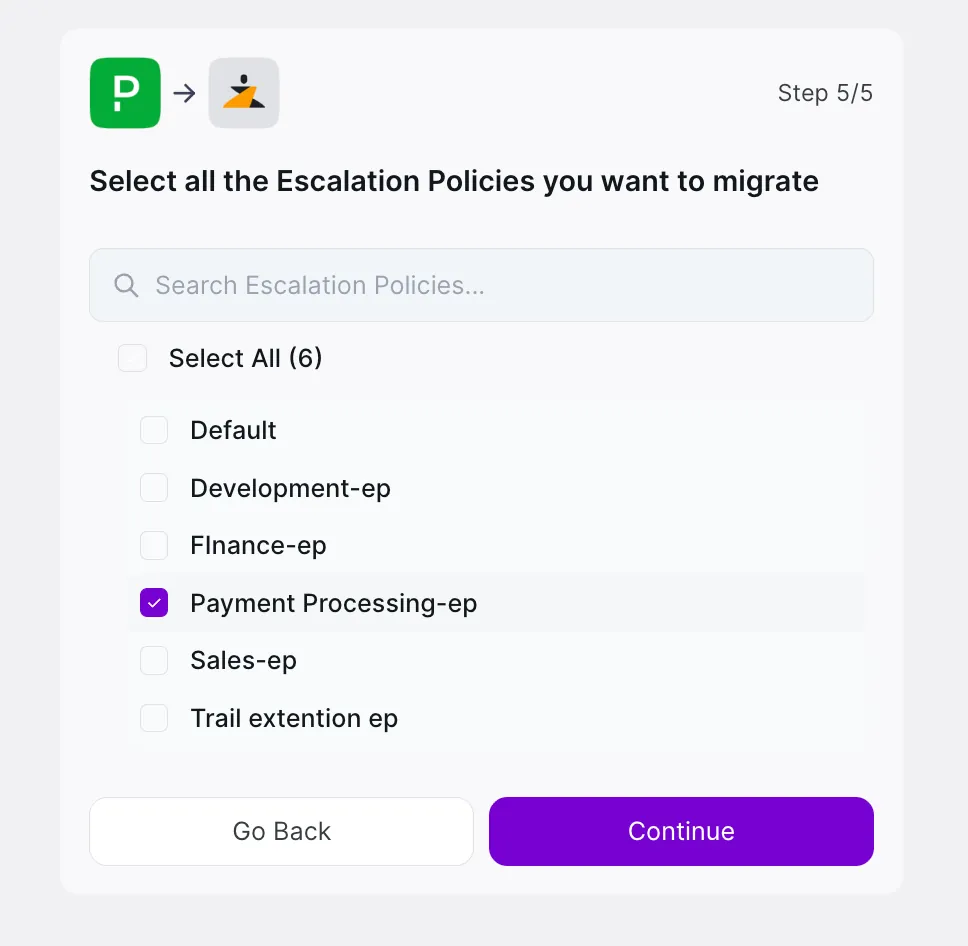
Finally, select your escalation policies. These link your users and schedules together so alerts go to the right people.
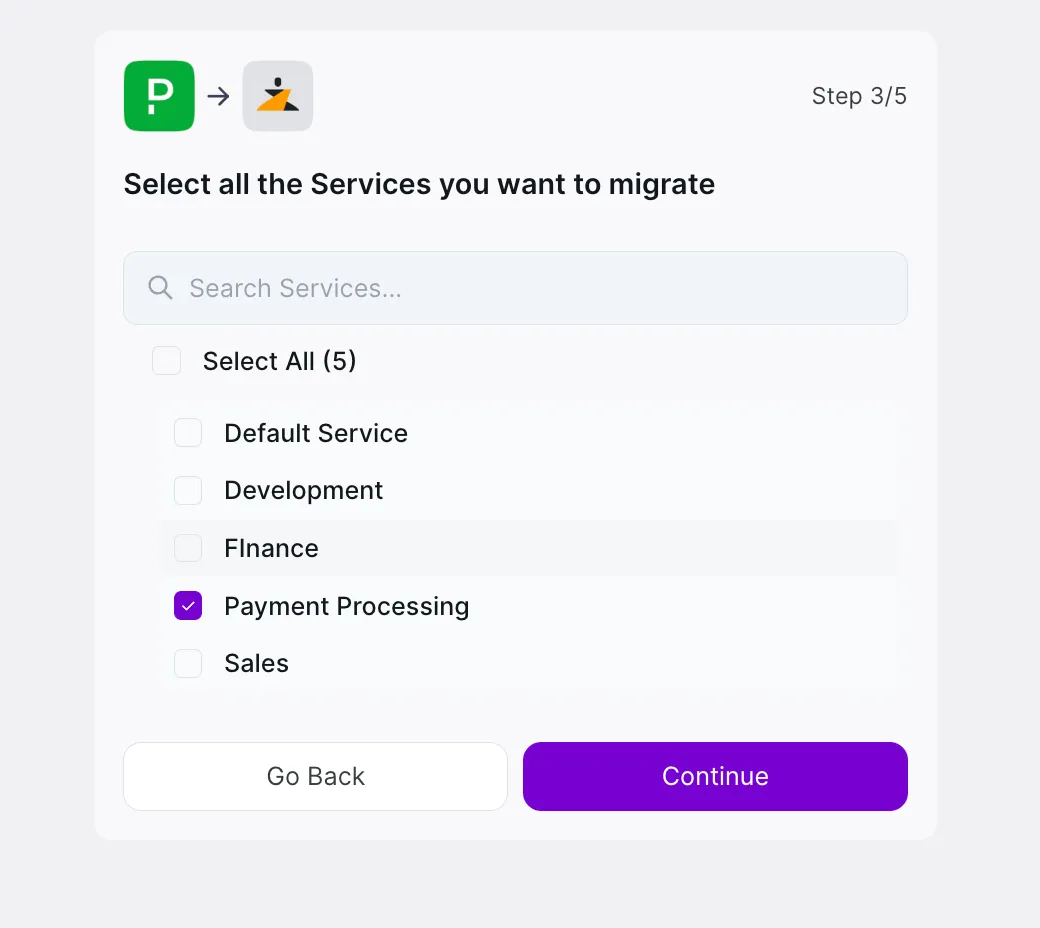
Once you start the process, you will get a Migration ID. When the migration finishes, you will see a detailed log of everything that was moved.
This log is really helpful if you run into any issues. You can simply download these logs and send them to our support team. We can look at exactly what happened and help you fix anything that didn't go as planned.
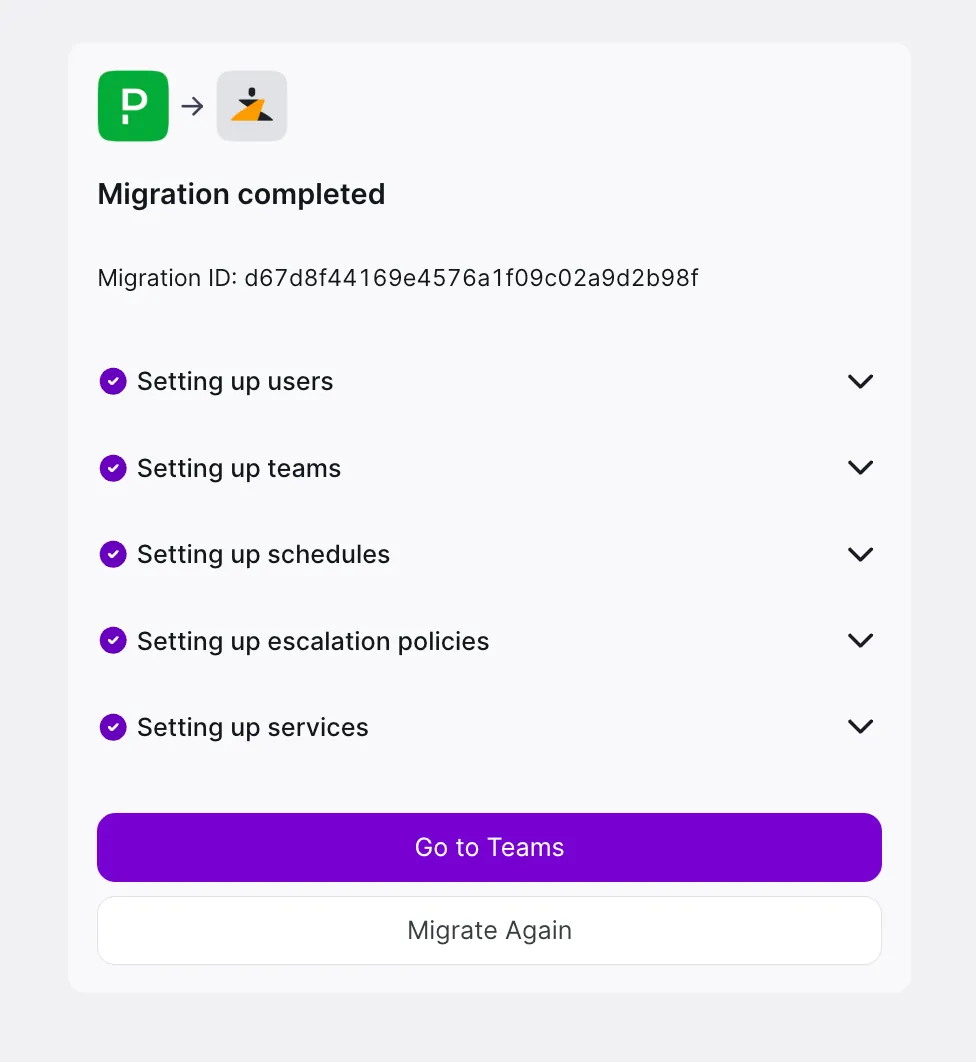
That’s it. Refresh your page and your data will be ready for you.
We are super excited to have you on board! If you get stuck at any point or just want some help setting things up, please reach out to us. You can raise a support ticket here, and our team will jump in to help you get settled.
Not sure how to raise a ticket? You can check out our guide on how to do that right here.
Welcome to Xurrent IMR!

Google's 2025 DORA report found that 90% of technology professionals now use AI at work, and more than 80% say it has made them more productive. With code assistants and agents, the speed at which code gets written has changed more in eighteen months than in the decade before.