


.webp)


Blog
Insights & updates from our experts


Resolve issues quickly with an AI-powered system that automates ticketing.

Resolve issues quickly with an AI-powered system that automates ticketing.

Resolve issues quickly with an AI-powered system that automates ticketing.

Resolve issues quickly with an AI-powered system that automates ticketing.
Resolve issues quickly with an AI-powered system that automates ticketing.
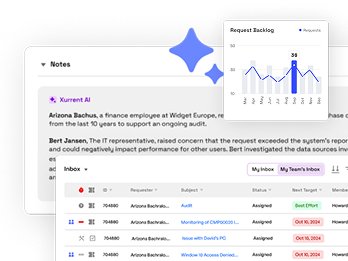
Resolve issues quickly with an AI-powered system that automates ticketing.
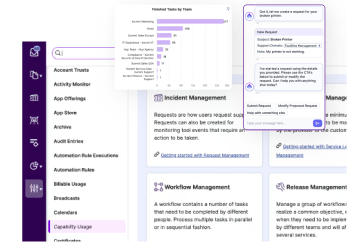
Simplify on-call scheduling, automate escalations, and reduce burnout.

Automate postmortems, AI summaries, and post-incident workflows

We're here to help

The integration with Atlassian Jira using the Xurrent Integration Service is

The integration with Atlassian Jira using the Xurrent Integration Service is

The integration with Atlassian Jira using the Xurrent Integration Service is

The integration with Atlassian Jira using the Xurrent Integration Service is

The integration with Atlassian Jira using the Xurrent Integration Service is

The integration with Atlassian Jira using the Xurrent Integration Service is

The integration with Atlassian Jira using the Xurrent Integration Service is

The integration with Atlassian Jira using the Xurrent Integration Service is
Resolve issues quickly with an AI-powered system that automates ticketing.
Resolve issues quickly with an AI-powered system that automates ticketing.
Simplify on-call scheduling, automate escalations, and reduce burnout.
Automate postmortems, AI summaries, and post-incident workflows
Resolve issues quickly with an AI-powered system that automates ticketing.
Resolve issues quickly with an AI-powered system that automates ticketing.
Resolve issues quickly with an AI-powered system that automates ticketing.
Resolve issues quickly with an AI-powered system that automates ticketing.

We are here to help 24/7

Connect with other Xurrent Users

Get insights and tips on how to get the most out of Xurrent

Apps, APIs, and updates

Xurrent service functionality

Eliminate manual tasks, optimize workflows, and deliver faster resolutions.
Learn how organizations have reduced downtime, improved 50% MTTA & MTTR, and cut costs with Xurrent IMR.
Discover Xurrent IMR's quick support, bidirectional integrations with Jira and Slack, and more cohesive incident response capabilities compared to Opsgenie.
Understand why users value Xurrent IMR for its intuitive interface, efficient incident alerting, customizable On-call schedules, and escalations.

Microsoft Teams is a unified communications platform that combines persistent workplace chat, video meeting, file storage and application integration. To intergrate Microsoft Teams with Xurrent IMR, complete the following steps:

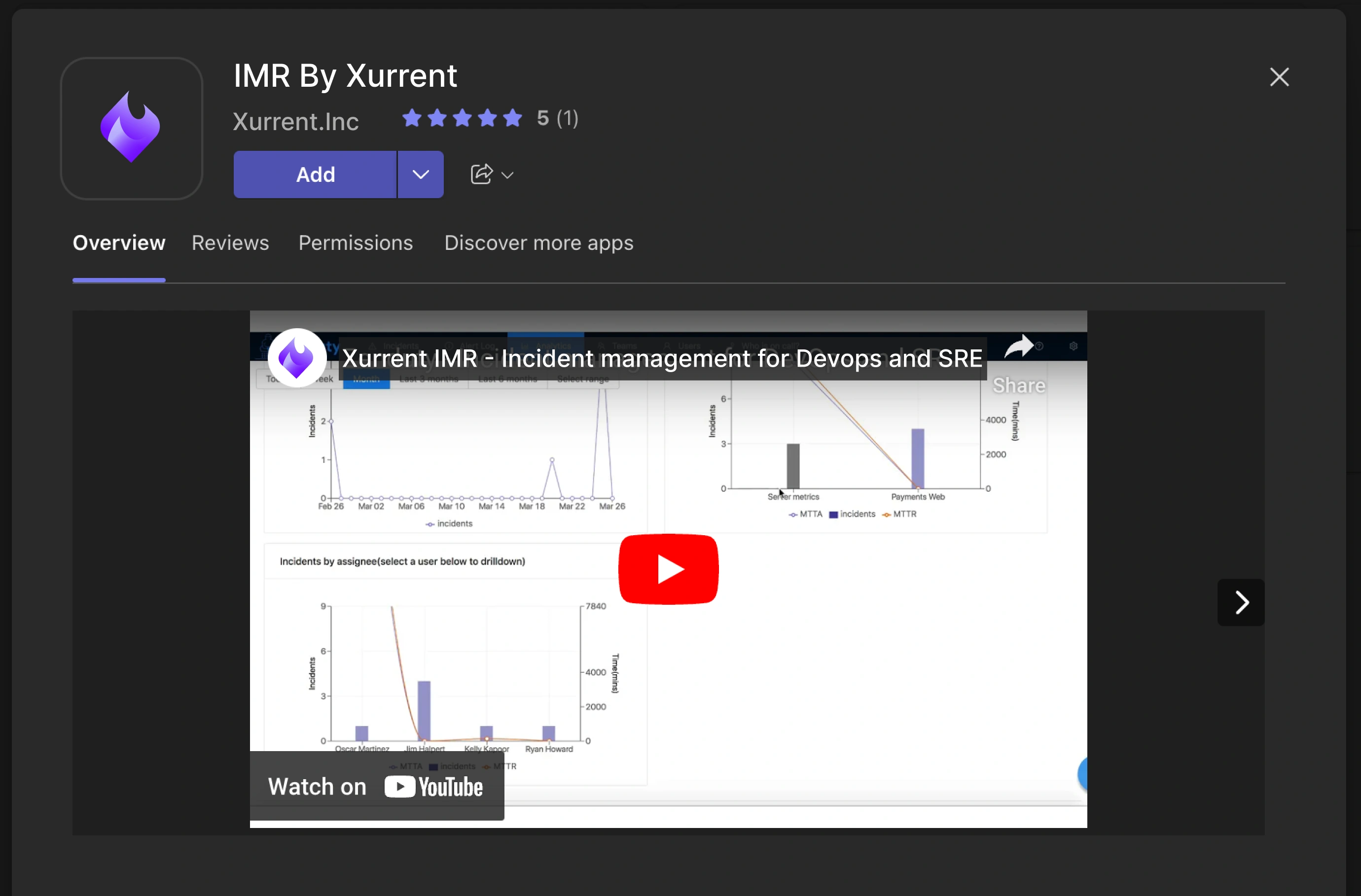
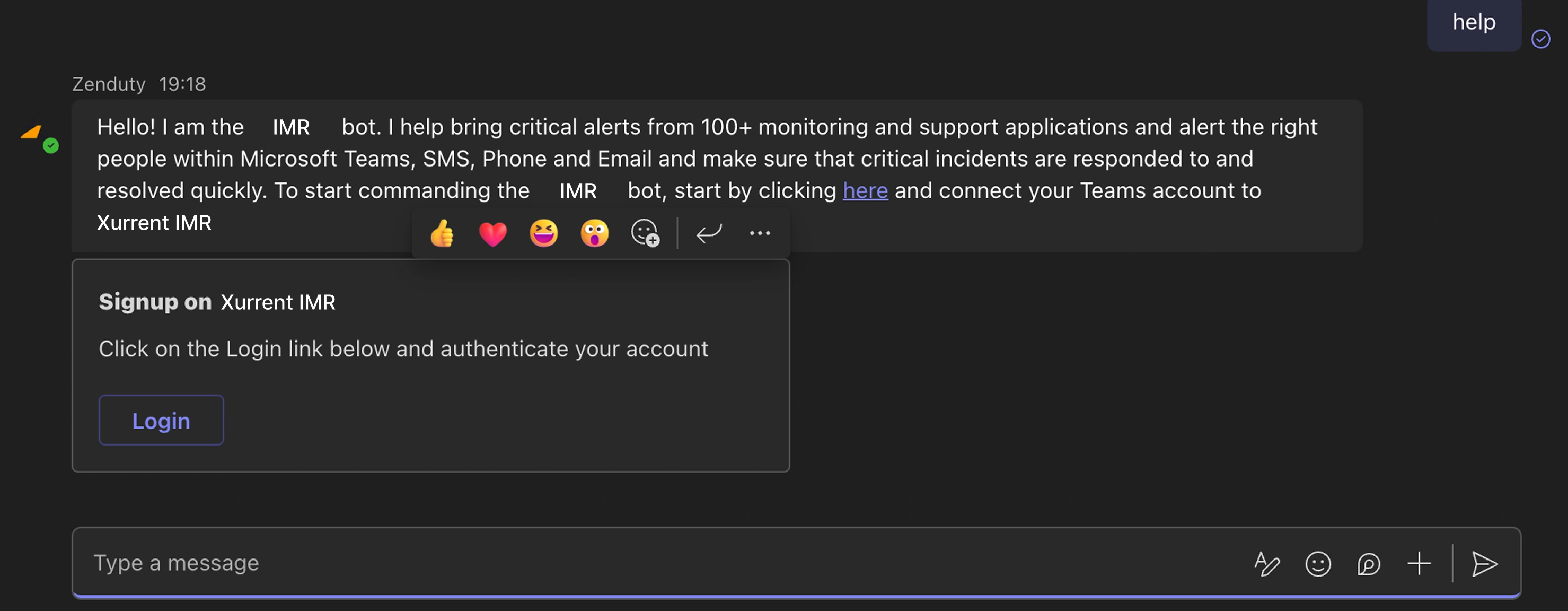

With this method, you can configure Xurrent IMR to send incident notifications to a Microsoft Teams channel whenever an incident is assigned to the connected service. This integration helps you and your team stay informed in real-time, directly within Microsoft Teams.
First, message the Xurrent IMR bot directly on Microsoft Teams to start the personal connection request.
Follow the bot's instructions to authenticate and complete the connection.

@Xurrent IMR connect command in the channel chat.

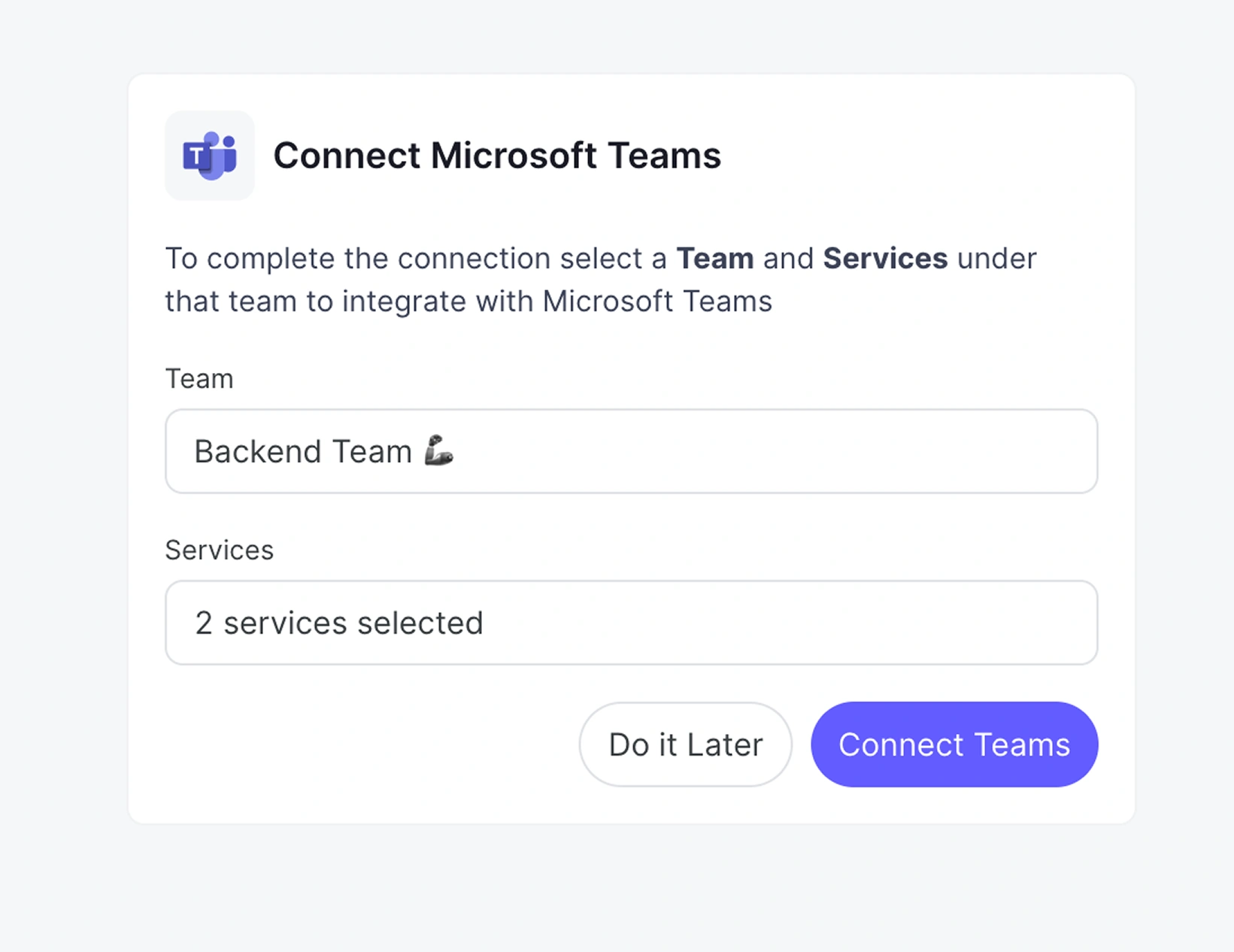
Note: You no longer need to generate a new webhook URL (workflow or connector) for each channel. A single connection can handle multiple services.
Note: You can add multiple services to a single Teams channel using the @Xurrent IMR connect command, simplifying the process of managing alerts across multiple services.
This integration allows your team to stay informed about critical incidents directly in Microsoft Teams, improving response time and team coordination.


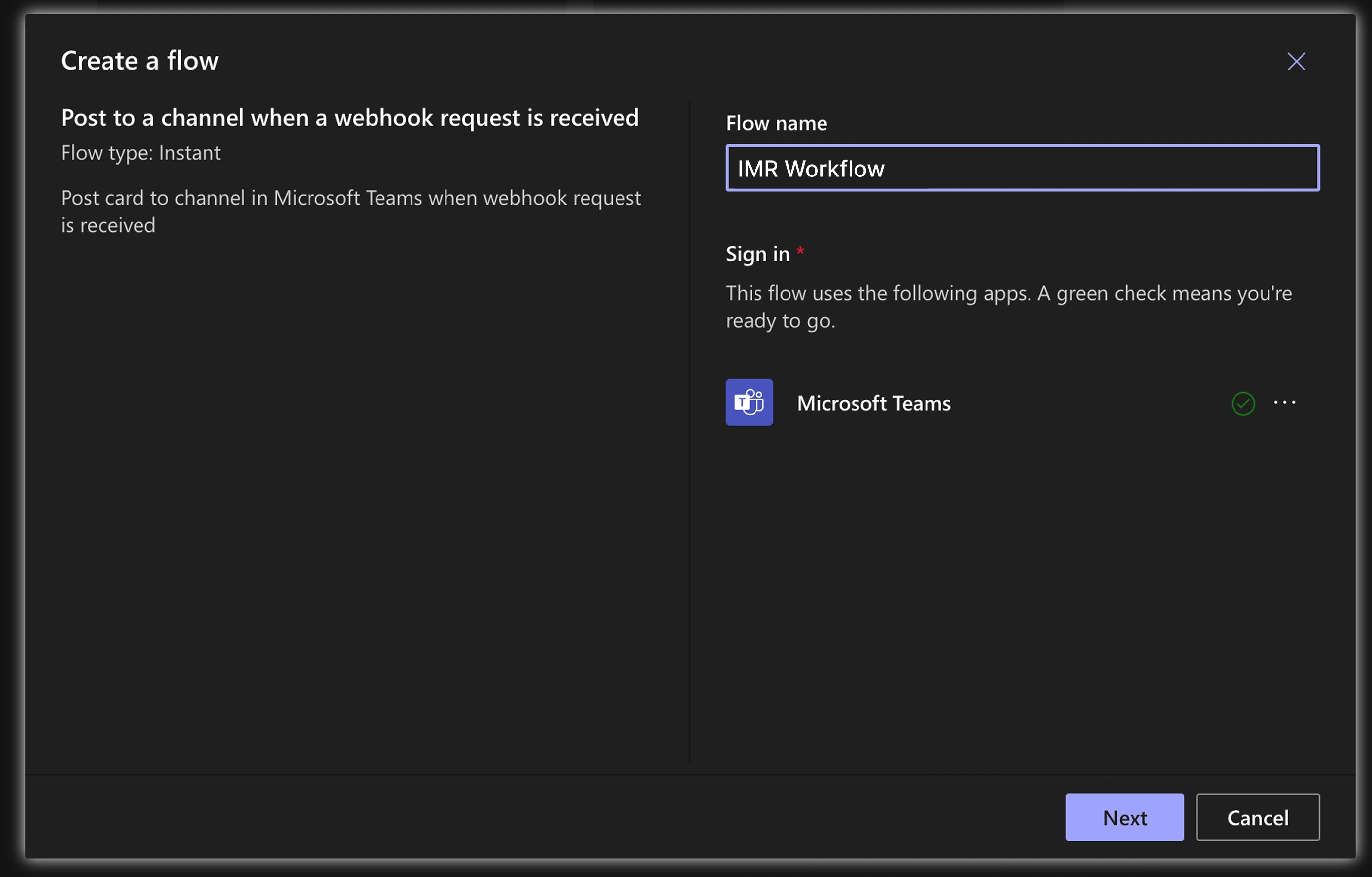
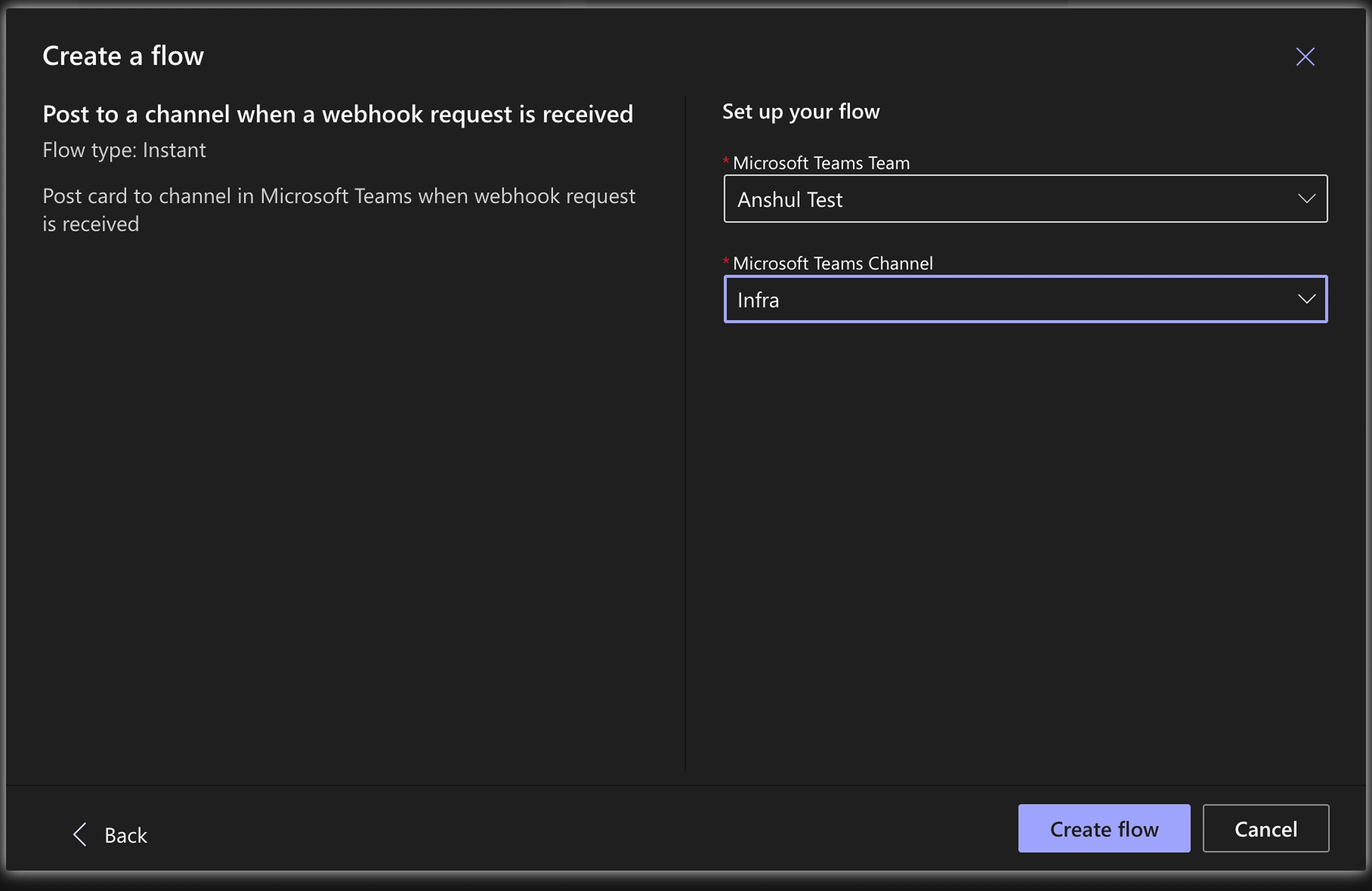
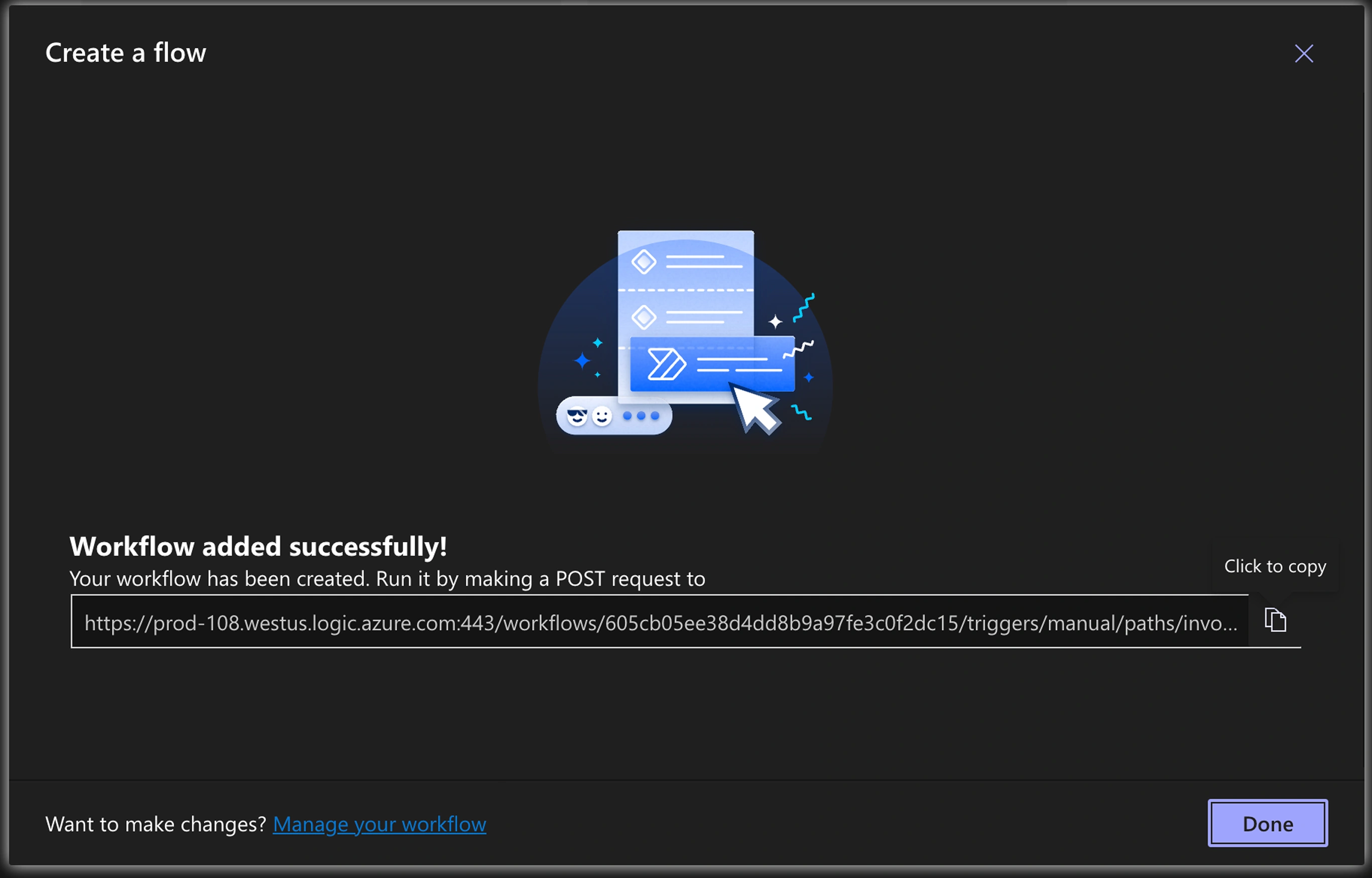
With the Xurrent IMR-Microsoft Teams outgoing integration, you can receive Xurrent IMR incident alerts for a particular service within Microsoft Teams channels and leverage collaborative triaging to resolve incident with lightning speed. Notifications include incident triggered, acknowledged and resolved events.


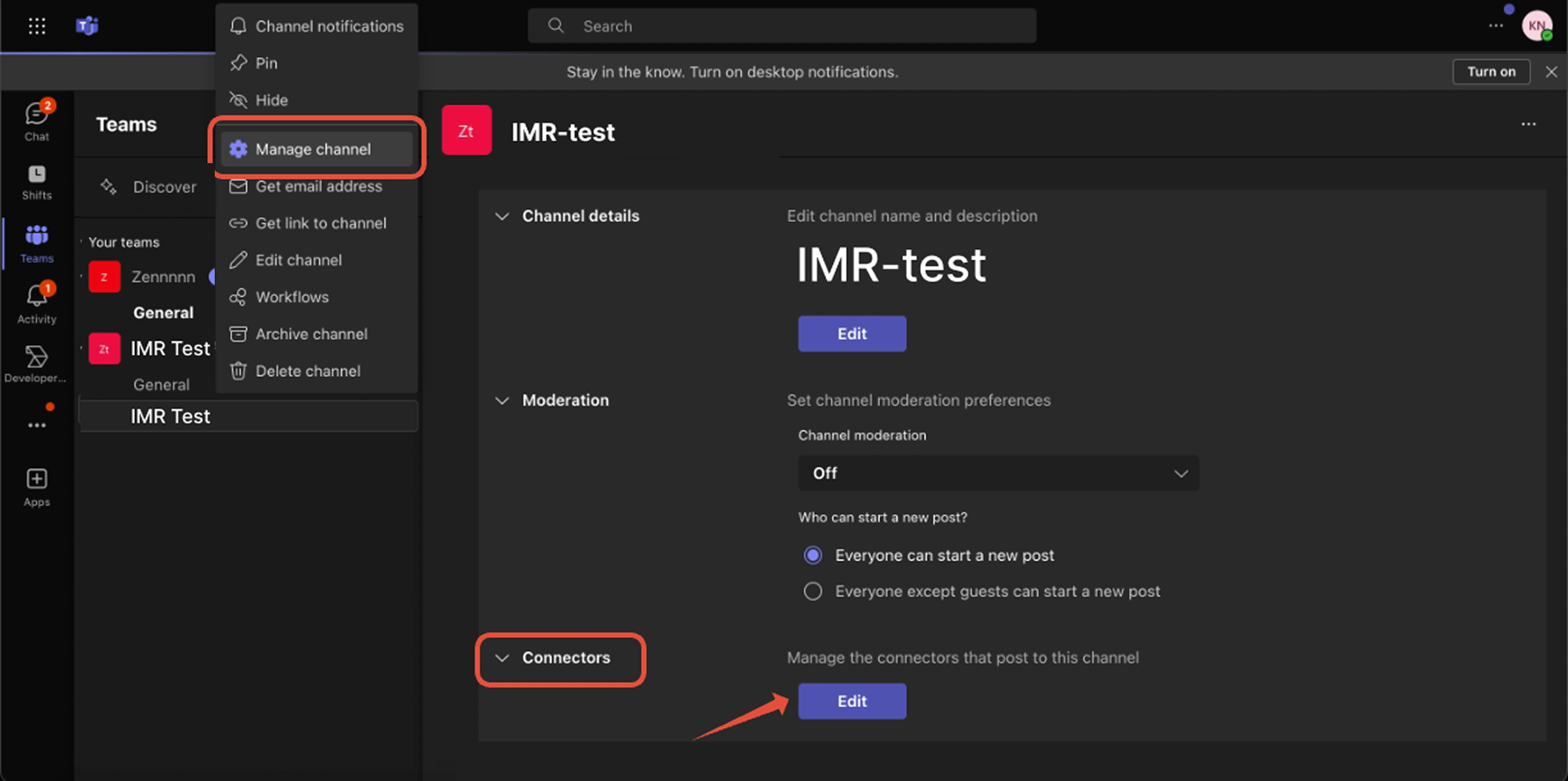


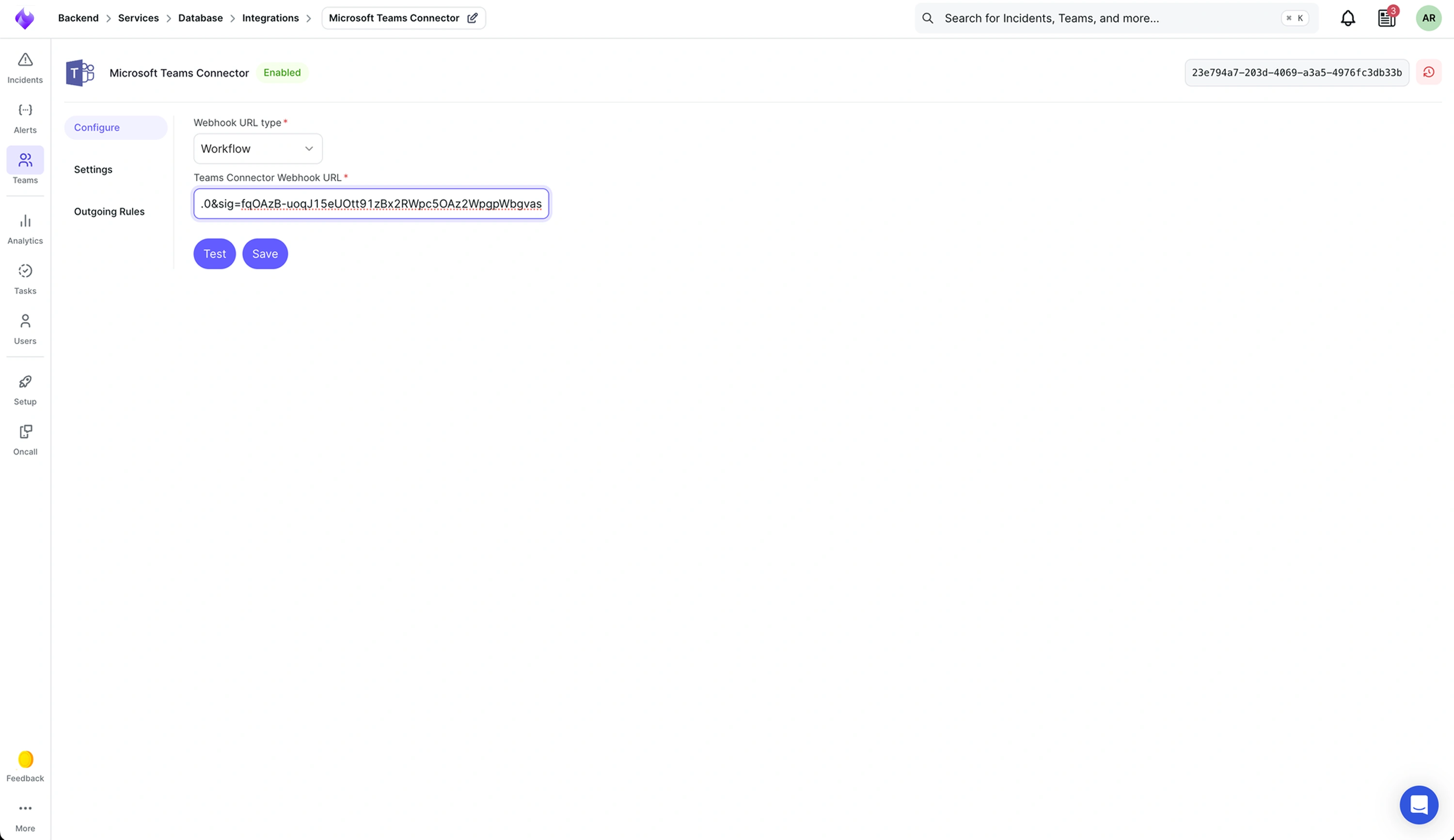
Xurrent IMR now supports updating existing incident cards in Microsoft Teams channels instead of posting new ones for every update.
Once enabled:
Note: It only works for Microsoft Teams Channel integration.




.webp)
.webp)