



Blog
Insights & updates from our experts


Resolve plant floor and IT issues before they disrupt production.

Stay audit-ready while resolving issues and reducing operational risk.
Resolve issues quickly with an AI-powered system that automates ticketing.
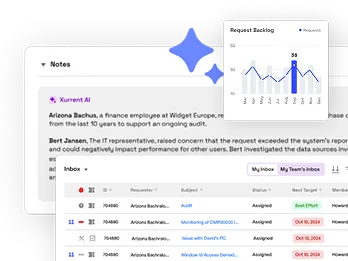
Unifiy IT, HR, Facilities, Finance, and more on a single, AI-powered service platform.
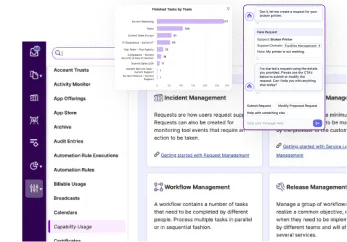
Simplify on-call scheduling, automate escalations, and reduce burnout.

Automate postmortems, AI summaries, and post-incident workflows

Create, organize, and continuously improve your knowledge base to find the right answers with Sera AI.
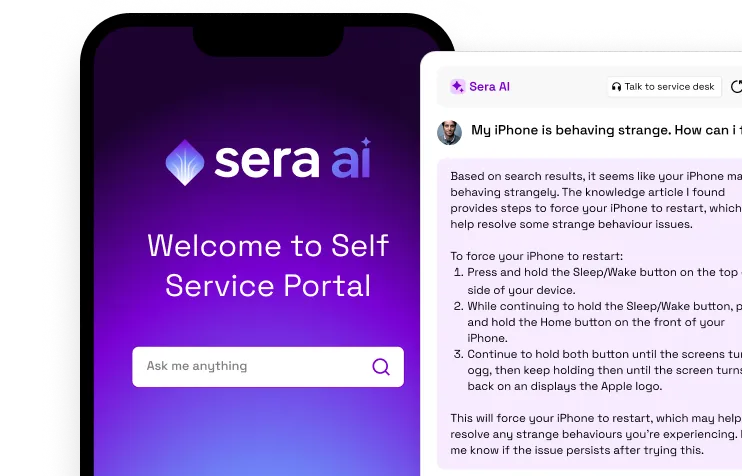
We're here to help

The integration with Atlassian Jira using the Xurrent Integration Service is

The integration with Atlassian Jira using the Xurrent Integration Service is

The integration with Atlassian Jira using the Xurrent Integration Service is

The integration with Atlassian Jira using the Xurrent Integration Service is

The integration with Atlassian Jira using the Xurrent Integration Service is

The integration with Atlassian Jira using the Xurrent Integration Service is

The integration with Atlassian Jira using the Xurrent Integration Service is

The integration with Atlassian Jira using the Xurrent Integration Service is
Resolve issues quickly with an AI-powered system that automates ticketing.
Unifiy IT, HR, Facilities, Finance, and more on a single, AI-powered service platform.
Simplify on-call scheduling, automate escalations, and reduce burnout.
Automate postmortems, AI summaries, and post-incident workflows
Create, organize, and continuously improve your knowledge base to find the right answers with Sera AI.
Resolve plant floor and IT issues before they disrupt production.
Stay audit-ready while resolving issues and reducing operational risk.

Detect, respond, and resolve incidents fast to cut downtime and MTTR.

Keep your store online, even during your biggest sales moments.

Protect patient data and resolve issues fast, so care teams stay focused on care.

Standardize service delivery across every store and channel.

We are here to help 24/7

Connect with other Xurrent Users

Get insights and tips on how to get the most out of Xurrent

Apps, APIs, and updates

Xurrent service functionality

Eliminate manual tasks, optimize workflows, and deliver faster resolutions.
Learn how organizations have reduced downtime, improved 50% MTTA & MTTR, and cut costs with Xurrent IMR.
Discover Xurrent IMR's quick support, bidirectional integrations with Jira and Slack, and more cohesive incident response capabilities compared to Opsgenie.
Understand why users value Xurrent IMR for its intuitive interface, efficient incident alerting, customizable On-call schedules, and escalations.

How ITSM and IMR connect during major incidents: linked records, sync, war rooms, postmortems, and follow-up workflows.
When a major incident occurs, Xurrent provides a unified workspace that spans both the ITSM component and IMR (Incident Management and Response). Rather than managing the incident in one system and tracking it in another, both records are created together, stay synchronized throughout the incident lifecycle, and feed into the same post-incident review process.
This article explains how the two platform components connect during a major incident: what gets created, what stays in sync, how teams navigate between them, and how post-incident work flows back into ITSM.
A major incident can originate from either side of the platform. Regardless of the entry point, the result is the same: a linked pair of records, one in IMR (the operational workspace) and one in ITSM (the service record), kept in sync throughout the lifecycle.
When monitoring and observability tools detect an issue, alerts flow into Xurrent IMR. AI-powered correlation groups related alerts, suppresses duplicates, and surfaces the signals that require human attention. When an incident is declared (either automatically based on severity thresholds or manually by a responder), IMR creates the incident and automatically generates a linked request in Xurrent ITSM. The ITSM request appears in the IMR incident's Communication section, and the two records are connected from that point forward.
When a service desk agent identifies that a user-reported issue represents a major incident, they can escalate the request directly into IMR. This triggers the full IMR incident workspace: on-call responders are paged based on the affected service's escalation policy, a war room is created, and the original ITSM request becomes the linked service record. The severity threshold that determines when escalation triggers an IMR incident is configurable in both directions.
Every major incident produces a pair of linked records. Each serves a distinct purpose, and both stay current throughout the incident.
The real-time operational workspace. This is where the incident commander works, responders coordinate, war rooms are managed, runbooks execute, and status pages are updated.
The IMR incident view includes: Details, Alerts, Timeline, Notes, Tasks, Roles (Incident Commander, SMEs), Stakeholders, Postmortem, Post Incident Tasks, and Merged Incidents.
The durable service record. The linked request tracks SLA compliance, feeds reporting dashboards, connects to problem and change management workflows, and provides the audit trail for governance and compliance.
The ITSM request follows standard ITIL lifecycle stages and is available in Xurrent's analytics layer alongside all other service data.
The linked ITSM request is visible directly in the IMR incident's Communication section (alongside the Slack or Teams war room link), so responders can navigate to the service record with a single click. Service desk agents working in ITSM can see the linked IMR incident and follow along with live status updates.
The integration between IMR and ITSM is configured as an outgoing integration on the IMR side, connected at the account level via OAuth. It supports three sync directions: IMR to ITSM, ITSM to IMR, or bidirectional. In bidirectional mode, changes on either side are reflected automatically on the other.
When an IMR incident creates or updates a linked ITSM request (and vice versa), the following fields are mapped:
| ITSM Field | IMR Field | Sync Behavior |
|---|---|---|
| Subject | Incident Title | Bi-directional |
| Status | Status | Bi-directional (see status mapping below) |
| Category | n/a | Hardcoded as "Incident" in ITSM |
| Impact | Priority | Bi-directional, configurable mapping. A default impact is set for cases where no priority is selected in IMR. |
| Urgency | Urgency | Automatic. IMR Low = Not Urgent, IMR High = Urgent. |
| Service Instance | Service | Automatic. IMR services map to ITSM service instances. Configured during integration setup. |
| Notes | Notes + Details | Bi-directional. The IMR incident details are added as the first note in ITSM. Subsequent notes sync in both directions when note sync is enabled. |
| Member (Assignee) | Assignee | Bi-directional. If the assigned person does not exist in the target system, the field is left empty. |
| Completion Reason | n/a | Hardcoded as "Solved" when status is set to Completed. |
Incident status is synchronized automatically using a fixed mapping. This mapping is not configurable because the status values in ITSM are fixed:
| ITSM Request Status | IMR Incident Status |
|---|---|
| Assigned | Triggered |
| Accepted | Acknowledged |
| Completed | Resolved |
When an IMR incident moves from Triggered to Acknowledged, the linked ITSM request moves from Assigned to Accepted. When the incident is Resolved in IMR, the ITSM request is Completed with the completion reason set to "Solved." The reverse is also true: status changes in ITSM are reflected back in IMR.
SLA policies defined in IMR (e.g., Critical SLA Policy) run against the incident independently. The ITSM request tracks SLA compliance against its own service level agreements. Breach status is visible on both sides.
When a major incident is declared, the IMR workspace fans out across the communication and collaboration channels your teams already use. Each channel feeds back into the central incident record, so nothing is lost when the postmortem begins.
A dedicated incident channel is created automatically with the on-call responders, subject-matter experts, and leadership already present. Responders can acknowledge, investigate, and update the incident directly from chat. The war room link appears in the IMR incident's Communication section alongside the linked ITSM request.
Zoom or Webex bridges launch automatically when a major incident is declared. Responders join with one click. No calendar invites, dial-in codes, or manual setup required.
Status Page linkage is pre-configured per service. The same observability signal that triggers the incident chain also updates the service's health status (operational, degraded, or outage) on the relevant Status Page. Updates publish automatically as the incident state changes. Pages can be public, private, or scoped to specific stakeholder groups.
Sera works alongside responders in real time. The AI Summarizer distills alerts and discussion into clear status updates. The AI Querier lets responders ask natural-language questions about payloads, logs, and recent changes. The AI RCA assistant analyzes incident data to surface probable root causes directly in the war room.
Each incident supports defined roles that can be assigned to specific responders: Incident Commander, Application SME, Networking SME, and any custom roles your organization defines. Roles are visible in the incident's Details tab and ensure clear ownership during active response. Multiple responders can be tagged into the incident and will continue to receive notifications until the incident is acknowledged.
When the incident resolves, the focus shifts from response to learning and prevention. Xurrent connects the post-incident workflow directly to ITSM so that root cause fixes are tracked, assigned, and completed, not just documented.
Sera AI automatically generates a postmortem report based on the incident timeline, alert data, responder actions, and discussion threads. The postmortem is linked directly from the IMR incident (visible in the Details tab as "Postmortem") and includes root cause analysis, a timeline of events, and recommended follow-up actions.
Follow-up actions identified in the postmortem are created as Post Incident Tasks in IMR. These tasks flow into Xurrent ITSM as Requests for Change (RFCs), creating a direct link between what was learned during the incident and the remediation work that prevents recurrence.
The RFC mapping follows the same integration pattern as incidents:
| ITSM Field (RFC) | IMR Field (Post-Incident Task) | Sync Behavior |
|---|---|---|
| Subject | Task Title | Automatic |
| Category | n/a | Hardcoded as "RFC" in ITSM |
| Status | Status | Bi-directional |
| Notes | Notes + Comments | Bi-directional. Task details and the originating incident reference are added as the first note. Subsequent comments sync in both directions. |
RFC status mapping follows a fixed pattern:
| ITSM RFC Status | IMR Task Status |
|---|---|
| Assigned | To Do |
| In Progress | In Progress |
| Completed | Done |
Xurrent ITSM and IMR are connected through a platform flipper (sometimes called the "waffle") in the toolbar. Users who are authorized in both platforms can switch between them without re-authenticating. The same navigation also provides access to Status Pages.
The platform flipper uses JWT-based authentication. When a user clicks the IMR icon from within Xurrent ITSM, a signed token is generated containing the user's identity and account information. IMR validates the token and logs the user in automatically. The reverse path (IMR to ITSM) works the same way. Users never see a login screen when moving between platform components.
The connection between an Xurrent ITSM account and an IMR account is established during initial setup. A single ITSM directory account maps to a single IMR account. Once linked, all authorized users in that account can navigate between platform components using the flipper.
When a Xurrent ITSM administrator clicks the IMR icon in the platform flipper for the first time, they are guided through provisioning: selecting which users to enable in IMR and completing the onboarding flow. Enterprise customers receive an enterprise-tier IMR account. From that point forward, the flipper provides direct access to IMR for all authorized users. Non-administrator users who click the flipper before IMR has been enabled will see a message directing them to contact their account administrator.
The platform flipper also includes Status Pages. If the status page integration is configured, clicking the Status Pages icon takes you to the public status page. If it is not configured, you are directed to setup documentation. Administrators can access the Status Pages admin portal from the public page.
The connection between ITSM and IMR is established at the account level using OAuth. This is typically completed during implementation, but the steps are documented here for reference.
In Xurrent ITSM, navigate to Settings, then OAuth Applications. Create a new OAuth application named "Zenduty" (the internal name for the IMR integration) with the Client Credentials Grant type. Enable the required scopes: Account (Read), Note (Create, Read), Organization (Read), Person (Read), Problem (Read), Project (Read), Request (Create, Read, Update), Service (Create, Read, Update), Service Instance (Read), Team (Read), Webhook (Create, Read, Update, Delete), and Webhook Policy (Create, Read, Update, Delete). Generate the application and create a token. Copy the Client ID and Client Secret, then note your Account ID from Settings, then Account Overview.
In Xurrent IMR, navigate to Account, then Connections, then Xurrent. Click Configure and paste the Account ID, Client ID, and Client Secret. Select the correct Region and Environment (Production for live deployments). Click Add to save the connection.
Navigate to Teams, then Service, then Integrations, then Add Outgoing Integration. Select Xurrent and choose the tenant you configured in Step 2. Select the ITSM Service Instance to link with the IMR service. Choose the sync direction: ITSM to IMR, IMR to ITSM, or Bidirectional. Optionally enable note sync and configure custom impact mapping (requires at least 4 priorities defined in IMR). Set the default impact for cases where no priority is specified.
The following elements are configurable for your organization's major incident workflow:
| Setting | Where | Description |
|---|---|---|
| Severity Thresholds | IMR + ITSM | Define which severity levels trigger cross-platform escalation in both directions. For example, only P0 and P1 incidents create linked records automatically. |
| Escalation Policies | IMR | Define who gets paged and in what order when an incident is declared for a given service. Policies can include on-call schedules, escalation chains, and notification preferences (SMS, phone, email, Slack, Teams). |
| Incident Roles | IMR | Define custom roles (Incident Commander, SMEs, etc.) that can be assigned per incident. Role definitions appear in the incident's Details tab. |
| Status Page Linkage | IMR + Status Pages | Pre-configure which services are represented on which Status Pages. When an incident is triggered for a linked service, the Status Page health indicator updates automatically. |
| War Room Channels | IMR | Configure the Slack or Microsoft Teams integration so that dedicated incident channels are created automatically when a major incident is declared. |
| Post-Incident Task Workflows | IMR + ITSM | Post-incident tasks from IMR flow into ITSM as RFCs. Status updates sync bidirectionally (To Do/Assigned, In Progress, Done/Completed). Notes and comments sync between the RFC and the originating task. |
| Integration Direction | IMR (per service) | Choose per-service sync direction: ITSM to IMR only, IMR to ITSM only, or Bidirectional. Configured during integration setup. |
| Impact Mapping | IMR (per service) | Map IMR incident priorities to ITSM request impact levels. Set a default impact for incidents with no priority. Requires at least 4 priorities defined in IMR for custom mapping. |
| Note Sync | IMR (per service) | Enable or disable bidirectional note synchronization between IMR incidents and ITSM requests. When enabled, notes added on either side appear on the other. |
| Platform Connector | ITSM | OAuth-based account-level connection between ITSM and IMR. Requires Client ID, Client Secret, and Account ID from ITSM. One-time setup, typically completed during implementation. |
Xurrent Integration Guide (IMR Setup)
Getting Started with Xurrent IMR
Configuring Escalation Policies and On-Call Schedules
Status Pages: Setup and Configuration

.avif)