





Blog
Insights & updates from our experts


Resolve issues quickly with an AI-powered system that automates ticketing.

Resolve issues quickly with an AI-powered system that automates ticketing.

Resolve issues quickly with an AI-powered system that automates ticketing.

Resolve issues quickly with an AI-powered system that automates ticketing.
We're here to help

The integration with Atlassian Jira using the Xurrent Integration Service is

The integration with Atlassian Jira using the Xurrent Integration Service is

The integration with Atlassian Jira using the Xurrent Integration Service is

The integration with Atlassian Jira using the Xurrent Integration Service is

The integration with Atlassian Jira using the Xurrent Integration Service is

The integration with Atlassian Jira using the Xurrent Integration Service is

The integration with Atlassian Jira using the Xurrent Integration Service is

The integration with Atlassian Jira using the Xurrent Integration Service is
Resolve issues quickly with an AI-powered system that automates ticketing.
Resolve issues quickly with an AI-powered system that automates ticketing.
Resolve issues quickly with an AI-powered system that automates ticketing.
Resolve issues quickly with an AI-powered system that automates ticketing.

We are here to help 24/7

Connect with other Xurrent Users

Get insights and tips on how to get the most out of Xurrent

Apps, APIs, and updates

Xurrent service functionality

Eliminate manual tasks, optimize workflows, and deliver faster resolutions.
Learn how organizations have reduced downtime, improved 50% MTTA & MTTR, and cut costs with Xurrent IMR.
Discover Xurrent IMR's quick support, bidirectional integrations with Jira and Slack, and more cohesive incident response capabilities compared to Opsgenie.
Understand why users value Xurrent IMR for its intuitive interface, efficient incident alerting, customizable On-call schedules, and escalations.


This guide explains how to install and configure the Microsoft Intune V2 app in Xurrent to securely synchronize device data from Intune with customizable mappings and automated updates.
Xurrent Microsoft Intune V2 App Installation Guide
It is organized into two main sections:
Before installing and configuring the Xurrent Microsoft Intune App, ensure the following prerequisites are completed:
To enable integration with Microsoft Intune, an OAuth2 credential must be created by registering an application in Azure:
Assign the following permission to the registered application:
If you plan to use the Device Group Filter feature, also assign:
Once these prerequisites are completed, you can proceed to install and configure the Microsoft Intune V2 App in Xurrent.
1. Open the Xurrent App Store and locate the Microsoft Intune V2 Beta app.
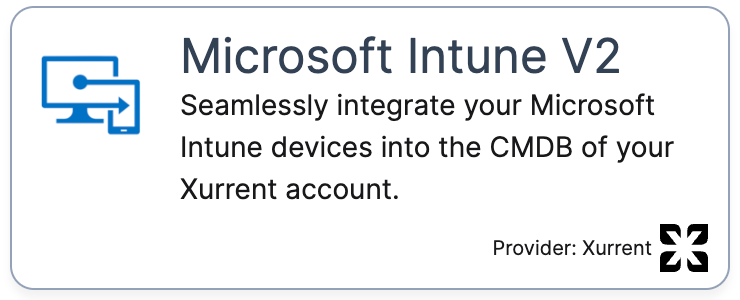
2. During installation, you will be guided through several configuration screens. Some fields are mandatory, while others are optional.
Once configured, the integration will:
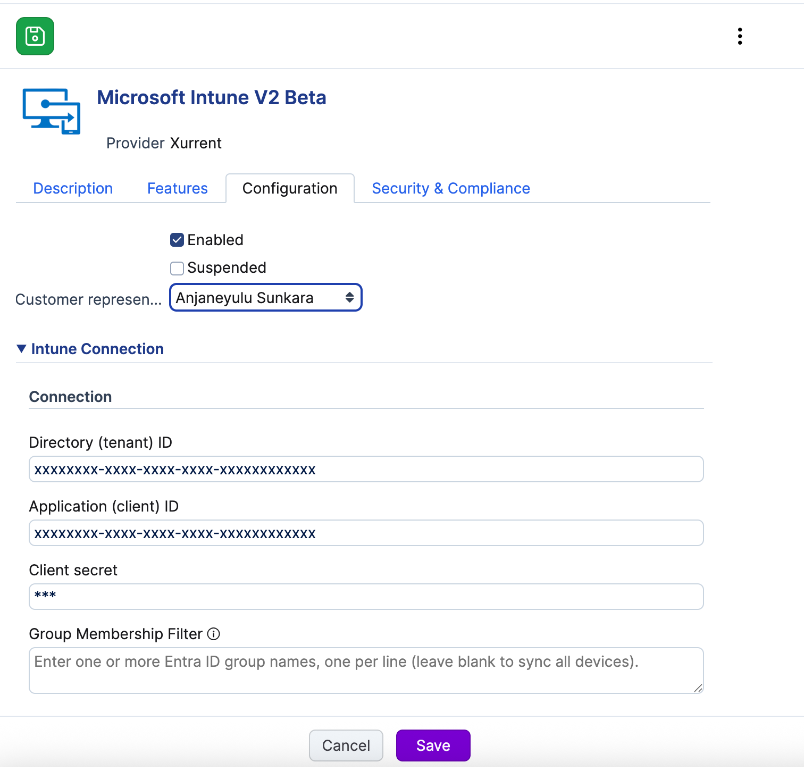
In the Connection section, provide the credentials obtained during the OAuth2 setup:
These credentials enable the integration to securely retrieve device information from Microsoft Intune.
You may specify an Entra ID group name in the Device Group Filter field.
This section defines how Microsoft Intune data maps to Xurrent configuration items. Some values are always synchronized, while others can be customized.
Default Mappings (Always Synchronized):
Operating System Relations :
The integration determines the appropriate software configuration item based on the OS name and version reported by Intune.
Example:
This ensures OS versioning aligns correctly within Xurrent, even though Intune does not provide SKU-level details.
User Relations: The integration maps users to CIs when email information is received from Intune, provided that the user associated with the email exists in Xurrent.
Configurable Mappings :
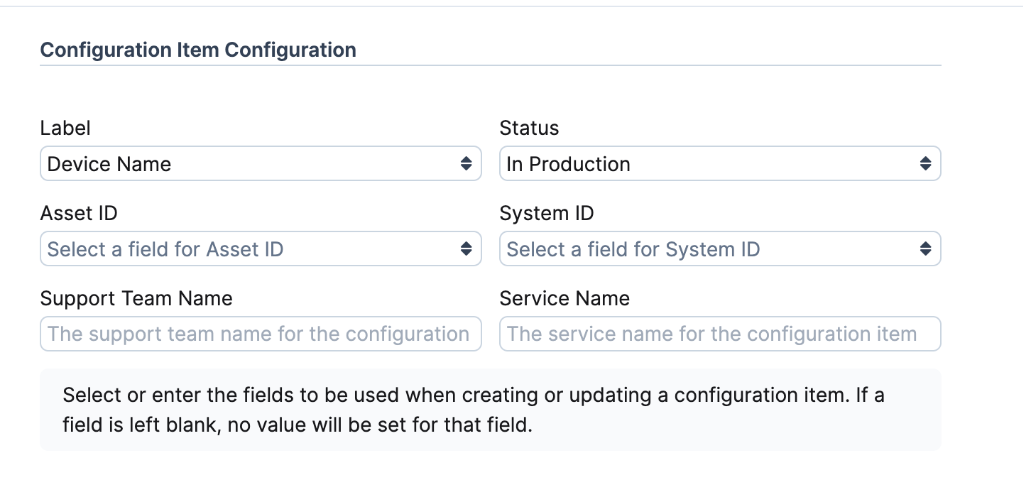
This section allows you to map Intune fields with hard-coded values to the mentioned fields in Xurrent
Available Intune Field Mappings:
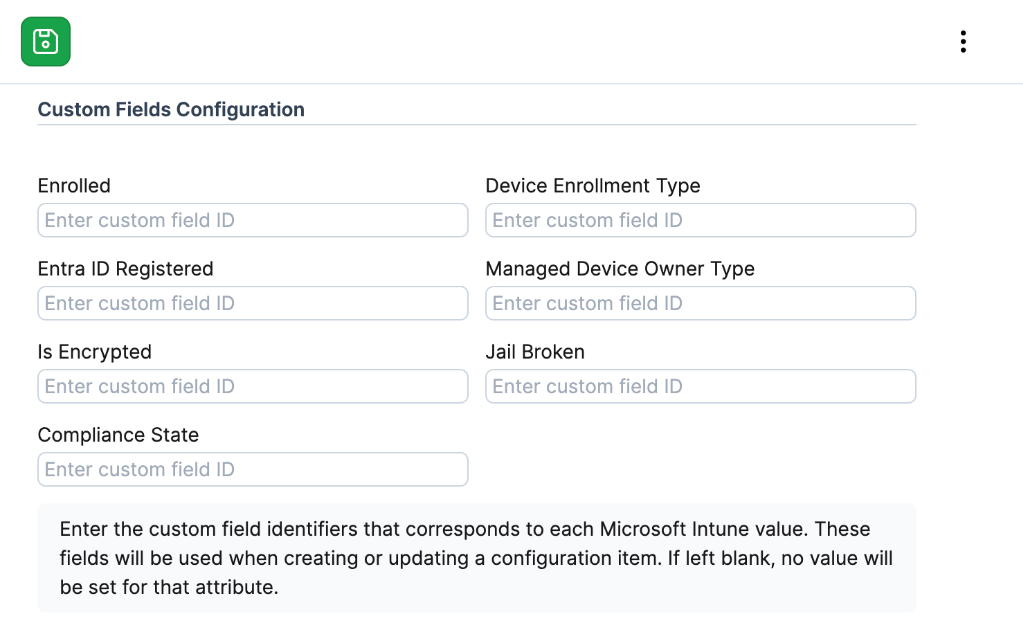
This section allows you to map additional Intune fields to the product’s UI Extension.
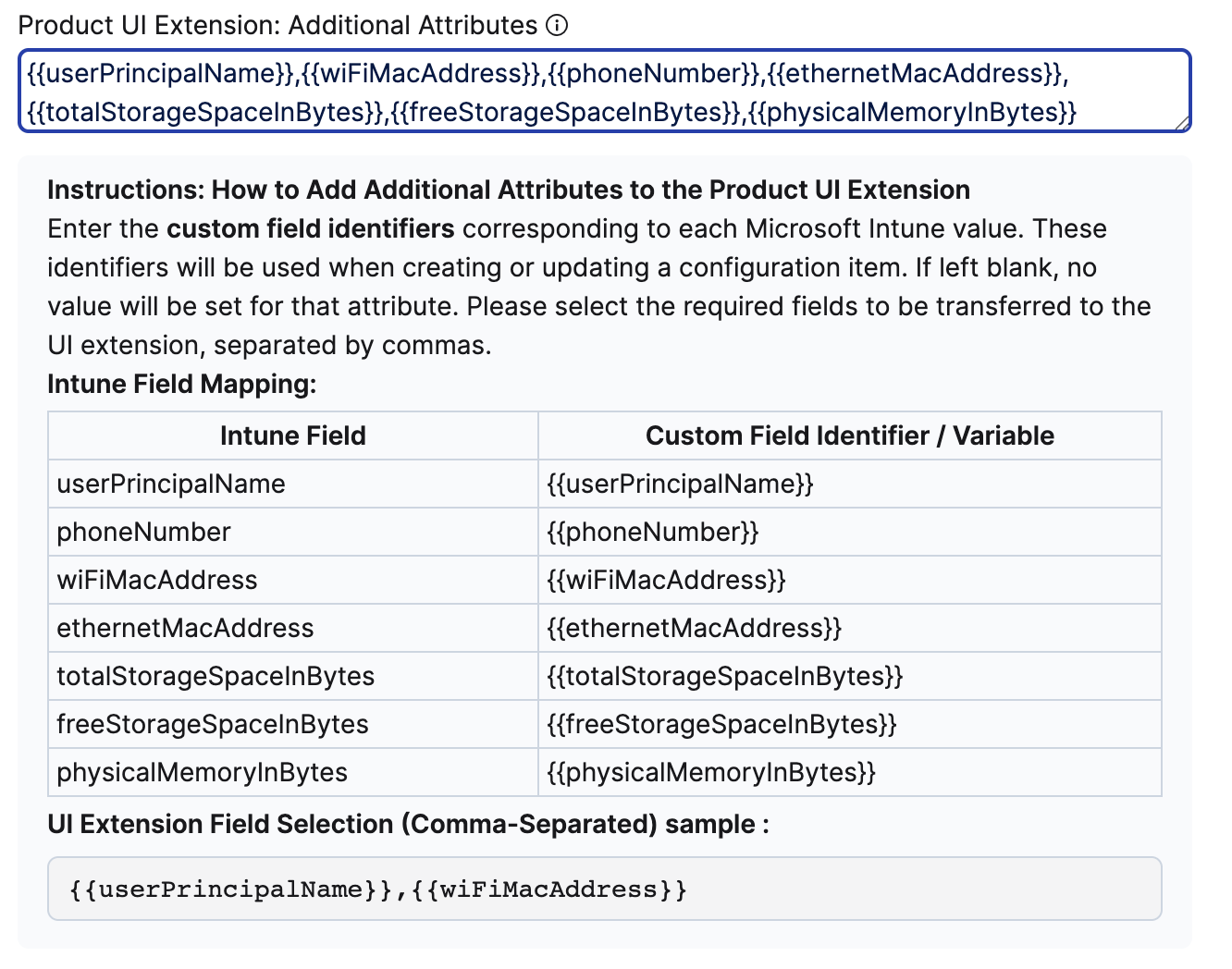
Enter the custom field identifiers corresponding to each Microsoft Intune value. These identifiers will be used when creating or updating a configuration item. If left blank, no value will be set for that attribute. Please select the required fields to be transferred to the UI extension, separated by commas.
Intune Field Mapping:
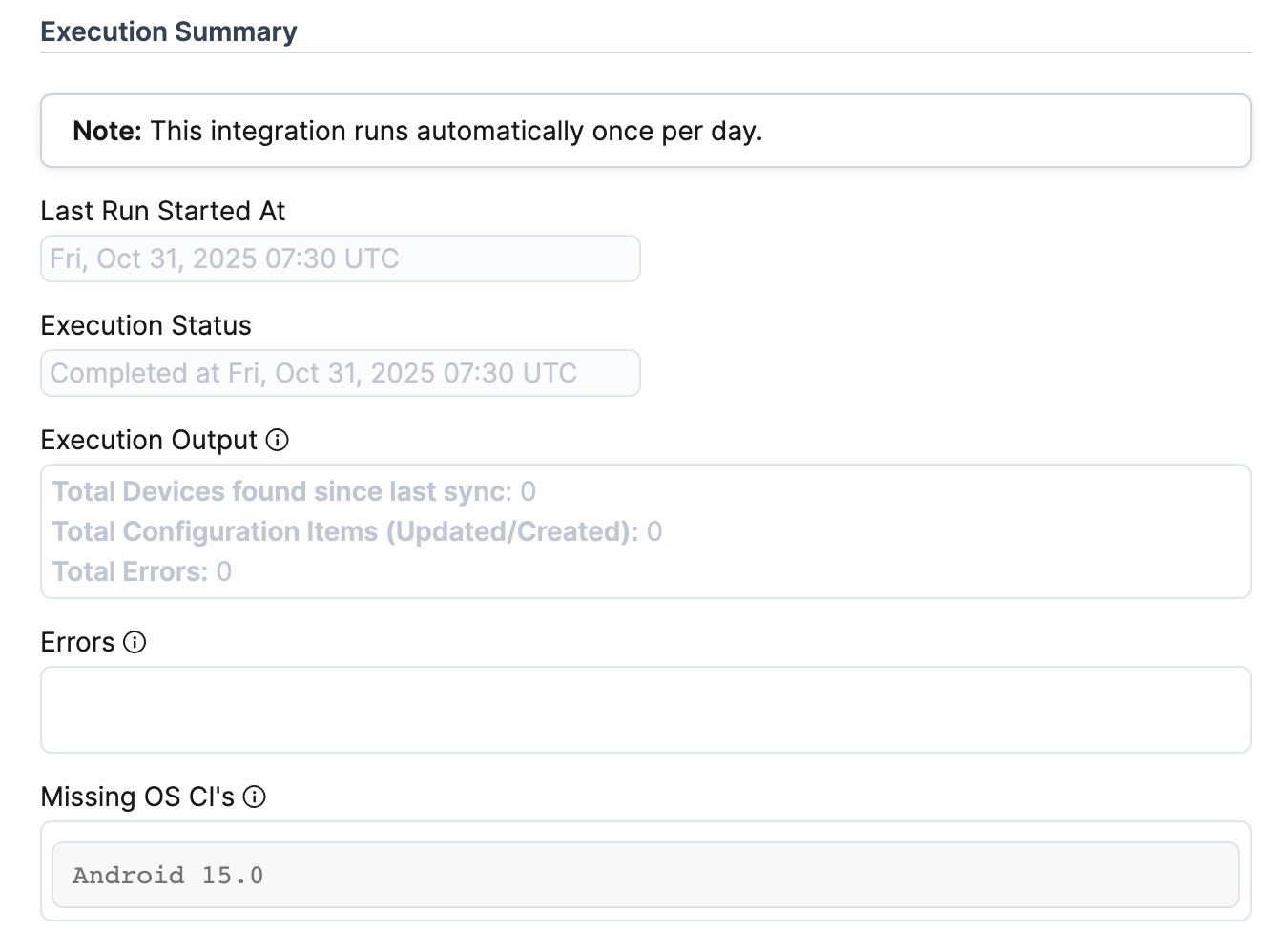
The Execution Summary provides a complete overview of the latest integration run, including synchronization results, errors, and missing configuration items.
Note: This integration runs automatically once per day.
Execution Status: Shows the results of the most recent execution, including the current status and, in case of failures, the reason for failure.
Example:
Execution Output:
Displays the results of the most recent execution, including timestamps, statuses, and any error messages. Example:
Errors:
Missing OS Configuration Items:
Save the app. The app will generate integration details required.
If the details do not appear immediately, refresh the screen.
If the details are still missing after one minute, contact Xurrent support or try reinstalling the app.
Note: Ensure the configuration values shown match your account.


.jpg)