





Blog
Insights & updates from our experts


Resolve plant floor and IT issues before they disrupt production.

Stay audit-ready while resolving issues and reducing operational risk.
Resolve issues quickly with an AI-powered system that automates ticketing.
Unifiy IT, HR, Facilities, Finance, and more on a single, AI-powered service platform.
Simplify on-call scheduling, automate escalations, and reduce burnout.

Automate postmortems, AI summaries, and post-incident workflows

Create, organize, and continuously improve your knowledge base to find the right answers with Sera AI.
We're here to help

The integration with Atlassian Jira using the Xurrent Integration Service is

The integration with Atlassian Jira using the Xurrent Integration Service is

The integration with Atlassian Jira using the Xurrent Integration Service is

The integration with Atlassian Jira using the Xurrent Integration Service is

The integration with Atlassian Jira using the Xurrent Integration Service is

The integration with Atlassian Jira using the Xurrent Integration Service is

The integration with Atlassian Jira using the Xurrent Integration Service is

The integration with Atlassian Jira using the Xurrent Integration Service is
Resolve issues quickly with an AI-powered system that automates ticketing.
Unifiy IT, HR, Facilities, Finance, and more on a single, AI-powered service platform.
Simplify on-call scheduling, automate escalations, and reduce burnout.
Automate postmortems, AI summaries, and post-incident workflows
Create, organize, and continuously improve your knowledge base to find the right answers with Sera AI.
Resolve plant floor and IT issues before they disrupt production.
Stay audit-ready while resolving issues and reducing operational risk.

Detect, respond, and resolve incidents fast to cut downtime and MTTR.

Keep your store online, even during your biggest sales moments.

Protect patient data and resolve issues fast, so care teams stay focused on care.

Standardize service delivery across every store and channel.

We are here to help 24/7

Connect with other Xurrent Users

Get insights and tips on how to get the most out of Xurrent

Apps, APIs, and updates

Xurrent service functionality

Eliminate manual tasks, optimize workflows, and deliver faster resolutions.
Learn how organizations have reduced downtime, improved 50% MTTA & MTTR, and cut costs with Xurrent IMR.
Discover Xurrent IMR's quick support, bidirectional integrations with Jira and Slack, and more cohesive incident response capabilities compared to Opsgenie.
Understand why users value Xurrent IMR for its intuitive interface, efficient incident alerting, customizable On-call schedules, and escalations.
Incident management works best when all of your incidents and alerts can be tracked from a centralized hub. When these incidents come attached with problems, changes, releases or assets for context, the resolution is faster and better. Freshdesk is an online cloud-based customer service software providing helpdesk support with all smart automations to get things done faster.
The Xurrent IMR-Freshdesk integration allows you to sync your Freshdesk tickets with Xurrent IMR, and keep up with all the updates. The advanced monitoring allows you to keep a bird’s eye view on all the updates.
Scroll to the end of the page for complete instructions to set up the integration. Read more on Xurrent IMR Docs
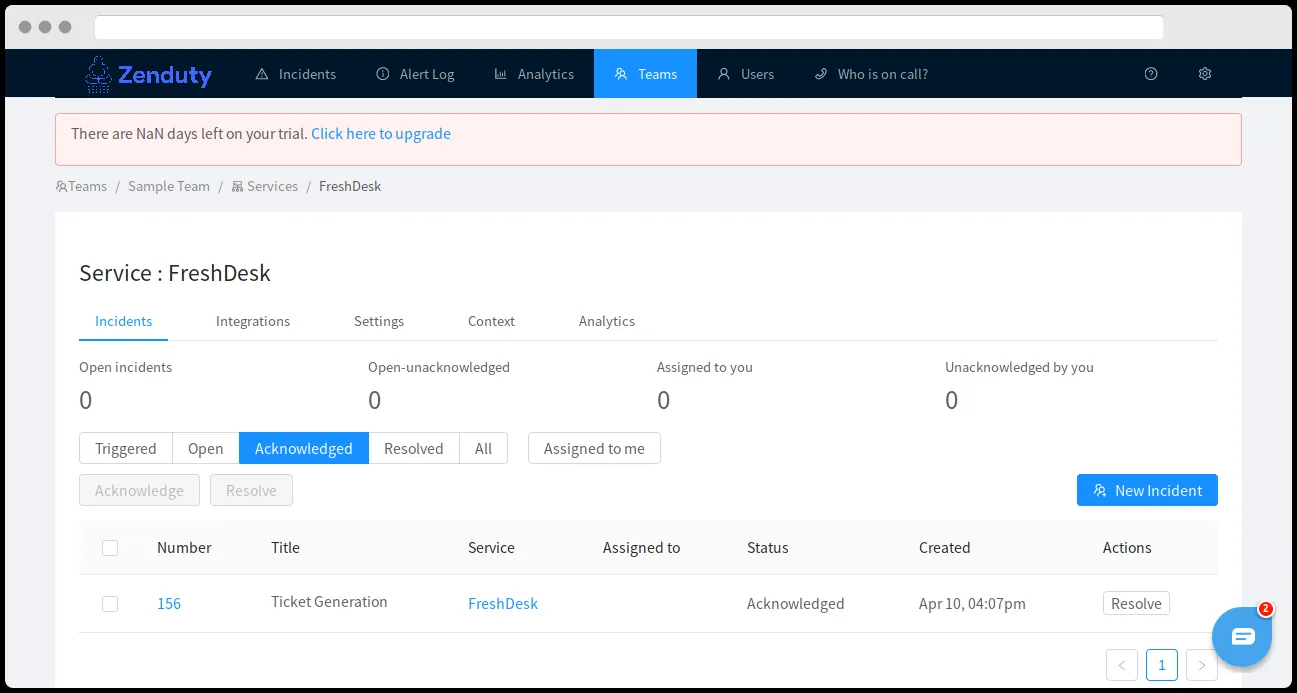
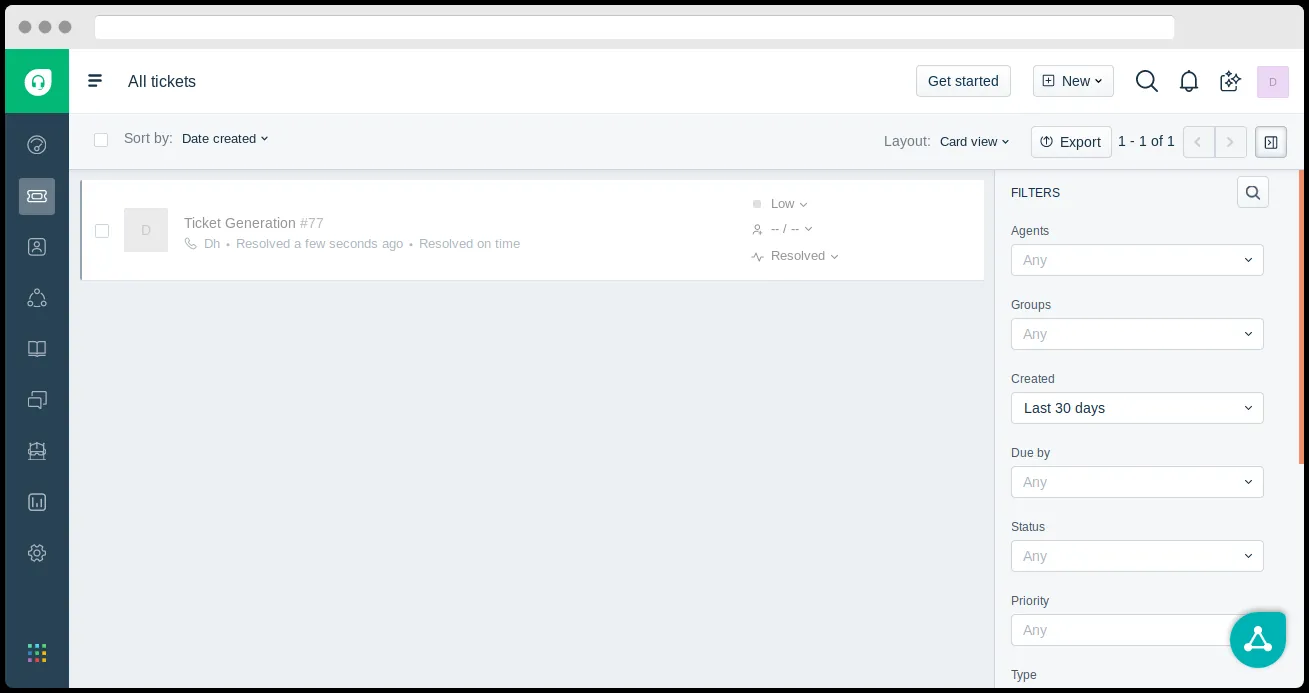
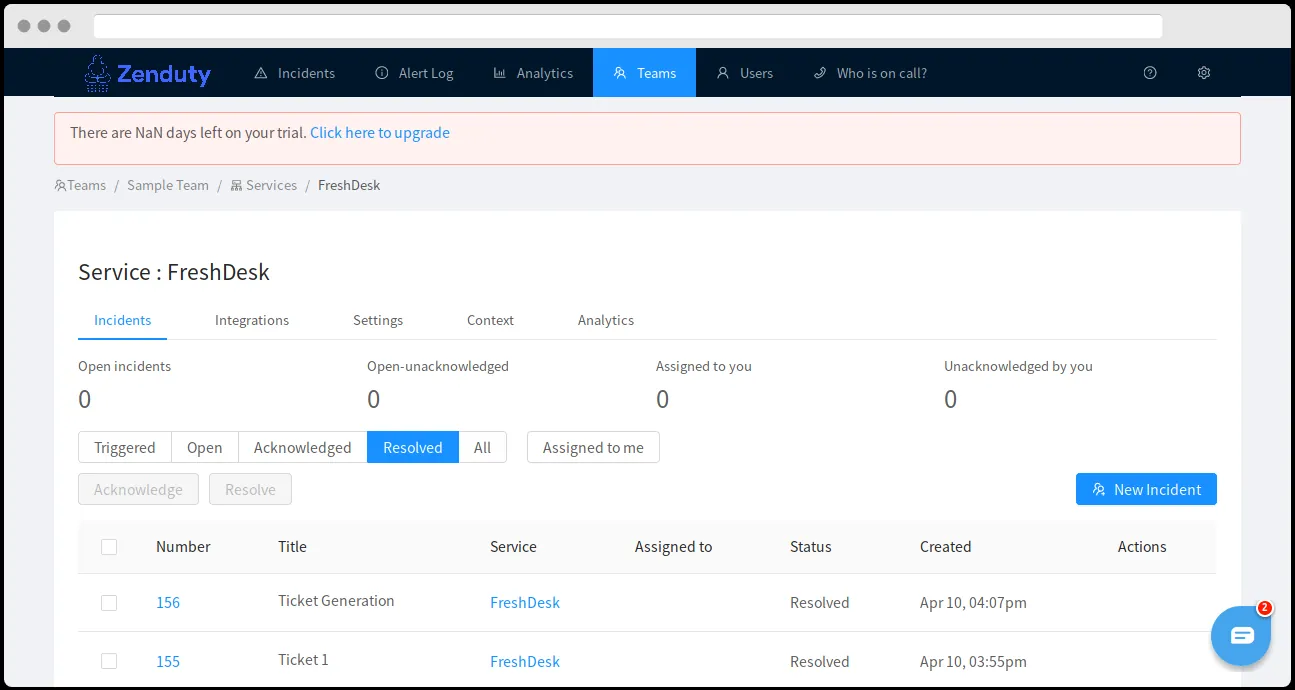
Once set up, users in Xurrent IMR will get their incidents from their tickets in Freshdesk. Any action on either application will reflect in the other.
| Freshdesk Action | Xurrent IMR Response |
|---|---|
| New ticket created | New incident created |
| Note added to the ticket | Note added to the incident |
| Ticket resolved | Incident resolved |
| Ticket deleted/closed/marked spam | Incident resolved |
| Ticket opened | Incident acknowledged |
When a new ticket is created in Freshdesk, a corresponding Xurrent IMR incident is created.
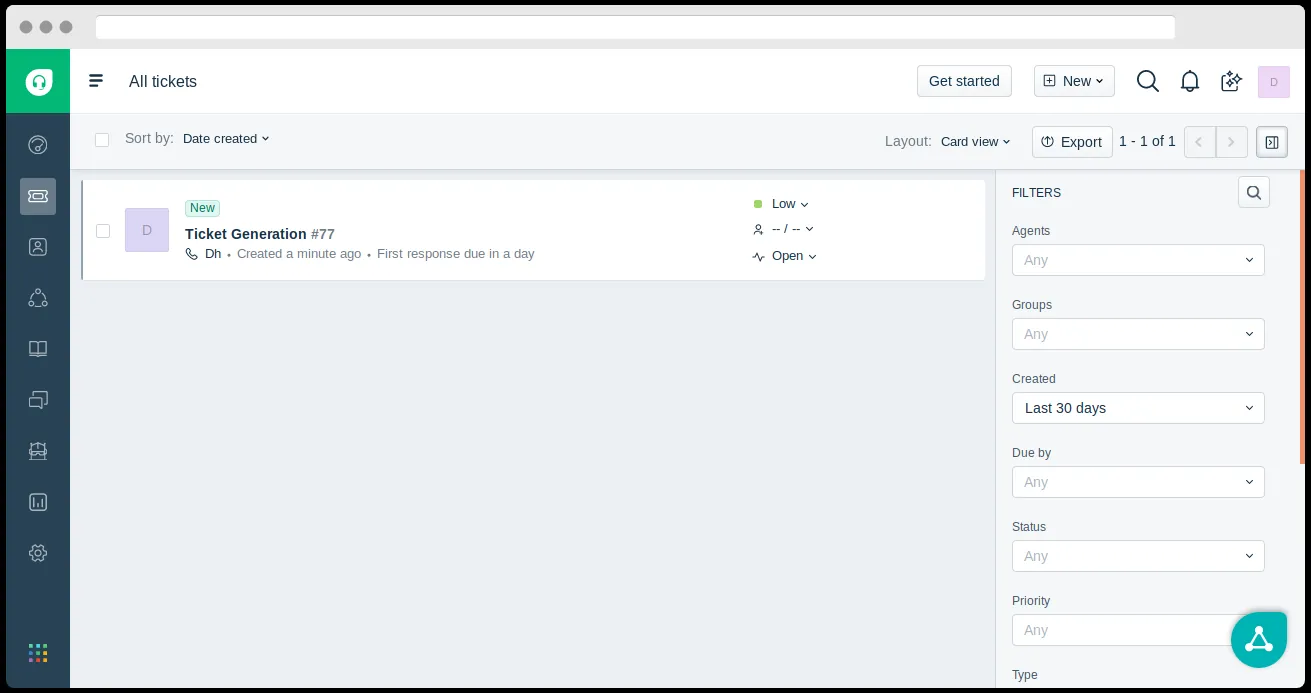
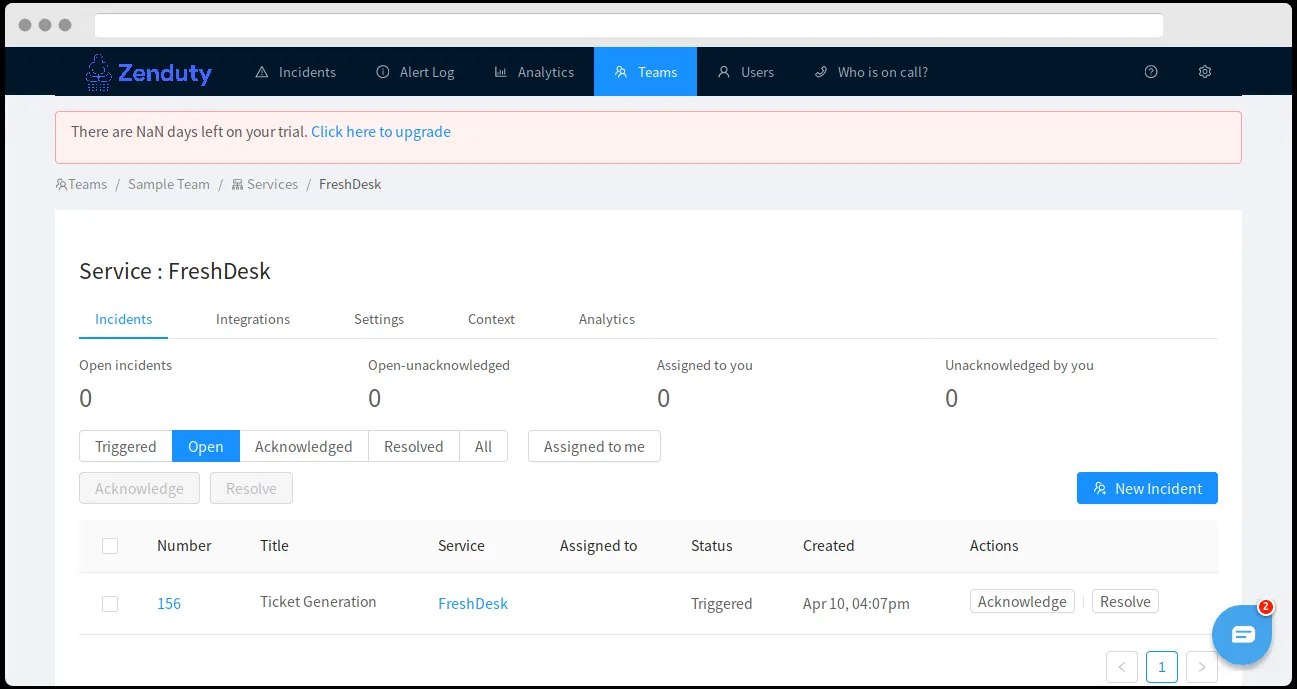
Opening a ticket in Freshdesk marks it as “Acknowledged” in Xurrent IMR and vice-versa.
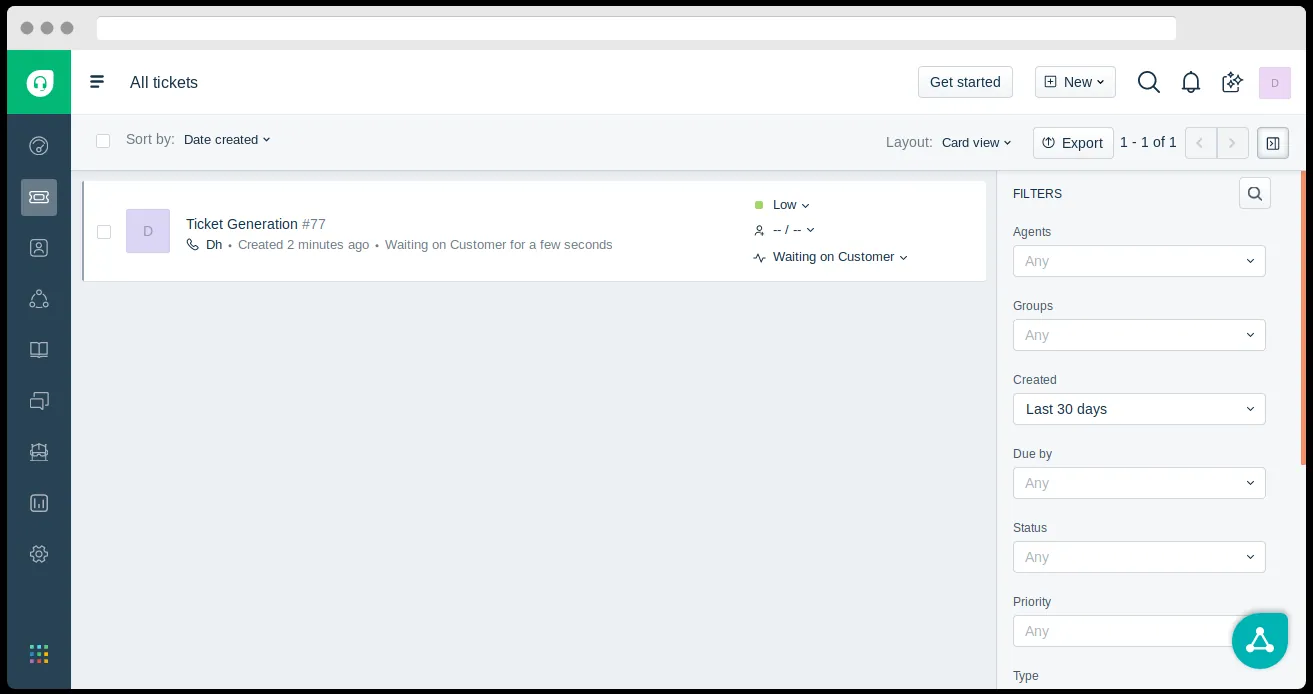
Resolving a Xurrent IMR incident resolves the Freshdesk ticket.
When you delete the integration, make sure to also delete the Xurrent IMR Webhook URL you added in Freshservice. This is to prevent Xurrent IMR updates from being posted to Freshservice anymore.
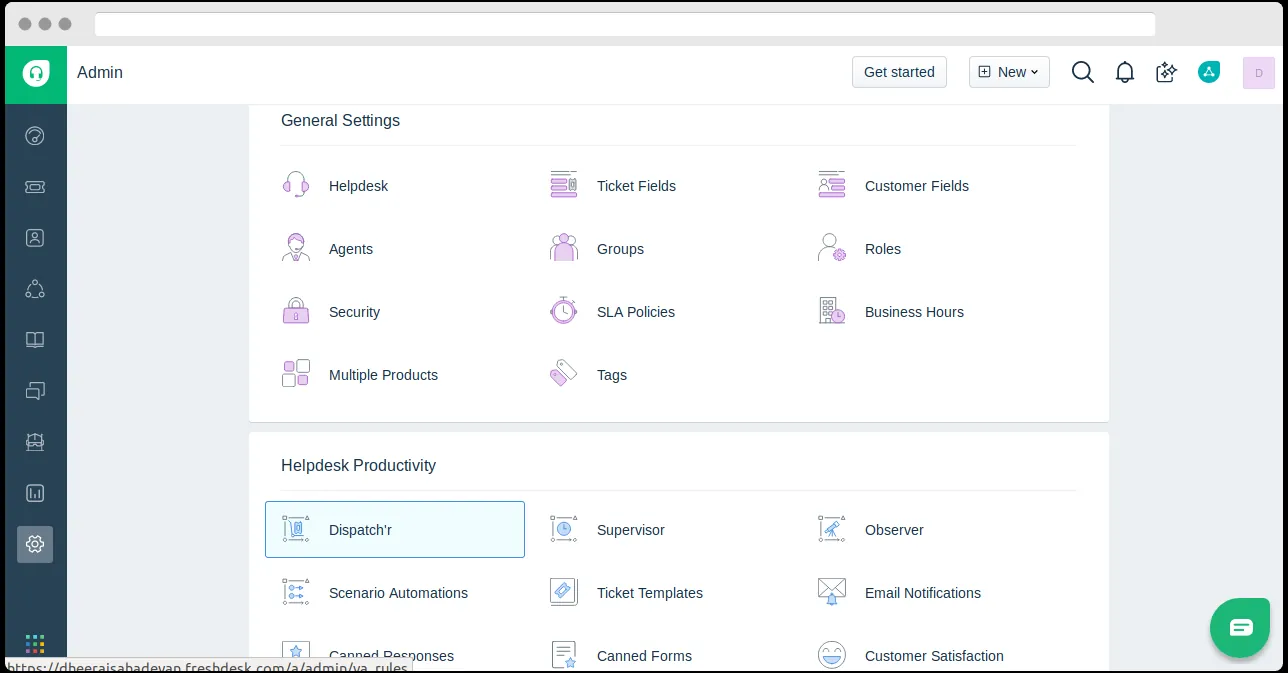
Set Conditions as:
Type Is Incident
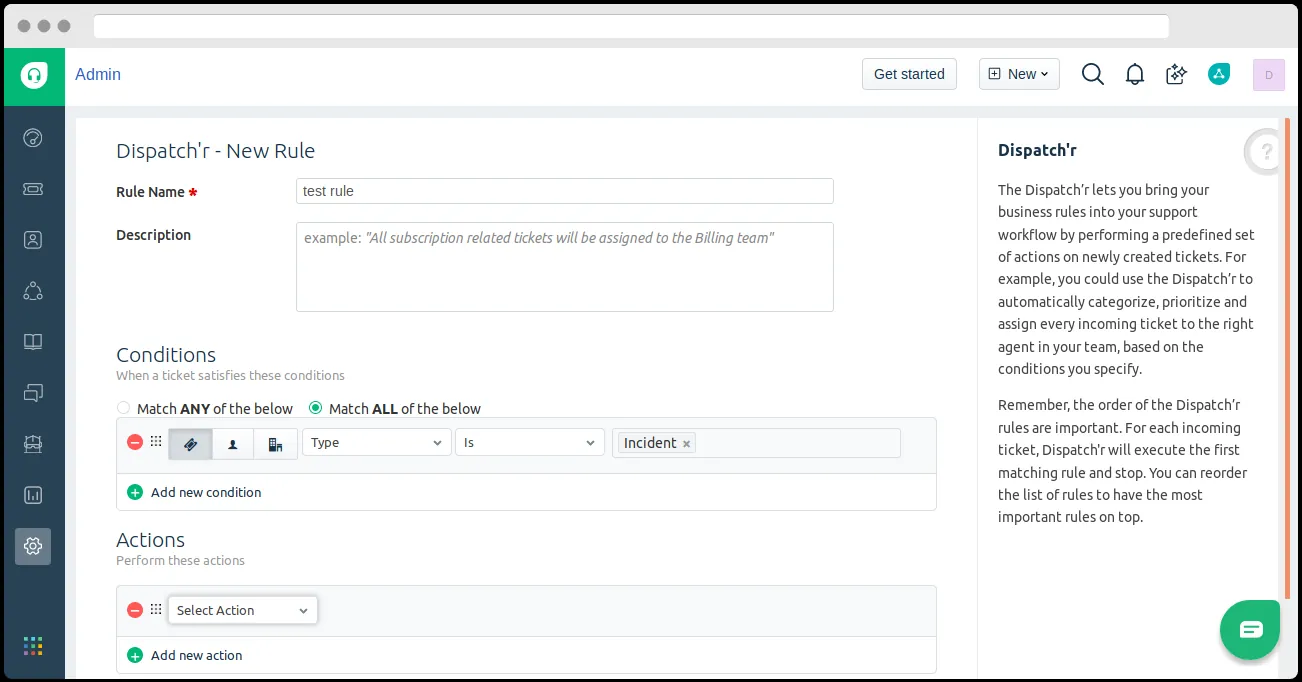
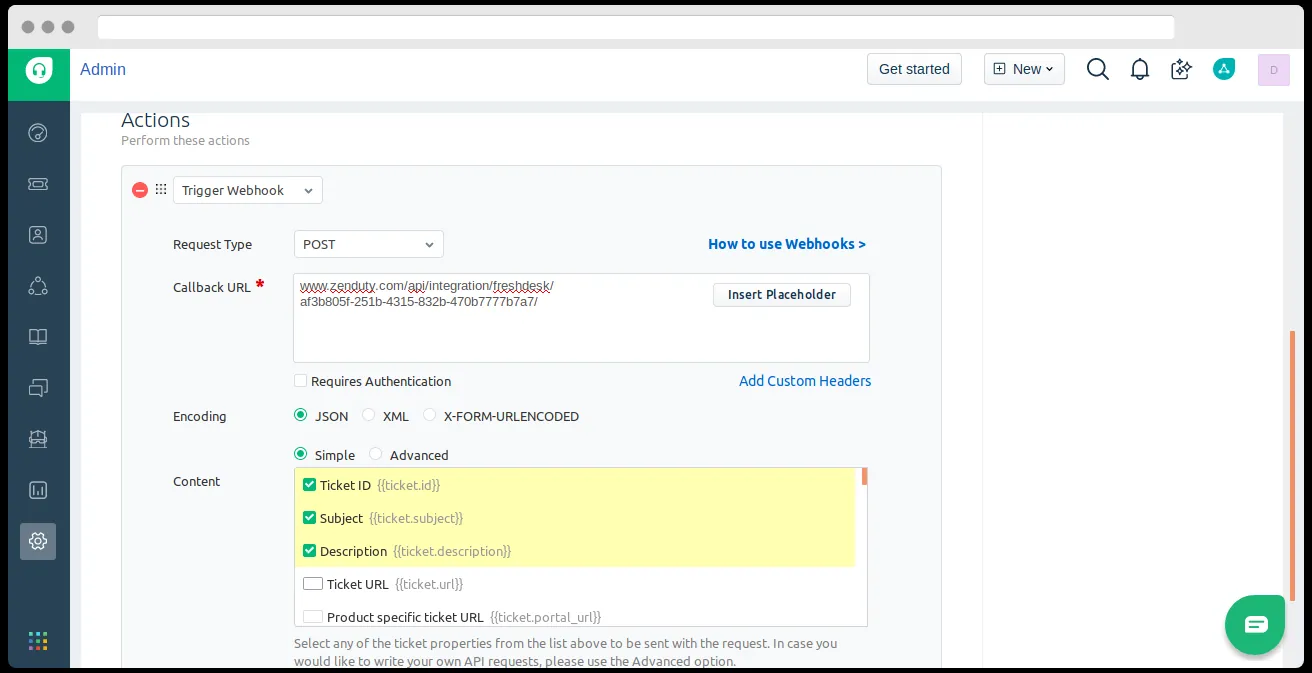
Select “Trigger Webhook” from the Actions” dropdown, and set “Request Type” to “POST”.
Under the “Callback URL”, paste the webhook url you copied earlier.
Set the “Encoding” as “JSON” and content as “Simple”.
Under “Content”, select the following fields- Ticket ID, Subject, Description, Status.
This is shown in the screenshot below:
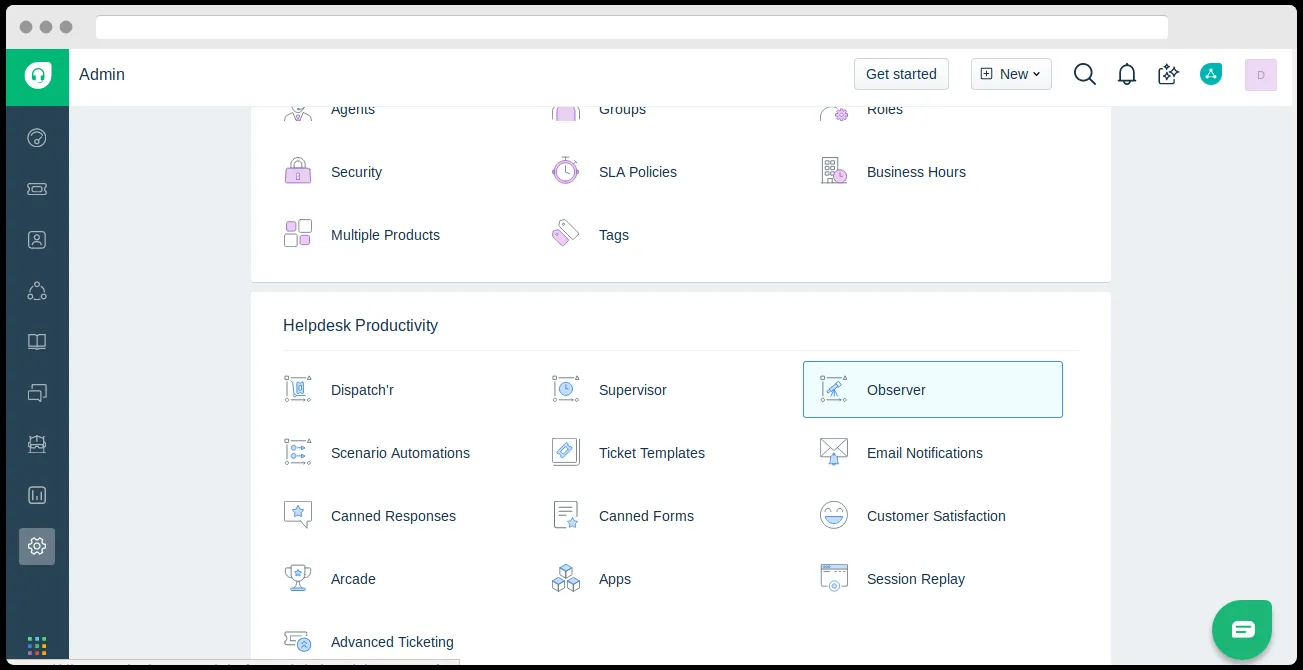
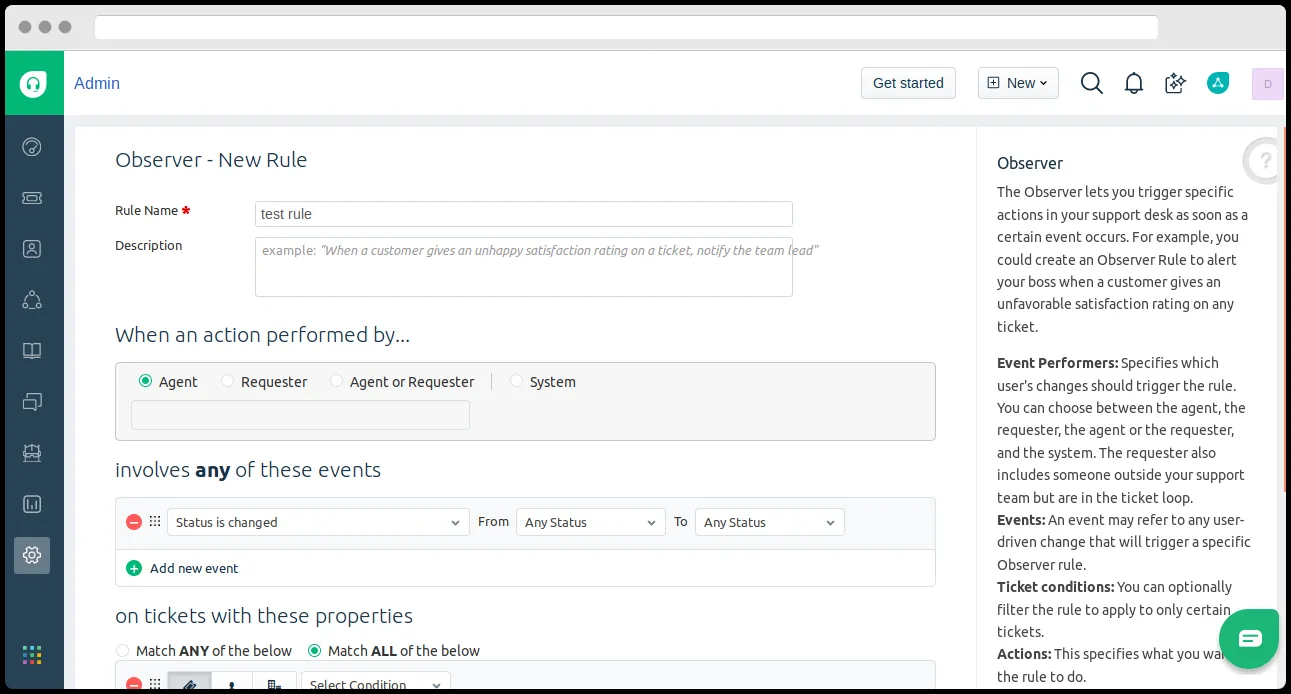
Select “New Rule” and pick a “Rule Name” and “Description”.
Set “Action Performed By” to “Agent” and an “Event”. For example, here we have picked:”Status is Changed” from “Any Status” to “Any Status”.
Select “Trigger Webhook” from the “Actions” dropdown and set the “Request Type” to “POST”.
Under the callback URL,paste the webhook link you copied earlier.
Set the Encoding to “JSON” and Content to “Simple”.
Under Content, Select the following fields- Ticket ID, Subject, Description, Status.
This is shown in the screenshot below:
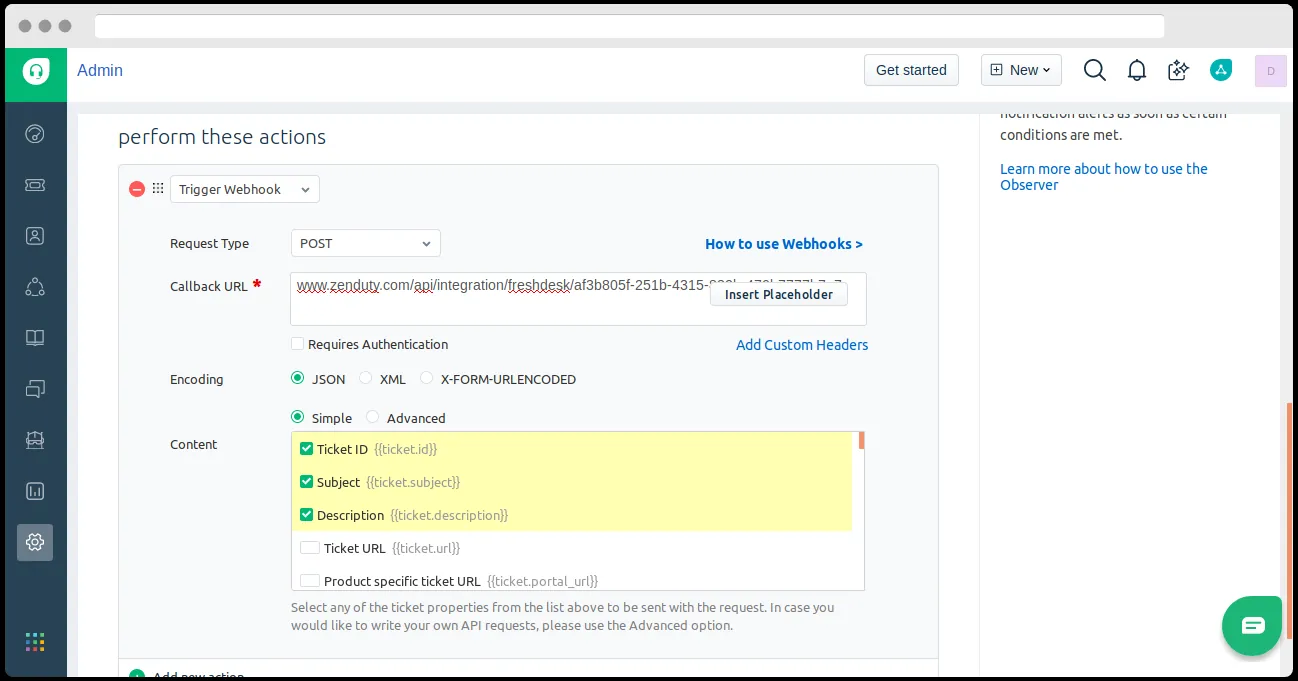
Freshdesk is now integrated to your Xurrent IMR account.
Xurrent IMR is a cutting edge incident management platform designed by developers keeping the well-being of engineers in mind. Sign up for free here.
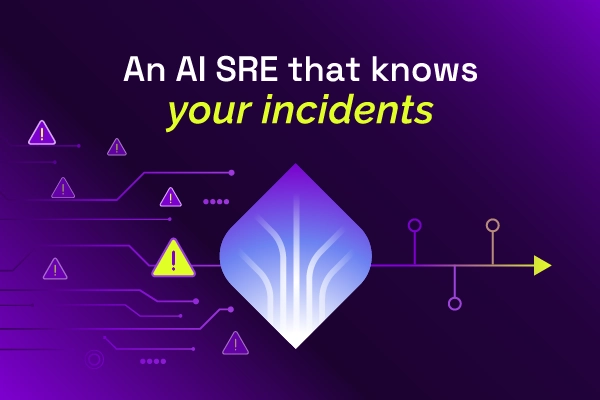
Most AI SREs are pattern matchers trained on public data. They know what a memory leak looks like in the abstract. They don't know that your payments-api has a flaky liveness probe everyone ignores, that the checkout team owns the retry policy, or that the last three "database incidents" were actually cache misconfigurations. That knowledge lives in your postmortems, your Slack channels, and the heads of two senior engineers.

Most vendors will tell you ITSM implementation takes six months to a year — but modern, configuration-first platforms have rewritten the math entirely. See what real implementations look like in 2026, and why a long rollout is now a choice, not a given.

.webp)
.webp)