


.webp)


Blog
Insights & updates from our experts


Resolve issues quickly with an AI-powered system that automates ticketing.

Resolve issues quickly with an AI-powered system that automates ticketing.

Resolve issues quickly with an AI-powered system that automates ticketing.

Resolve issues quickly with an AI-powered system that automates ticketing.
Resolve issues quickly with an AI-powered system that automates ticketing.
Resolve issues quickly with an AI-powered system that automates ticketing.
Simplify on-call scheduling, automate escalations, and reduce burnout.

Automate postmortems, AI summaries, and post-incident workflows

We're here to help

The integration with Atlassian Jira using the Xurrent Integration Service is

The integration with Atlassian Jira using the Xurrent Integration Service is

The integration with Atlassian Jira using the Xurrent Integration Service is

The integration with Atlassian Jira using the Xurrent Integration Service is

The integration with Atlassian Jira using the Xurrent Integration Service is

The integration with Atlassian Jira using the Xurrent Integration Service is

The integration with Atlassian Jira using the Xurrent Integration Service is

The integration with Atlassian Jira using the Xurrent Integration Service is
Resolve issues quickly with an AI-powered system that automates ticketing.
Resolve issues quickly with an AI-powered system that automates ticketing.
Simplify on-call scheduling, automate escalations, and reduce burnout.
Automate postmortems, AI summaries, and post-incident workflows
Resolve issues quickly with an AI-powered system that automates ticketing.
Resolve issues quickly with an AI-powered system that automates ticketing.
Resolve issues quickly with an AI-powered system that automates ticketing.
Resolve issues quickly with an AI-powered system that automates ticketing.

We are here to help 24/7

Connect with other Xurrent Users

Get insights and tips on how to get the most out of Xurrent

Apps, APIs, and updates

Xurrent service functionality

Eliminate manual tasks, optimize workflows, and deliver faster resolutions.
Learn how organizations have reduced downtime, improved 50% MTTA & MTTR, and cut costs with Xurrent IMR.
Discover Xurrent IMR's quick support, bidirectional integrations with Jira and Slack, and more cohesive incident response capabilities compared to Opsgenie.
Understand why users value Xurrent IMR for its intuitive interface, efficient incident alerting, customizable On-call schedules, and escalations.

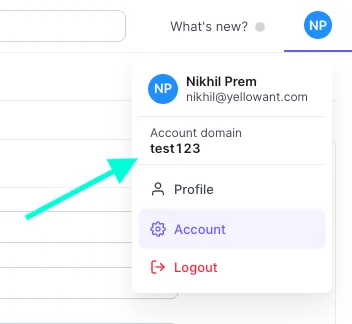
Here's a walk-through of setting up Okta as your SAML Identity Provider. This allows your team to log into Xurrent IMR without a new email / password combination.
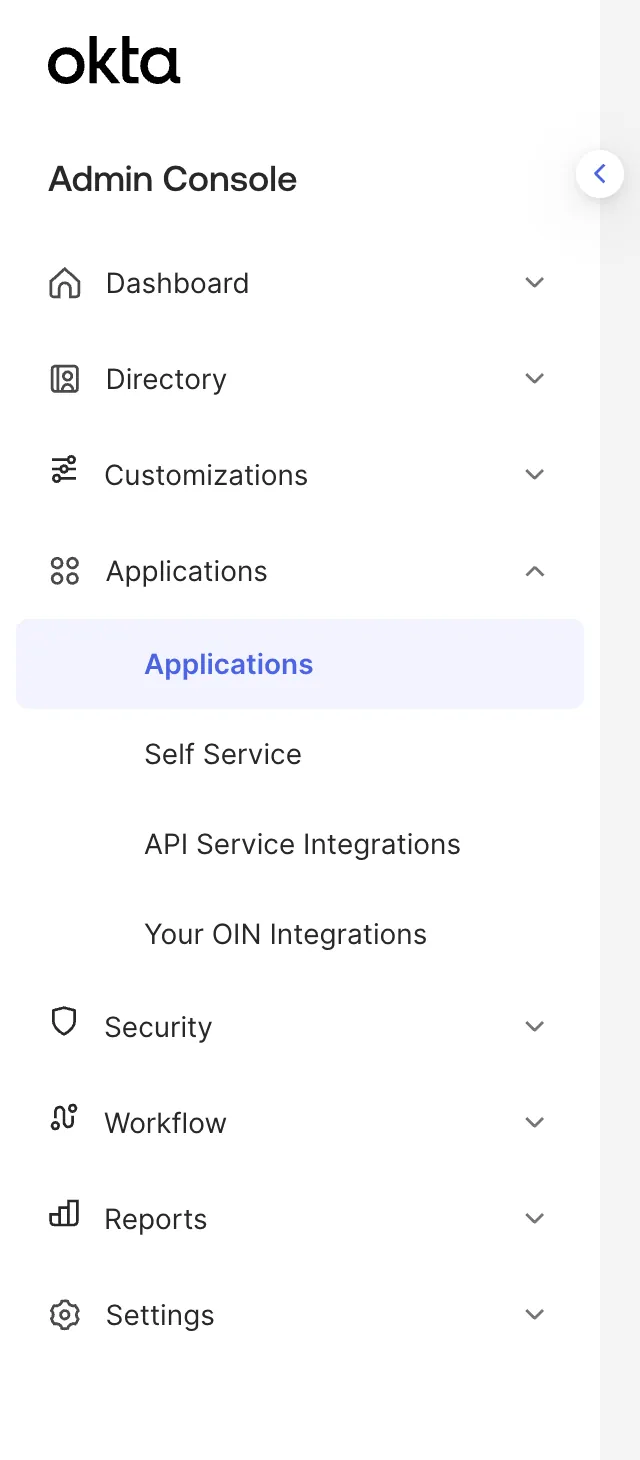

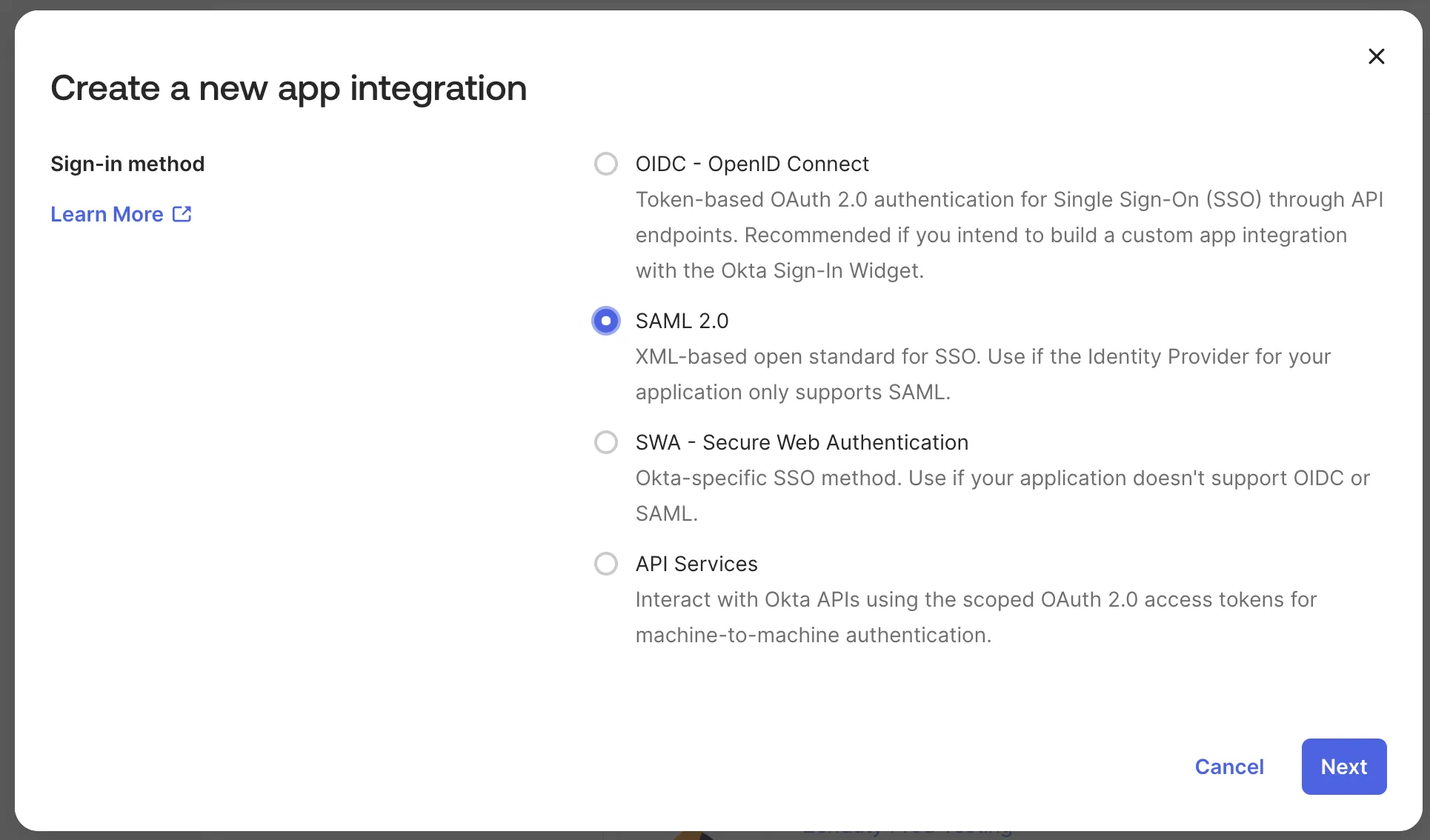
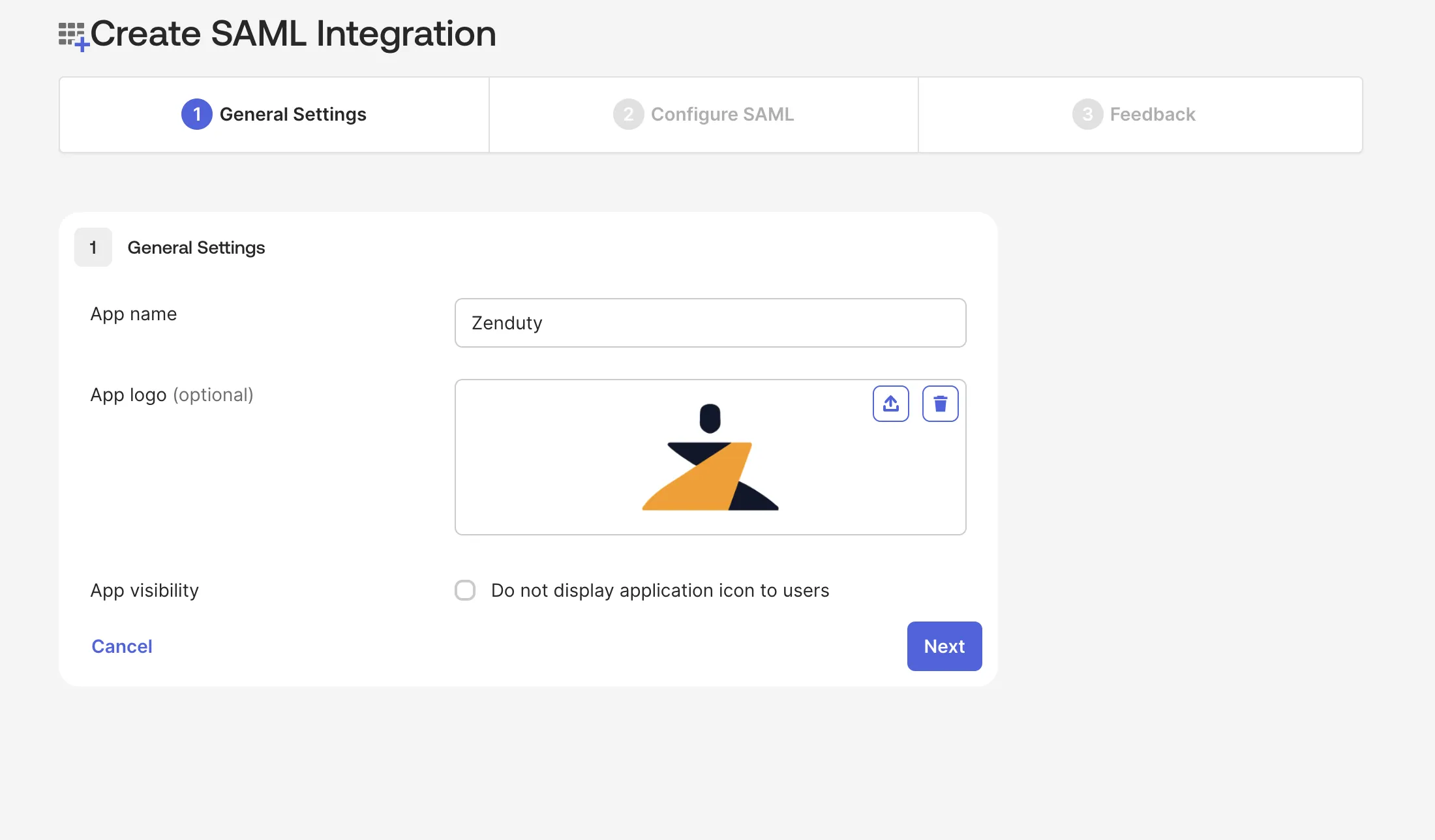
In General Settings Page. Provide application name and application logo for your new custom integration and click Next.
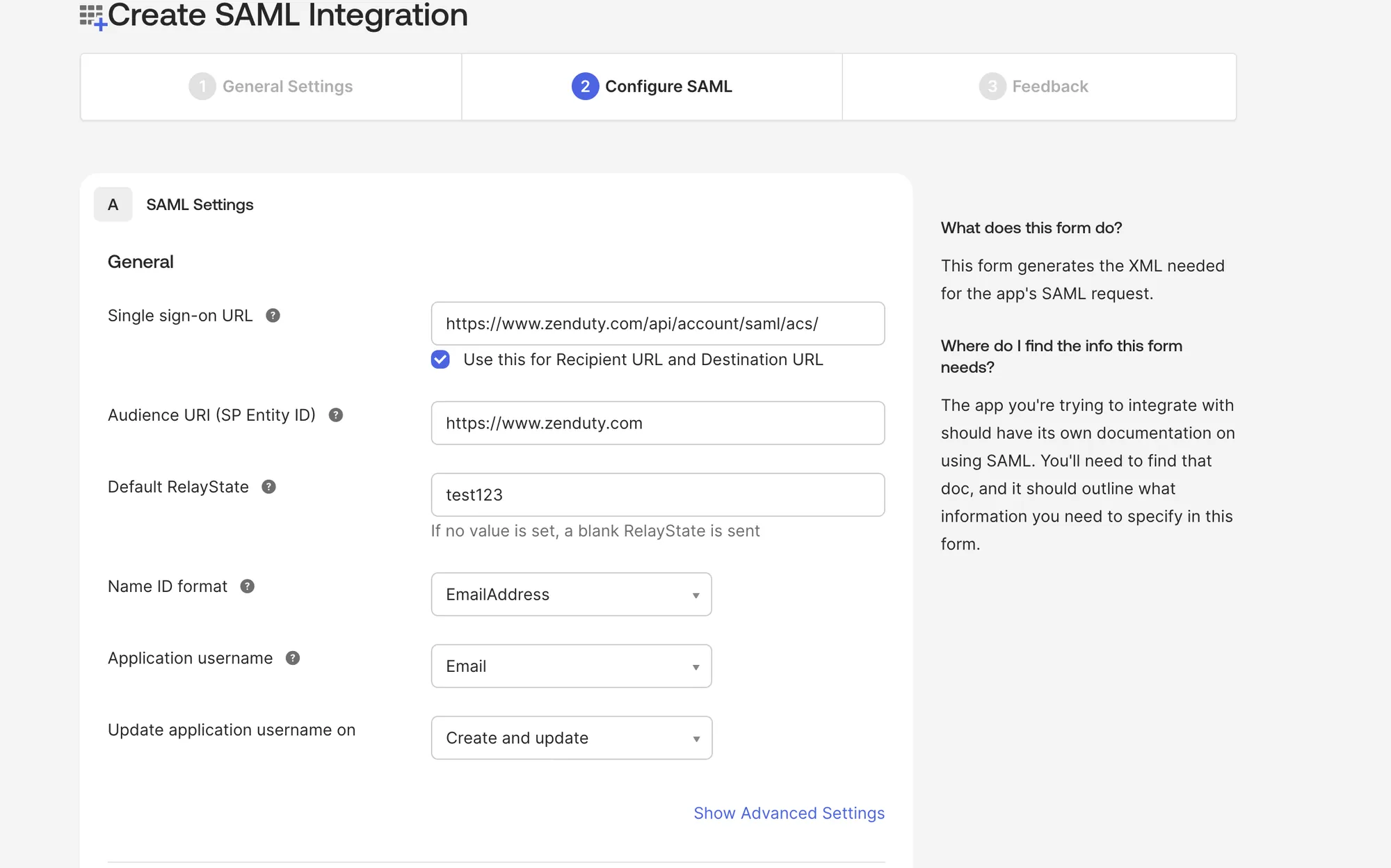
In Configure SAML Page Fill in the given details in
SAML Settings-> General:
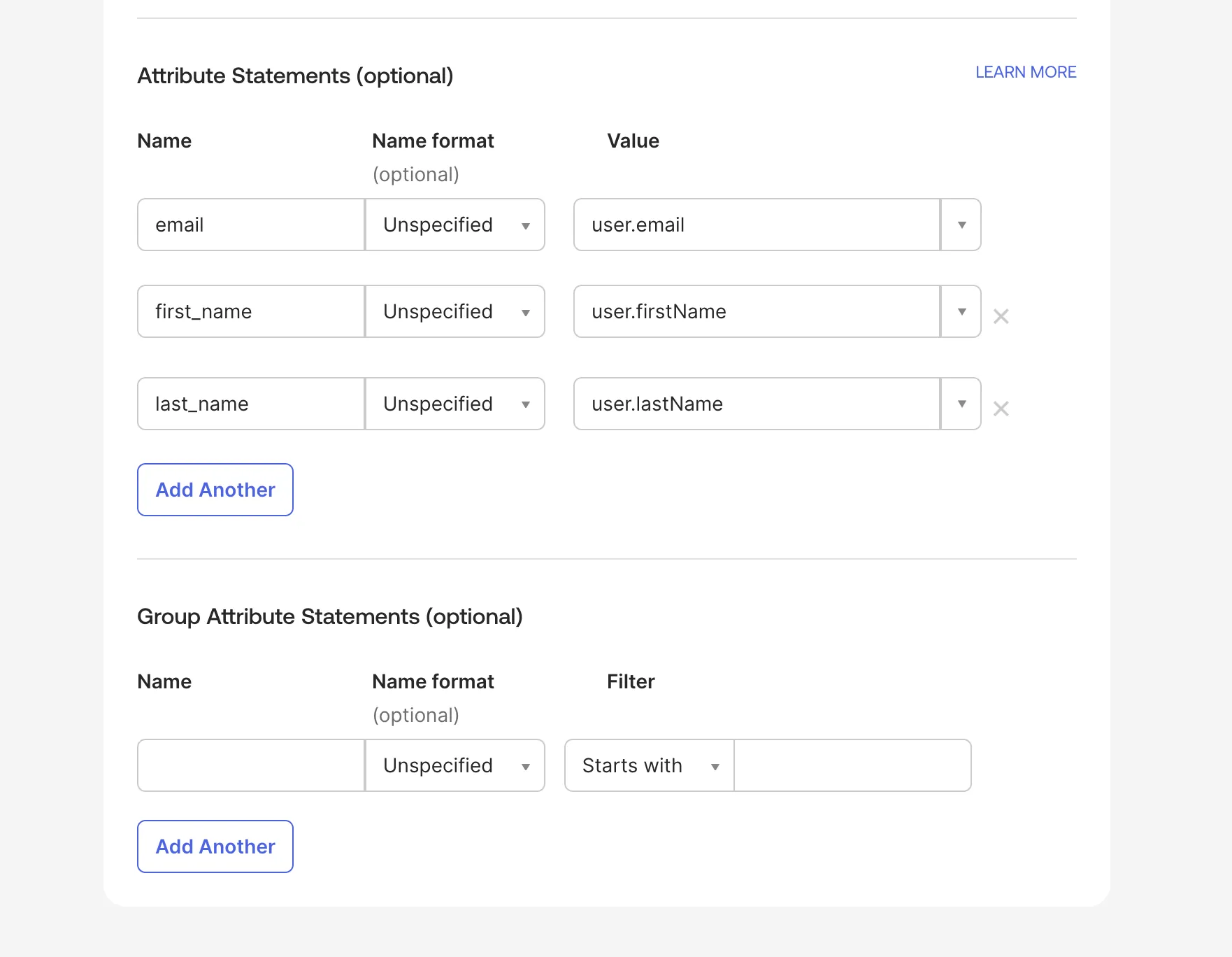
SAML Settings -> Attribute Statements (optional)
then click Next
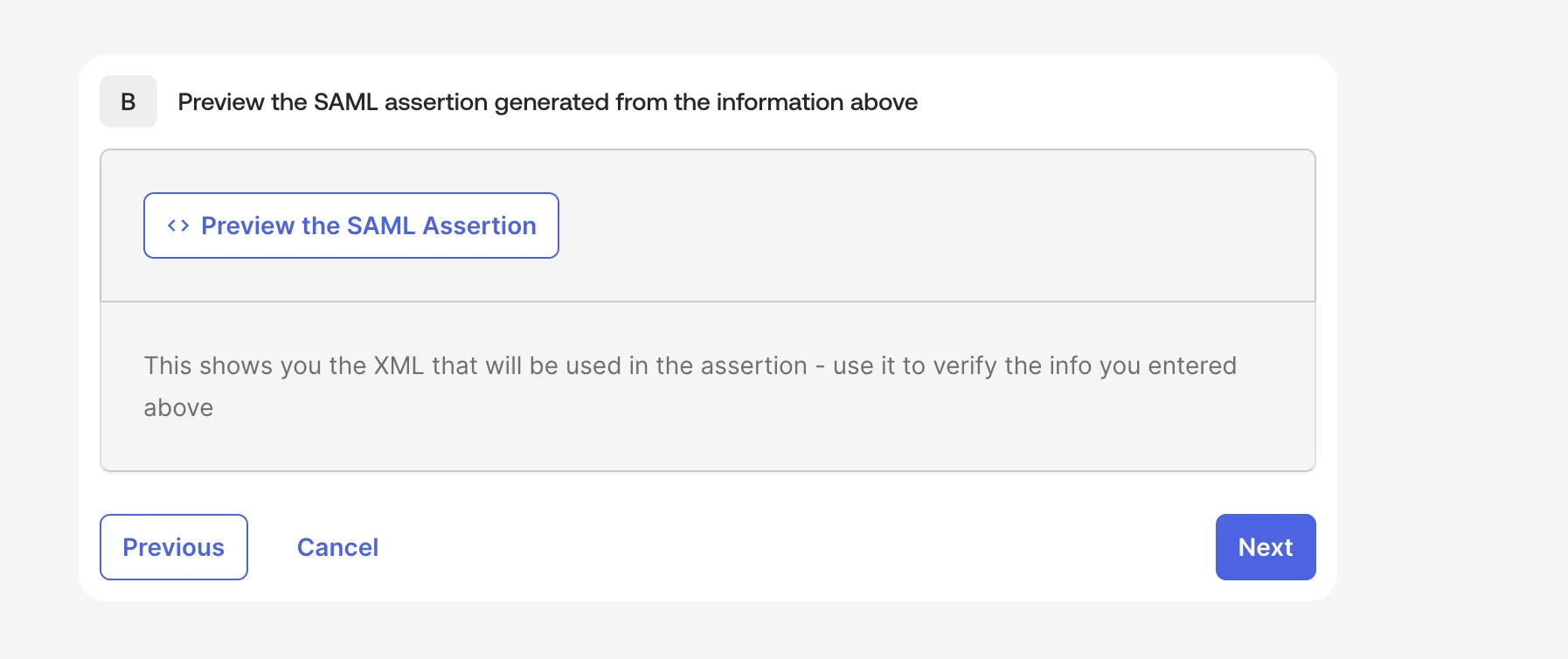
In Feedback Page. Click Finish
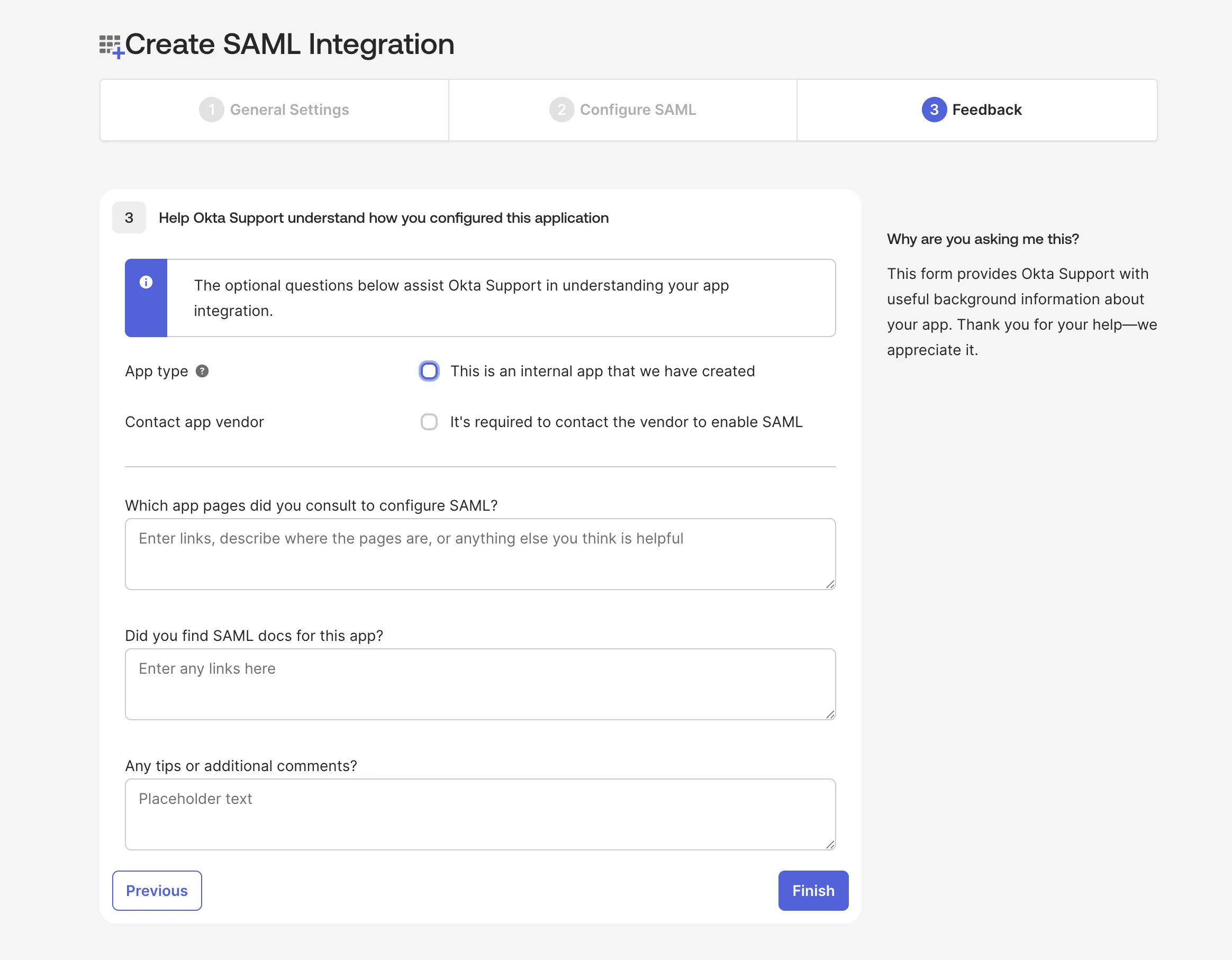
After finishing SAML Integration. Click on "Sign On" tab in your Okta custom Xurrent IMR Application. Then click on "View SAML setup instructions"
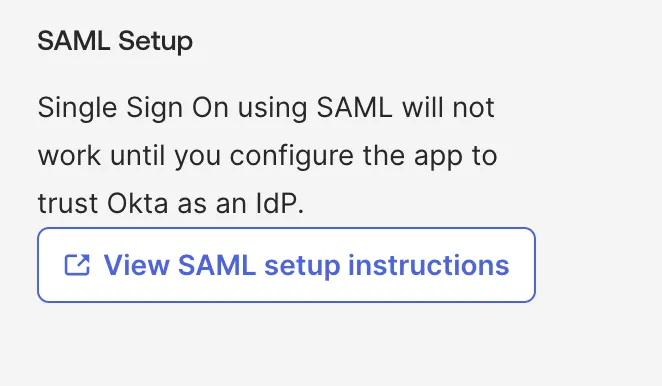
Copy the Single Sign-On URL, Identity Provider Issuer and X.509 Certificate and Save it in a safe place (It will be required in future during the setup at Xurrent IMR's platform)
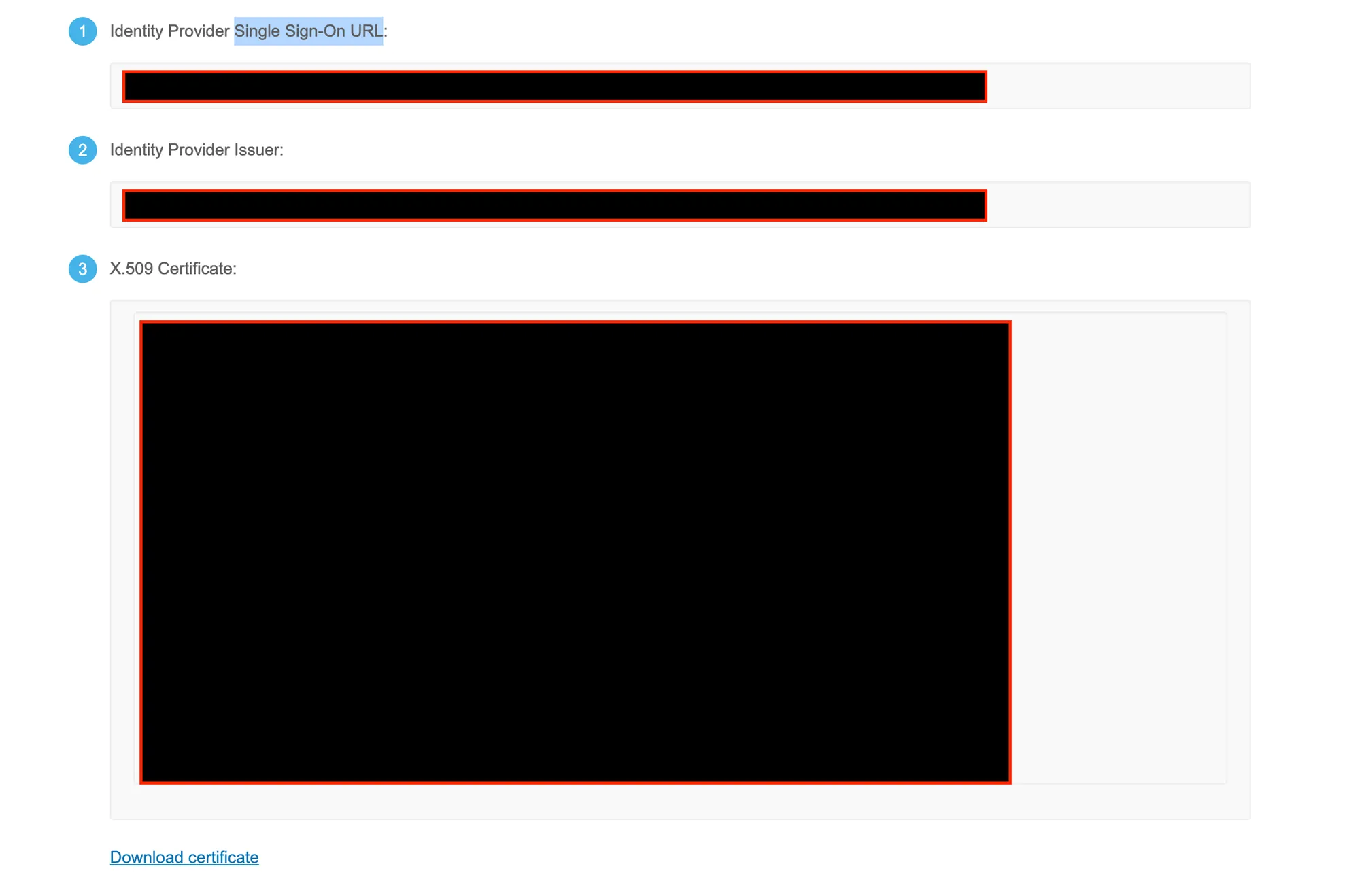
Go to Xurrent IMR Dashboard > Account > Single Sign-On > Select "Okta SSO" as SSO provider and Paste your previously saved details from Okta's Platform.
(Ex: SSO Provider, SAML Entity ID, Certificate)
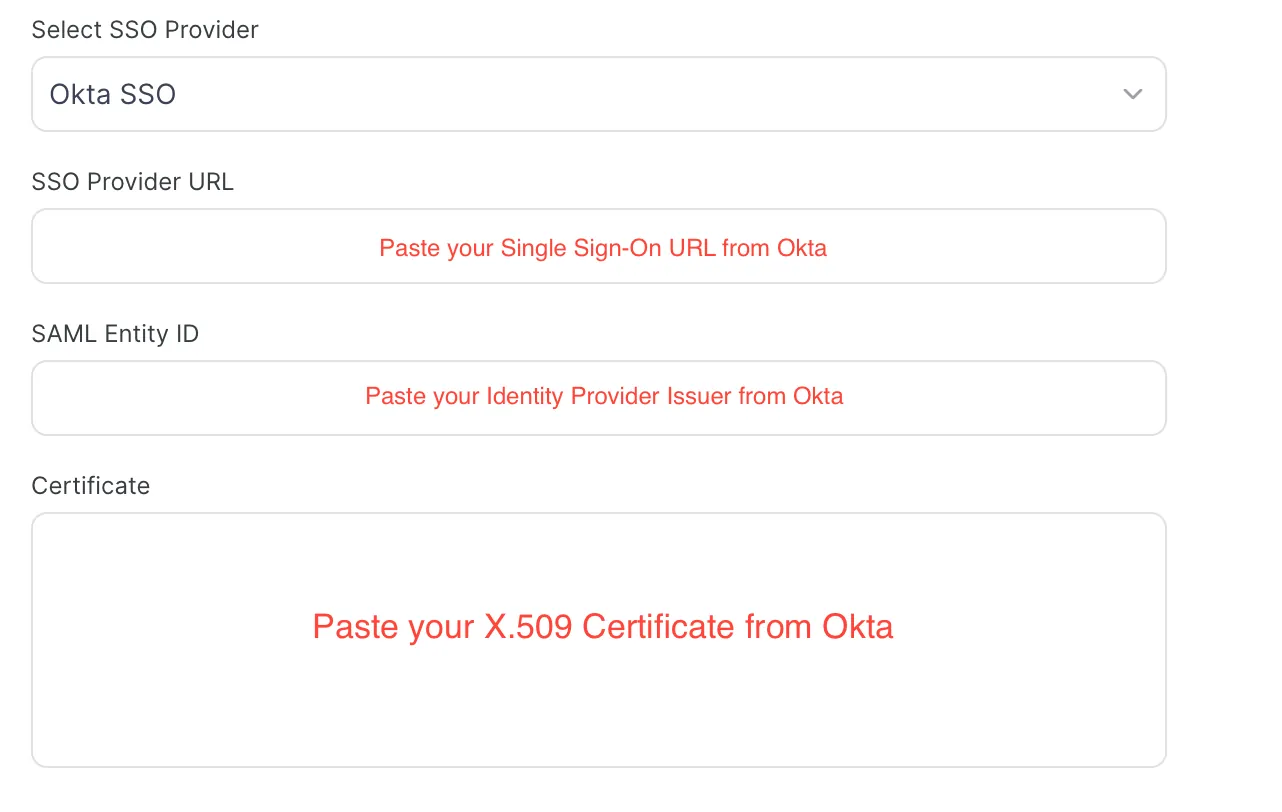
Your SSO setup is now done.
Then Click on General tab. edit App Settings. choose SCIM as Provisioning. then Click Save

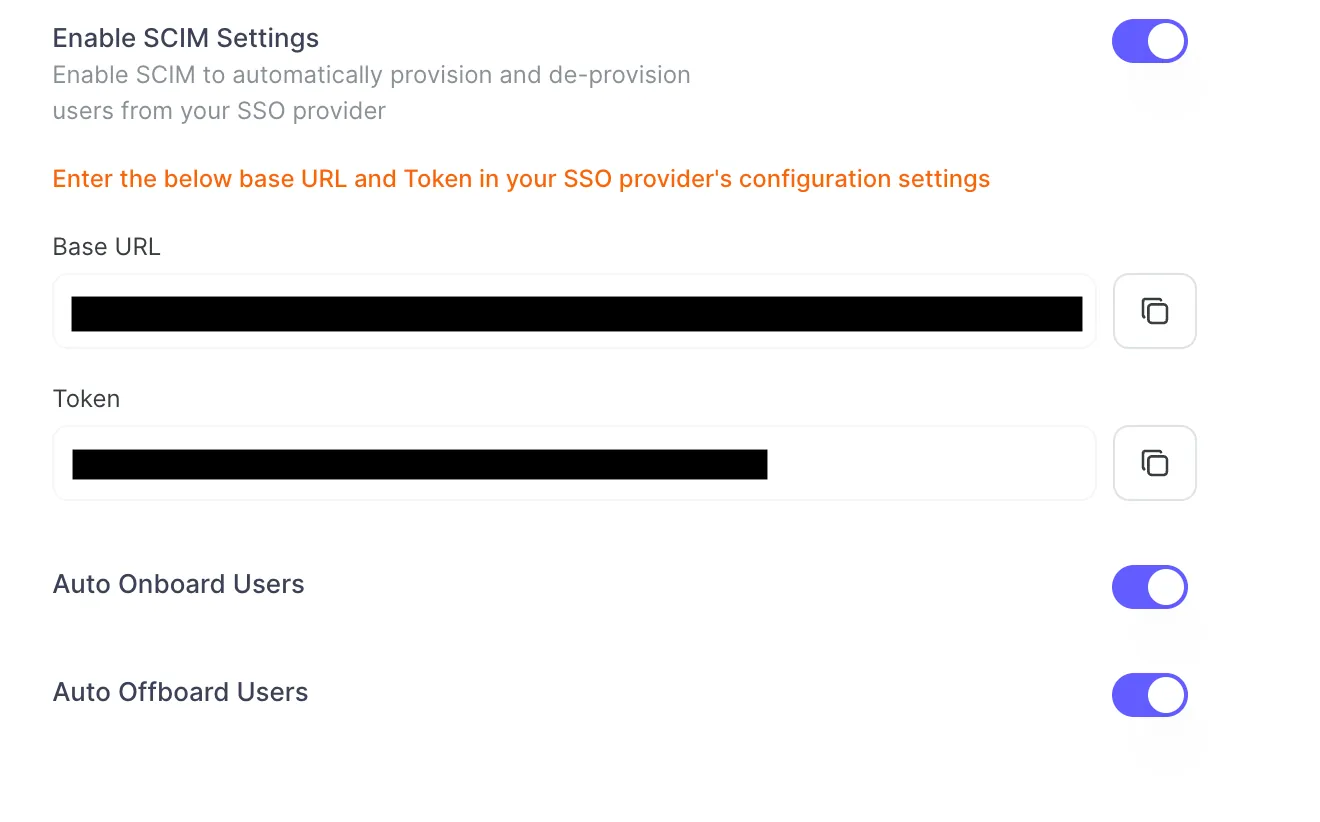
In the Okta Admin Console, open your Xurrent IMR application and go to
Provisioning → Integration, then click Edit:
2.0userNameHTTP HeaderBearer <your Zenduty SCIM token>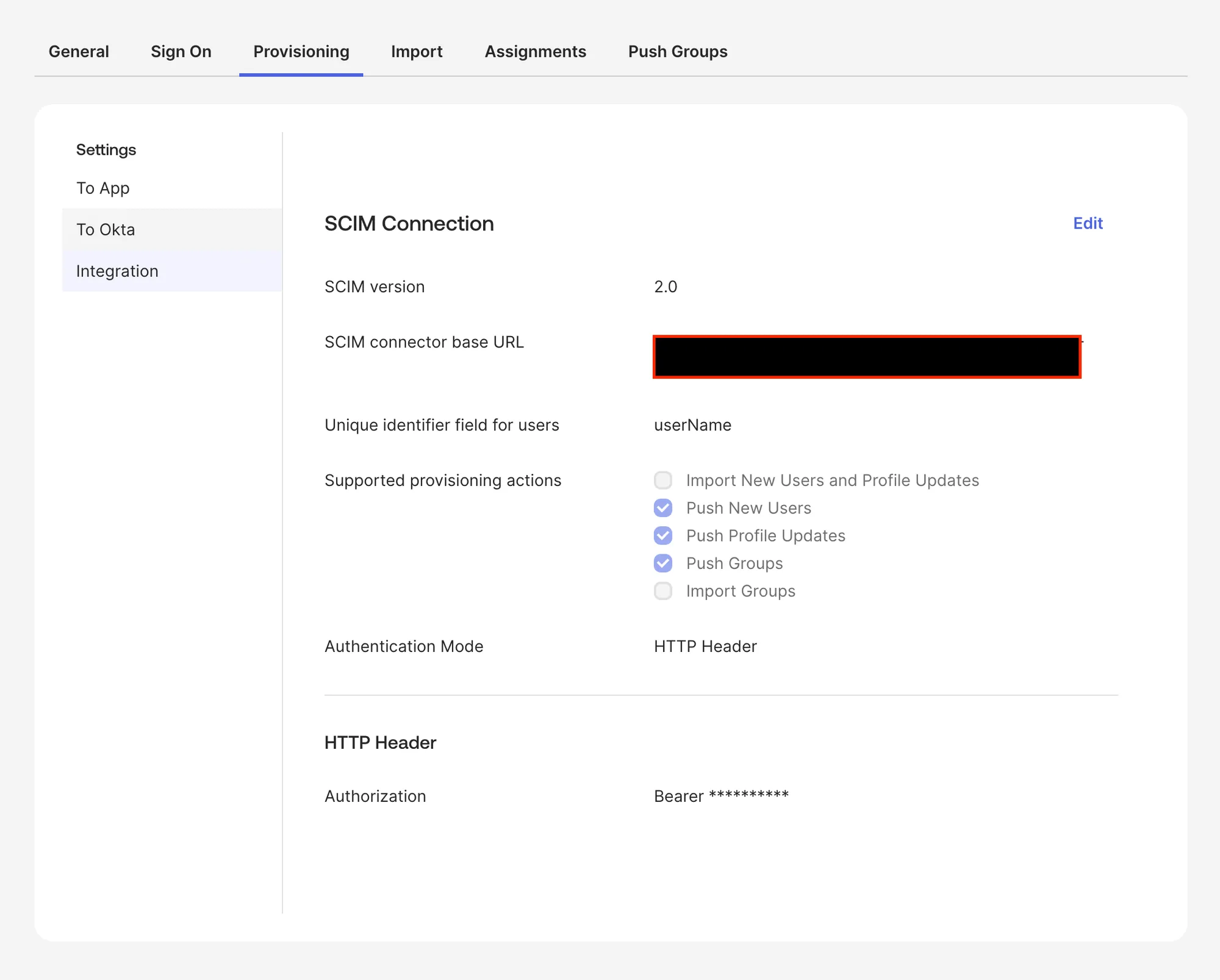
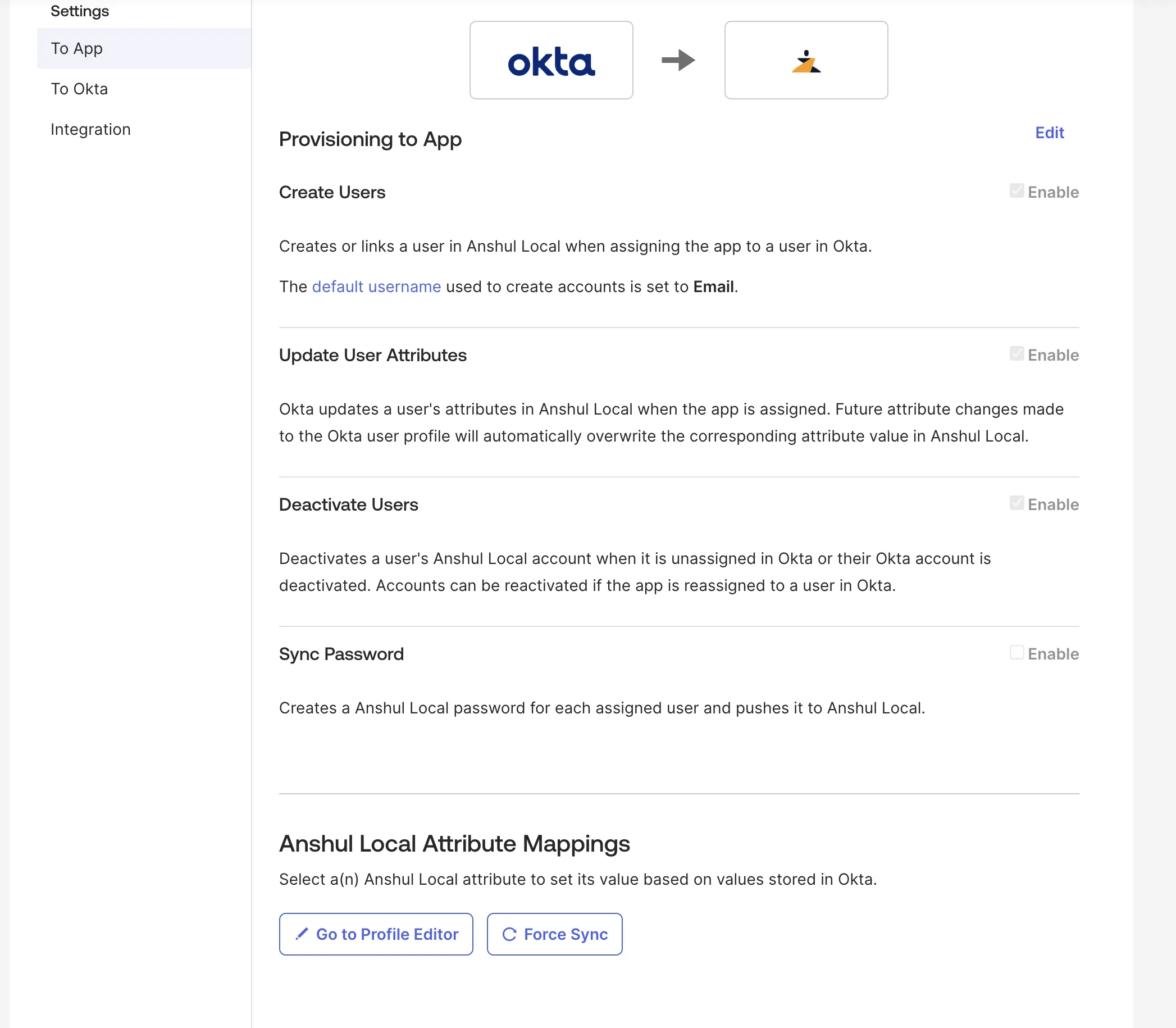
Open Provisioning → To App and click Edit. Enable the following
operations:
Note: The default username for account creation should be set to
Email (configured under Sign On). Sync Password must remain
disabled for SCIM.
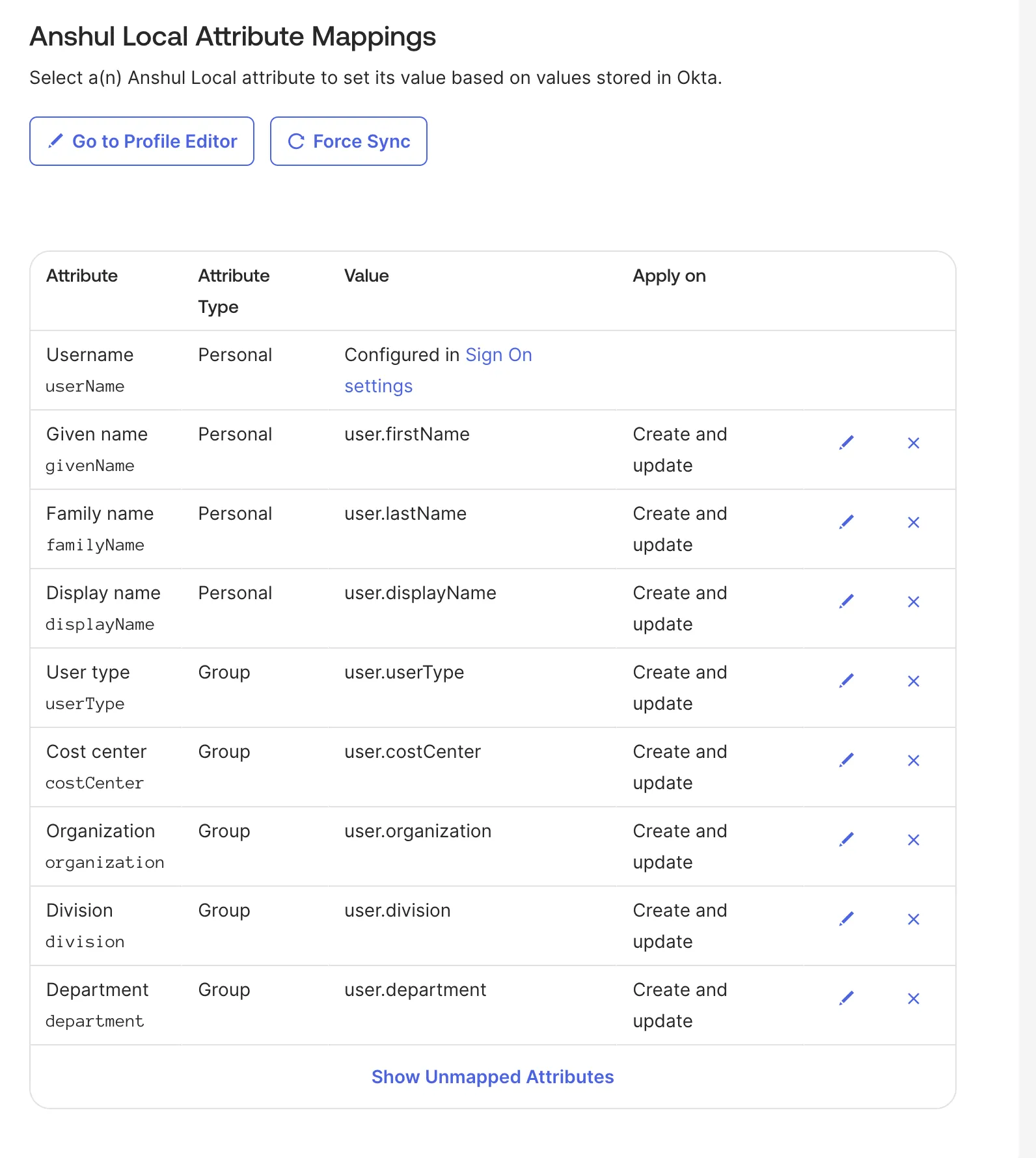
Open Provisioning → To App → Attribute Mappings and use the following
mapping set:
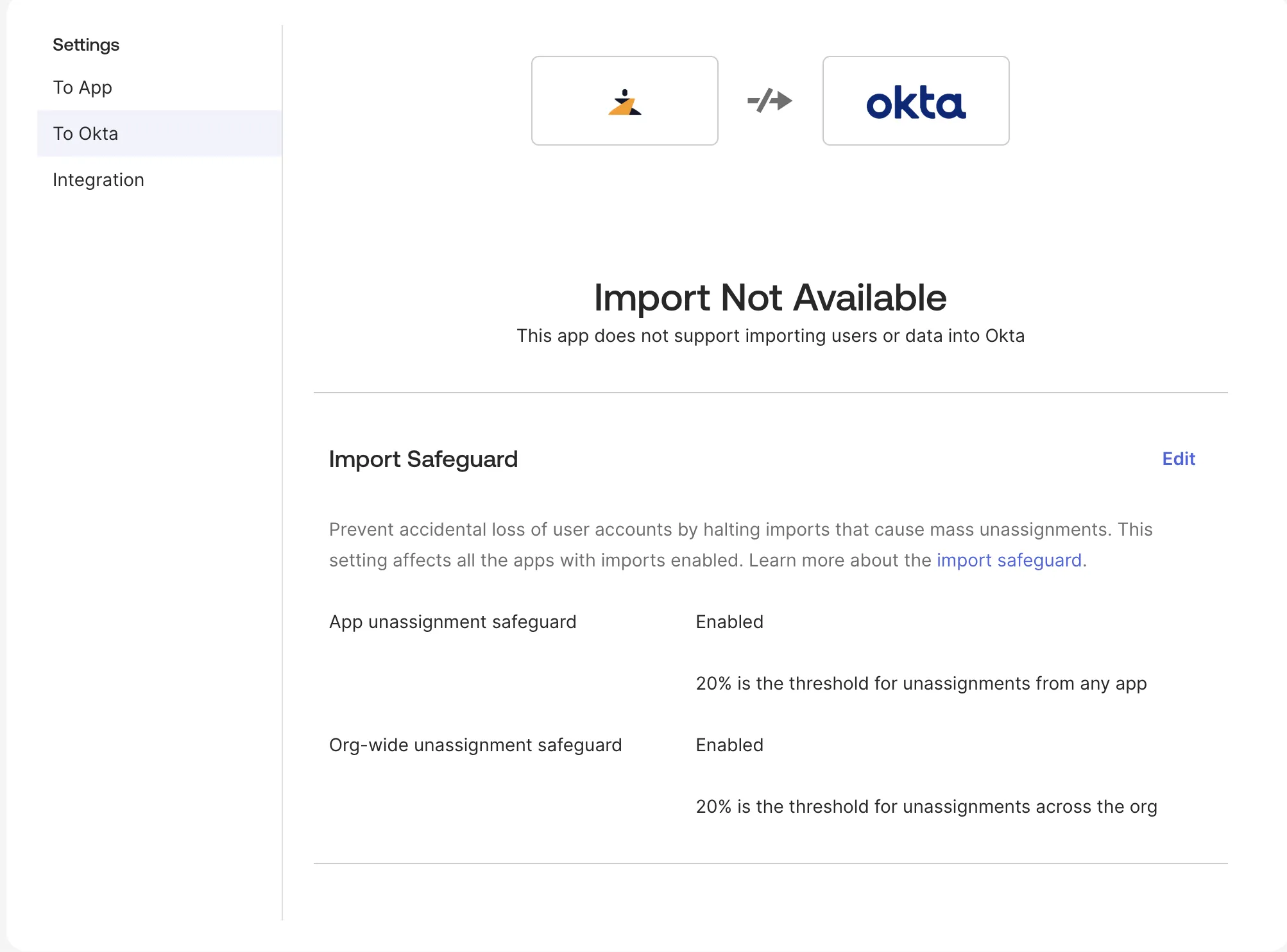
Under Provisioning → To Okta, the connector shows Import Not
Available.
This is expected—Xurrent IMR is treated as a downstream application and does
not import users into Okta.
Ensure Import Safeguard thresholds meet your org policy (20% by
default)
You have successfully set up SCIM-based user provisioning between OKTA and Xurrent IMR.

.webp)
.webp)